
Woox F7s501-JP
Woox Smart Plug User Manual
Model: F7s501-JP / ASIN: B0BZV4X2HB
Brand: Woox
Introduction
Thank you for choosing the Woox Smart Plug. This device allows you to control your home appliances remotely, set schedules, monitor energy consumption, and integrate with voice assistants like Amazon Alexa and Google Assistant. This manual provides essential information for setting up, operating, and maintaining your smart plug.

Figure 1: Front view of the Woox Smart Plug, showing the two-prong outlet and power button.
Safety Information
- Do not disassemble or modify the device.
- Keep away from water and high humidity environments.
- Do not exceed the maximum load of 15A, 1500W.
- Ensure the plug is securely inserted into a standard 100V, 50/60Hz outlet.
- For indoor use only.
Setup Guide
- Download the Woox Home App: Search for "Woox Home" on the App Store (iOS 8.0+) or Google Play Store (Android 4.1+).
Note: An active internet connection is required for app download and initial setup.
- Plug in the Smart Plug: Insert the Woox Smart Plug into a standard wall outlet. The indicator light on the plug will start blinking rapidly. If it does not blink rapidly, press and hold the power button on the plug for 5 seconds until it does.
- Connect to Wi-Fi:
- Open the Woox Home app and create an account or log in.
- Tap the "+" icon in the top right corner to add a new device.
- Select "Smart Plug" from the device list.
- Confirm that the indicator light on the plug is blinking rapidly.
- Enter your 2.4GHz Wi-Fi network name (SSID) and password. Note: The smart plug only supports 2.4GHz Wi-Fi networks.
- Follow the on-screen instructions to complete the pairing process. Once connected, the indicator light will turn solid blue.
- Rename the Device (Optional): After successful pairing, you can rename the smart plug within the app (e.g., "Living Room Lamp," "Coffee Maker") for easier identification and voice control.

Figure 2: A person using a smartphone to remotely control various home appliances, illustrating the convenience of the Woox Smart Plug.
Operating Instructions
Remote Control via App
Once the smart plug is set up, you can control connected appliances from anywhere using the Woox Home app. Simply tap the device icon to toggle power on or off. The app will display the current status of the plug.

Figure 3: A woman outside, using her smartphone to remotely operate home appliances connected to the smart plug, highlighting the convenience of control from anywhere.
Voice Control (Alexa/Google Assistant)
The Woox Smart Plug is compatible with Amazon Alexa and Google Assistant. To enable voice control:
- Open the Alexa or Google Home app.
- Go to "Skills & Games" (Alexa) or "Works with Google" (Google Home).
- Search for "Woox Home" and enable the skill/service.
- Link your Woox Home account.
- Discover devices.
You can now use voice commands such as:
- "Alexa, turn on the [device name]."
- "Hey Google, turn off the [device name]."

Figure 4: A person relaxing on a couch, using a smartphone to control various household appliances, demonstrating the ease of smart home operation.
Scheduling and Timer Functions
Set custom schedules and timers for your appliances to automate your home and save energy.
- Schedule: In the Woox Home app, select your smart plug, then navigate to the "Schedule" or "Timer" section. You can set specific times for the plug to turn on or off daily or on selected days of the week.
- Timer: Use the timer function for a one-time countdown to turn the device on or off after a set duration.

Figure 5: A cozy living room scene with text indicating "Schedule Function," highlighting the ability to set timers based on lifestyle.
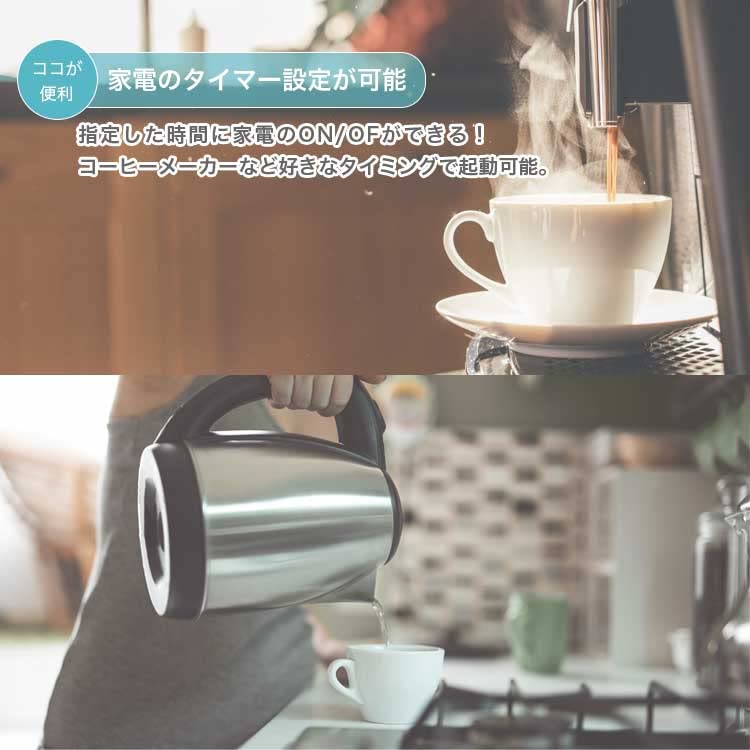
Figure 6: A coffee maker and kettle, illustrating how the timer function can be used to automatically turn on appliances at a designated time.
Energy Monitoring
The Woox Smart Plug allows you to monitor the real-time energy consumption of connected devices directly within the Woox Home app. This feature helps you understand and manage your power usage more efficiently.

Figure 7: An illustration showing hands calculating with an energy efficiency icon, symbolizing the energy-saving benefits and power consumption monitoring feature.
Sharing Device Control
You can share control of your smart plug with family members or other users through the Woox Home app. This allows multiple individuals to manage the connected appliances.

Figure 8: A family smiling and looking at a smartphone together, representing the ability to share device control among multiple users.
Maintenance
The Woox Smart Plug requires minimal maintenance. To ensure optimal performance and longevity:
- Keep the device clean by wiping it with a dry, soft cloth.
- Avoid using harsh chemicals or abrasive cleaners.
- Ensure proper ventilation around the plug and connected appliances.
- Unplug the device from the wall outlet before cleaning or if it will not be used for an extended period.
Troubleshooting
| Problem | Possible Cause / Solution |
|---|---|
| Device cannot connect to Wi-Fi. |
|
| Voice control (Alexa/Google Assistant) not working. |
|
| Plug is unresponsive. |
|
Specifications
| Feature | Detail |
|---|---|
| Model Number | F7s501-JP |
| ASIN | B0BZV4X2HB |
| Dimensions (LxWxH) | 45 x 70 x 35 mm |
| Weight | 70 g |
| Input Voltage | 100V AC, 50/60Hz |
| Max Output Current | 15A |
| Max Output Power | 1500W |
| Wireless Connectivity | Wi-Fi 2.4GHz (IEEE 802.11b/g/n) |
| Compatibility | Android 4.1+, iOS 8.0+ |
| Certifications | PSE(21031924), TELEC(211-190116) |
| Operating Mode | ON-OFF |
Warranty and Support
The Woox Smart Plug comes with a 1-year warranty from the date of purchase. This warranty covers defects in materials and workmanship under normal use.
For technical support or warranty claims, please contact our customer support team via email at info@stylenic.co.jp. Please provide your product model number and a detailed description of the issue.
Note: Due to package renewal, some older packages may be delivered. The product image and package may differ, but the product functionality remains the same.
Related Documents - F7s501-JP
 |
WOOX R6179 Smart Mini Plug Quick Guide Get started with your WOOX R6179 Smart Mini Plug. This quick guide provides essential information on setup, product features, and technical specifications for seamless smart home integration. |
 |
WOOX R6073 Dual Port Smart Plug Quick Start Guide Get started quickly with the WOOX R6073 Dual Port Smart Plug. This guide provides essential setup, usage, and safety information for your smart plug. |
 |
WOOX Dual Port Smart Plug R6153 Quick Start Guide Quick Start Guide for the WOOX Dual Port Smart Plug (R6153). Learn how to set up and use this smart plug with your 2.4GHz Wi-Fi network and smartphone via the WOOX Home app. Includes setup instructions, safety information, and support resources for smart home automation. |
 |
WOOX R4785 Smart Plug User Manual Comprehensive user manual for the WOOX R4785 Wi-Fi Smart Plug, covering setup, app integration with Amazon Alexa and Google Assistant, IFTTT connectivity, troubleshooting, and safety information. |
 |
WOOX R6169 Smart Plug Quick Start Guide Get started quickly with your WOOX R6169 Smart Plug. This guide provides essential setup instructions, safety information, and support details for your smart home device. |
 |
WOOX R6087 Smart Plug Quick Start Guide Get started with your WOOX R6087 Smart Plug. This guide provides essential instructions for setup, usage, safety, and maintenance, enabling remote control of home appliances via the WOOX Home app and integration with voice assistants. |
Ask a question about this manual
Ask about setup, troubleshooting, compatibility, parts, safety, or missing instructions. Manuals+ will review the question and use this page’s manual context to help answer it.