
Product Overview
The Vgate vLinker FS Bluetooth OBD2 Diagnostic Scan Tool is designed to provide comprehensive vehicle diagnostics and programming capabilities. It connects to your vehicle's On-Board Diagnostics (OBD2) port and communicates wirelessly with your smartphone, tablet, or computer via Bluetooth, offering access to various vehicle parameters and diagnostic trouble codes.

Figure 1: Vgate vLinker FS Bluetooth OBD2 Diagnostic Scan Tool
This image shows the Vgate vLinker FS Bluetooth device, a compact black unit with indicator lights for Bluetooth, OBD, Host, and Power, and the vLinker FS Bluetooth logo.
Setup Guide
1. Locate the OBD2 Port
The OBD2 port is typically located under the dashboard on the driver's side of the vehicle. Refer to your vehicle's owner's manual for the exact location.
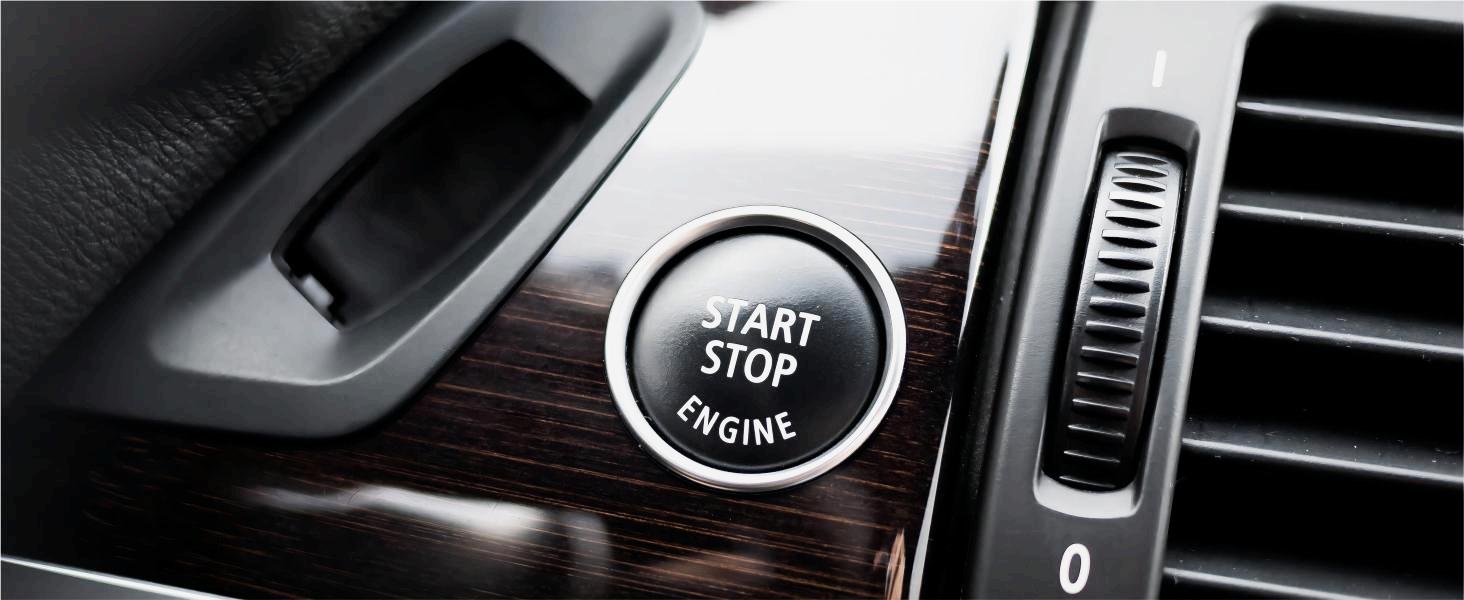
Figure 2: Typical OBD2 Port Location
This image illustrates the common placement of the OBD2 port, usually found beneath the steering wheel on the driver's side.
2. Connect the vLinker FS Device
Plug the Vgate vLinker FS device firmly into your vehicle's OBD2 port. Ensure the connection is secure. The device's power indicator light should illuminate.
3. Pair via Bluetooth
Press the black 'Connect' button on the Vgate vLinker FS device. Then, enable Bluetooth on your iOS, Android, or Windows device. Search for available Bluetooth devices and select 'vLinker FS' followed by its serial number (e.g., 'vLinker FS 23298'). Follow the on-screen prompts to complete the pairing process. For iOS, a pairing code will be randomly generated.

Figure 3: Bluetooth Pairing Steps
This image displays screenshots of the Bluetooth pairing process on both Android and iOS devices, showing how to select the vLinker FS and confirm the pairing.
4. Install and Configure OBD2 App
Download a compatible OBD2 diagnostic application from your device's app store (e.g., FORScan Lite, Torque Pro, Car Scanner). Many apps are currently available on Android; confirm iOS app compatibility with the provider. Open the app and select the vLinker FS as your Bluetooth adapter within the app's settings.
Video 1: Features of Vgate vLinker FS Bluetooth OBD2
This video demonstrates the key features and functionalities of the Vgate vLinker FS Bluetooth OBD2 device, including its connectivity and diagnostic capabilities.
Operating Instructions
Diagnostic Functions
Once connected, use your chosen OBD2 app to perform various diagnostic functions:
- Read/Clear Trouble Codes: Access and clear Diagnostic Trouble Codes (DTCs) to identify and resolve vehicle issues.
- Live Data Stream: Monitor real-time vehicle sensor data, such as engine RPM, coolant temperature, fuel system status, and more.
- Freeze Frame Data: View a snapshot of vehicle conditions at the moment a trouble code was set.
- I/M Readiness: Check the status of emission-related monitors to ensure your vehicle is ready for an emissions test.
Advanced Features
The vLinker FS supports advanced features for enhanced diagnostics and programming:
- MS-CAN Protocol Support: Access proprietary Ford networks in addition to the 5 standard OBD-II protocols.
- Configuration & Programming: Supports FEPS 18V programming voltage output in FOR-Scan Lite for specific vehicle configurations.
- Faster Work Efficiency: Achieves up to 3Mpbs baud rate and OBD request bytes up to 4K bytes, enabling smoother graphics and faster programming.
- 24V Automotive System Compatibility: Safely usable on both 12V and 24V automotive systems.
- BatterySaver Technology: Features an operating current of 28 mA and automatic sleep in idle state, with sleep current as low as 3 mA, making it safe to leave plugged in.

Figure 4: Faster Programming Capability
This image highlights the vLinker FS Bluetooth's superior speed compared to other scanners, showcasing its 3Mpbs baud rate and 4K byte OBD request capability for faster and smoother programming.

Figure 5: Safe to Leave Plugged In
This image illustrates the safety features of the vLinker FS, including hacker-proof design, Battery Saver auto sleep mode, easy Bluetooth connectivity, and overvoltage protection, allowing it to be safely left plugged into the vehicle.

Figure 6: FORScan Recommended
This image shows the vLinker FS device connected to both a laptop and a smartphone running FORScan Lite, emphasizing its compatibility and recommendation by the FORScan team for advanced diagnostics.

Figure 7: More Apps Supported
This image displays the vLinker FS device alongside three smartphones running different OBD2 applications (Jeep OBD, FORScan Lite, ALFAOBD Demo), highlighting its broad compatibility with powerful third-party apps across iOS (MFi) and Android platforms.

Figure 8: Broad Vehicle Compatibility
This image illustrates the vLinker FS's compatibility with various car models from different years (1996 US-based, 2000 EU-based, 2005 Asia-based) and its support for all OBD2 protocols, including MS CAN, ISO15765-4 (CAN), ISO14230-4, ISO9141-2, J1850 VPW, and J1850 PWM.
Maintenance
Firmware Upgrades
The Vgate vLinker FS supports free firmware upgrades to ensure optimal performance and compatibility with new vehicles and software. To update the firmware, scan the QR code provided in the manual or on the product packaging to download the 'VgateFwUpdater' app. Open the app, connect to your device, and follow the on-screen instructions to download and install the latest firmware. During the upgrade process, the blue (BT) and orange (Host) lights on the device will stay on.

Figure 9: Firmware Update Steps
This image details the four-step process for updating the vLinker FS Bluetooth firmware using the VgateFwUpdater app, including scanning a QR code, auto-connecting, downloading, and waiting for a successful upgrade. A note indicates that pirated products cannot be upgraded.
For the firmware update app, visit: https://qr19.cn/FlO50K
Physical Care
The device features gold-plated OBD pins for better conductivity, stable transmission, and long-lasting corrosion resistance. Keep the device clean and free from dust and moisture. Do not attempt to disassemble the device.
Troubleshooting
- Device Not Powering On: Ensure the device is securely plugged into the OBD2 port and the vehicle's ignition is on. Check your vehicle's fuse box for any blown fuses related to the OBD2 port.
- Bluetooth Pairing Issues: Make sure the black 'Connect' button on the vLinker FS is pressed. Disable and re-enable Bluetooth on your device. Try restarting both the vLinker FS and your smart device.
- App Connectivity Problems (iOS MFi): Some iOS apps may not support MFi connection directly. Use the 'VgateFwUpdater' app to switch between MFi and BLE+BT modes as needed. This can resolve compatibility issues with third-party apps or revert to default settings.
- No Data or Incorrect Readings: Verify that your OBD2 app is correctly configured to use the vLinker FS as its adapter. Ensure your vehicle is OBD2 compliant (most vehicles manufactured after 1996 in the US are).
- Firmware Update Failure: Ensure a stable internet connection during the update. Do not disconnect the device or power off your smart device during the update process. If issues persist, try again or contact support.
Specifications
| Feature | Specification |
|---|---|
| Brand | Vgate |
| Model | vLinker FS Bluetooth MFi |
| Item Weight | 3.2 ounces |
| Product Dimensions | 2.4 x 1.8 x 0.9 inches |
| Operating System Compatibility | Android, iOS, Windows |
| Manufacturer Part Number | vLinker FS BT |
| Baud Rate | Up to 3Mpbs |
| OBD Request Bytes | Up to 4K bytes |
| Operating Current | 28 mA |
| Sleep Current | As low as 3 mA |
| Voltage Compatibility | 12V and 24V automotive systems |
Warranty and Support
For any product inquiries, technical assistance, or warranty claims, please reach out to the Vgatemall team. Free firmware upgrades are available, and support is provided to ensure your device functions optimally.
You can find additional information and support resources on the official Vgate store page: Vgate Amazon Store
A PDF version of the user manual is also available for download: User Manual (PDF)
