
1. Introduction and Overview
The ViewSonic OMNI VX2428 is a 24-inch (23.8-inch viewable) Full HD monitor designed for gaming and entertainment. It features a sleek 3-sided frameless design, providing an immersive viewing experience, especially in multi-monitor setups. Key performance specifications include a 180Hz refresh rate and a 0.5ms (MPRT) response time, which, combined with AMD FreeSync Premium technology, aim to deliver a fluid and tear-free gaming experience. Connectivity options include two HDMI (v1.4) inputs and one DisplayPort (v1.2) input.

Image: The ViewSonic VX2428 monitor showcasing its high refresh rate, low response time, and FreeSync Premium features during a gaming session.
Video: An official overview of the ViewSonic OMNI VX2428 monitor, highlighting its key features such as adaptive synchronization, refresh rate, response time, and HDR10 support.
2. Setup Instructions
2.1 What's in the Box
Before beginning, ensure all components are present:
- ViewSonic VX2428 Monitor
- Power Cable (may vary by region)
- DisplayPort Cable
- QuickStart Guide

Image: The ViewSonic VX2428 monitor and its included accessories: power cable, DisplayPort cable, and QuickStart Guide.
2.2 Stand Assembly
- Carefully remove the monitor and stand components from the packaging.
- Attach the stand base to the stand neck, securing it with the provided screw.
- Align the assembled stand with the mounting points on the back of the monitor.
- Secure the stand to the monitor until it clicks into place or is fastened with screws, depending on the design.
2.3 Connecting Cables
Connect the necessary cables to the monitor and your computer or other devices:
- Power Cable: Connect one end to the monitor's power input and the other to a power outlet.
- DisplayPort Cable: For optimal performance (180Hz refresh rate), connect the included DisplayPort cable from your computer's graphics card to the monitor's DisplayPort input.
- HDMI Cables: Alternatively, connect up to two HDMI cables from your devices to the monitor's HDMI inputs.
- Audio Out: If using external speakers or headphones, connect them to the Audio Out port.
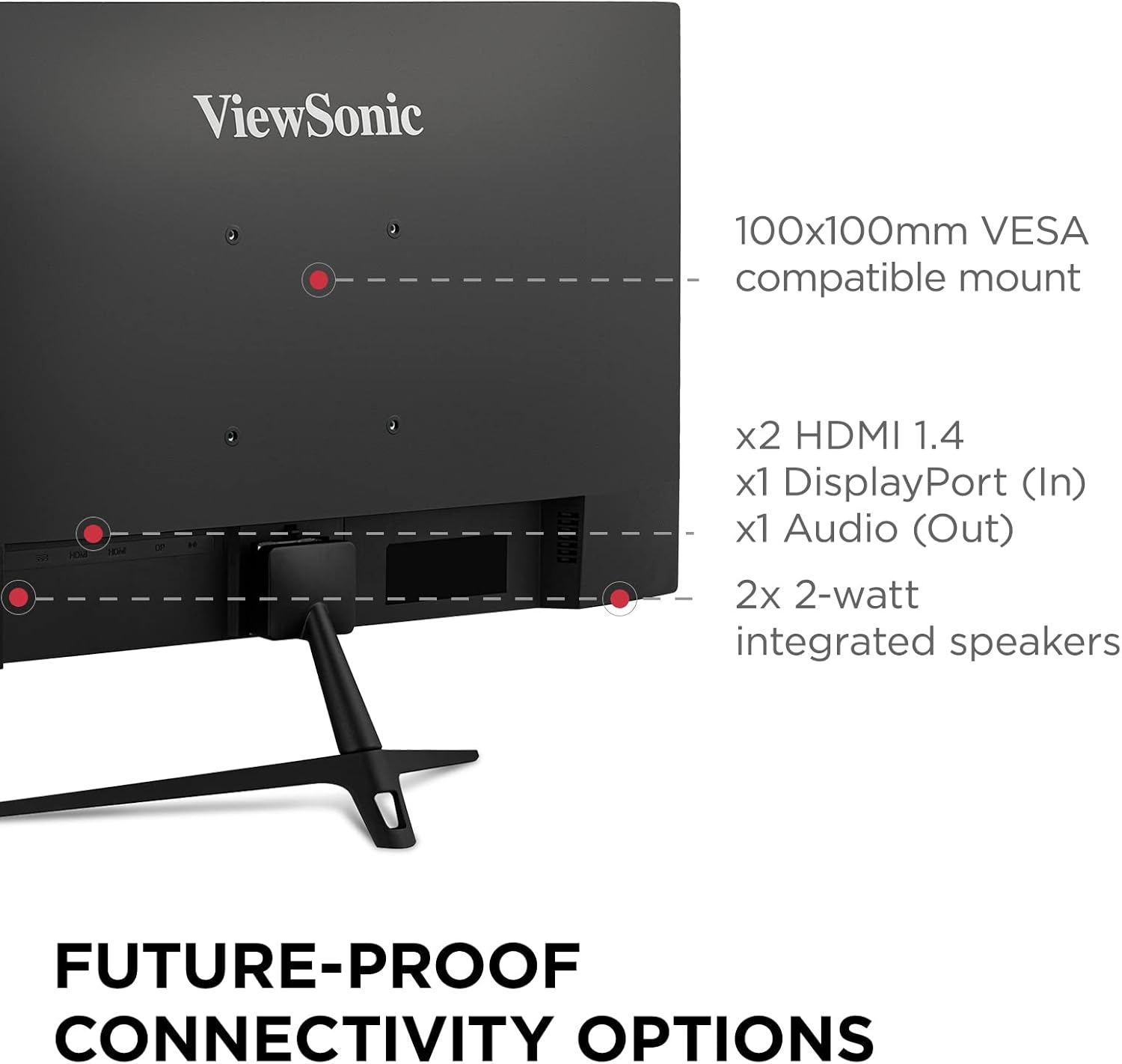
Image: Detailed view of the monitor's rear panel, highlighting the HDMI, DisplayPort, and Audio Out ports, along with the VESA mount and integrated speakers.

Image: Visual representation of the monitor's HDMI, DisplayPort, and Audio Out connectivity options.
3. Operating Instructions
3.1 Power On/Off
Press the power button located on the monitor's bottom right side to turn the monitor on or off. The power indicator light will illuminate when the monitor is on.
3.2 On-Screen Display (OSD) Menu Navigation
Use the control buttons (usually located on the bottom or rear of the monitor) to access and navigate the OSD menu. The OSD menu allows you to adjust various display settings.
3.3 Adjusting Display Settings
Within the OSD menu, you can customize settings such as:
- Brightness/Contrast: Adjust for desired image luminance.
- Color Settings: Fine-tune color temperature, gamma, and individual RGB levels.
- Input Select: Manually switch between DisplayPort and HDMI inputs.
- View Modes: Select pre-calibrated modes for different content types (e.g., Standard, Game, Movie, Text, Mono, Web).
- Response Time: Adjust the pixel response time for reduced motion blur.
- Black Stabilization: Enhance visibility in dark scenes.
- Overclocking: Enable to achieve the maximum 180Hz refresh rate via DisplayPort.

Image: Examples of various view modes (Movie, Mono, Text, Game, Web) available on the monitor.
4. Display Features
4.1 High Refresh Rate and Response Time
The VX2428 features a 180Hz refresh rate and a 0.5ms (MPRT) response time, crucial for smooth motion and reduced ghosting in fast-paced gaming scenarios.

Image: The monitor highlighting its 180Hz refresh rate, 0.5ms MPRT, and AMD FreeSync Premium for optimal gaming visuals.

Image: A visual demonstration of a high refresh rate, showing multiple frames for smoother motion.

Image: A comparison illustrating the difference between normal and fastest response times, demonstrating reduced motion blur.
4.2 AMD FreeSync Premium
AMD FreeSync Premium technology synchronizes the monitor's refresh rate with your graphics card's frame rate, eliminating screen tearing and stuttering for a seamless gaming experience.

Image: A visual comparison demonstrating the effect of AMD FreeSync Premium, showing a tear-free image when enabled.
4.3 Full HD IPS Panel
The 24-inch Full HD (1920x1080p) IPS panel delivers vibrant colors, enhanced contrast, and wide 178-degree viewing angles.

Image: The monitor highlighting its IPS panel for enhanced contrast and wider viewing angles.

Image: A visual representation of the monitor's wide 178-degree viewing angles.

Image: A comparison demonstrating the clarity of Full HD (1920x1080) resolution versus standard HD.
4.4 Eye Care Technology
The monitor incorporates Flicker-Free technology and a Blue Light Filter to reduce eye strain and fatigue during extended viewing periods.

Image: A visual explanation of eye-care technology, including Flicker-Free and Blue Light Filter features.
4.5 HDR10 Content Support
The monitor supports HDR10 content, providing deeper contrast, richer colors, and more vibrant details for compatible media.
5. Connectivity Options
The VX2428 offers versatile connectivity for various devices:
- 2 x HDMI (v1.4): For connecting gaming consoles, Blu-ray players, or other HDMI-enabled devices.
- 1 x DisplayPort (v1.2): Recommended for PC gaming to achieve the highest refresh rates and FreeSync Premium.
- 1 x Audio Out: For connecting external speakers or headphones.
5.1 Integrated Speakers
The monitor includes two 2-watt integrated speakers for basic audio output.

Image: The rear of the monitor, indicating the position of the integrated 2-watt speakers.
5.2 VESA Mount Compatibility
The monitor is compatible with 100x100mm VESA mounts, allowing for flexible installation options such as wall mounting or multi-monitor setups.

Image: A monitor mounted on an arm, demonstrating its 100x100mm VESA mount compatibility for flexible setups.

Image: A multi-monitor setup demonstrating the seamless viewing experience provided by the monitor's frameless design.
6. Maintenance
To ensure the longevity and optimal performance of your ViewSonic VX2428 monitor, follow these maintenance guidelines:
- Cleaning the Screen: Gently wipe the screen with a soft, lint-free cloth. For stubborn marks, use a monitor-specific cleaning solution applied to the cloth, not directly to the screen.
- Cleaning the Casing: Use a soft, dry cloth to clean the monitor's casing. Avoid abrasive cleaners or solvents.
- Ventilation: Ensure the monitor's ventilation openings are not blocked to prevent overheating.
- Power Off When Not in Use: Turn off the monitor when not in use for extended periods to save energy and prolong its lifespan.
- Avoid Direct Sunlight: Do not expose the monitor to direct sunlight or extreme temperatures.
7. Troubleshooting
If you encounter issues with your ViewSonic VX2428 monitor, refer to the following common troubleshooting steps:
7.1 No Image or "No Signal" Message
- Check if the monitor is powered on and the power indicator light is illuminated.
- Verify that the video cable (DisplayPort or HDMI) is securely connected to both the monitor and your computer/device.
- Ensure the correct input source is selected on the monitor via the OSD menu.
- Test with a different video cable or another device to rule out cable or source issues.
7.2 Display Problems (Flickering, Distorted Image, Incorrect Colors)
- Adjust the monitor's resolution and refresh rate settings in your computer's display settings.
- Reset the monitor to its factory default settings via the OSD menu.
- Update your graphics card drivers to the latest version.
- Check for any physical damage to the video cable or monitor ports.
7.3 Refresh Rate Not Reaching 180Hz
- Ensure you are using a DisplayPort connection. HDMI 1.4 may not support 180Hz.
- Verify that the refresh rate is set to 180Hz in your computer's display settings.
- Check the monitor's OSD menu for an "Overclocking" option and enable it if available.
- Ensure your graphics card supports 180Hz at 1080p resolution.
7.4 No Audio from Integrated Speakers
- Check the volume settings on both the monitor (via OSD) and your computer/device.
- Ensure the audio output is directed to the monitor in your computer's sound settings.
- If using HDMI, ensure the HDMI cable supports audio transmission.
8. Specifications
| Feature | Specification |
|---|---|
| Screen Size | 24 inches (23.8 inches viewable) |
| Resolution | Full HD (1920x1080p) |
| Panel Type | IPS |
| Refresh Rate | 180Hz (via DisplayPort) |
| Response Time | 0.5ms (MPRT) |
| Adaptive Sync | AMD FreeSync Premium |
| HDR Support | HDR10 |
| Connectivity | 2x HDMI (v1.4), 1x DisplayPort (v1.2), 1x Audio Out |
| Speakers | 2x 2-watt integrated speakers |
| VESA Mount | 100x100mm |
| Dimensions (LxWxH) | 7.2 x 21.3 x 16.3 inches (with stand) |
| Weight | 6.82 pounds |
| Color | Black |

Image: Physical dimensions of the ViewSonic VX2428 monitor.
9. Warranty and Support
For warranty information and technical support, please refer to the official ViewSonic website or contact their customer service. Keep your purchase receipt for warranty claims.
Official ViewSonic Website: www.viewsonic.com


