
Radtel RT-490
Radtel RT-490 Amateur Radio User Manual
Model: RT-490 | Brand: Radtel
1. Introduction
The Radtel RT-490 is a versatile dual-band amateur radio designed for reliable communication. Featuring GPS functionality and Bluetooth app programming, it offers enhanced convenience and precision for radio enthusiasts. This manual provides detailed instructions for setting up, operating, and maintaining your RT-490 radio.
2. Package Contents
Before you begin, please verify that all items listed below are present in your package:

This image displays the complete contents of the Radtel RT-490 product package. It includes the RT-490 radio unit, a lithium-ion battery pack, a flexible antenna, a desktop charging cradle, a USB charging cable, and a user manual. The packaging box is also visible.
- Radtel RT-490 Radio Unit
- Lithium-ion Battery Pack
- Antenna
- Desktop Charging Cradle
- USB Charging Cable
- User Manual
3. Product Features
The Radtel RT-490 is equipped with advanced features to enhance your radio experience:
- Dual-Band Operation: Supports 144-146MHz and 430-440MHz amateur bands.
- GPS Functionality: Send and receive GPS position information.
- Bluetooth App Programming: Conveniently program your radio via a smartphone app.
- Frequency Measurement: Quickly identify and communicate with other radios within close proximity.
- Wide Frequency Reception: Capable of receiving various frequency types including Aviation, VHF, UHF, and 222MHz.
- Long Range: Designed for extended communication distances.
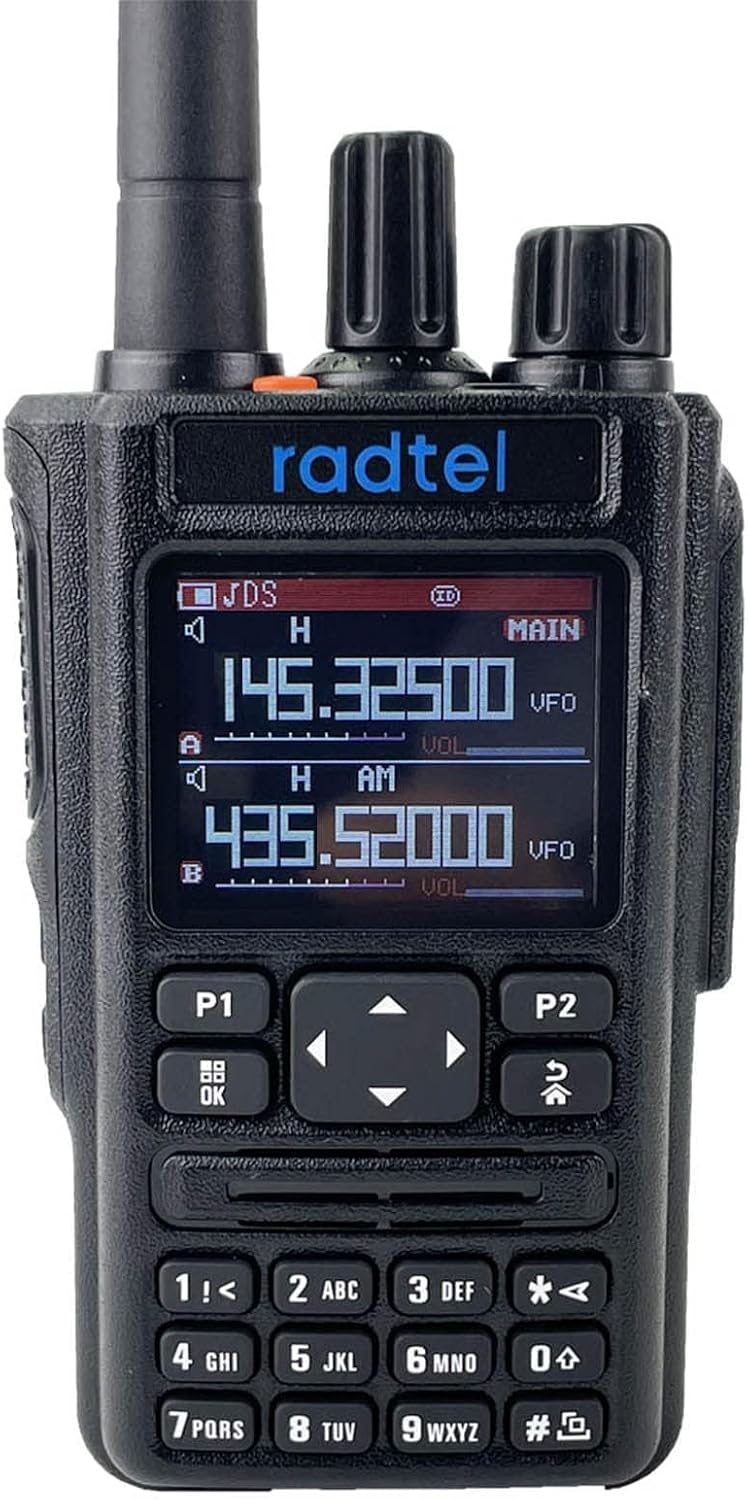
This image displays the front of the Radtel RT-490 amateur radio, highlighting its clear digital display, function buttons, and rotary knobs for volume and channel selection. The screen shows active frequencies for both upper and lower bands.
4. Setup
4.1 Battery Installation
- Align the battery pack with the grooves on the back of the radio.
- Slide the battery pack upwards until it clicks into place.
- To remove, press the battery release latch (if present) and slide the battery downwards.
4.2 Antenna Attachment
- Screw the antenna clockwise onto the connector at the top of the radio until it is finger-tight.
- Do not overtighten.
4.3 Initial Charging
- Place the radio (with battery installed) into the desktop charging cradle.
- Connect the USB charging cable to the cradle and a suitable USB power source (e.g., wall adapter, computer USB port).
- The charging indicator light on the cradle will illuminate, typically red during charging and green when fully charged.
- Charge the radio for approximately 4-6 hours before first use.
5. Operating Instructions
5.1 Basic Operation
- Power On/Off: Rotate the power/volume knob clockwise to turn on the radio. Continue rotating to adjust volume. Rotate counter-clockwise until it clicks to turn off.
- Channel/Frequency Selection: Use the up/down arrow keys or the rotary encoder (if available) to change channels or frequencies.
- Transmit (PTT): Press and hold the Push-To-Talk (PTT) button on the side of the radio to transmit. Release to receive.
5.2 Bluetooth App Programming
The RT-490 can be programmed wirelessly using a dedicated smartphone application via Bluetooth.

This image illustrates the Radtel RT-490's Bluetooth programming capability. The radio is shown alongside a smartphone displaying the dedicated programming application. It highlights the 144-146MHz and 430-440MHz frequency bands, along with icons for GPS and Bluetooth connectivity. A QR code for Android app download and instructions for iOS app search are also visible.
- Ensure Bluetooth is enabled on your smartphone.
- Download the programming app:
- For Android: Scan the QR code provided in the product information or download the APK directly from this link.
- For iOS: Search for "quanzhou kediheng" in the App Store.
- Open the app and follow the on-screen instructions to pair with your RT-490 radio.
- Once connected, you can manage channels, frequencies, and other settings directly from your phone.
5.3 GPS Functionality
The RT-490 can send and receive GPS position information, which is useful for location tracking and coordination with other RT-490 users.

This image focuses on the Radtel RT-490's integrated GPS functionality. The radio's display shows 'My Place' and 'Searching' along with placeholder coordinates, indicating its ability to acquire and display location information. The GPS logo is prominently featured.
- To activate GPS, navigate to the GPS menu on your radio.
- The radio will attempt to acquire satellite signals. Once acquired, your current coordinates will be displayed.
- Refer to the detailed in-app or on-screen instructions for sending your GPS position to other RT-490 radios.
5.4 Frequency Measurement
The RT-490 features a unique frequency measurement function that allows you to quickly identify the frequency and CTCSS/DCS tone of another nearby radio.

This image highlights the Radtel RT-490's frequency measurement feature. Two radios are depicted, with text indicating the ability to 'Seek other radio and CTCSS To make call immediately' within a 1-meter distance. This function allows for quick identification and communication with nearby compatible radios.
- Activate the frequency measurement mode (refer to your radio's menu for exact steps).
- Place the RT-490 within 1 meter of the radio you wish to measure.
- The RT-490 will scan and display the detected frequency and tone, allowing you to quickly set your radio to communicate.
5.5 Supported Frequency Bands
The Radtel RT-490 supports a wide range of frequencies for both transmission and reception.

This image demonstrates the multi-band reception capabilities of the Radtel RT-490. It shows the radio with annotations pointing to different frequency types it can receive, including 144-148MHz (2 Meters), 420-450MHz (70 Centimeters), 222-225MHz (1.25 Meters), and AM Air band receiving, along with general Radio, Aviation, VHF, UHF, and 222MHz frequencies.
- Amateur Bands: 144-148 MHz (VHF), 420-450 MHz (UHF)
- Additional Reception: 222-225 MHz (1.25 Meters), AM Air Band, and other general radio frequencies.
6. Maintenance
- Cleaning: Use a soft, damp cloth to clean the radio's exterior. Do not use harsh chemicals or abrasive cleaners.
- Battery Care: To prolong battery life, avoid fully discharging the battery frequently. Store the radio and battery in a cool, dry place when not in use for extended periods.
- Storage: Store the radio in a dry environment, away from direct sunlight and extreme temperatures.
7. Troubleshooting
| Problem | Possible Cause | Solution |
|---|---|---|
| Radio does not power on. | Battery is low or not installed correctly. | Charge the battery fully. Ensure the battery is securely attached. |
| Cannot transmit. | Incorrect frequency/channel, low battery, or antenna issue. | Verify frequency/channel settings. Charge battery. Check antenna connection. |
| Cannot connect to Bluetooth app. | Bluetooth not enabled, app issue, or radio not in pairing mode. | Ensure Bluetooth is on for both devices. Restart app/radio. Follow app pairing instructions. |
| Poor reception/transmission range. | Obstructions, antenna not properly attached, or environmental factors. | Move to an open area. Ensure antenna is secure. Avoid large metal objects or buildings. |
8. Specifications
| Feature | Specification |
|---|---|
| Brand | Radtel |
| Model Number | RT-490 |
| Color | Black |
| Frequency Range | 144-148 MHz, 420-450 MHz |
| Number of Channels | 256 |
| Max Range | 10 Kilometers |
| Tuning Technology | UHF |
| Voltage | 5 Volts (DC) |
| Battery Type | Lithium-ion (1 included) |
| Rechargeable Battery | Yes |
| Special Features | Long range, GPS, Bluetooth App Programming |
| Compatible Devices | Bluetooth devices |
9. Warranty and Support
The Radtel RT-490 comes with a 1-year manufacturer's warranty from the date of purchase. This warranty covers defects in materials and workmanship under normal use.
For technical support, troubleshooting assistance, or warranty claims, please contact your retailer or the official Radtel support channels. Please have your product model number (RT-490) and proof of purchase ready when contacting support.
Related documentsRT-490


Ask a question about this manual
Ask about setup, troubleshooting, compatibility, parts, safety, or missing instructions. Manuals+ will review the question and use this page’s manual context to help answer it.