Introduction
This manual provides essential information for the proper use and maintenance of your Bmax 14-inch Laptop, Model BMAX S14A. Please read this guide thoroughly before operating your device to ensure optimal performance and longevity. Keep this manual for future reference.
Product Overview
Familiarize yourself with the components and features of your Bmax laptop.
Laptop Components


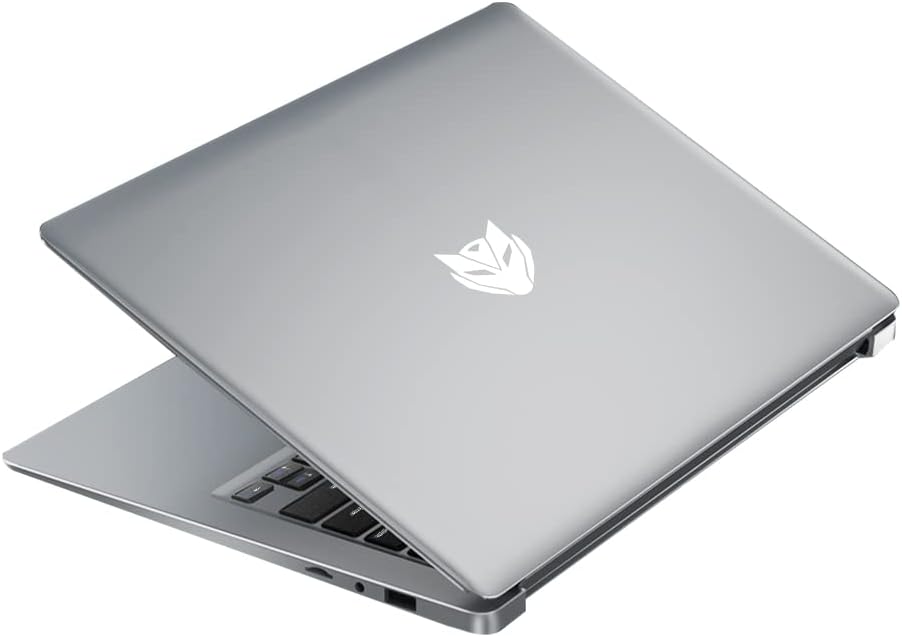
Setup
Initial Power On
- Unpack: Carefully remove the laptop and all accessories from the packaging.
- Connect Power: Plug the power adapter into the laptop's charging port and then into a wall outlet.
- Power On: Open the laptop lid and press the power button located on the keyboard. The laptop will boot up and guide you through the initial Windows setup process.
Charging the Battery
For first-time use, it is recommended to fully charge the laptop battery. The charging indicator light will typically show orange or red while charging and turn white or off when fully charged. A full charge provides approximately 8 hours of battery life.

Connecting Peripherals
Use the available ports to connect external devices:
- USB Ports: For mice, keyboards, external hard drives, and other USB devices.
- HDMI Port: To connect to an external monitor or TV.
- Audio Jack: For headphones or external speakers.
Operating Instructions
Power On/Off
- To Power On: Press the power button.
- To Shut Down: Click the Start button, then Power, and select 'Shut down'.
- To Restart: Click the Start button, then Power, and select 'Restart'.
- To Sleep: Close the lid or click the Start button, then Power, and select 'Sleep'.
Using the Touchpad
The laptop features a precision touchpad supporting multi-touch gestures for enhanced navigation:


Keyboard Functions
The keyboard includes standard keys and function keys (F1-F12) that can be activated with the 'Fn' key for special functions like adjusting brightness, volume, or toggling Wi-Fi.
Connecting to Wi-Fi
- Click the Wi-Fi icon in the system tray (usually bottom-right of the screen).
- Select your desired network from the list.
- Enter the network password if prompted and click 'Connect'.
Using External Displays (HDMI)
Connect an HDMI cable from your laptop's HDMI port to an external monitor or TV. The display settings can be adjusted in your operating system to extend, duplicate, or use only the external display.
Maintenance
Cleaning
- Screen: Use a soft, lint-free cloth slightly dampened with water or a screen cleaner. Avoid harsh chemicals.
- Keyboard and Casing: Use a soft cloth. For dust, a can of compressed air can be used.
Battery Care
- Avoid fully discharging the battery frequently.
- Do not expose the laptop to extreme temperatures.
- If storing the laptop for an extended period, charge the battery to about 50-60%.
Storage
Store the laptop in a cool, dry place away from direct sunlight and extreme temperatures. Use a protective sleeve or bag when transporting.
Software Updates
Regularly check for and install operating system and driver updates to ensure optimal performance and security.
Troubleshooting
This section addresses common issues you might encounter with your Bmax laptop.
- Laptop does not power on: Ensure the power adapter is securely connected and the battery has sufficient charge. Try a different power outlet.
- Screen is blank or flickering: Restart the laptop. If connected to an external monitor, try disconnecting it. Check display settings.
- Wi-Fi connection issues: Ensure Wi-Fi is enabled. Restart your router and modem. Check if other devices can connect to the network.
- Slow performance: Close unnecessary applications. Check for background updates. Ensure sufficient free storage space.
- Touchpad not responding: Ensure the touchpad is not disabled (check function keys). Restart the laptop.
- Battery not charging: Verify the power adapter is working correctly. Check the charging port for debris.
If problems persist, refer to the Warranty and Support section for further assistance.
Specifications
Detailed technical specifications for the Bmax 14-inch Laptop (Model BMAX S14A).
| Feature | Specification |
|---|---|
| Screen Size | 15.6 Inches (Note: Product title states 14", specifications indicate 15.6") |
| Screen Resolution | 1920 x 1080 pixels (Full HD) |
| Processor | 1.1 GHz (Intel Celeron, 4 Processors) |
| RAM | 16 GB (DDR4 SDRAM) |
| Hard Drive | 256 GB SSD (Expandable up to 1TB) |
| Item Weight | 2.64 pounds (1.2 Kilograms) |
| Product Dimensions | 12.9 x 8.5 x 0.9 inches |
| Connectivity | Bluetooth, HDMI, USB (3 Total), Wi-Fi (2.4G/5G) |
| Power Source | Battery Powered (38WH) |
| Human Interface Input | Touch Pad |
Warranty and Support
Your Bmax laptop comes with a 12-month repair period from the date of purchase. Additionally, a 30-day return policy is available. For any technical assistance or inquiries, Bmax offers 24-hour online support.
For further support or to access the Bmax brand store, please visit the official Bmax store on Amazon: Bmax Amazon Store.


