
Sainyer Q10
Sainyer 4K Mini Projector User Manual
Model: Q10
Brand: Sainyer
1. Important Safety Information
Please read all instructions carefully before using the projector and retain this manual for future reference. Failure to follow these instructions may result in electric shock, fire, or other hazards.
- Do not block ventilation openings. Ensure adequate airflow around the projector to prevent overheating.
- Do not expose the projector to rain or moisture to avoid electric shock or fire.
- Use only attachments/accessories specified by the manufacturer.
- Unplug the projector during lightning storms or when unused for long periods.
- Do not open the projector casing. Refer all servicing to qualified service personnel.
- Avoid direct eye exposure to the projector lens when the lamp is on.
2. Package Contents
Verify that all items are present and in good condition upon unpacking.
- Sainyer 4K Mini Projector (Model Q10)
- Power Adapter
- Remote Control
- HDMI Cable
- User Manual
- (Optional) Mini Tripod
3. Product Overview
The Sainyer Q10 Mini Projector is designed for versatile home theater and outdoor movie experiences, featuring native 1080P resolution with 4K support, dual-band WiFi, and Bluetooth 5.0 connectivity.

Figure 3.1: Front view of the Sainyer Q10 Mini Projector, highlighting its key features such as 20000 lumens brightness, 1080P native resolution, 5.0 Bluetooth, 4K support, and a maximum 300-inch screen size. Various streaming service logos and movie scenes are displayed above the projector.
Key Features:
- Native 1080P Resolution & 4K Support: Delivers sharp and clear images with true 1080P resolution, capable of decoding 4K content.
- High Brightness: Features 20000 lumens for vibrant and clear projections even in moderately lit environments.
- Dual-Band WiFi (2.4G & 5G): Provides stable and fast wireless screen mirroring from iOS, Android, and Windows devices.
- Bluetooth 5.0: Supports two-way Bluetooth connection, allowing connection to external speakers/headphones or functioning as a Bluetooth speaker for your phone.
- Large Projection Size: Capable of projecting a screen size up to 300 inches.
- Electric Focus & Keystone Correction: Offers convenient and accurate image adjustment with electric focus and ±60° vertical keystone correction.
- 50% Zoom Function: Adjust screen size without moving the projector.
- Multiple Connectivity Options: HDMI, USB, AV ports for wide compatibility with various devices.

Figure 3.2: Visual comparison illustrating the difference between Native 1080P resolution of the Sainyer Q10 and other projectors that only support 1080P but have a native resolution of 480P, showing superior clarity and detail on the left side.
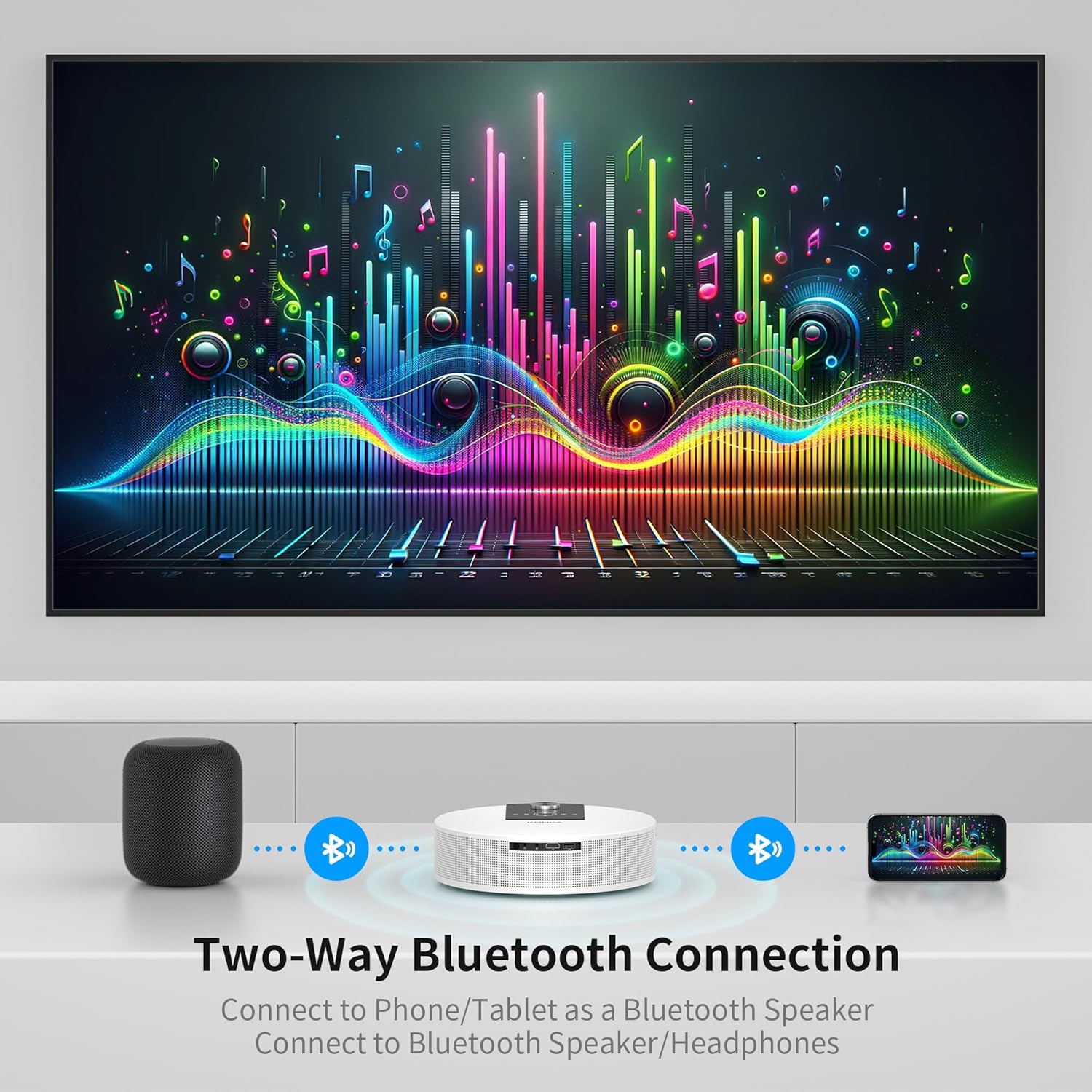
Figure 3.3: Diagram showing the two-way Bluetooth connectivity of the Sainyer Q10 projector, allowing it to connect to external Bluetooth speakers or headphones, or to function as a Bluetooth speaker for a smartphone or tablet.
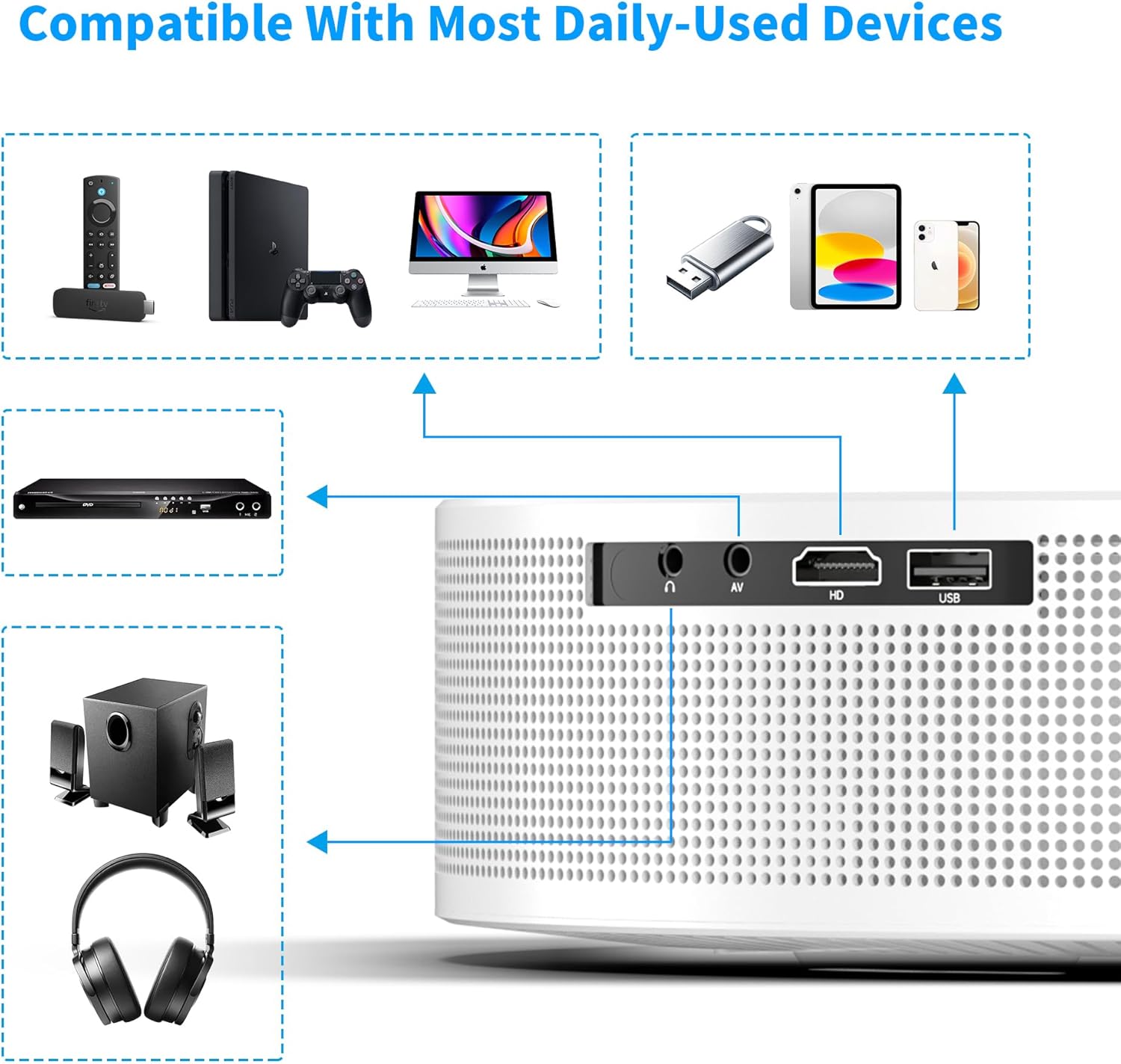
Figure 3.4: Illustration of the Sainyer Q10 projector's compatibility with a wide range of devices, including TV sticks, gaming consoles (PS4), computers (Mac, PC), USB drives, tablets, smartphones, DVD players, external speakers, and headphones, connected via its HDMI, AV, and USB input ports.
4. Setup
4.1 Placement
Choose a flat, stable surface for the projector. Ensure there is sufficient space around the projector for ventilation. The projector can be placed on a table, mounted on a tripod, or ceiling-mounted.

Figure 4.1: Demonstrates the versatile placement options for the Sainyer Q10 projector, including tripod mount, floor mount, and ceiling mount, allowing for flexible setup in various environments.
For optimal viewing, position the projector directly in front of the screen or wall. Avoid placing it at extreme angles to minimize the need for extensive keystone correction.

Figure 4.2: Illustrates the projection distance required for different screen sizes with the Sainyer Q10 projector, showing that a 0.9m distance can achieve a 33-inch screen, and larger screens up to 300 inches are possible with increased distance.
4.2 Power Connection
- Connect the power adapter to the projector's power input port.
- Plug the other end of the power adapter into a power outlet.
- The power indicator light on the projector will illuminate.
5. Operating Instructions
5.1 Powering On/Off
- Power On: Press the power button on the projector or the remote control. The projector will start up and display the main interface.
- Power Off: Press the power button again. A shutdown confirmation prompt may appear. Confirm to power off the projector.
5.2 Navigating the Interface
Use the arrow keys on the remote control or the projector's control panel to navigate through menus and options. Press the "OK" or "Enter" button to confirm selections.
5.3 Source Selection
From the main interface, select the desired input source (e.g., HDMI, USB, AV, Screen Mirroring) using the remote control or the projector's input selection button.
6. Connectivity
6.1 WiFi Connection (Screen Mirroring)
The projector supports 2.4G and 5G WiFi for wireless screen mirroring from compatible devices.
- Go to the "Screen Mirroring" or "WiFi" section in the projector's menu.
- Select your WiFi network from the list and enter the password.
- Once connected, select the appropriate mirroring function (e.g., Airplay for iOS, Miracast for Android/Windows) on your mobile device or computer.
- Select the projector from the list of available devices to begin mirroring.
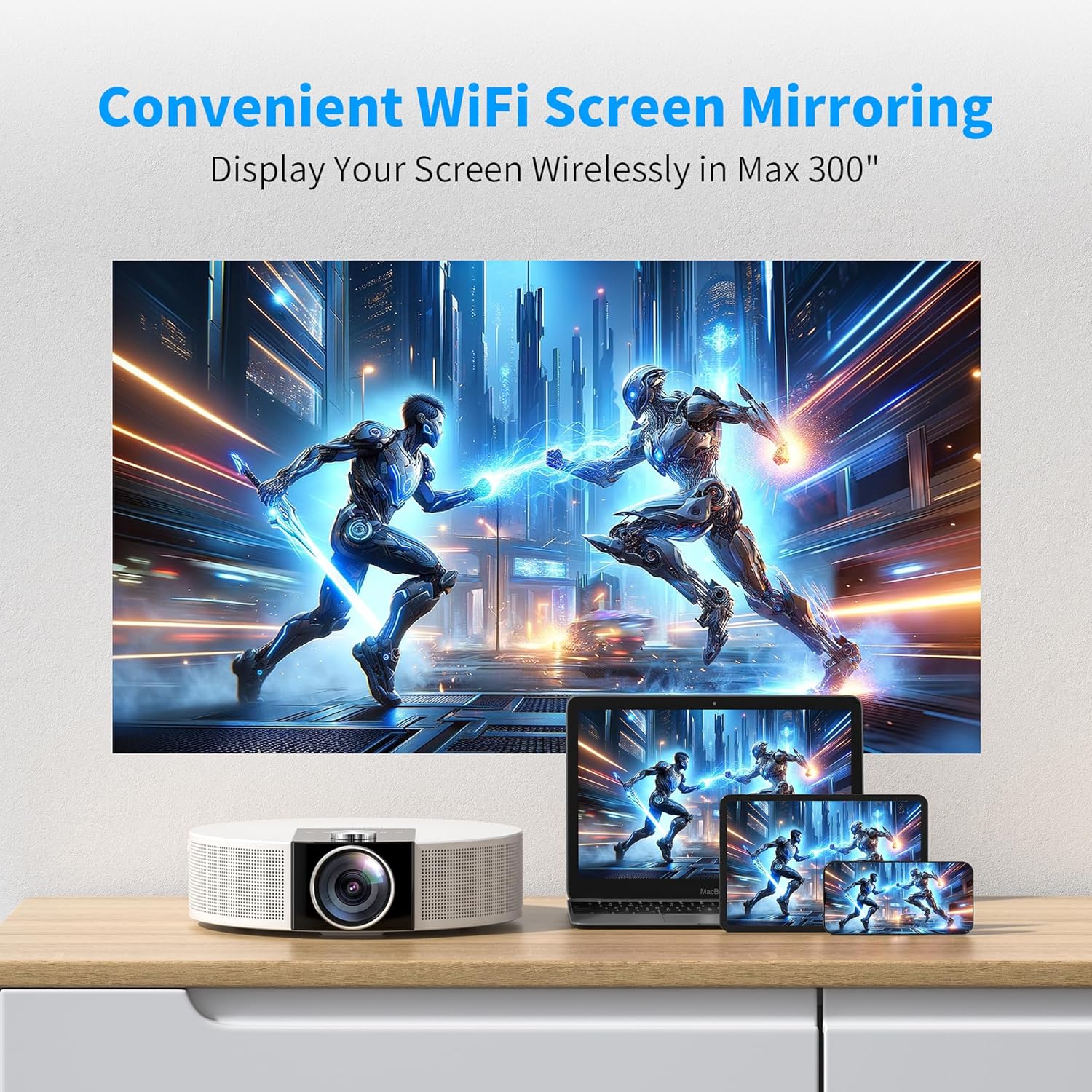
Figure 6.1: Depicts the convenient WiFi screen mirroring capability of the Sainyer Q10 projector, showing a large projected image from a laptop, with smaller mirrored screens from a tablet and smartphone, illustrating wireless display up to 300 inches.
6.2 Bluetooth Connection
The projector's Bluetooth 5.0 allows connection to external audio devices or use as a standalone Bluetooth speaker.
- Connecting to External Audio:
- Enable Bluetooth on the projector and set it to pairing mode.
- Enable Bluetooth on your external speaker or headphones and set it to pairing mode.
- Select the external device from the projector's Bluetooth device list to connect.
- Using as a Bluetooth Speaker:
- Enable Bluetooth on the projector and select the "Bluetooth Speaker Mode" (if available).
- On your smartphone or tablet, search for Bluetooth devices and select "Sainyer Q10" to connect.
- Audio from your device will now play through the projector's built-in speakers.
6.3 Wired Connections (HDMI, USB, AV)
- HDMI: Connect devices like laptops, TV sticks, gaming consoles, or DVD players using an HDMI cable. Select the HDMI input source on the projector.
- USB: Insert a USB flash drive into the USB port to play media files (photos, videos, music, documents). Select the USB input source and browse files.
- AV: Use the AV port for older devices with composite video and stereo audio output. Select the AV input source.
7. Image Adjustment
7.1 Electric Focus
Use the focus adjustment buttons on the remote control or the projector to achieve a clear and sharp image. This feature allows for precise focus without manual lens rotation.
7.2 Keystone Correction
The projector supports ±60° vertical keystone correction to adjust for distorted images when the projector is not perfectly perpendicular to the screen.
- Navigate to the "Keystone Correction" setting in the menu.
- Adjust the vertical keystone until the image appears rectangular.

Figure 7.1: Illustrates the keystone correction feature of the Sainyer Q10 projector, demonstrating how the image can be adjusted to be perfectly rectangular even when the projector is placed at an angle.
7.3 Zoom Function
The 50% zoom function allows you to reduce the screen size without physically moving the projector.
- Access the "Zoom" setting in the image or display menu.
- Adjust the zoom percentage to resize the image as needed.
7.4 Picture Settings (Brightness, Color, Contrast)
Customize the image quality to your preference:
- Navigate to the "Picture" or "Display" settings in the menu.
- Adjust parameters such as Brightness, Contrast, Color, and Sharpness.
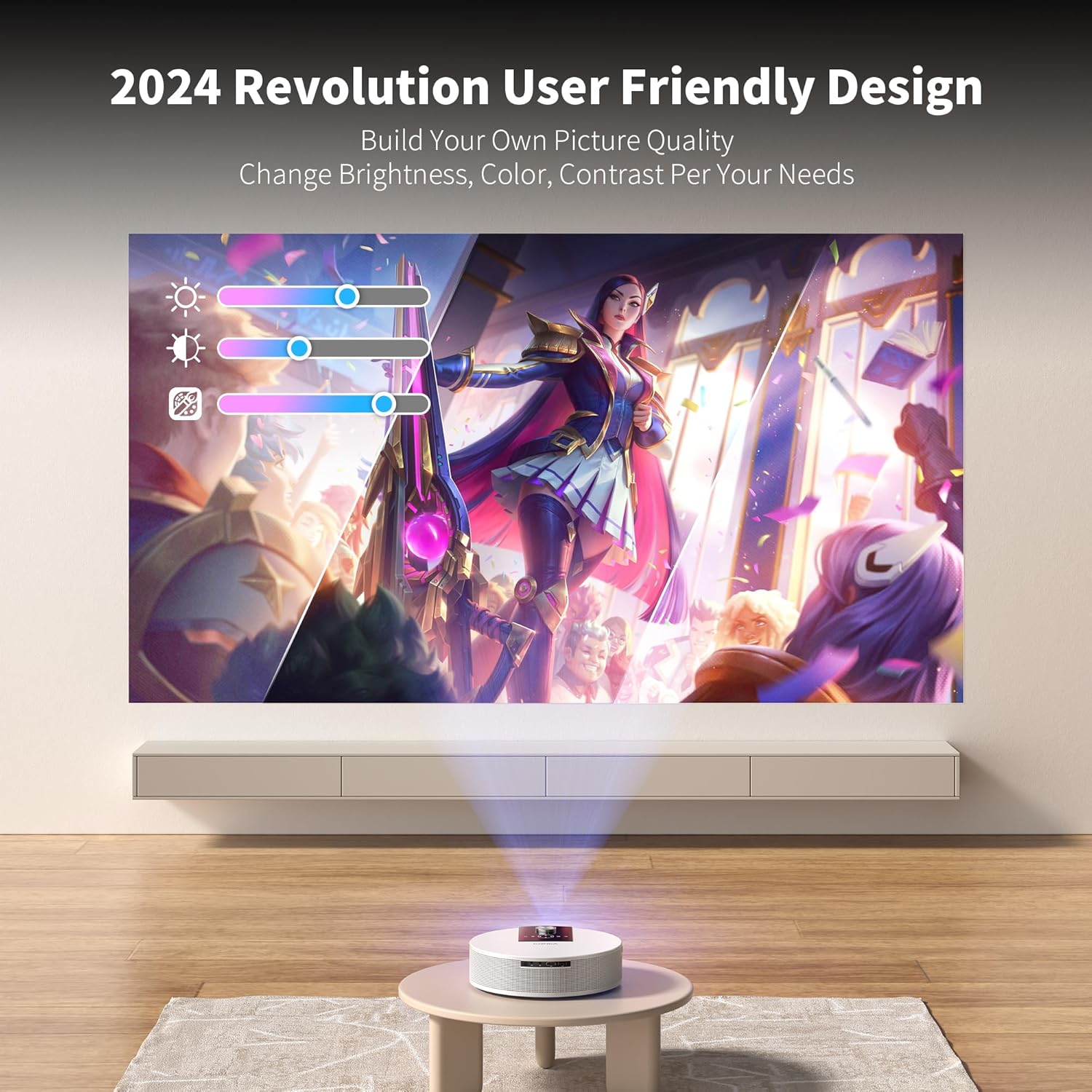
Figure 7.2: Depicts the user-friendly interface for adjusting picture quality on the Sainyer Q10 projector, allowing users to customize brightness, color, and contrast to build their own picture quality.
8. Maintenance
8.1 Cleaning the Lens
Use a soft, lint-free cloth specifically designed for optical lenses to gently wipe the projector lens. Do not use abrasive cleaners or excessive force.
8.2 Ventilation
Regularly check that the projector's ventilation openings are clear of dust and debris. Blocked vents can lead to overheating and reduced lifespan.
8.3 Storage
When not in use for extended periods, store the projector in a cool, dry place, away from direct sunlight and extreme temperatures. Use the original packaging or a protective case to prevent dust accumulation and damage.
9. Troubleshooting
| Problem | Possible Cause | Solution |
|---|---|---|
| No image displayed |
|
|
| Image is blurry |
|
|
| Image is trapezoidal |
|
|
| No sound |
|
|
| WiFi/Bluetooth connection unstable |
|
|
10. Specifications
| Feature | Detail |
|---|---|
| Brand | Sainyer |
| Model Number | Q10 |
| Display Resolution | Native 1920 x 1080P (4K Supported) |
| Brightness | 20000 Lumens (as per product description) |
| Connectivity Technology | Bluetooth 5.0, Wi-Fi (2.4G/5G), USB, HDMI, 3.5mm Jack |
| Projection Size | Up to 300 inches |
| Keystone Correction | ±60° Vertical |
| Zoom Function | 50% |
| Lamp Life | 50,000 hours (as per product description) |
| Item Weight | 3.54 pounds |
| Product Dimensions | 5.98 x 7.6 x 7.2 inches |
11. Warranty and Support
The Sainyer Q10 Mini Projector comes with a manufacturer's warranty. Please refer to the warranty card included in your product packaging or visit the official Sainyer website for detailed warranty terms and conditions.
For technical support, troubleshooting assistance, or any inquiries regarding your product, please contact Sainyer customer service through the contact information provided on the official website or your purchase platform.
Online Resources:
- Sainyer Official Website: www.sainyer.com (Example link, replace with actual if known)
- Product Support Page: Refer to the product listing on Amazon or the manufacturer's website for FAQs and additional support.
Related documentsQ10

Ask a question about this manual
Ask about setup, troubleshooting, compatibility, parts, safety, or missing instructions. Manuals+ will review the question and use this page’s manual context to help answer it.