Introduction
Thank you for purchasing the Amulech AL-38432SA Hi-Fi USB DAC. This compact and high-performance digital-to-analog converter is designed to deliver exceptional audio quality from various digital sources. It supports a wide range of high-resolution audio formats, including PCM up to 32-bit/384kHz and DSD up to 11.2MHz (DSD256). With its versatile connectivity options, including USB, optical, and coaxial inputs, the AL-38432SA is an ideal choice for enhancing your listening experience on Windows PCs, Mac computers, smartphones, and tablets. This manual provides detailed instructions for setup, operation, and maintenance to ensure optimal performance and longevity of your device.
Product Overview
Front Panel

Figure 1: Front Panel Layout
The front panel features the power switch, mute switch, a rotary volume knob, and a digital display. The display shows the current input source (USB, Optical, Coaxial), volume level, and the active audio format (PCM or DSD) with its sampling frequency.
- Power Switch: Toggles the device power ON/OFF.
- MUTE Switch: Instantly mutes or unmutes the audio output.
- Volume Knob: Rotates to adjust the output volume. Pressing the knob cycles through input modes (USB, Optical, Coaxial).
- Digital Display: Shows current operational status, including input, volume, and audio format/sampling rate.
Rear Panel

Figure 2: Rear Panel Connectivity
The rear panel provides all necessary input and output ports for connecting the DAC to your audio system and source devices.
- LINE OUTPUT (RCA L/R): Analog audio output for connecting to an amplifier or active speakers.
- OPTICAL Input: Digital audio input for optical S/PDIF sources.
- COAXIAL Input: Digital audio input for coaxial S/PDIF sources.
- USB AUDIO INPUT: USB Type-B port for connecting to a computer or mobile device.
- DC IN +12V: Power input for the included 12V AC adapter.
Setup
Driver Installation
- For Windows 10/11:
A dedicated driver is required for optimal performance and DSD native playback (especially DSD256 via ASIO). Please refer to the included driver CD or download the latest driver from the official Amulech website. Install the driver before connecting the AL-38432SA to your PC via USB.
- For Mac OS 10.6.8 or later:
The AL-38432SA operates using the standard OS drivers. No additional driver installation is required. DSD playback is supported via DoP (DSD over PCM) up to DSD128. DSD256 is not supported on Mac OS.
- For iPhone/Android Smartphones & iPad/Tablets:
These devices typically do not require specific drivers. Use an appropriate OTG (On-The-Go) cable to connect your mobile device to the USB AUDIO INPUT of the AL-38432SA. Ensure your device supports USB OTG audio output.
Connecting to Devices
- Power Connection: Connect the included 12V AC adapter to the DC IN +12V port on the rear panel, then plug the adapter into a power outlet.
- Audio Output Connection: Connect the LINE OUTPUT (RCA L/R) of the AL-38432SA to the analog input (e.g., RCA L/R) of your amplifier, pre-amplifier, or active speakers using RCA cables.
- Digital Audio Source Connection:
- USB: Connect your computer, smartphone, or tablet to the USB AUDIO INPUT using a USB Type-A to Type-B cable (for computers) or an OTG cable (for mobile devices).
- Optical: Connect your digital audio source (e.g., CD player, TV, game console) to the OPTICAL Input using a TOSLINK optical cable.
- Coaxial: Connect your digital audio source to the COAXIAL Input using a 75Ω coaxial digital cable.

Figure 3: Typical Connection Diagram
This diagram illustrates various ways to connect the AL-38432SA to different audio sources and output devices, including PCs, mobile devices, and home audio systems.
Operating Instructions
Power On/Off
Flip the Power Switch on the front panel to the "ON" position to power on the device. The digital display will illuminate. To power off, flip the switch to the "OFF" position.
Volume Control
Rotate the Volume Knob clockwise to increase the volume and counter-clockwise to decrease it. The current volume level (0-100) will be shown on the digital display. The Smoothing-Volume (SMV) technology ensures smooth and precise volume adjustments.
Input Selection
Press the Volume Knob to cycle through the available digital inputs: USB, OPTICAL, and COAXIAL. The selected input will be displayed on the screen.
Mute Function
Flip the MUTE Switch to instantly mute the audio output. Flip it again to unmute. This is useful for quick audio interruption without changing the volume level.
Supported Audio Formats Display
The digital display automatically detects and shows the format and sampling rate of the incoming audio signal.

Figure 4: PCM Audio Display
Example of the display showing PCM audio at 384KHz.
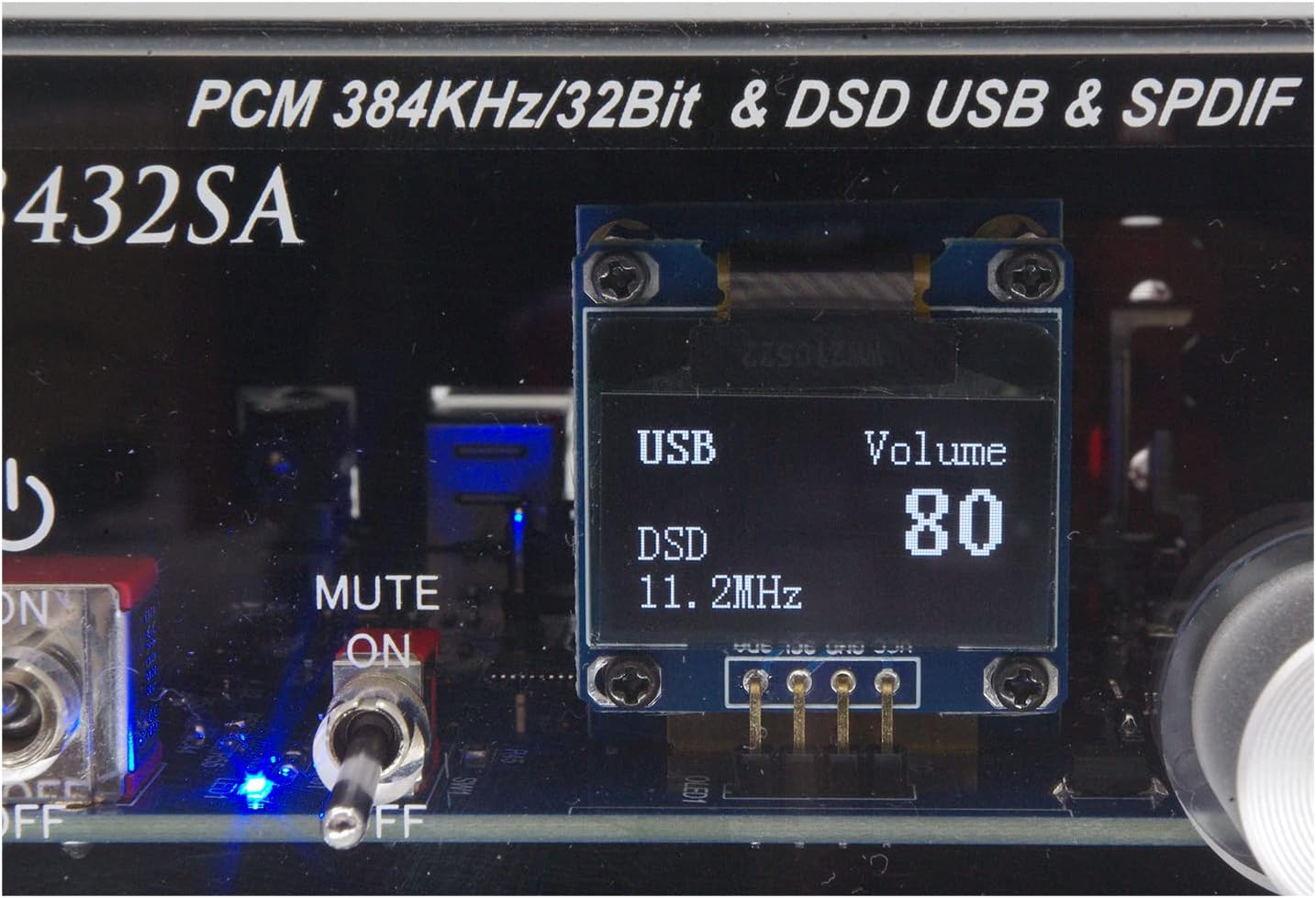
Figure 5: DSD Audio Display
Example of the display showing DSD audio at 11.2MHz.
Maintenance
- Cleaning: Use a soft, dry cloth to wipe the exterior of the unit. Do not use liquid cleaners or abrasive materials, as they may damage the acrylic casing.
- Placement: Place the unit on a stable, flat surface away from direct sunlight, heat sources, and excessive moisture. Ensure adequate ventilation around the device.
- Power Off When Not in Use: For extended periods of non-use, it is recommended to power off the unit and unplug the AC adapter.
Troubleshooting
| Problem | Possible Cause | Solution |
|---|---|---|
| No power | Power adapter not connected; Power switch off. | Ensure the 12V AC adapter is securely connected and plugged into a working outlet. Flip the power switch to "ON". |
| No sound output | Incorrect input selected; Mute function active; Volume too low; Cables not connected properly; Source device not playing audio. | Press the volume knob to select the correct input. Check the MUTE switch. Increase the volume. Verify all audio cables are securely connected. Ensure your source device is playing audio and its volume is up. |
| Distorted or poor sound quality | Incorrect driver (Windows); Source audio quality is low; Cables are faulty or loose. | For Windows, ensure the correct dedicated driver is installed. Check the quality of the source audio file. Replace or re-seat audio cables. |
| DSD playback issues (Windows) | Incorrect driver; Player software not configured for ASIO/DoP. | Ensure the dedicated ASIO driver is installed. Configure your music player (e.g., Foobar2000) to use ASIO or DoP output for DSD playback. |
| DSD256 not playing (Mac) | Mac OS limitation. | DSD256 (11.2MHz) native playback is not supported on Mac OS. Max DSD supported via DoP on Mac is DSD128 (5.6MHz). |
Specifications
| Feature | Detail |
|---|---|
| Model Number | AL-38432SA |
| Dimensions (W×D×H) | 132 × 110 × 61 mm (excluding protrusions) |
| USB Controller | Savitech SA9137 |
| DAC IC | ESS ES9038Q2M (32-bit HyperStream II DAC architecture) |
| Dynamic Range | 129dB (ES9038Q2M) |
| USB Audio Input | USB Audio 2.0 (High-Speed) |
| Supported PCM Sampling Rates (USB) | 44.1, 48, 88.2, 96, 176.4, 192, 352.8, 384 KHz (32-bit) |
| Supported DSD Sampling Rates (USB) | 2.8 MHz (DSD64), 5.6 MHz (DSD128), 11.2 MHz (DSD256) |
| DSD Playback Modes | ASIO 2.1, DoP (DSD over PCM) |
| Optical/Coaxial Input | 32 ~ 192 KHz, 16/24-bit Stereo Linear PCM |
| Line Output Level | Adjustable 0V ~ 2Vrms (600Ω) |
| Output Type | Unbalanced, OCL (Output Capacitor-Less) DC output |
| Compatible OS (USB) | Windows 10/11 (dedicated driver), Mac OS 10.6.8+ (OS standard driver) |
| Mobile Device Compatibility | iPhone, Android smartphones, iPad, Tablets (via OTG cable) |
| Power Supply | DC 12V 1A (PSE certified AC adapter included) |
| Origin | Made in Japan |
Warranty and Support
For warranty information and technical support, please refer to the documentation included with your purchase or contact Amulech customer service. Keep your proof of purchase for warranty claims.
For further assistance or inquiries, please visit the official Amulech website or contact your local distributor.


