
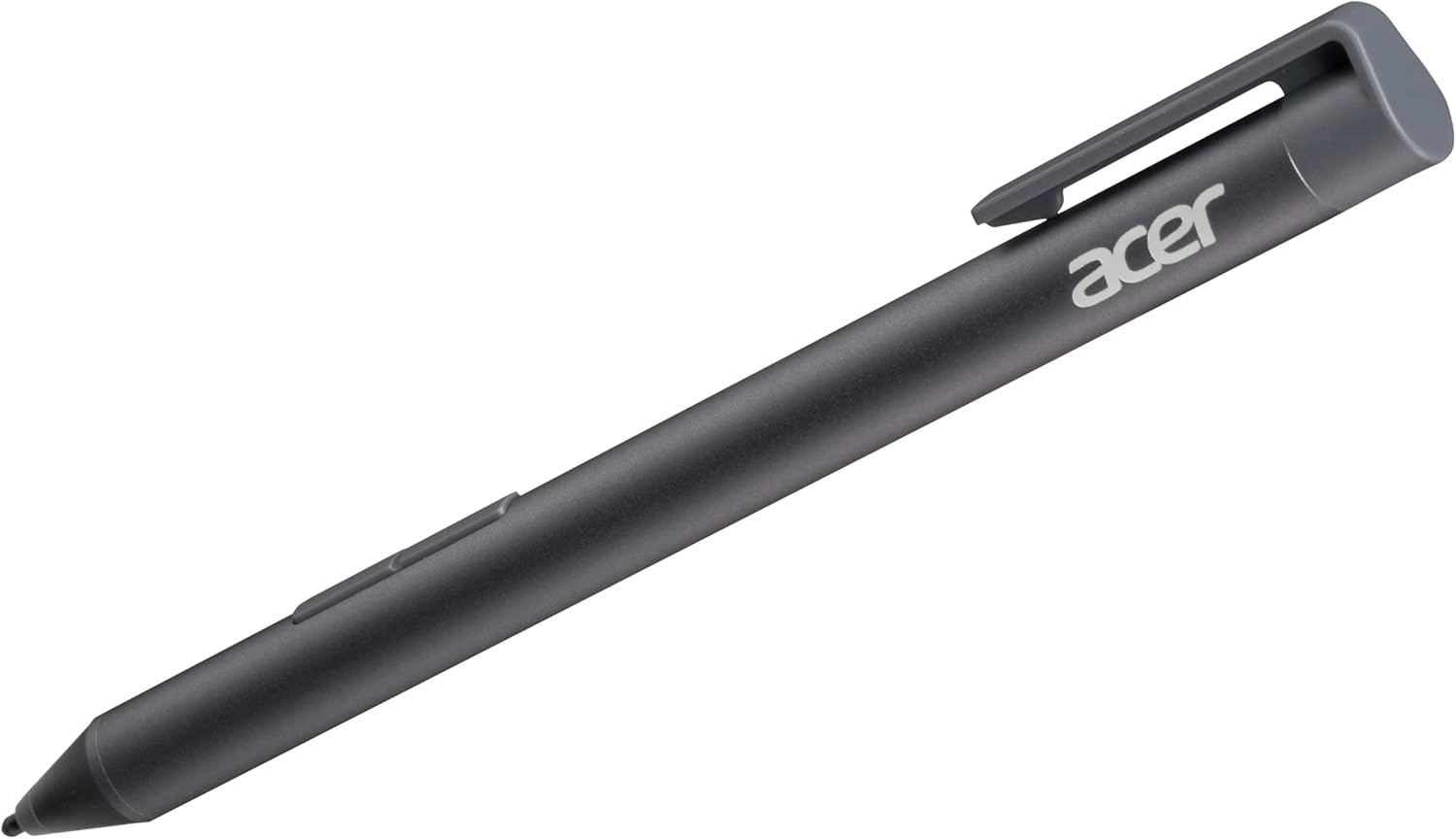
1. Introduction
The Acer AES 1.0 Active Stylus (model ASA210) is designed to provide a natural and precise writing and drawing experience on compatible touchscreens. This stylus offers high accuracy and pressure sensitivity, allowing for detailed input with minimal lag. It operates without the need for Bluetooth pairing or dedicated applications, ensuring a straightforward user experience.
2. Setup
2.1. Battery Installation
- Unscrew the top cap of the stylus to access the battery compartment.
- Insert one AAAA Alkaline dry cell battery into the compartment, ensuring correct polarity (+/-).
- Securely screw the top cap back onto the stylus.
Note: An AAAA Alkaline battery is required for operation.
2.2. Initial Use
The Acer AES 1.0 Active Stylus does not require Bluetooth pairing or special applications. Once the battery is installed, the stylus is ready for immediate use on a compatible touchscreen device. Simply touch the stylus tip to the screen to begin writing or drawing.
2.3. Device Compatibility
Important: This stylus is compatible with specific touchscreen devices that support the AES 1.0 protocol. Compatibility is not universal across all Acer devices or other brands. Please verify your device's compatibility with the Acer AES 1.0 Active Stylus (ASA210) before use. Refer to your device's documentation or the manufacturer's support website for a list of compatible accessories.
3. Operating the Stylus
3.1. Writing and Drawing
The stylus features 4096 levels of pressure sensitivity, allowing for varied line thickness and shading based on the pressure applied. This provides a natural pen-on-paper feel for creative tasks and note-taking.

A detailed view of the fine tip of the Acer AES 1.0 Active Stylus, designed for precise input.
3.2. Side Buttons
The stylus is equipped with two side buttons. The functionality of these buttons may vary depending on the specific application or operating system of your compatible device. Common functions include right-click, erase, or quick access to specific tools. Consult your device's software settings for customization options.

A close-up view of the Acer AES 1.0 Active Stylus, focusing on the two programmable buttons located on its side.
4. Maintenance
4.1. Battery Replacement
When the stylus performance degrades or it stops responding, replace the AAAA battery by following the installation steps in Section 2.1.
4.2. Cleaning
To clean the stylus, gently wipe the body with a soft, dry, lint-free cloth. Avoid using harsh chemicals, abrasive cleaners, or excessive moisture, as these can damage the stylus.
4.3. Storage
Store the stylus in a safe place when not in use to prevent damage to the tip or body. Avoid exposing it to extreme temperatures or direct sunlight.
5. Troubleshooting
- Stylus Not Responding:
- Ensure the AAAA battery is correctly installed and has sufficient charge. Replace if necessary.
- Verify that your device is compatible with the Acer AES 1.0 Active Stylus (ASA210).
- Restart your compatible device.
- Inaccurate or Intermittent Input:
- Check for any physical obstructions or debris on the stylus tip or screen.
- Ensure your device's screen is clean.
- Confirm that your device's drivers or software for stylus input are up to date.
If issues persist after following these steps, please refer to the customer support section.
6. Specifications
| Model | ASA210 |
| Pen Type | Active Pen |
| Protocol | AES 1.0 |
| Pressure Levels | 4096 |
| Battery Type | AAAA Alkaline dry cell battery |
| Material | Aluminum |
| Item Weight | 1.2 ounces (0.03 Kilograms) |
| Product Dimensions (LxWxH) | 7.3 x 1.53 x 0.86 inches |
| Color | White (Note: Product images may display a grey variant.) |
| UPC | 195133162975 |
7. Warranty Information
This product is covered by Acer's standard limited warranty. For detailed information regarding warranty terms, conditions, and duration, please refer to the warranty card included with your purchase or visit the official Acer support website. Proof of purchase may be required for warranty claims.
8. Customer Support
For further assistance, technical support, or inquiries regarding your Acer AES 1.0 Active Stylus (ASA210), please contact Acer customer support. You can find contact information, FAQs, and additional resources on the official Acer website: