
1. Introduction
Thank you for choosing the Xblitz RF300 Car Radio. This manual provides detailed instructions for the proper installation, operation, and maintenance of your new device. Please read this manual thoroughly before use to ensure optimal performance and safety.
2. Safety Information
- Professional Installation Recommended: For safety and proper functionality, it is highly recommended to have this unit installed by a qualified professional.
- Power Supply: This unit is designed for a 12V DC negative ground electrical system. Ensure correct wiring to prevent damage or fire.
- Avoid Distractions: Do not operate the unit or view the display in a way that distracts you from driving. Always prioritize road safety.
- Wiring: Ensure all wires are securely connected and properly insulated to prevent short circuits.
- Temperature: Avoid exposing the unit to extreme temperatures or direct sunlight for extended periods.
3. Package Contents
Please check that all items are present in the box:
- Xblitz RF300 Car Radio Unit
- Wiring Harness and Cables
- Instruction Manual
4. Product Overview
The Xblitz RF300 is an ultramodern car radio featuring a large, easy-to-read display, two USB charging ports (one with QC2.0 quick charge), Bluetooth 5.0, AUX input, and 4 x 50W power output. It also offers customizable LED backlighting with seven color options.

Front view of the Xblitz RF300 car radio, highlighting the display, control knob, buttons, and USB ports. The packaging is visible in the background.
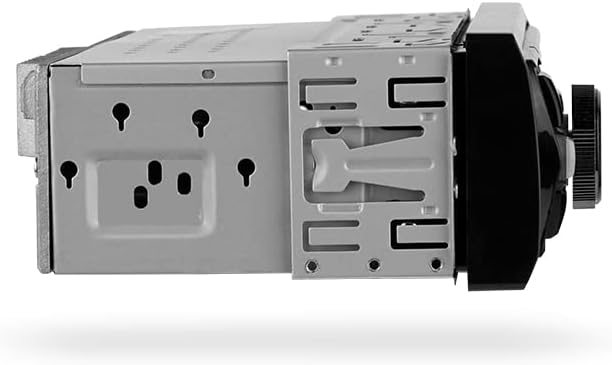
Side view of the Xblitz RF300 car radio chassis, showing the mounting points and general construction.
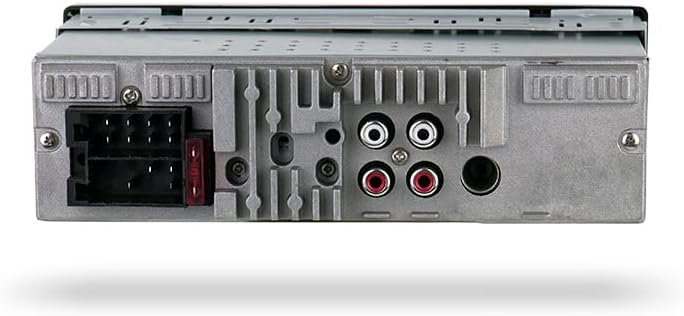
Rear view of the Xblitz RF300 car radio, displaying the wiring harness connector, fuse, and RCA output jacks.
5. Setup and Installation
Before starting the installation, ensure your vehicle's battery is disconnected to prevent electrical shorts.
5.1. Wiring Connections
- Power: Connect the yellow wire to the constant 12V power supply, the red wire to the accessory (switched 12V) power, and the black wire to a good chassis ground.
- Speakers: Connect the speaker wires to your vehicle's speakers, ensuring correct polarity for each speaker. The unit supports 4 channels.
- Antenna: Connect your vehicle's radio antenna to the antenna input on the rear of the unit.
- RCA Outputs: If using external amplifiers, connect RCA cables from the unit's RCA outputs to your amplifier's inputs.
- AUX Input: For external audio devices, connect a 3.5mm audio cable to the AUX input on the front panel.
5.2. Mounting the Unit
Slide the metal mounting sleeve into the dashboard opening. Bend the tabs on the sleeve outwards to secure it. Then, slide the Xblitz RF300 unit into the mounting sleeve until it clicks into place.
5.3. Final Steps
Once all connections are made and the unit is securely mounted, reconnect your vehicle's battery. Turn on the ignition and test the unit's functions.
6. Operating Instructions
6.1. Basic Controls
- Power On/Off: Press the power button (usually the volume knob) to turn the unit on or off.
- Volume Control: Rotate the main knob to adjust the volume level.
- Mode Selection: Press the 'MODE' button to cycle through available sources: Radio (FM), Bluetooth, USB, and AUX.
6.2. Radio Operation (FM)
- Tuning: In Radio mode, use the 'Seek' buttons (usually arrows) to automatically search for the next strong station.
- Manual Tuning: Press and hold the 'Seek' buttons for manual frequency adjustment.
- Preset Stations: Press and hold numbered buttons (1-6) to save the current station. Press briefly to recall a saved station.
6.3. Bluetooth Operation
The Xblitz RF300 features Bluetooth 5.0 for wireless audio streaming and hands-free calling.
- Pairing: Select Bluetooth mode on the unit. On your smartphone, search for Bluetooth devices and select 'Xblitz RF300'. Enter '0000' if a PIN is required.
- Music Streaming: Once paired, you can play music from your smartphone, and control playback (play/pause, skip tracks) from the car radio.
- Hands-Free Calling: When a call comes in, the unit will display the caller ID. Press the 'Answer' button (often the volume knob or a dedicated phone button) to accept the call.
6.4. USB and AUX Operation
- USB Playback: Insert a USB flash drive containing audio files into one of the USB ports. The unit will automatically switch to USB mode and begin playback.
- AUX Input: Connect an external audio device (e.g., MP3 player) to the front panel AUX input using a 3.5mm audio cable. Select AUX mode on the unit.
- USB Quick Charge (QC2.0): One of the USB ports is a QC2.0 port, designed for faster charging of compatible smartphones. Simply connect your device to this port for efficient charging while driving.
6.5. LED Backlight Settings
The Xblitz RF300 offers seven different LED backlight colors to match your vehicle's interior. Consult your unit's specific button layout for the 'Color' or 'LED' button, or refer to the on-screen menu to cycle through the available colors: white, purple, sky blue, yellow, red, blue, and green.
7. Maintenance
- Cleaning: Use a soft, dry cloth to clean the unit's display and buttons. Do not use abrasive cleaners or solvents.
- Avoid Liquids: Keep the unit away from water and other liquids.
- Temperature: Do not expose the unit to extreme heat or cold.
8. Troubleshooting
If you encounter issues with your Xblitz RF300, please refer to the following common problems and solutions:
| Problem | Possible Cause | Solution |
|---|---|---|
| No power | Blown fuse, incorrect wiring, loose connection | Check the fuse, verify power and ground connections, ensure wiring harness is secure. |
| No sound | Volume too low, incorrect source selected, speaker wiring issue | Increase volume, select correct audio source (Radio, BT, USB, AUX), check speaker connections. |
| Bluetooth not connecting | Unit not in pairing mode, device already paired, Bluetooth off on phone | Ensure unit is in Bluetooth mode, delete previous pairings on phone, restart phone and unit. |
| USB not reading | Unsupported file format, damaged USB drive, drive too large | Ensure files are in a supported format (e.g., MP3), try a different USB drive, check drive capacity limits. |
If the problem persists after trying these solutions, please contact Xblitz customer support.
9. Specifications
- Brand: Xblitz
- Model Number: RF300
- Connectivity Technology: Bluetooth, USB
- Controller Type: Push-Button
- Special Features: LED Backlight, Quick Charge (QC2.0)
- Compatible Devices: Smartphone
- Connector Type: RCA (Audio Output)
- Audio Output Mode: Stereo
- Surround Sound Channel Configuration: 5.1
- Output Wattage: 50 Watts per channel (4 x 50W)
- Number of Channels: 4
- Wireless Technology: Bluetooth
- Audio Output Type: Speaker, Headphone
- Box Contents: Radio, Cables, Instructions
10. Warranty and Support
For warranty information and technical support, please refer to the warranty card included with your product or visit the official Xblitz website. Keep your purchase receipt as proof of purchase.


