
1. Introduction
This manual provides detailed instructions for the VOYEE S08 Wireless Pro Controller. This controller is designed for use with Nintendo Switch, Switch Lite, Switch OLED consoles, and PC Windows (wired connection only). It features programmable buttons, adjustable RGB lighting, Turbo function, and vibration feedback to enhance your gaming experience.
2. Package Contents
- 1 x VOYEE S08 Wireless Pro Controller
- 1 x Type-C USB Charging Cable
- 1 x User Manual (this document)
3. Controller Layout
Familiarize yourself with the buttons and features of your VOYEE S08 controller.

Image: Front view of the VOYEE S08 Wireless Pro Controller, showcasing its ergonomic design and RGB lightning bolt pattern across the face buttons and joysticks.
- Left/Right Analog Sticks: For movement and camera control.
- D-Pad: Directional input.
- A/B/X/Y Buttons: Action buttons.
- L/R/ZL/ZR Buttons: Shoulder and trigger buttons.
- HOME Button: Returns to the console's home screen.
- Screenshot Button: Captures screenshots.
- Plus (+) / Minus (-) Buttons: Start/Select functions.
- M1/M2 Buttons: Programmable back buttons.
- LED Indicator Lights: Display connection status and battery level.
- USB-C Port: For charging and wired connection.
4. Setup and Connection
4.1 Connecting to Nintendo Switch/Switch Lite/OLED
- On your Nintendo Switch console, go to the HOME Menu.
- Select 'Controllers' > 'Change Grip/Order'.
- Press and hold the HOME button on the VOYEE controller for 3-5 seconds until the LED indicators start flashing rapidly.
- Once connected, the LED indicator(s) on the controller will remain solid, and the console will recognize the controller.
4.2 One-Key Wake Up Function
After initial pairing, you can wake up your Nintendo Switch console by pressing the HOME button on the VOYEE controller.

Image: A graphic illustrating the 'One Button Wake Up' feature, showing the controller next to a Nintendo Switch console.
4.3 Connecting to PC Windows
The VOYEE S08 controller supports wired connection to PC Windows 7/8/10. Wireless connection is not supported for PC.
- Connect the controller to your PC using the provided Type-C USB cable.
- The PC should automatically detect and install the necessary drivers.
- The controller will function as a standard XInput device.
5. Operating Instructions
5.1 RGB Lighting Modes
The controller features a lightning bolt design with 9-color LED lighting. There are 4 light modes:

Image: The VOYEE S08 controller illuminated with vibrant RGB lightning effects, highlighting its aesthetic design.
- Solid Lights: A single, constant color.
- Breathing Lights: Colors fade in and out.
- RGB Strobe LED Light: Rapid flashing of multiple colors.
- LED Off: Lights are turned off.
Refer to the controller's specific button combination (usually a dedicated light button or a combination with a function button) to cycle through these modes.
5.2 Programmable Buttons (M1/M2)
The M1 and M2 buttons on the back of the controller can be programmed to simplify complex skill operations. You can map up to 16 buttons to M1 or M2.
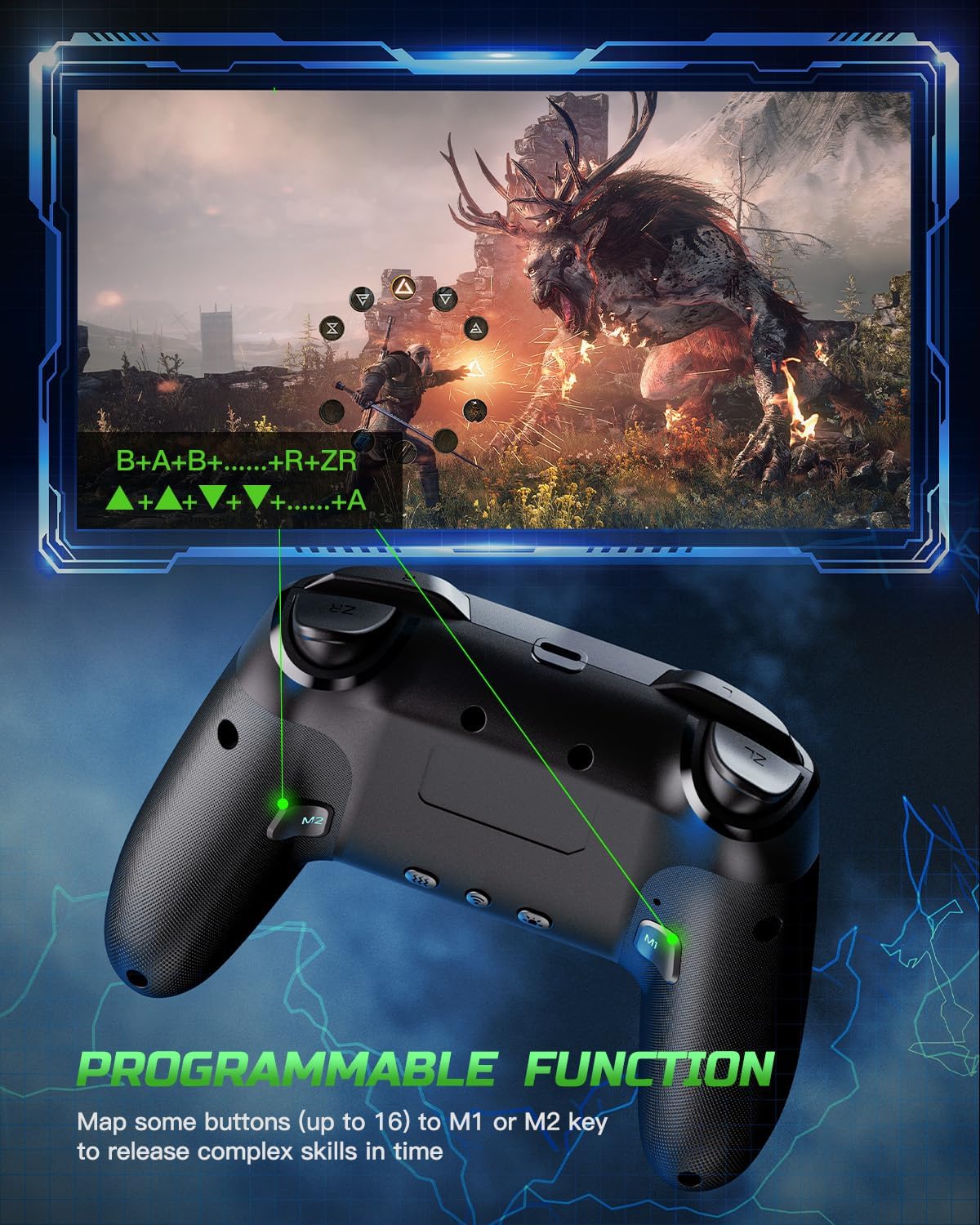
Image: A diagram showing the location of the M1 and M2 programmable buttons on the back of the VOYEE S08 controller, with an example of button mapping for in-game actions.
Consult the detailed instructions provided with the controller for the exact programming sequence, which typically involves entering a programming mode, pressing the button(s) to be mapped, and then pressing M1 or M2 to save.
5.3 Turbo Function
The Turbo function allows for rapid, continuous input of a button press. There are 3 adjustable burst speeds:

Image: The VOYEE S08 controller with a graphic indicating three Turbo speed settings: 5 shots/s, 12 shots/s, and 25 shots/s.
- 5 shots/s
- 12 shots/s
- 20 shots/s
To activate and adjust Turbo speed, follow the specific instructions in your controller's guide, usually involving a Turbo button combined with a directional input or analog stick.
5.4 Vibration Adjustment
The dual vibration motors provide haptic feedback with 4 adjustable levels:

Image: The VOYEE S08 controller with visual effects representing vibration feedback, indicating different intensity levels.
- Strong
- Medium
- Weak
- None (Vibration Off)
Adjust vibration intensity using the designated button combination, typically a vibration button or a combination with a directional input.
5.5 Motion Control (6-Axis Gyro Sensor)
The integrated 6-axis gyro sensor provides precise motion control, enhancing gameplay in compatible titles.

Image: The VOYEE S08 controller with visual cues indicating its 6-axis gyro sensor actively tracking motion, shown in a racing game context.
6. Charging and Battery
The controller is equipped with a 1000mAh rechargeable battery.

Image: A cutaway view of the VOYEE S08 controller highlighting its 1000mAh battery and the USB-C charging port in use.
- Charging Time: Approximately 3-4 hours for a full charge.
- Runtime: Approximately 10-15 hours on a full charge, depending on usage and lighting settings.
To charge, connect the controller to a USB power source (e.g., console, PC, USB wall adapter) using the provided Type-C USB cable. The LED indicators will show charging status and turn off or change color when fully charged.
7. Specifications
| Feature | Specification |
|---|---|
| Model Number | S08 |
| Compatibility | Nintendo Switch/Lite/OLED, PC Windows (wired) |
| Battery Capacity | 1000mAh Lithium Ion |
| Charging Time | 3-4 hours |
| Operating Time | 10-15 hours |
| Dimensions | 5.9 x 2.57 x 4.17 inches |
| Weight | 6.88 ounces |
| Motion Sensor | 6-axis Gyro |
| Vibration | Dual Motors, 4-level adjustable |
| LED Lighting | RGB, 9 colors, 4 modes |

Image: The VOYEE S08 controller with its length (5.9 inches) and height (4.1 inches) clearly marked.
8. Troubleshooting
- Controller not connecting to Switch: Ensure the console is in 'Change Grip/Order' mode. Make sure the controller is charged. Try restarting both the controller and the Switch console.
- Controller not recognized by PC: Verify the USB-C cable is securely connected. Ensure you are using a wired connection, as wireless is not supported for PC. Try a different USB port.
- Buttons unresponsive or sticky: Ensure the controller is fully charged. Clean around the buttons with a soft, dry cloth. If the issue persists, contact customer support.
- Vibration not working: Check the vibration settings to ensure it's not set to 'None'. Some games may not support vibration or may have their own in-game settings.
- Short battery life: Ensure the controller is fully charged (3-4 hours). High vibration settings and continuous RGB lighting may reduce battery life.
9. Maintenance
- Keep the controller dry and away from extreme temperatures.
- Clean the controller with a soft, dry cloth. Do not use harsh chemicals or abrasive materials.
- Avoid dropping the controller or subjecting it to strong impacts.
- When not in use for extended periods, store the controller in a cool, dry place.
10. Warranty and Support
For any issues, questions, or support needs regarding your VOYEE S08 Wireless Pro Controller, please contact VOYEE customer service. Refer to the product packaging or the official VOYEE website for contact information.


