
1. Product Overview
The ORIGBELIE External CD DVD Drive (Model BT668) is a versatile optical disk drive designed for modern laptops and computers that lack an internal CD/DVD drive. This device offers high-speed data transfer via USB 3.0 and Type-C interfaces, along with additional USB ports and TF/SD card slots for expanded connectivity. It supports reading and writing various disc formats, making it ideal for software installation, media playback, data backup, and burning custom CDs or DVDs.

Image: The ORIGBELIE External CD DVD Drive, a compact and portable device, connected to a laptop via its USB cable. The image highlights its plug-and-play functionality and various uses such as music, movies, data backup, TF/SD card reading, software installation, and CD/DVD burning.
2. Key Features
- High-Speed USB 3.0 & Type-C Interface: Equipped with USB 3.0 technology, backward compatible with USB 2.0/1.1, offering data transfer rates up to 5 Gigabits/S. Includes a built-in USB-A and USB-C cable for broad compatibility.
- Multi-Format Disc Support: Reads and writes CD±R/RW, CD-ROM, DVD±R/RW, DVD-RAM, VCD, and SVCD.
- Integrated Card Reader & USB Hub: Features 2 USB ports and 2 TF/SD card slots for connecting additional peripherals and accessing memory cards. Note: TF and SD card slots cannot be used simultaneously.
- Plug and Play: No driver installation required; powered directly via the USB cable.
- Robust Performance: Strong error correction, anti-skid, and quiet operation capabilities.
- Portable Design: Slim and lightweight, making it easy to carry.

Image: The external drive connected to a laptop, illustrating its capabilities for playing music, watching movies, data backup, reading TF/SD cards, installing software, and burning/copying CDs and DVDs.
3. Package Contents
Verify that all items are present in your package:
- External DVD Drive (1 unit)
- User Manual (1 unit)
- USB A to DC Power Supply Cable (1 unit)
- Drive Storage Bag (1 unit)
- Carrying Case (1 unit)

Image: A top-down view of the ORIGBELIE External CD DVD Drive and its accessories, neatly arranged on a surface. The package includes the drive, a USB cable, a user manual, a soft storage bag, and a hard-shell carrying case.
4. Setup
- Connect the Drive: Locate the integrated USB cable on the underside of the drive. Connect the USB-A or USB-C end (depending on your computer's available ports) directly to a USB 3.0 port on your laptop or desktop computer.
- Power Supply (Optional): If your computer's USB port does not provide sufficient power, or if you experience unstable operation, connect the included USB A to DC Power Supply Cable to the drive's DC port and then to a separate USB power source (e.g., a wall adapter or a powered USB hub, not included).
- System Recognition: The drive is plug-and-play and should be automatically detected by your operating system within a few seconds. No additional drivers are typically required.

Image: The external drive with its disc tray open, showcasing the pop-up design. The image also highlights the integrated USB 3.0 and USB-C cables for easy connection to various devices.
Video: An official product video demonstrating the setup and basic functionality of the ORIGBELIE External DVD Drive for a laptop, showing how to connect it and use it for media playback.
5. Operating Instructions
5.1 Inserting and Ejecting Discs
- To Insert: Gently press the 'Pop-up Button' (or 'IN/OUT' button) on the front of the drive to open the disc tray. Place your CD or DVD onto the tray, ensuring it is centered on the spindle. Gently push the tray back into the drive until it clicks into place.
- To Eject: Press the 'Pop-up Button' again. Alternatively, you can eject the disc through your computer's operating system (e.g., right-click on the drive icon and select 'Eject'). For forced ejection, use a paperclip in the small emergency eject hole.
5.2 Reading and Writing Discs
Once a disc is inserted and recognized by your computer, you can:
- Play Media: Use your computer's media player software (e.g., Windows Media Player, VLC) to play audio CDs, video DVDs, or access data discs.
- Install Software: Run installation files directly from software discs.
- Burn/Copy Discs: Use disc burning software (not included, but many operating systems have built-in basic functionality) to write data, music, or video to blank CD-R/RW or DVD-R/RW discs.
- Rip/Digitize Discs: Convert audio tracks from CDs or content from DVDs to digital files on your computer using appropriate software.

Image: The ORIGBELIE USB DVD drive in use, connected to a laptop that is playing a movie, demonstrating its media playback capability.
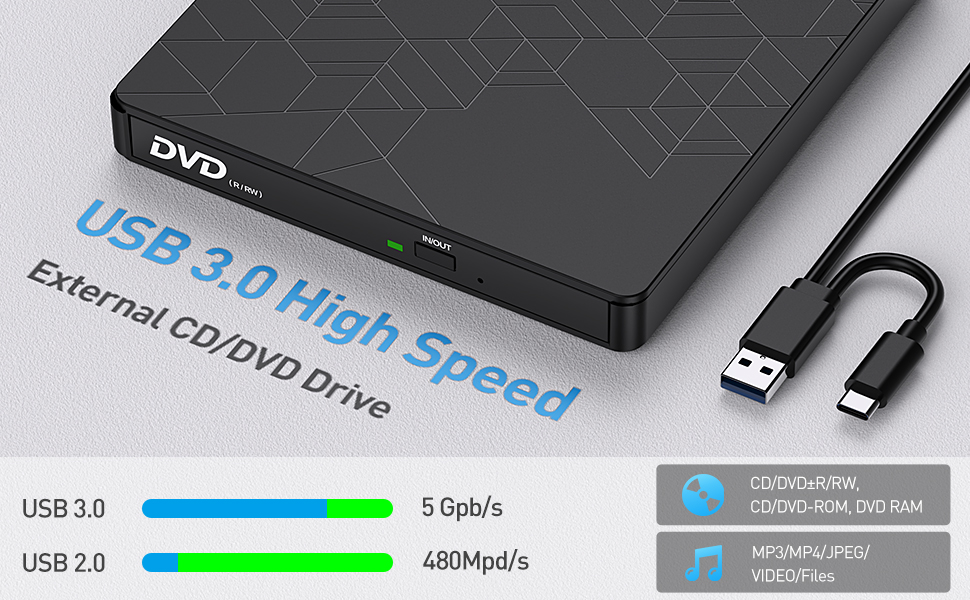
Image: The external DVD drive connected to a laptop, with the laptop screen displaying a disc burning software interface, indicating its ability to burn discs.
5.3 Using TF/SD Card Slots and USB Ports
The drive includes additional ports:
- TF/SD Card Slots: Insert your TF (Micro SD) or SD card into the corresponding slot to access its contents. Note: The TF and SD card slots cannot be used simultaneously.
- USB Ports: Connect USB flash drives, external hard drives, or other USB peripherals to the available USB-A ports.

Image: A close-up view of the side of the ORIGBELIE External CD DVD Drive, clearly labeling its TF slot, SD slot, two USB-A ports, and a 5V DC charging port. A note indicates that SD and TF ports cannot be used simultaneously.
6. Compatibility
The ORIGBELIE External CD DVD Drive is widely compatible with various operating systems and devices:
- Operating Systems: Windows XP / 2003 / Win 7 / Win 8 / Win 10 / Win 11 (Windows 11 requires media player and network) / Vista / Linux / Mac OS X systems.
- Devices: Laptops, desktop computers, notebooks.
Important Compatibility Notes:
- Not Compatible With: Chromebook, Surface, Blu-ray discs, cars, projectors, tablets, iPads, mobile phones.
- Power Requirement: The drive requires connection to a laptop or desktop computer to function. Ensure sufficient power supply; an external power supply may be needed if your device's USB port is low on power.
- Region Codes: Discs can only be played when the region code of the CD drive matches the disc. The region code can be changed a maximum of 4 times.

Image: A visual representation of the drive's wide compatibility, showing it works with Windows XP, 7, 8, 10, 11, Mac OS, and Linux, across MacBooks, notebooks, iMacs, desktops, and laptops. It also indicates 24X CD and 8X DVD read/write speeds.
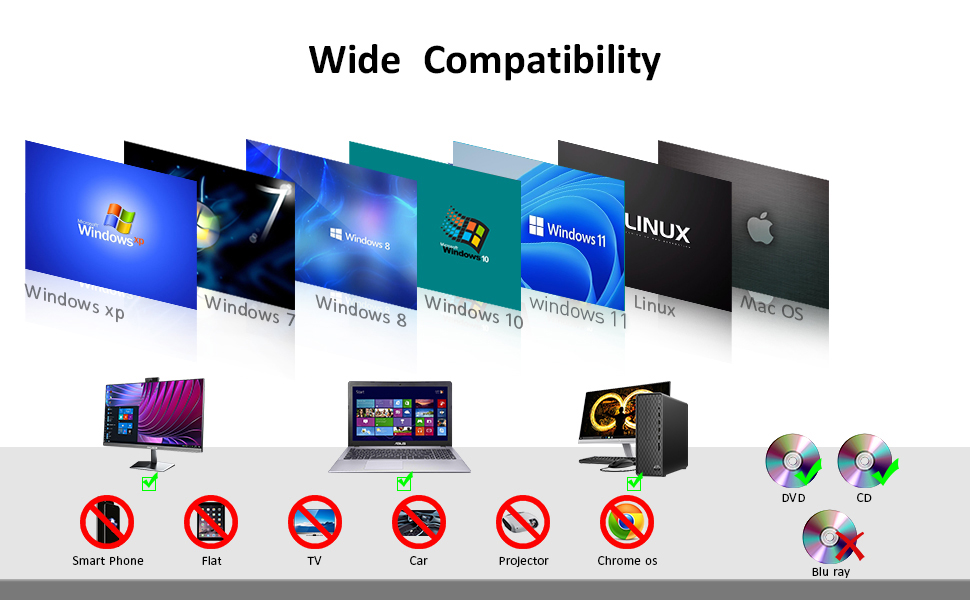
Image: A detailed compatibility chart for the external CD drive, indicating support for various Windows versions, Mac OS, and Linux, while explicitly stating incompatibility with smartphones, tablets, TVs, cars, projectors, Chrome OS, and Blu-ray discs.
7. Maintenance
- Cleaning: Use a soft, dry cloth to clean the exterior of the drive. Do not use liquid cleaners or abrasive materials. For the optical lens, use a specialized CD/DVD lens cleaning kit if necessary, following its instructions carefully.
- Disc Handling: Always handle discs by their edges to avoid fingerprints and scratches. Store discs in their cases when not in use.
- Storage: When not in use, store the drive in its provided storage bag and carrying case to protect it from dust and physical damage. Avoid exposing the drive to extreme temperatures or humidity.
- Cable Care: Ensure the integrated USB cable is not bent sharply or tangled, which could damage the internal wiring.
8. Troubleshooting
- Drive Not Detected:
- Ensure the USB cable is securely connected to both the drive and your computer.
- Try connecting to a different USB port on your computer.
- If using a USB hub, try connecting the drive directly to the computer's USB port, as some hubs may not provide sufficient power or data stability.
- Connect the external power supply cable if the drive is not receiving enough power.
- Disc Not Reading/Writing:
- Check if the disc is clean and free from scratches or damage.
- Ensure the disc is placed correctly on the tray, centered on the spindle.
- Verify that the disc format is supported by the drive (e.g., not Blu-ray).
- Confirm that the disc's region code matches the drive's region setting.
- Try restarting your computer and reconnecting the drive.
- Slow Performance:
- Ensure the drive is connected to a USB 3.0 port for optimal speed. USB 2.0 ports will result in slower transfer rates.
- Close any unnecessary applications running in the background that might be consuming system resources.
- TF/SD Card or USB Device Not Recognized:
- Ensure only one card (TF or SD) is inserted at a time.
- Check if the card or USB device is properly inserted into its slot/port.
- Test the card/device on another computer to rule out issues with the card/device itself.

Image: A visual guide titled 'Know before You Buy' illustrating devices incompatible with the optical drive (Blu-ray, phones, tablets, cars, TVs, projectors, Chromes, PS4) and emphasizing the need for a sufficient current supply, showing a laptop connected to the drive and a power bank.
9. Specifications
| Feature | Description |
|---|---|
| Model Number | ORIGBELIE-BT668 |
| Interface | USB 3.0, USB 3.0 Type A, USB 3.0 Type C |
| Optical Drive Type | CD±R/RW, CD-ROM, DVD±R/RW, DVD-RAM, VCD, SVCD |
| Optical Storage Read Speed | 24x (CD), 8x (DVD) |
| Optical Storage Write Speed | 24x (CD), 8x (DVD) |
| Additional Ports | 2 USB 3.0 Ports, 2 TF/SD Card Slots |
| Dimensions (LxWxH) | 6 x 5.6 x 0.7 inches (15.24 x 14.22 x 1.78 cm) |
| Item Weight | 12.2 ounces (345.86 grams) |
| Color | Black |
| Special Features | CD Burner, DVD Burner, Plug & Play, Portable, Quiet |
Video: An official product video highlighting the ultra-slim design (13mm) and USB 3.0 Type-C connectivity of the ORIGBELIE External CD DVD Drive, showcasing its portability and ease of use with laptops.
10. Warranty and Support
ORIGBELIE provides a 2-year after-sales service for this product. For any technical assistance, troubleshooting, or warranty claims, please contact ORIGBELIE customer support through the retailer where the product was purchased or visit the official ORIGBELIE website for contact information.
For more information and support, you can visit the ORIGBELIE Store on Amazon.


