
FANGOR F-206A
Contents
FANGOR 206A Portable Projector User Manual
Model: F-206A
Introduction
This manual provides detailed instructions for the setup, operation, and maintenance of your FANGOR 206A Portable Projector. Please read this manual thoroughly before using the projector to ensure proper function and to extend the product's lifespan. The FANGOR 206A is designed to deliver a clear and immersive viewing experience for home entertainment, outdoor movies, and various multimedia applications.
What's in the Box
Verify that all items are present in the package:
- F-206A Projector
- User Manual
- Remote Control
- Carrying Bag
- Tripod
- HDMI Cable
- AV Cable
- VGA Cable
- AC Adapter

Image: The FANGOR 206A Portable Projector shown with its various accessories, including the remote control, cables, tripod, and carrying bag.
Product Overview
Key Features
- 1080P Supported Resolution: Provides clear and delicate images for an enhanced viewing experience.
- Dual Speakers & Bluetooth: Built-in HiFi sound system and Bluetooth connectivity for external audio devices.
- Multiple Wide Connection: Supports HDMI, VGA, USB, Micro SD, and AV IN interfaces for broad compatibility.
- Large Projection Size: Capable of projecting images from 30'' to 200'' for a cinematic experience.
- Long Lamp Life: LED light source with a lifespan of up to 55,000 hours.
- Upgraded Cooling System: Designed to reduce fan noise for a quieter operation.
Components and Interfaces

Image: Rear view of the FANGOR 206A projector highlighting its various input ports: USB, Micro SD, HDMI 1, HDMI 2, VGA, AV, and DC IN power input.
- USB Port: For connecting USB drives.
- Micro SD Slot: For inserting Micro SD cards.
- HDMI 1/2 Ports: For connecting devices via HDMI cable.
- VGA Port: For connecting computers or laptops.
- AV IN: For connecting devices using an AV cable.
- DC IN: Power input port.
- Audio Out: For connecting external speakers or headphones.

Image: Internal diagrams illustrating the dual Hi-Fi sound speakers, the upgraded cooling system for reduced noise, and the eye protection feature of the projector.
Setup
- Placement: Place the projector on a stable, flat surface or mount it using a compatible ceiling mount (not included). Ensure there is adequate ventilation around the projector.
- Power Connection: Connect the AC adapter to the projector's DC IN port and then plug it into a power outlet.
- Screen Setup: Position the projector at the desired distance from your projection surface (wall or screen). The recommended projection size ranges from 30 to 200 inches.
- Initial Power On: Press the power button on the projector or the remote control to turn on the device.
- Focus Adjustment: Rotate the focus ring on the projector lens until the image appears sharp and clear.
- Keystone Correction: If the projected image is trapezoidal, adjust the keystone correction dial or setting to make the image rectangular. The projector supports ±15° keystone correction.

Image: Visual guide demonstrating how to manually adjust the focus ring for image clarity and the keystone correction for a perfectly rectangular projection.

Image: A diagram illustrating various projection sizes (37", 45", 60", 120") and their corresponding projection distances in centimeters, along with a scene of people enjoying a large projected image.
Operating Instructions
Selecting Input Source
After powering on, use the "Source" button on the remote control or the projector's control panel to select your desired input source (e.g., HDMI 1, HDMI 2, VGA, AV, USB, Micro SD).
Adjusting Picture Mode
Navigate to the "Picture" settings in the menu to adjust various display parameters such as brightness, contrast, color, sharpness, and aspect ratio. You can choose from preset modes (Standard, Soft, Vivid) or customize a "User" mode.

Image: A screenshot of the projector's on-screen display showing picture settings (Vivid, Contrast, Brightness, Color, Sharpness, Tint, Color Temperature, Aspect Ratio, Noise Reduction, Screen) and illustrating both remote control and projector button control methods.
Bluetooth Connection
The FANGOR 206A supports Bluetooth for connecting to external audio devices like Bluetooth speakers or headphones. This function is for audio output only and does not support data transfer from smartphones.
- Ensure your Bluetooth audio device is in pairing mode.
- On the projector, navigate to the Bluetooth settings.
- Select your device from the list of available devices to pair.
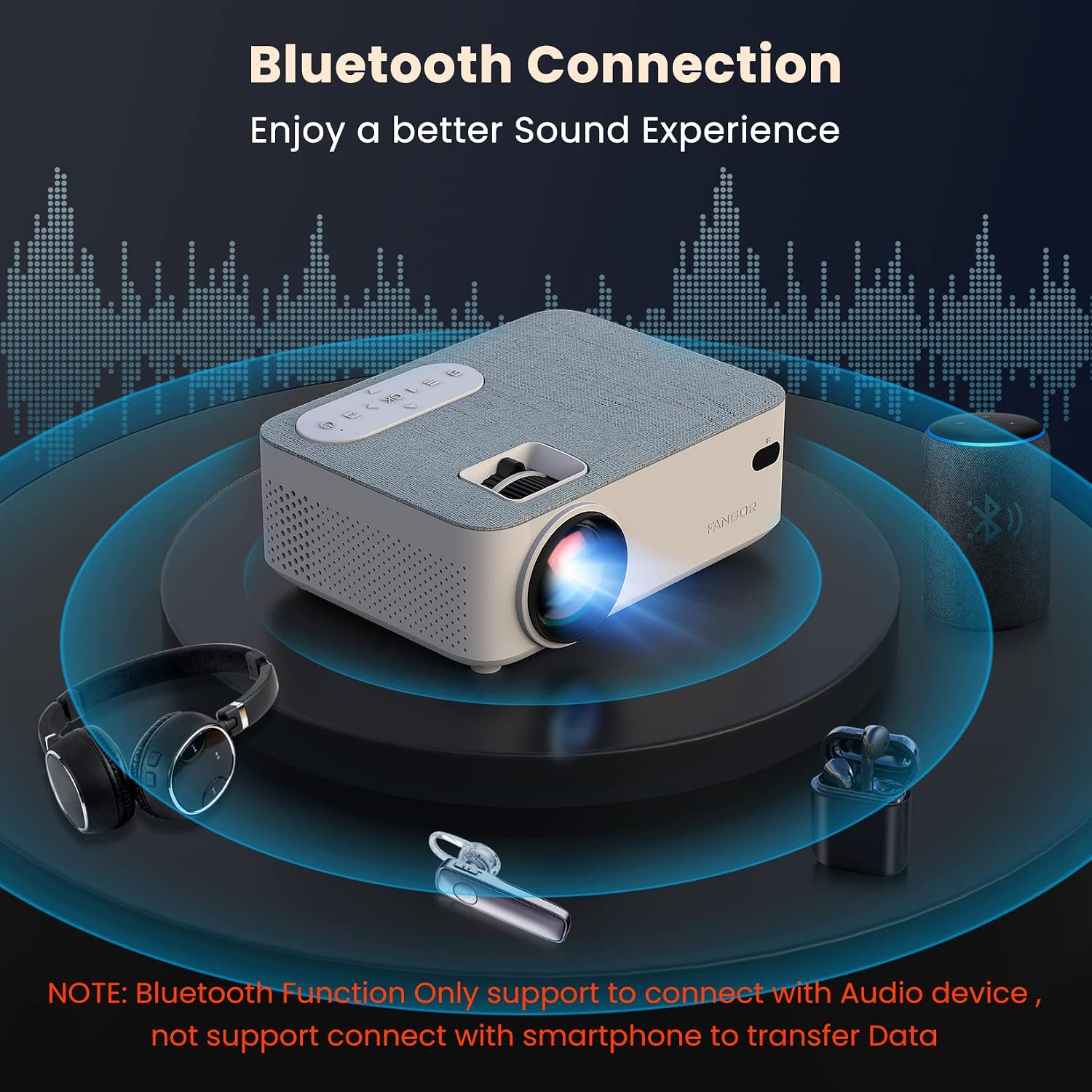
Image: The FANGOR 206A projector emitting a Bluetooth signal, connecting to a pair of headphones and a smart speaker, emphasizing its audio connectivity feature.
Connectivity
The projector offers versatile connectivity options:
- HDMI: Connect laptops, gaming consoles (PS3/4, Xbox), TV sticks (Fire TV, Roku), Chromecast, etc.
- USB/Micro SD: Play media directly from USB drives or Micro SD cards.
- VGA: Connect older computers or laptops.
- AV: Connect devices with AV output.
- Smartphone Connection: For Android devices, ensure your device supports MHL function and use an MHL cable (not included). For iPhone/iPad, use a Lightning to HDMI adapter (not included) and an HDMI cable.

Image: A visual representation of the projector's compatibility with various devices such as laptops, MacBooks, gaming consoles (PS4), and cameras, connected via different interfaces.

Image: Detailed instructions and diagrams showing how to connect Android devices (requiring MHL support and cable) and iPhones/iPads (requiring a Lightning to HDMI adapter) to the projector.
Maintenance
- Cleaning the Lens: Use a soft, lint-free cloth specifically designed for optical lenses. Do not use abrasive cleaners or cloths.
- Cleaning the Projector Body: Wipe the exterior with a soft, dry cloth. Avoid using liquid cleaners directly on the surface.
- Ventilation: Ensure the ventilation vents are clear of dust and obstructions to prevent overheating. Do not block the air inlets or outlets.
- Storage: When not in use for extended periods, store the projector in its carrying bag in a cool, dry place, away from direct sunlight and extreme temperatures.
Troubleshooting
| Problem | Possible Cause | Solution |
|---|---|---|
| No image displayed | Power not connected, incorrect input source, loose cable connection. | Check power cable, select correct input source, ensure cables are securely connected. |
| Image blurry | Focus not adjusted, incorrect projection distance. | Adjust the focus ring, ensure projector is within optimal projection distance. |
| Image is trapezoidal | Keystone correction not adjusted. | Adjust the keystone correction setting. |
| No sound | Volume too low, incorrect audio output, external speaker not connected. | Increase volume, check audio settings, ensure Bluetooth speaker is paired or wired speaker is connected. |
| Remote control not working | Batteries low/dead, obstruction between remote and projector. | Replace batteries, remove any obstructions, ensure remote is pointed at the IR receiver. |
Specifications
| Feature | Detail |
|---|---|
| Brand | FANGOR |
| Model Number | F-206A |
| Display Resolution | 1920 x 1080 (Supported) |
| Connectivity Technology | Bluetooth, HDMI, VGA, USB, Micro SD, AV |
| Item Weight | 4.4 pounds |
| Product Dimensions | 7.87 x 5.91 x 3.15 inches |
| Lamp Life | Up to 55,000 hours |
| Special Features | Bluetooth, Portable, Dual Speakers, Upgraded Cooling System |
Warranty & Support
FANGOR offers comprehensive support for your F-206A projector:
- Warranty: ONE-MONTH refund & exchange, ONE-YEAR warranty.
- Professional Service: 3 years professional service.
- Customer Service: 24 hours reply service for any product questions.
For assistance, please contact FANGOR customer support through the vendor's official channels or the platform where the product was purchased.
Documents and downloads
Ask a question about this manual
Ask about setup, troubleshooting, compatibility, parts, safety, or missing instructions. Manuals+ will review the question and use this page’s manual context to help answer it.