1. Introduction
The LIUWID LZ-MP3 (A20) is a versatile portable media player designed for high-fidelity audio playback, video viewing, voice recording, and more. Featuring Bluetooth 5.0 connectivity and a built-in HD speaker, it offers a comprehensive entertainment experience on the go. This manual provides detailed instructions for setting up, operating, and maintaining your device.

Image: The LIUWID LZ-MP3 Player, showcasing its sleek design, included earphones, and a Micro SD card.
2. Package Contents
Please verify that all items listed below are included in your package. If any components are missing or damaged, contact customer support immediately.
- 1 x LIUWID Bluetooth 5.0 MP3 Player
- 1 x Data Cable (USB)
- 1 x Earphones
- 1 x Card Reader
- 1 x 32GB Micro SD Card
- 1 x User Manual (in German, French, Italian, and Spanish)
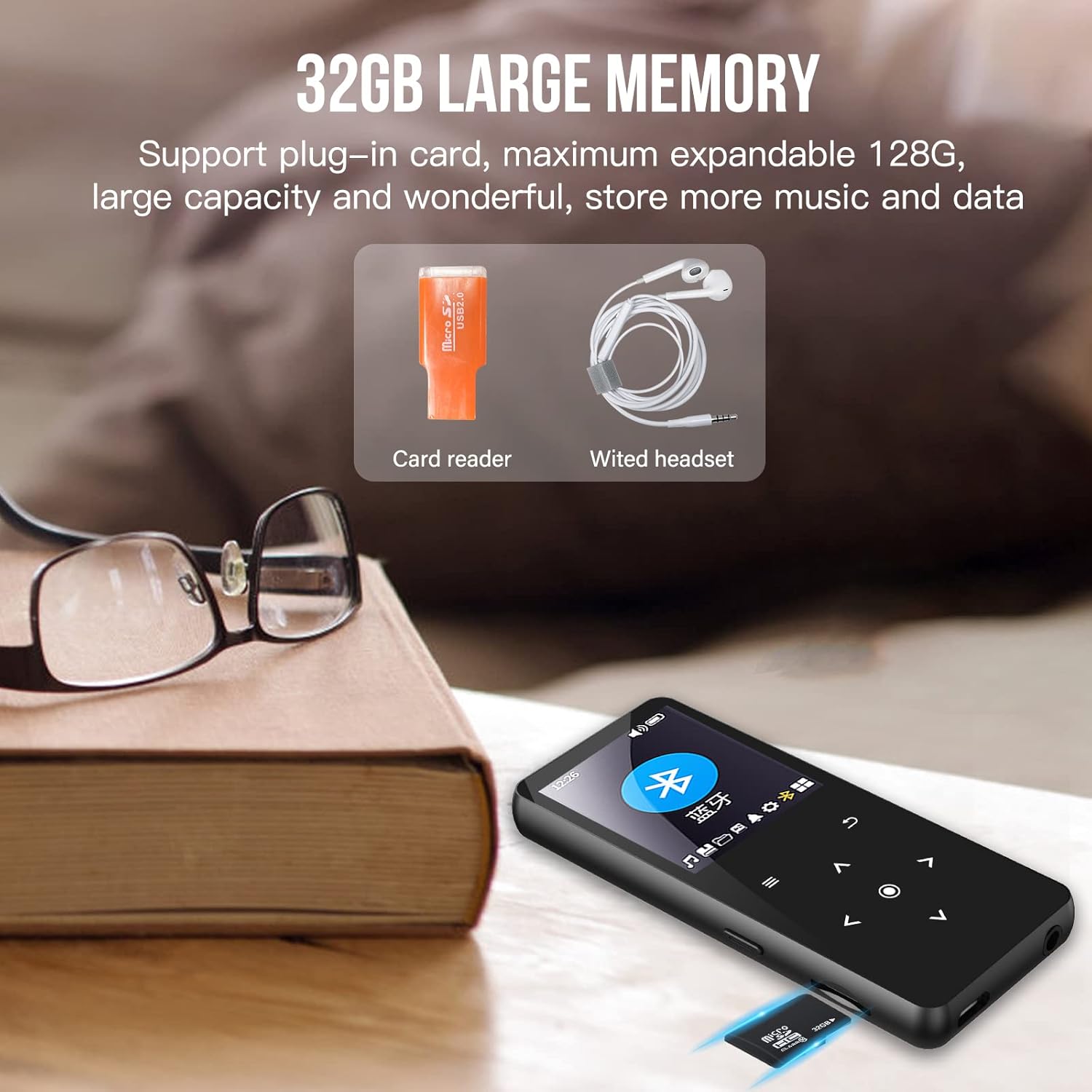
Image: The included 32GB Micro SD card, card reader, and wired earphones, essential accessories for the MP3 player.
3. Product Features
- Multifunctional Design: This compact and portable MP3 player integrates multiple functions including FM radio, voice recorder, video player, e-book reader, photo viewer, alarm clock, AB repeat, and text synchronization.
- Bluetooth 5.0 Connectivity: Equipped with Bluetooth 5.0 for stable, long-distance signal transmission and enhanced compatibility. It can connect to Bluetooth headphones or Bluetooth speakers. Note: This device cannot be paired with mobile phones or computers via Bluetooth.
- Hi-Fi Lossless Sound Quality: Features a professional noise reduction chip and supports various audio formats including MP3, WMA, WAV, FLAC, APE, and OGG, delivering a perfect high-fidelity lossless audio experience.
- Large Storage Capacity: Comes with a 32GB memory card and supports expansion up to 128GB, allowing you to store thousands of songs and audiobooks.
- Built-in HD Speaker: An integrated high-definition speaker allows you to listen to music without connecting external devices, reducing ear fatigue from prolonged earphone use.
- Video Playback: Supports AMV/AVI video formats, transforming your device into a portable mobile theater.
- Long Battery Life: Enjoy up to 100 hours of usage on a single charge, minimizing the need for frequent recharging.
- Advanced Playback Features: Includes intelligent AB repeat for specified paragraphs, eight-speed variable playback (fast or slow), and subtitle synchronization display for listening content.
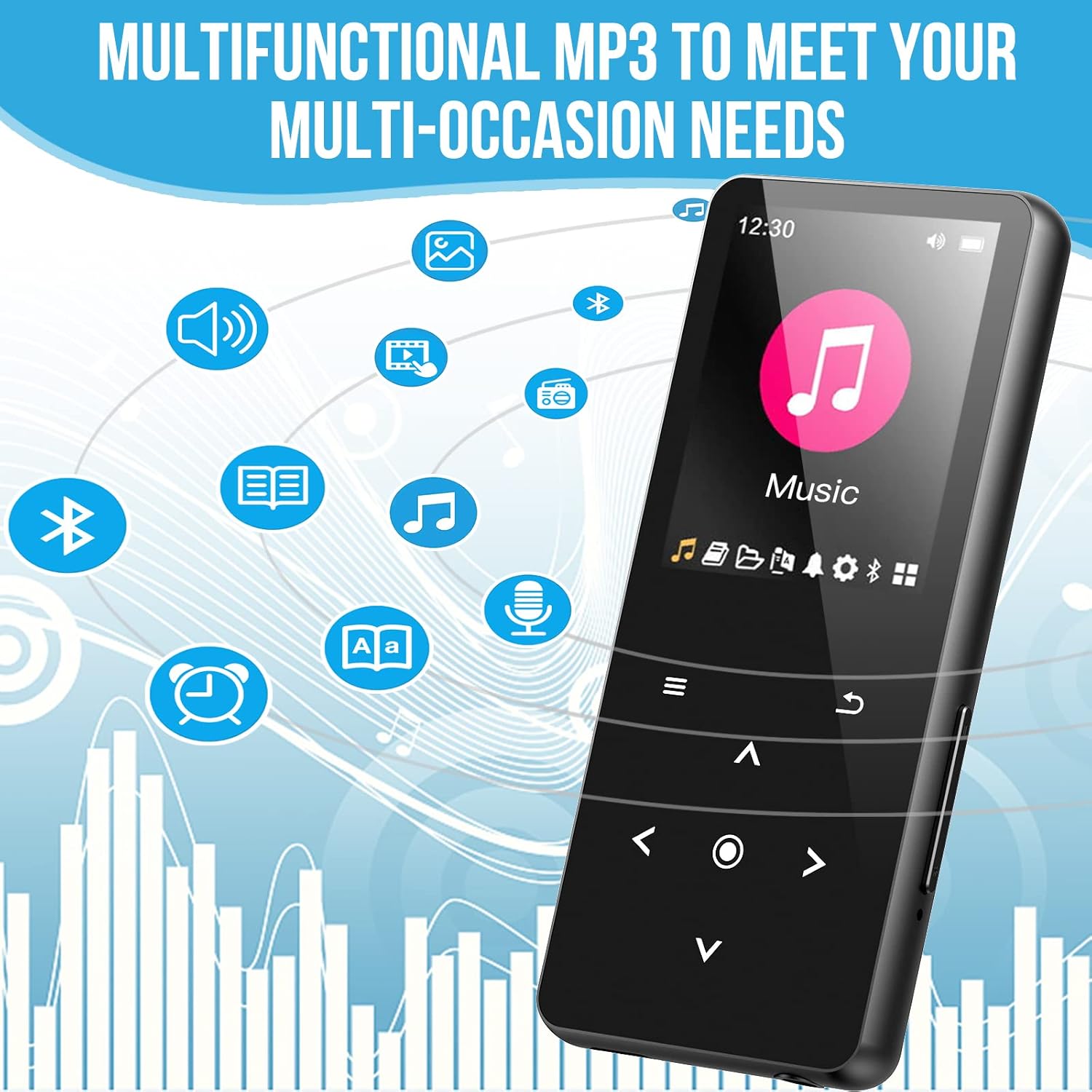
Image: A visual representation of the MP3 player's various functions, including music, video, e-book, FM radio, voice recording, and alarm clock.
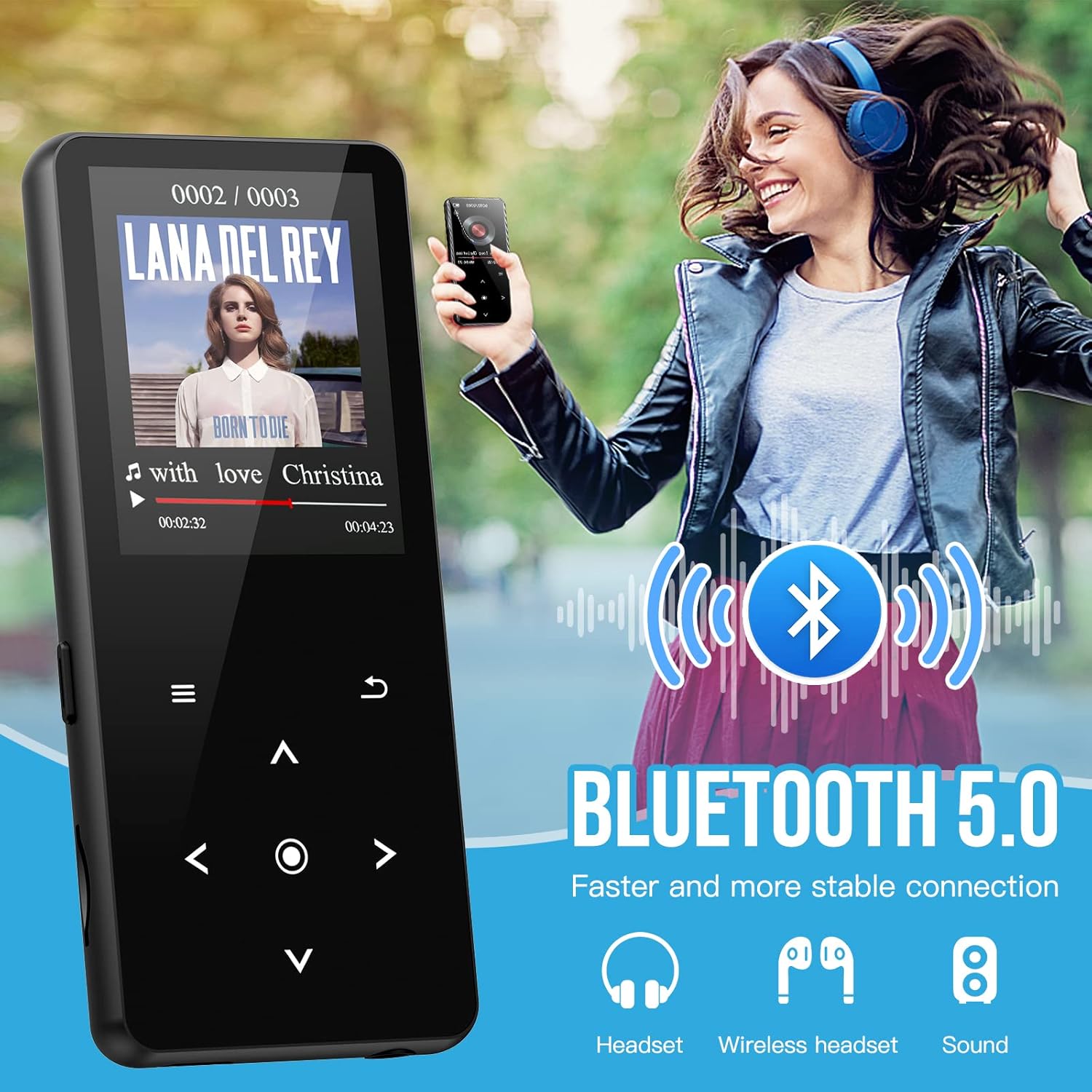
Image: A user enjoying music wirelessly, demonstrating the MP3 player's Bluetooth 5.0 capability for connecting to headphones.
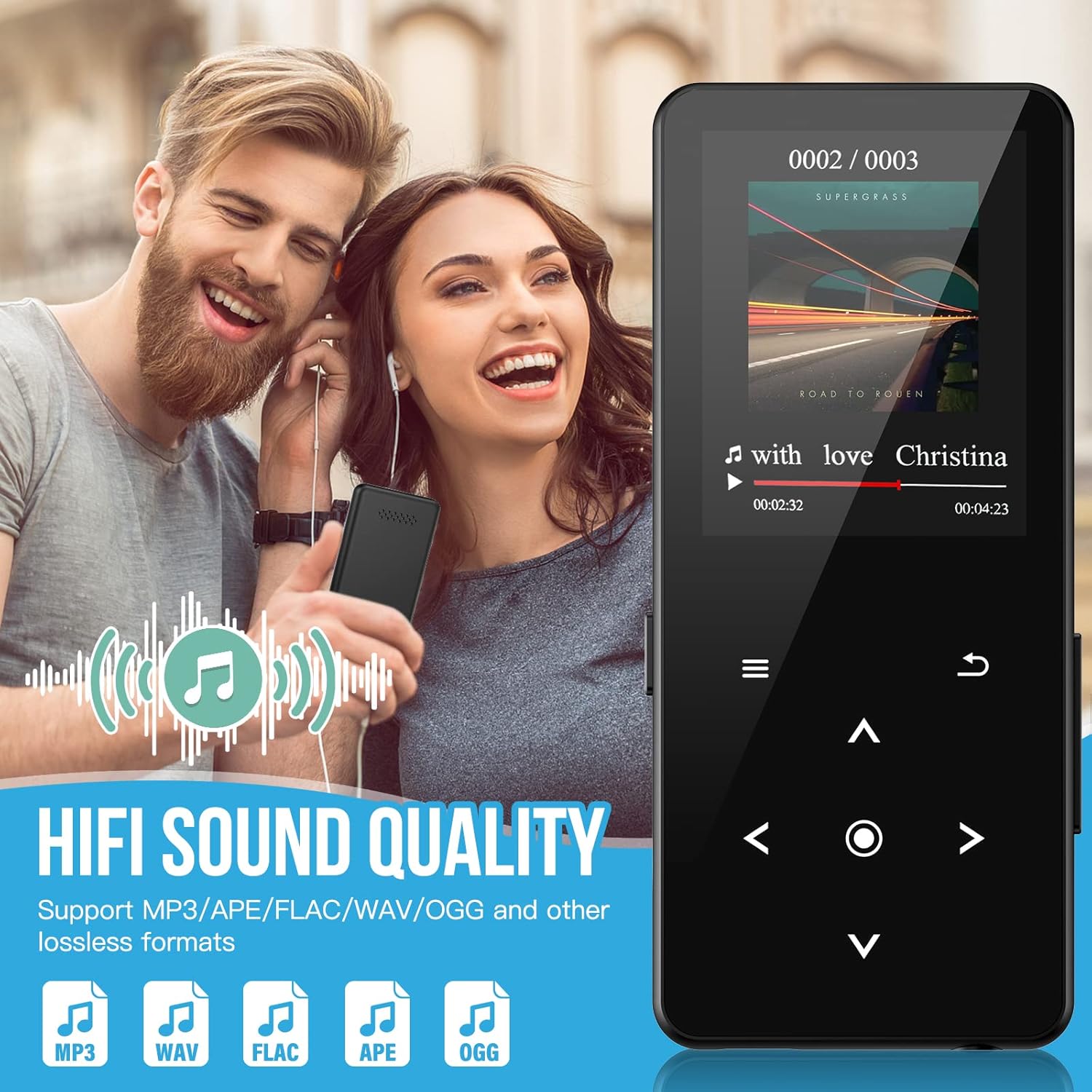
Image: Two individuals enjoying high-quality audio, highlighting the MP3 player's HiFi lossless sound capabilities and supported formats.
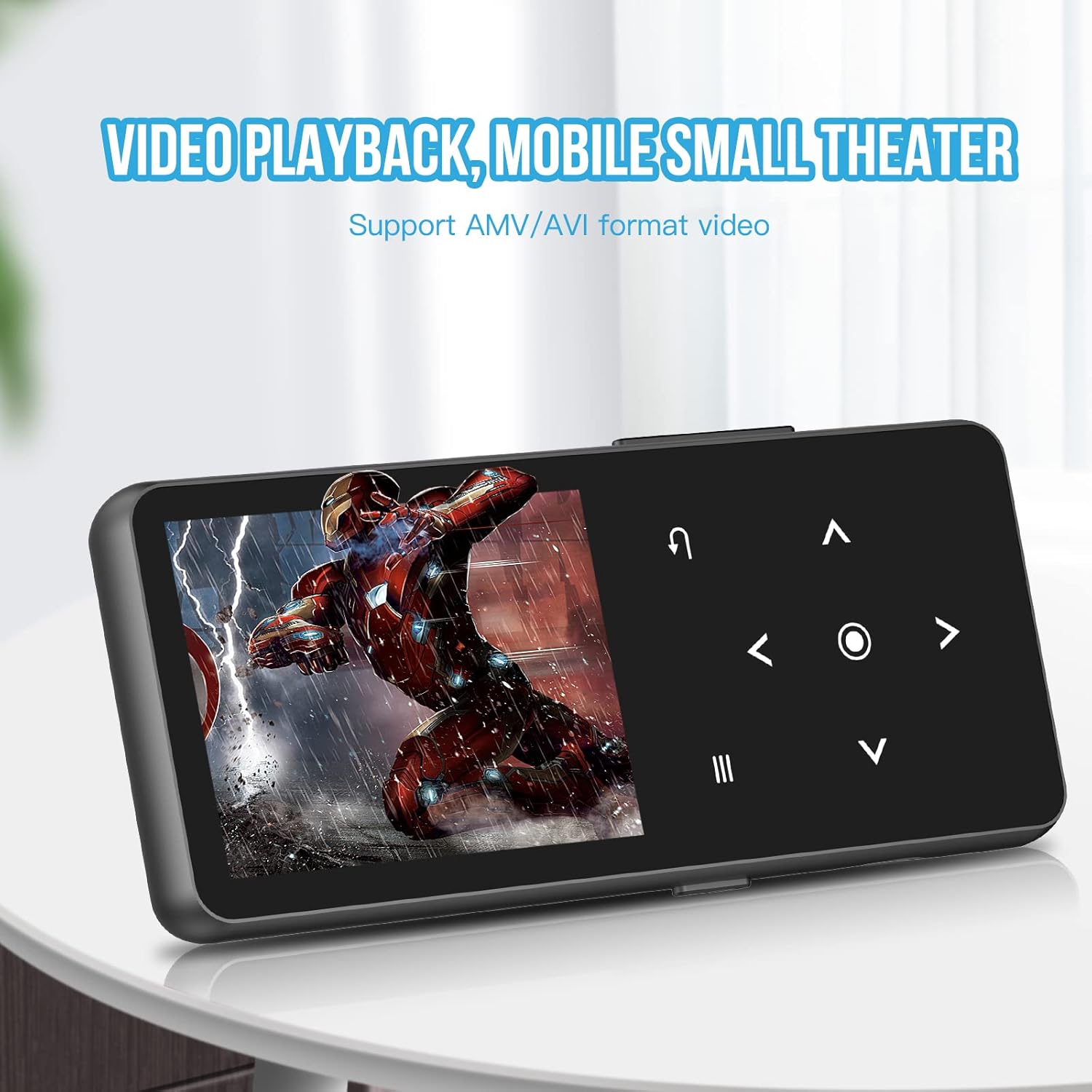
Image: The MP3 player screen showing a video, demonstrating its ability to play AMV/AVI format videos.
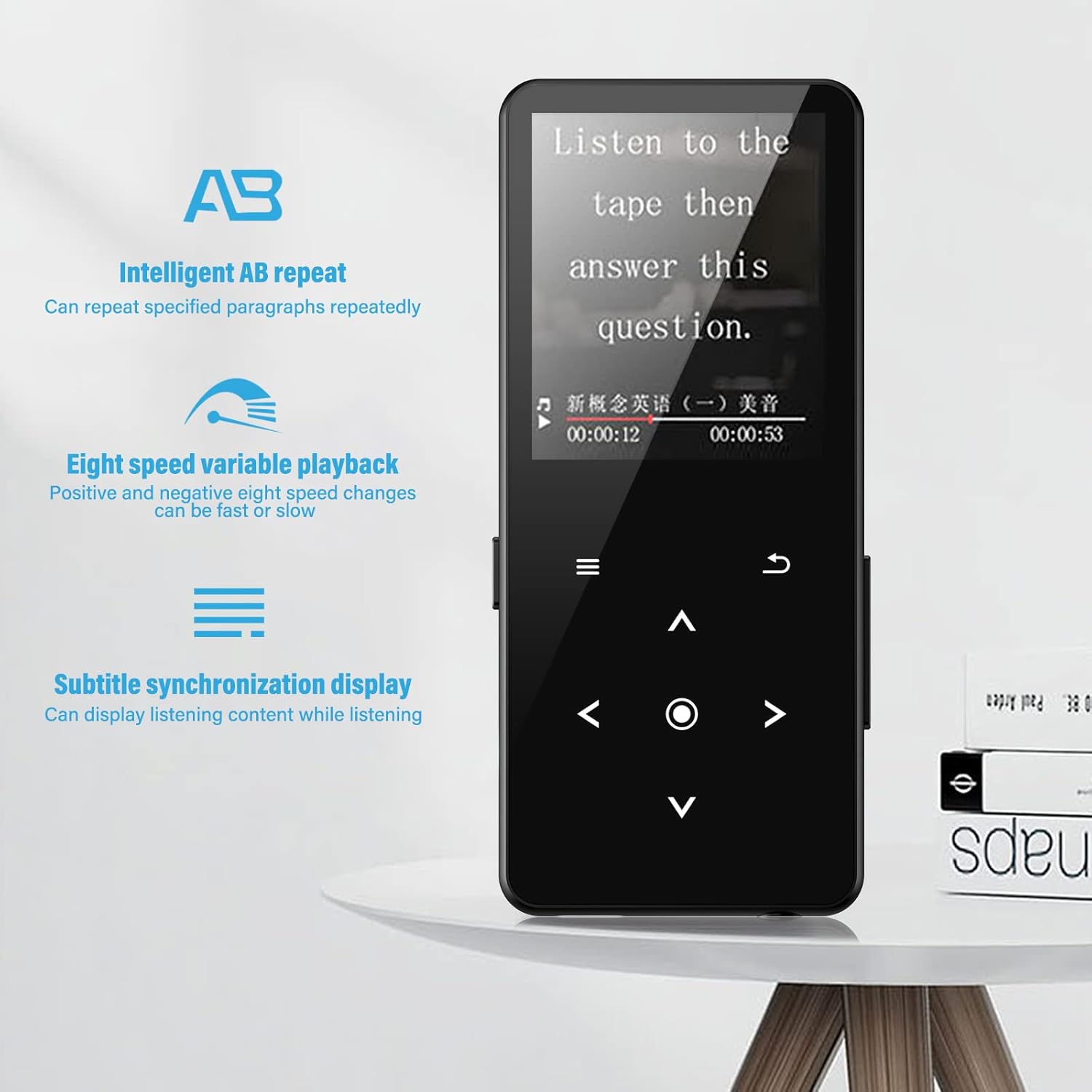
Image: The MP3 player's display highlighting features like intelligent AB repeat, eight-speed variable playback, and subtitle synchronization.
4. Setup
- Initial Charging: Before first use, fully charge the MP3 player using the provided USB data cable connected to a computer USB port or a compatible USB wall adapter. The charging indicator will show progress and turn off when fully charged.
- Insert Micro SD Card: Locate the Micro SD card slot on the side of the device. Gently insert the included 32GB Micro SD card (or your own up to 128GB) until it clicks into place. Ensure the card is inserted in the correct orientation.
- Power On/Off: Press and hold the Power button (usually located on the side or top) for a few seconds to turn the device on or off.
- Language Settings: Upon first power-on, you may need to select your preferred language. If not prompted, navigate to the 'Settings' menu (represented by a gear icon), select 'Language Settings' (usually the first option), choose your desired language (e.g., English), and confirm.
5. Operating Instructions
5.1. Basic Navigation
The device features a central navigation pad with directional buttons (Up, Down, Left, Right), a central 'OK' or 'Enter' button, and dedicated 'Menu' and 'Back' buttons. Use these to navigate through menus and select options.
5.2. Music Playback
- From the main menu, select 'Music'.
- You can browse music by 'All Songs', 'Folders', 'Albums', 'Artists', or 'Favorites'.
- Select a song to begin playback.
- During playback, use the navigation buttons to control volume, skip tracks, or pause/play.
- Access playback options (repeat, shuffle, single cycle, sequential) and equalizer styles (8 preset options) from the 'Menu' button during playback.
5.3. Video Playback
- From the main menu, select 'Video'.
- Browse and select an AMV/AVI format video file.
- Use navigation buttons for playback control (play, pause, fast forward, rewind).
5.4. FM Radio
- From the main menu, select 'FM Radio'.
- Ensure earphones are connected as they act as the antenna.
- Use the menu options to auto-scan for stations or manually tune.
5.5. Voice Recording
- From the main menu, select 'Recorder'.
- Choose 'Start Recording' to begin.
- Press 'Stop' to end and save the recording.
5.6. E-book Reading
- From the main menu, select 'E-book'.
- Browse and select a compatible text file.
- Use navigation buttons to scroll through pages.
5.7. Bluetooth Connection
- From the main menu, select 'Bluetooth'.
- Turn Bluetooth 'On'.
- Place your Bluetooth headphones or speaker in pairing mode.
- On the MP3 player, select 'Search for Devices'.
- Once your device appears in the list, select it to pair.
- After successful pairing, audio will be routed through the connected Bluetooth device.
6. Maintenance
- Cleaning: Use a soft, dry cloth to clean the device. Do not use liquid cleaners or aerosols.
- Battery Care: To prolong battery life, avoid fully discharging the battery frequently. Charge the device regularly, even if not in use for extended periods.
- Storage: Store the device in a cool, dry place away from direct sunlight, extreme temperatures, and humidity.
- Data Management: Regularly back up important files from your Micro SD card to a computer to prevent data loss.
7. Troubleshooting
- Device does not turn on: Ensure the battery is charged. Connect the device to a power source and try again. If the issue persists, perform a hard reset (refer to device specific instructions if available, or hold power button for 10-15 seconds).
- Cannot connect to Bluetooth device: Ensure both the MP3 player and the Bluetooth device are in pairing mode and within range. Make sure the Bluetooth device is not already connected to another device. Restart both devices and try again. Remember, the MP3 player cannot connect to phones or computers via Bluetooth.
- No sound: Check the volume level. Ensure earphones are properly plugged in if not using the built-in speaker or Bluetooth. If using Bluetooth, ensure it is correctly paired and connected.
- Files not playing: Verify that the file format is supported (e.g., MP3, WMA, WAV, FLAC, APE, OGG for audio; AMV/AVI for video). Ensure the files are not corrupted.
- Device freezes or becomes unresponsive: Press and hold the Power button for an extended period (e.g., 10-15 seconds) to force a restart.
- Appearance damaged or accessories missing upon receipt: If you notice any physical damage or missing components immediately after receiving the product, please contact customer support for assistance and replacement.
8. Specifications
| Feature | Specification |
|---|---|
| Brand | LIUWID |
| Model Name | A20 |
| Model Number | LZ-MP3 |
| Color | Black |
| Screen Size | 1.5 Inches |
| Connectivity Technology | Bluetooth |
| Special Features | Portable, Stable |
| Compatible Devices | Bluetooth Devices (Headphones, Speakers) |
| Battery Composition | Lithium |
| Rechargeable Battery | Yes |
| Memory Storage Capacity | 32 GB (expandable up to 128 GB) |
| Media Type | Micro SD |
9. Warranty and Support
For any questions, concerns, or issues with your LIUWID MP3 player, please contact the seller or manufacturer's customer support. Refer to the contact information provided with your purchase or on the product packaging. We strive to provide the best shopping experience and support for our products.


