
1. Introduction
This manual provides detailed instructions for the installation, setup, operation, and maintenance of your EMOS GoSmart IP-300 Torch Outdoor Surveillance Camera. Please read this manual thoroughly before using the product to ensure proper function and safety.
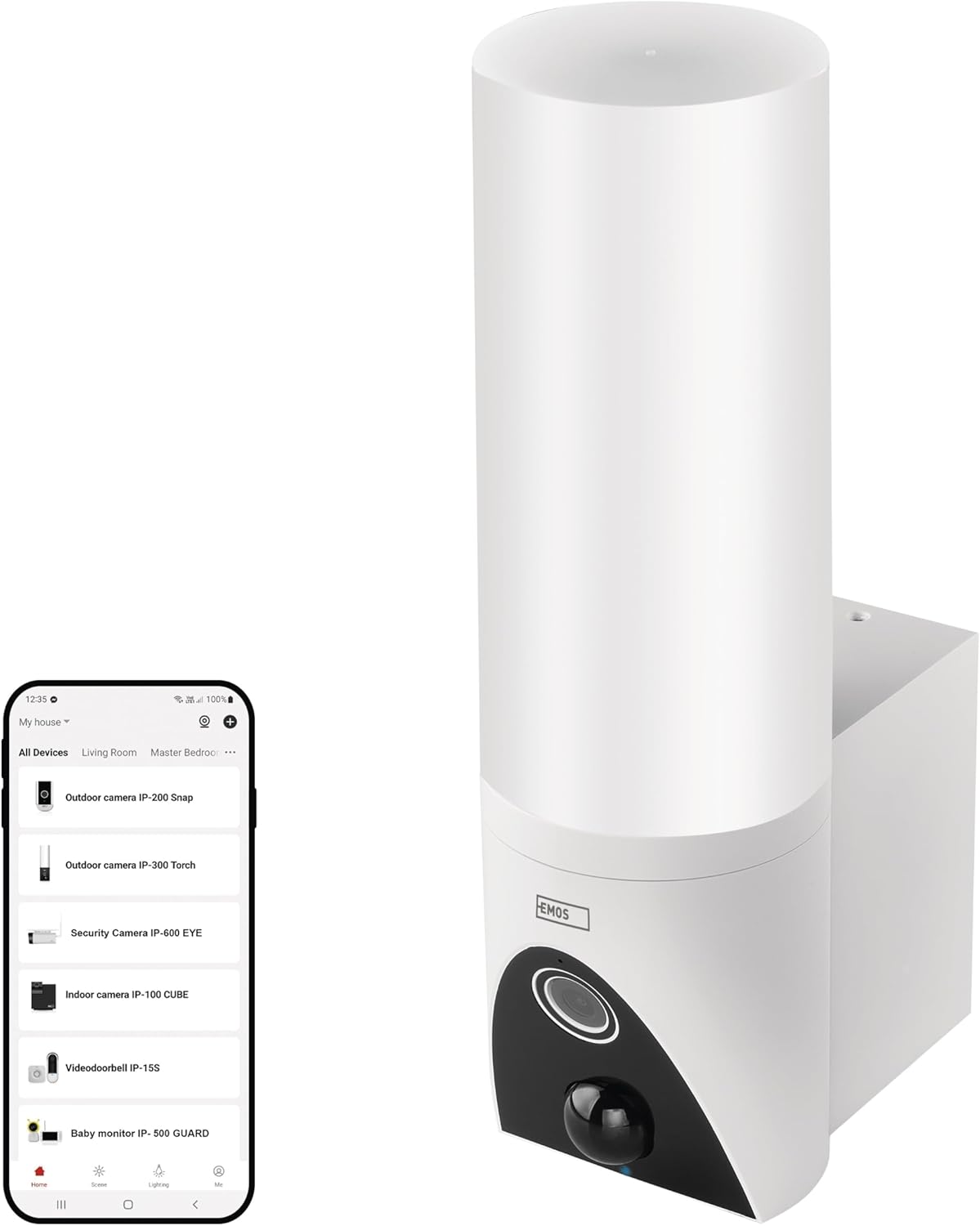
Image 1.1: EMOS GoSmart IP-300 Torch Outdoor Surveillance Camera. This image shows the white cylindrical camera unit with an integrated LED light and a dark camera lens at the bottom, designed for wall mounting.
2. Product Overview
2.1 Key Features
- Full HD 1080p Resolution: Provides clear video monitoring.
- Integrated LED Light: Adjustable brightness from 200 to 1200 lumens for illumination and deterrence.
- 120° Rotatable Lens: Allows for motion tracking and wider surveillance coverage.
- 130° Wide-Angle View: Captures a broad area.
- IP65 Weather Resistance: Suitable for outdoor use in various weather conditions.
- Motion Detection: Sends notifications upon detecting movement within a defined zone.
- Infrared Night Vision: Ensures clear monitoring in low-light conditions up to 10 meters.
- Two-Way Audio: Enables communication through the camera via the mobile application.
- Local and Cloud Storage: Supports recording to an SD card or optional cloud service.
- 120 dB Siren: An integrated siren can be activated to deter intruders.
- Smart Home Integration: Compatible with EMOS GoSmart app, Tuya, Smart Life, Amazon Alexa, and Google Assistant.
- WebRTC Functionality: Allows for virtual NVR capabilities through a web browser.
2.2 Package Contents
Ensure all items are present in the package:
- EMOS GoSmart IP-300 Torch Outdoor Surveillance Camera
- Mounting Accessories (screws, wall plugs)
- User Manual (this document)

Image 2.1: Mounting accessories. This image displays various screws and wall plugs included for secure installation of the camera.
3. Safety Information
Please observe the following safety precautions:
- Installation should be performed by a qualified electrician if you are unsure about electrical wiring.
- Ensure the power supply is disconnected before installation or maintenance.
- Use only the specified power voltage (240V) for the device.
- Do not expose the camera to extreme temperatures outside its operating range.
- Keep the device away from strong magnetic fields.
- Do not attempt to disassemble or repair the camera yourself. Contact customer support for assistance.
- Ensure the camera is securely mounted to prevent it from falling.
4. Installation
4.1 Site Selection
Choose a location that provides the desired surveillance coverage and has a stable 2.4 GHz Wi-Fi signal. The camera is designed for outdoor use and is IP65 rated for weather resistance. Consider the camera's dimensions (29.2 x 16.5 x 11 cm) when selecting a mounting spot.

Image 4.1: Camera dimensions. This image illustrates the physical measurements of the camera, showing a height of 260mm, width of 74mm, and depth of 131mm.
4.2 Mounting the Camera
- Prepare the Mounting Surface: Ensure the wall or surface is strong enough to support the camera.
- Mark Drill Holes: Use the mounting bracket as a template to mark the positions for drilling.
- Drill Holes: Drill holes of appropriate size for the wall plugs.
- Insert Wall Plugs: Insert the provided wall plugs into the drilled holes.
- Secure the Bracket: Attach the mounting bracket to the wall using the screws.
- Attach the Camera: Secure the camera unit to the mounted bracket.

Image 4.2: Mounted camera. This image shows the EMOS GoSmart IP-300 Torch camera securely installed on an exterior wall, demonstrating its outdoor placement.
4.3 Electrical Connection
The camera requires a 240V electrical connection. It is recommended to have a qualified electrician perform the wiring to ensure safety and compliance with local regulations.
- Ensure the power supply is turned off at the circuit breaker before connecting any wires.
- Connect the camera's power input to a suitable 240V AC power source.
- Ensure all connections are secure and properly insulated.
- Once wiring is complete, restore power to the circuit.

Image 4.3: Wiring and app compatibility. This image shows the camera's internal wiring compartment, indicating a 230V DC power requirement, along with logos for Google Play, App Store, Alexa, and Google Assistant compatibility.
5. Setup
5.1 App Download and Account Creation
- Download the EMOS GoSmart App: Search for "EMOS GoSmart" on the Google Play Store (for Android) or Apple App Store (for iOS).
- Install and Open: Install the app on your smartphone or tablet and open it.
- Register/Log In: Follow the on-screen instructions to create a new account or log in if you already have one.

Image 5.1: EMOS GoSmart app interface. This image shows a person interacting with the EMOS GoSmart app on a smartphone, displaying a live camera feed and app navigation.
5.2 Connecting to Wi-Fi
The camera connects via 2.4 GHz Wi-Fi. Ensure your router is broadcasting a 2.4 GHz network.
- Power On Camera: Ensure the camera is powered on and in pairing mode (refer to LED indicator for status, usually blinking).
- Add Device in App: In the EMOS GoSmart app, tap "Add Device" or the "+" icon.
- Select Camera Type: Choose the appropriate camera model (e.g., "Outdoor Camera" or "Smart Camera").
- Enter Wi-Fi Details: Input your 2.4 GHz Wi-Fi network name (SSID) and password.
- Scan QR Code (if prompted): The app may generate a QR code for the camera to scan. Hold your phone's screen in front of the camera lens until you hear a confirmation sound.
- Complete Pairing: Follow any remaining prompts in the app to complete the pairing process.
5.3 Initial Configuration
After successful pairing, you can configure basic settings:
- Name the Camera: Assign a recognizable name to your camera (e.g., "Front Door Camera").
- Time Zone Settings: Adjust the time zone for accurate timestamps on recordings.
- Video Quality: Select desired video resolution (e.g., 1080p).
- SD Card Installation: If using local storage, insert a microSD card into the designated slot. The slot is typically located under a protective cover on the camera body.
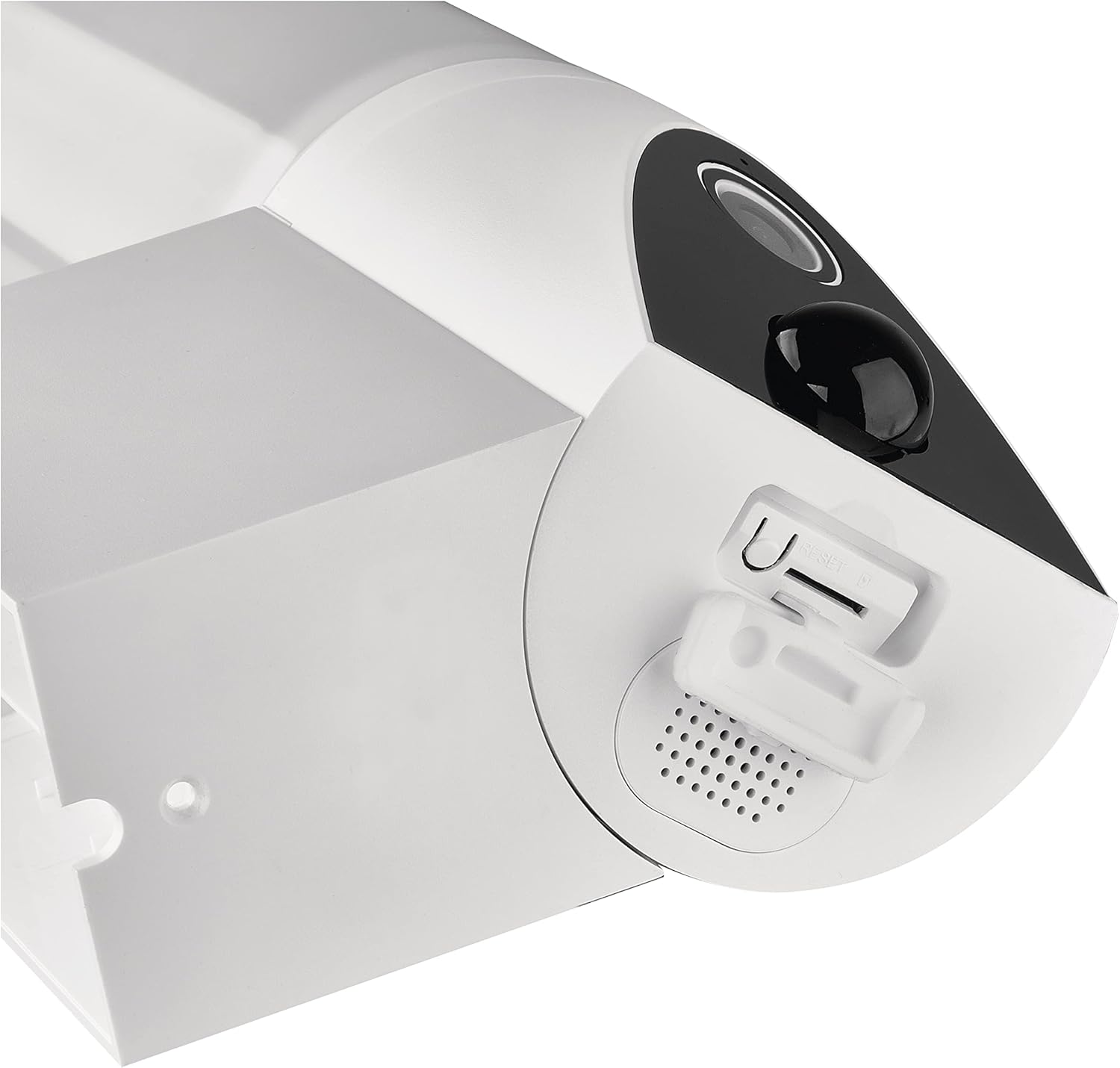
Image 5.2: SD card slot. This image provides a close-up view of the microSD card slot, located on the underside of the camera, protected by a rubber cover.
6. Operating Instructions
6.1 Live View and Playback
- Access Live Feed: Open the EMOS GoSmart app and select your camera to view the live video stream.
- Playback Recordings: Navigate to the playback section in the app to review recorded footage from your SD card or cloud storage.
6.2 Motion Detection and Tracking
The camera can detect motion and track subjects within its field of view.
- Enable Motion Detection: In the app settings, activate motion detection.
- Set Detection Zone: Define specific areas within the camera's view where motion detection should be active, ignoring irrelevant areas (e.g., public roads).
- Adjust Sensitivity: Modify the motion detection sensitivity to reduce false alarms.
- Receive Notifications: Configure the app to send push notifications to your phone when motion is detected.
- Motion Tracking: The 120° rotatable lens can automatically follow detected movement. Enable this feature in the app settings.

Image 6.1: Motion detection zone. This image illustrates how to define a specific surveillance area, excluding irrelevant zones, for accurate motion detection.

Image 6.2: Advanced features. This image highlights features such as an integrated 120 dB siren, 2.4 GHz Wi-Fi operation, and smart scenario integration with other devices.
6.3 LED Light Control
The integrated LED light can be controlled via the app.
- Adjust Brightness: Set the light intensity between 200 and 1200 lumens.
- Schedule Lighting: Create schedules for the light to turn on/off or adjust brightness at specific times.
- Motion-Activated Lighting: Configure the light to turn on automatically when motion is detected.

Image 6.3: LED light brightness. This image demonstrates the adjustable brightness levels of the integrated LED light, ranging from 200 lm to 1200 lm.
6.4 Two-Way Audio
Use the intercom function to communicate with visitors or deter unwanted guests.
- Activate Microphone: In the live view, tap the microphone icon to speak through the camera's speaker.
- Listen: The camera's built-in microphone captures audio from the surveillance area.

Image 6.4: Two-way audio communication. This image illustrates the two-way audio function, showing a person outside the door saying "Hello!" and a person indoors responding "Hi!" via the app.
6.5 Night Vision and Siren
- Infrared Night Vision: The camera automatically switches to infrared night vision in low-light conditions, providing clear black and white images up to 10 meters.
- Siren Activation: The 120 dB siren can be manually activated via the app or set to trigger automatically upon motion detection.

Image 6.5: Night vision and weather resistance. This image shows the camera operating in rainy conditions (demonstrating IP65 rating) and illustrates the clarity of night vision with different lighting conditions.
6.6 Smart Home Integration
The EMOS GoSmart IP-300 Torch camera can be integrated with various smart home platforms.
- Amazon Alexa & Google Assistant: Link your EMOS GoSmart account to your Alexa or Google Home app to enable voice control for certain functions (e.g., "Show me the front door camera").
- Tuya & Smart Life: The camera is compatible with Tuya and Smart Life platforms, allowing for broader smart home automation.
- WebRTC: Utilize the WebRTC function for virtual NVR capabilities, allowing you to monitor your camera feed through a web browser.
7. Maintenance
- Cleaning: Periodically clean the camera lens and LED light cover with a soft, damp cloth. Do not use harsh chemicals or abrasive materials.
- Firmware Updates: Check the EMOS GoSmart app regularly for firmware updates. Keeping the firmware updated ensures optimal performance and security.
- Power Cycle: If the camera experiences issues, try power cycling it by disconnecting and reconnecting the power supply.
8. Troubleshooting
| Problem | Possible Cause | Solution |
|---|---|---|
| Camera not connecting to Wi-Fi | Incorrect Wi-Fi password; camera too far from router; 5 GHz Wi-Fi network used; weak signal. | Ensure correct 2.4 GHz Wi-Fi password. Move camera closer to router. Confirm router is broadcasting 2.4 GHz. Restart router and camera. |
| No motion detection notifications | Motion detection disabled; incorrect detection zone; app notifications turned off. | Enable motion detection in app. Adjust detection zone and sensitivity. Check phone's notification settings for the EMOS GoSmart app. |
| Poor video quality | Weak Wi-Fi signal; dirty lens; low bandwidth. | Improve Wi-Fi signal strength. Clean the camera lens. Check internet speed. Adjust video quality settings in the app. |
| LED light not working | Light disabled in app; power issue. | Check light settings in the EMOS GoSmart app. Ensure camera has power. |
| Two-way audio not functioning | Microphone/speaker disabled; app permissions. | Check audio settings in the app. Ensure app has microphone permissions on your phone. |
9. Specifications
| Feature | Detail |
|---|---|
| Model Name | GO SMART IP-300 TORCH |
| Model Number | H4054 |
| Brand | EMOS |
| Video Resolution | 1080p Full HD |
| Viewing Angle | 130 degrees (wide-angle) |
| Lens Rotation | 120 degrees (for motion tracking) |
| Night Vision Range | Up to 10 meters |
| LED Light Output | 200 - 1200 lumens (adjustable) |
| Connectivity | Wi-Fi (2.4 GHz only) |
| Power Source | Electric (240 Volts) |
| Power Consumption | 5 Watts |
| IP Rating | IP65 (Waterproof) |
| Material | Metal |
| Dimensions (L x W x H) | 29.2 x 16.5 x 11 cm |
| Weight | 980 grams |
| Storage Options | MicroSD card, Cloud storage (optional) |
| Smart Home Compatibility | EMOS GoSmart App, Tuya, Smart Life, Amazon Alexa, Google Assistant |
10. Warranty and Support
For warranty information, please refer to the documentation provided at the time of purchase or visit the official EMOS website. For technical support, troubleshooting assistance, or service inquiries, please contact EMOS customer support through their official channels.
Manufacturer: EMOS
Website: www.emos.eu (or relevant regional site)