
1. Introduction
Thank you for choosing the MAIWO M.2 SATA SSD Cloner Duplicator. This device is designed for efficient data management, offering both offline cloning and drive docking functionalities for M.2 SATA SSDs. Please read this manual carefully before use to ensure proper operation and to maximize the lifespan of your device.
2. Compatibility
This 5-bay M.2 docking station is designed exclusively for M.2 SATA SSDs with B+M Key. It supports various sizes including 2230mm, 2242mm, 2260mm, 2280mm, and 22110mm.
Important: This device DOES NOT SUPPORT M.2 PCIe NVMe SSDs.
The external hard drive cloner is compatible with Windows, macOS, and Linux operating systems. It can also be used with laptops, desktops, tablets, TVs, phones, routers, PS4, PS5, and other compatible devices.

3. What's in the Box
- 1x MAIWO 5 Bay M.2 NGFF SSD Docking Station
- 1x 12V 5A Power Adapter
- 1x Power Cord
- 1x USB3.1 10Gbps Type-C to Type-A Data Cable
- 1x User Manual
4. Setup
4.1. Connecting the Device
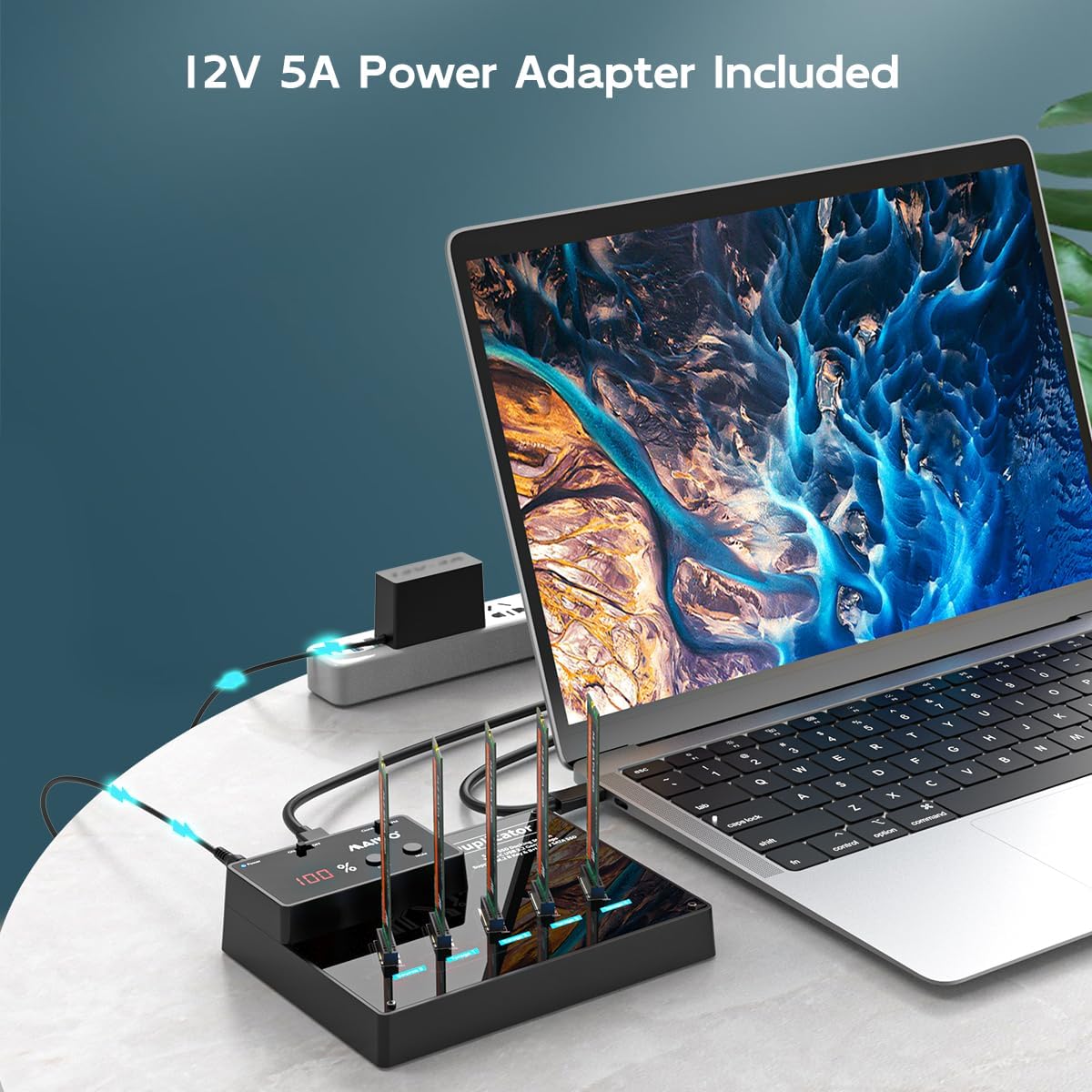
- Connect the 12V 5A power adapter to the DC IN port on the docking station and plug the power cord into an electrical outlet.
- For computer connectivity, connect the provided USB3.1 Type-C to Type-A data cable from the docking station's Type-C port to an available USB port on your computer.
4.2. Inserting M.2 SATA SSDs
- Gently slide your M.2 SATA SSDs into the designated slots (A-E) on the docking station. Ensure the SSDs are inserted correctly according to their B+M Key notch.
- The tool-free design allows for easy insertion and removal of SSDs.

5. Operating Modes
5.1. Read & Write Mode (Docking Station Function)
Use this mode to access your M.2 SATA SSDs as external drives connected to your computer.
- Insert M.2 SATA SSDs into the A-E slots.
- Ensure the 'Clone-PM Switch' is set to 'PM' (Program Mode).
- Connect the docking station to the power supply and turn the 'Power Switch' to 'ON'.
- Connect the docking station to your computer using the USB cable.
- Your computer will detect the inserted SSDs as external storage devices, allowing you to read and write data.
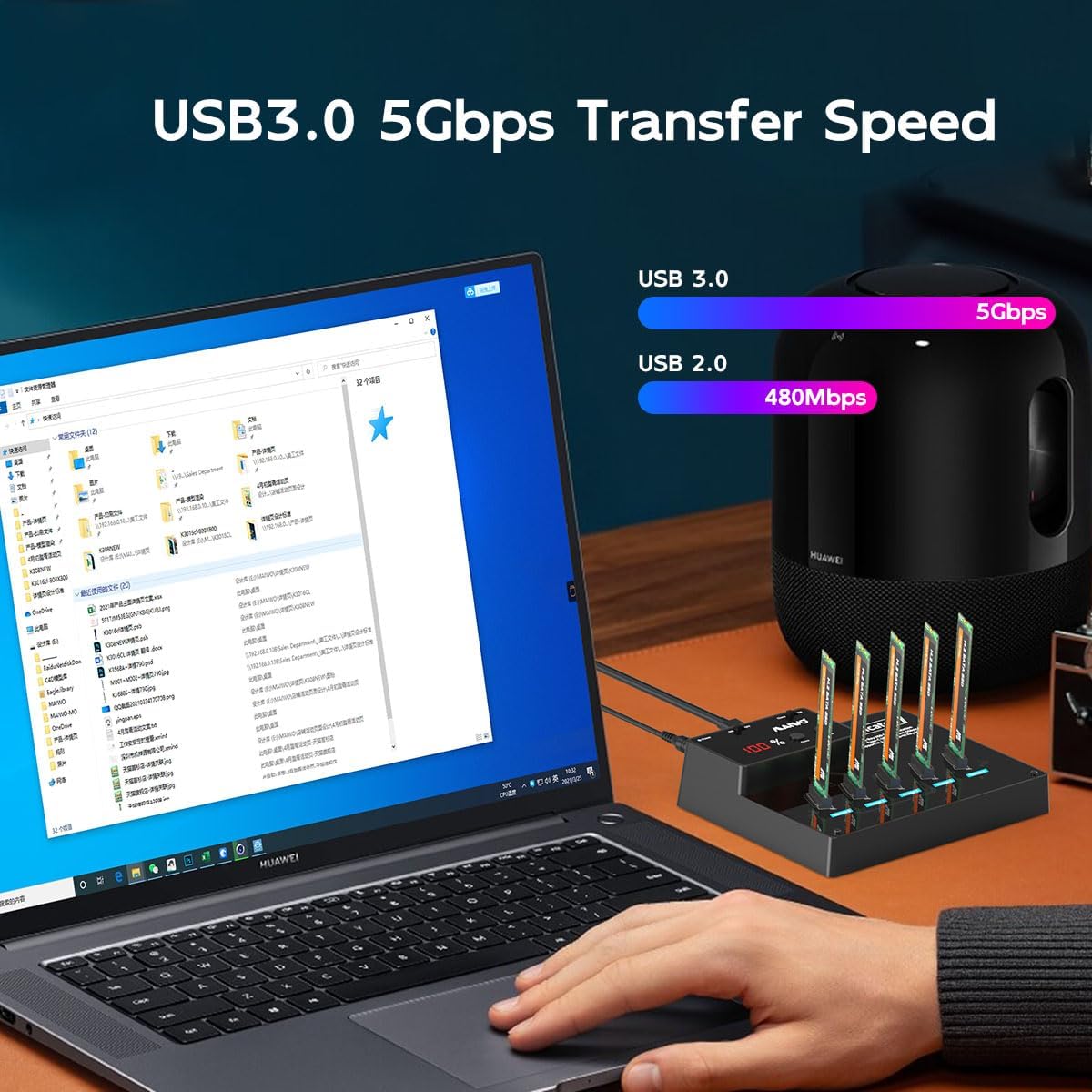
The device features a USB 3.0 output interface with a maximum transmission speed of up to 6Gbps, supporting UASP when used with Windows 8.1 or later operating systems.
5.2. Offline Clone Mode
This mode allows you to duplicate data from a source SSD to up to four target SSDs without needing a computer connection.
- Important: Ensure the capacity of the target disk(s) is equal to or larger than the source disk.
- Insert the source M.2 SATA SSD into the 'Source Disk' slot (usually A).
- Insert the target M.2 SATA SSD(s) into the 'Target Disk' slots (B, C, D, E).
- Ensure the 'Clone-PM Switch' is set to 'Clone'.
- Connect the docking station to the power supply and turn the 'Power Switch' to 'ON'.
- Double-click the 'Clone' button after the 'Disk LEDs' light up. The digital display will show 0%.
- The cloning process will begin, and the digital display will show the progress (25%, 50%, 75%, 100%).
- Once the digital display shows 100%, the cloning process is complete.
Note: Do not connect the USB data cable to a computer during the cloning process. Back up any data on target drives before cloning, as it will be overwritten.
If an error occurs during cloning, press the 'Mute' button to stop the process. Take out the defective SSD and press 'Mute' again to continue cloning with the remaining drives.
5.3. Capacity
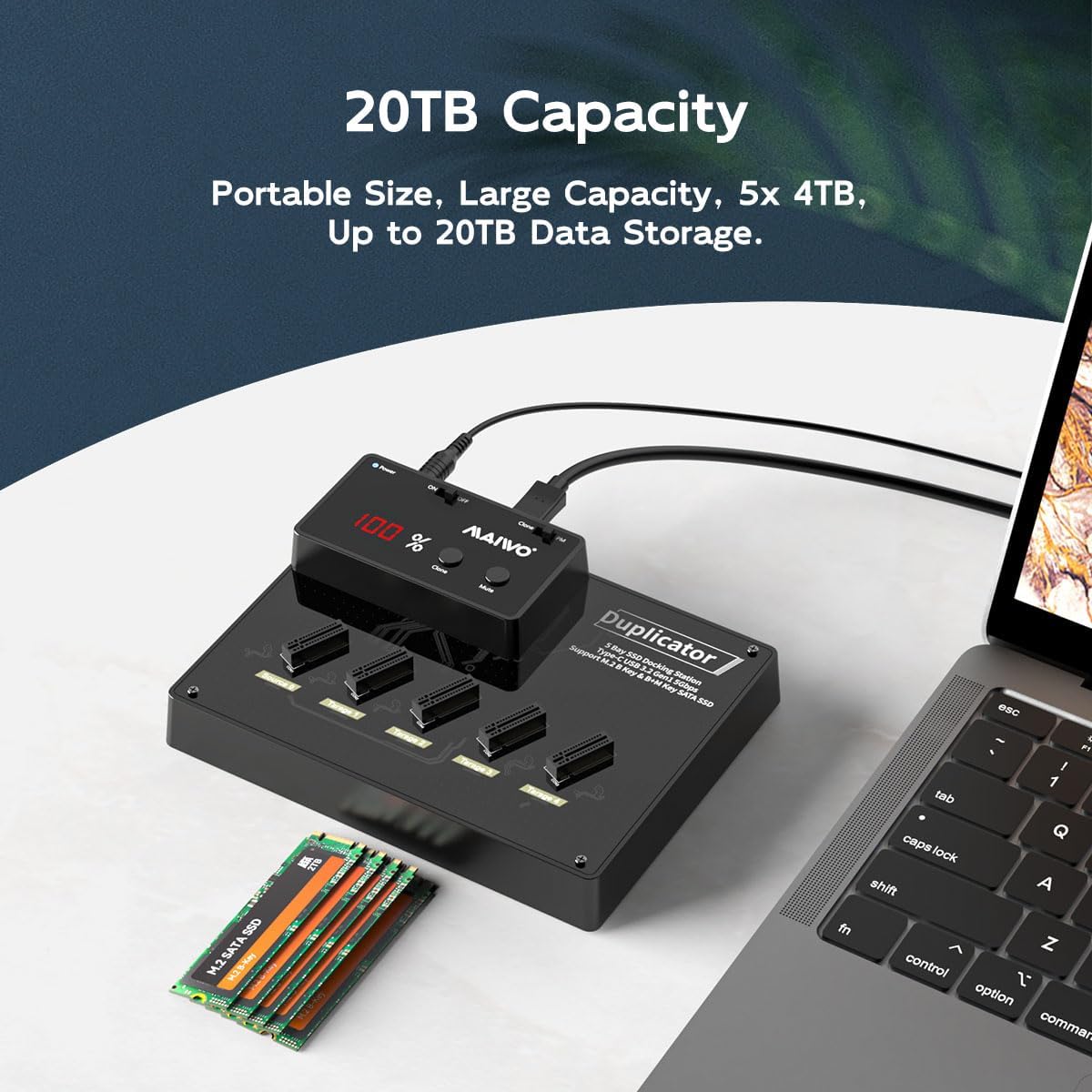
This multi-bay M.2 SSD enclosure accommodates 5 M.2 NGFF SATA solid state drives, each up to 4TB, providing a total data storage capacity of up to 20TB.
5.4. Official Product Video
Video 1: MAIWO 5 Bay M.2 SATA NGFF Duplicator with SATA III Chipset. This video demonstrates the features and usage of the MAIWO 5 Bay M.2 SATA SSD Cloner Duplicator, including its design and functionality.
6. Maintenance
To ensure optimal performance and longevity of your MAIWO M.2 SATA SSD Cloner Duplicator, follow these maintenance guidelines:
- Cleaning: Use a soft, dry cloth to clean the exterior of the device. Avoid using liquid cleaners or solvents.
- Storage: Store the device in a cool, dry place away from direct sunlight and extreme temperatures.
- Heat Dissipation: The vertical design of the docking station is optimized for excellent heat dissipation. Ensure adequate airflow around the device during operation to prevent overheating, especially during prolonged cloning or data transfer tasks.
- Handling: Handle the device and SSDs with care to prevent physical damage.
7. Troubleshooting
| Problem | Possible Cause | Solution |
|---|---|---|
| SSDs not detected by computer | Loose USB connection; SSD not properly inserted; SSD not initialized/formatted. | Check USB cable connection; Re-insert SSDs firmly; Initialize and format new SSDs via Disk Management (Windows) or Disk Utility (macOS). |
| Offline cloning fails or does not start | Target disk capacity smaller than source; USB cable connected during cloning; SSD type incompatibility (NVMe instead of SATA). | Ensure target disk is equal to or larger than source; Disconnect USB cable; Verify SSDs are M.2 SATA B+M Key, not NVMe. |
| Slow data transfer speeds | Using USB 2.0 port; Cable issue; Operating system without UASP support. | Connect to a USB 3.0 port or higher; Use the provided USB3.1 cable; Ensure your OS (Windows 8.1+ or macOS) supports UASP. |
| Device overheating | Poor ventilation; Prolonged heavy use. | Ensure adequate airflow around the device; Allow the device to cool down between intensive operations. |
8. Specifications
- Brand: MAIWO
- Model: MWK3015M5
- Color: Black
- Hardware Interface: USB 3.0 Type C
- Compatible Devices: Desktop, Gaming Console, Laptop, Macbook, Xbox, Smart TV, Router, PS5, PS4, Tablet, etc.
- Product Dimensions (L x W x H): 6.42" x 4.92" x 1.5"
- Item Weight: 301 Grams
- Input Voltage: 12 Volts (DC)
- Wattage: 36.00W
- Supported SSD Type: M.2 SATA SSD (B+M Key)
- Supported SSD Sizes: 2230/2242/2260/2280/22110mm
- Max Capacity: Up to 20TB (5x 4TB M.2 NGFF SATA SSDs)
- Features: Tool-Free, Plug and Play, Independent 12V 5A Power Adapter, Digital Display, Portable Size
9. Warranty
This product comes with a One Year Warranty. Please refer to the warranty card included in the packaging or contact MAIWO customer support for more details regarding warranty terms and conditions.
10. Support
For further assistance, technical support, or inquiries, please refer to the contact information provided in your product packaging or visit the official MAIWO website.


