
NHOPEEW B0BZC35H6B
NHOPEEW Single Din Car Radio User Manual
Model: B0BZC35H6B
Introduction
This manual provides detailed instructions for the installation, operation, and maintenance of your NHOPEEW Single Din Car Radio. This advanced car stereo features a 7-inch flip-out touchscreen, offering seamless integration with Wireless CarPlay and Android Auto, Bluetooth connectivity, FM radio, Mirror Link functionality, and support for a rear view camera and steering wheel controls. Please read this manual thoroughly before use to ensure proper operation and to maximize your driving experience.
Safety Information
- Always ensure professional installation to prevent damage to the unit or your vehicle's electrical system.
- Do not operate the unit or view videos while driving, as this can lead to accidents.
- Keep the unit away from water and moisture to avoid electric shock or fire.
- Use only specified voltage (12V DC) for power supply.
- If any abnormalities occur, disconnect power immediately and consult a qualified technician.
Package Contents
Verify that all items are present in the package:

Image: All components included in the NHOPEEW Single Din Car Radio package.
- NHOPEEW Single Din Car Stereo Unit
- Rear View Camera
- Power Cable
- Horn Cable
- Remote Control
- Mounting Bracket (2 pieces)
- External Microphone
- User Manual
Product Overview and Key Features
The NHOPEEW Single Din Car Radio is designed to enhance your in-car entertainment and connectivity. Below are its primary features:
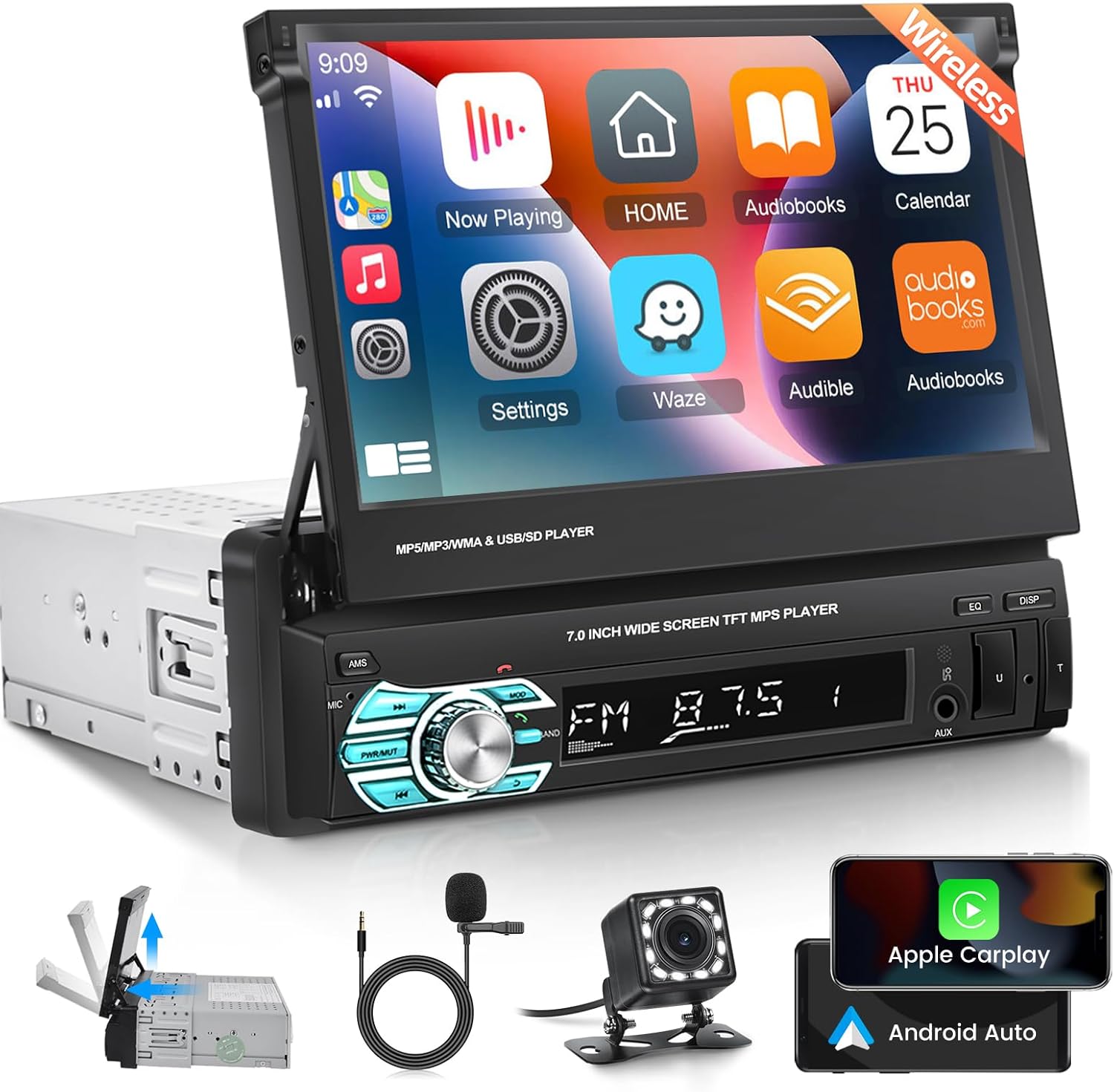
Image: Main product view of the NHOPEEW Single Din Car Radio with accessories.
7-inch HD Flip-Out Touchscreen
Experience a clear and vibrant display with the 7-inch high-definition touchscreen. The screen is retractable and can be manually flipped out, allowing for adjustable viewing angles from 60° to 100° for optimal visibility.

Image: Close-up of the 7-inch HD touchscreen in use.
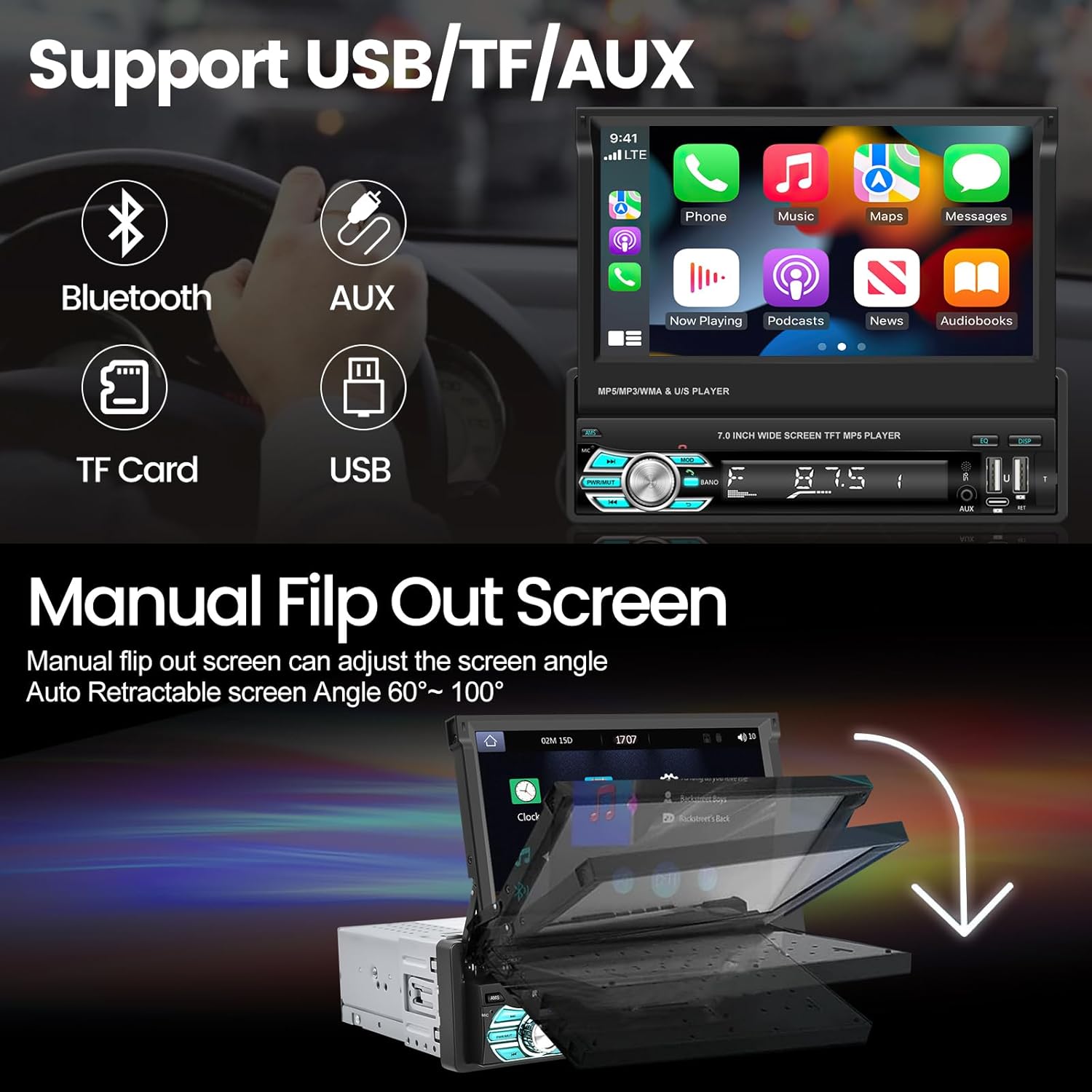
Image: Illustration of the manual flip-out screen adjustment.
Wireless CarPlay & Android Auto
Connect your iOS or Android device wirelessly or via USB to access your phone's functions directly on the car stereo. This includes navigation, music, calls, messages, and more, providing a safer and more convenient driving experience.

Image: Wireless CarPlay and Android Auto interfaces.

Image: Wireless Apple CarPlay and Android Auto in action.
Phone Mirror Link Function
Mirror your smartphone's screen (both Android and iOS) directly onto the car stereo display. This allows you to view content not supported by CarPlay or Android Auto, such as videos, making your journey more entertaining.
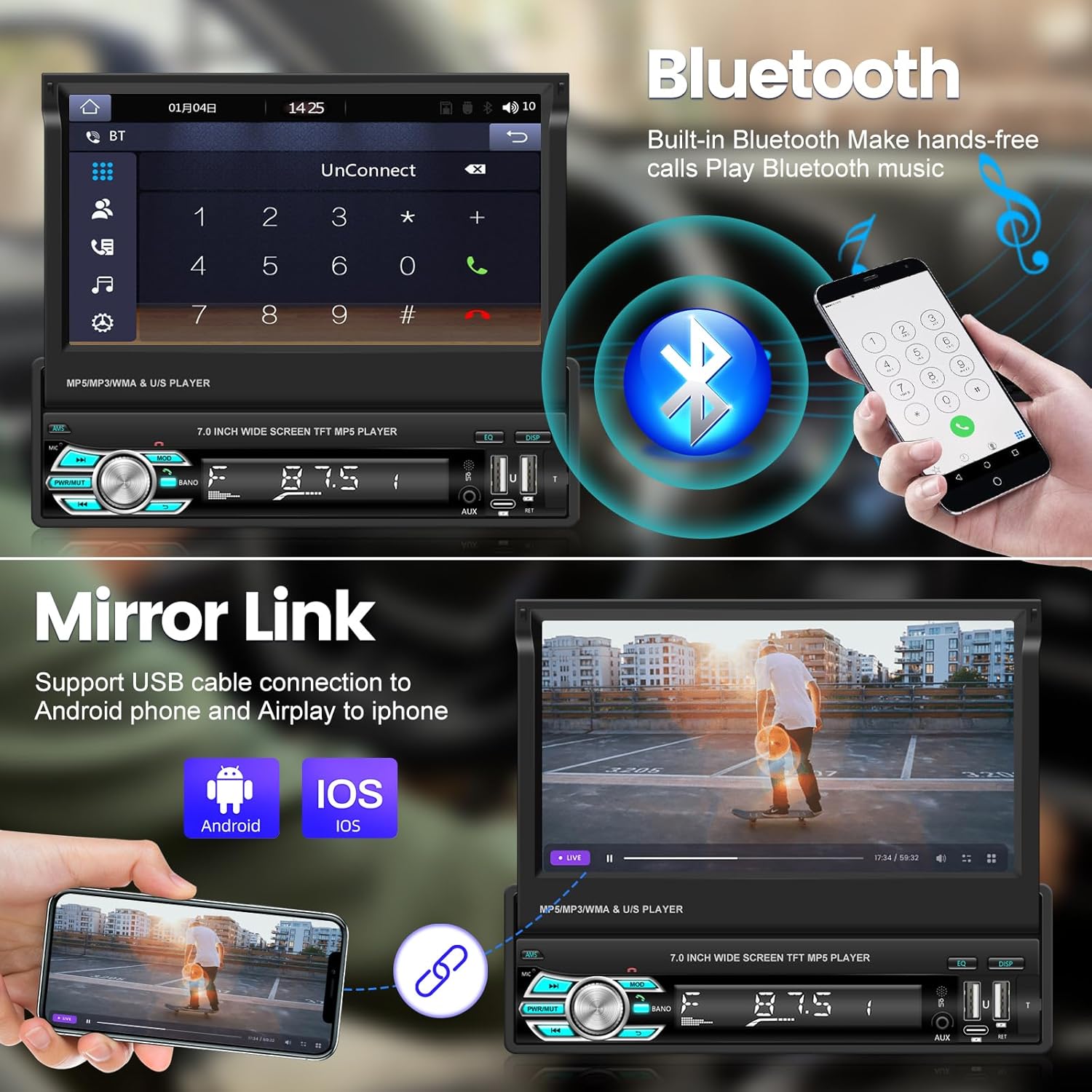
Image: Bluetooth call interface and Mirror Link video playback.

Image: Mirror Link functionality and Steering Wheel Control setup.
Built-in Bluetooth & FM Radio
The integrated Bluetooth allows for hands-free calling and wireless music streaming, enhancing safety and convenience. The FM radio features 18 preset stations and automatic channel search, ensuring you always have access to your favorite broadcasts.
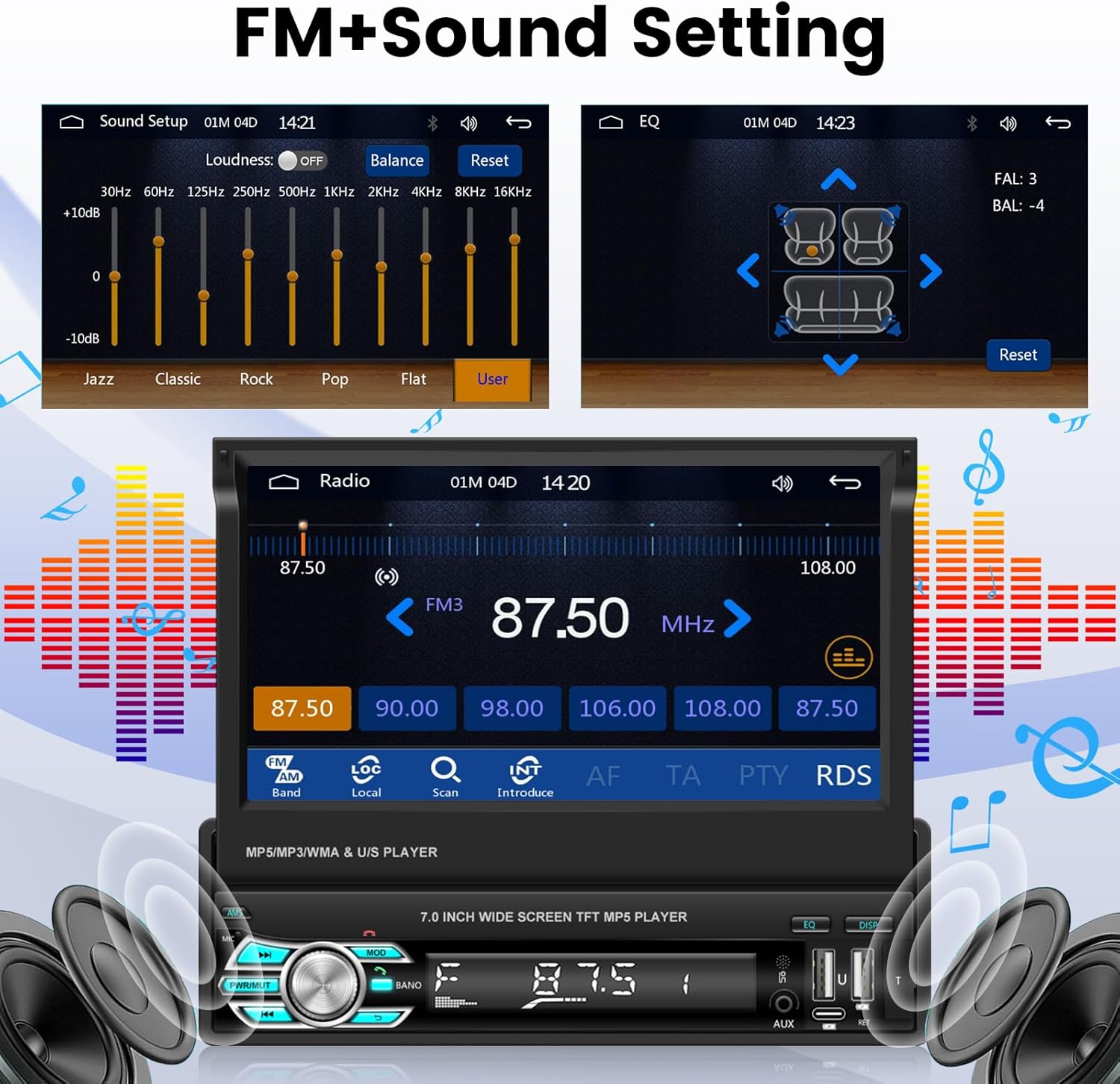
Image: FM radio tuning and sound settings interface.

Image: Bluetooth connection for music and hands-free calling.
170° HD Reversing Camera Support
Equipped with an HD waterproof camera offering a 170° wide viewing angle, this stereo provides a clear rear view when reversing. The image automatically displays on the screen when the vehicle is in reverse gear, greatly assisting with parking and safety.

Image: Rear view camera display and steering wheel controls.
Image: Features of the 12 LED Rear View Camera and SWC Function.
Multiple Input Options
The unit supports various media inputs including USB, TF Card, and AUX input, allowing you to play music from different sources.
Image: Supported input methods: USB, TF Card, AUX, and Bluetooth.
Installation Guide
Proper installation is crucial for the performance and longevity of your car stereo. It is highly recommended to have the unit installed by a qualified professional.
Wiring Diagram
Refer to the detailed wiring diagram provided in the included user manual for specific connections. Key connections include:
- Power Connection: Connect the yellow wire to the constant 12V power supply, the red wire to the accessory 12V power supply (ignition switched), and the black wire to ground.
- Speaker Connections: Connect the speaker wires according to their polarity (positive and negative) to the corresponding vehicle speakers.
- Rear View Camera: Connect the camera's video output to the 'CAM-IN' port and its power to the reverse light circuit.
- Steering Wheel Control (SWC): Connect the SWC wires to your vehicle's steering wheel control interface, if applicable.
Mounting
Use the provided mounting brackets to secure the single din unit into your vehicle's dashboard opening. Ensure the unit is firmly in place to prevent vibrations and movement.
Operating Instructions
Power On/Off
Press the power button on the front panel or remote control to turn the unit on or off. The screen will automatically retract when powered off.
Touchscreen Operation
Navigate through menus and select functions by tapping or swiping on the 7-inch touchscreen. The interface is intuitive and responsive.
Wireless CarPlay & Android Auto
- Ensure Bluetooth is enabled on your smartphone and the car stereo.
- On the stereo, select the 'CarPlay' or 'Android Auto' icon.
- Follow the on-screen prompts to pair your device. For initial setup, a USB connection might be required before wireless connection is established.
Bluetooth Pairing
- Go to the Bluetooth menu on the stereo.
- Enable Bluetooth on your phone and search for available devices.
- Select 'NHOPEEW' (or similar device name) from the list on your phone.
- Confirm the pairing code if prompted.
FM Radio Tuning
- Select the 'Radio' icon from the main menu.
- Use the on-screen controls to scan for stations, manually tune, or select from preset stations.
Mirror Link
- Connect your smartphone to the stereo via a USB cable.
- Select the 'Mirror Link' or 'PhoneLink' icon on the stereo.
- Follow the instructions on the screen and your phone to enable screen mirroring.
Rear View Camera
When the vehicle is shifted into reverse gear, the rear view camera feed will automatically display on the stereo screen. Ensure the camera is properly installed and connected.
Steering Wheel Controls (SWC)
If your vehicle supports SWC, you can configure the stereo to respond to your steering wheel buttons. Access the SWC settings in the system menu to program the functions (e.g., volume, track skip, mode).
Sound Settings
Adjust audio settings such as equalizer presets (Jazz, Classic, Rock, Pop, Flat, User), balance, and fader through the 'Sound Setting' menu to optimize your listening experience.
USB/TF/AUX Input
Insert a USB drive, TF card, or connect an external audio device via the AUX input. The unit will automatically detect the media and allow playback.
Maintenance
- Cleaning the Screen: Use a soft, lint-free cloth to gently wipe the touchscreen. Do not use abrasive cleaners or solvents.
- General Cleaning: Keep the unit free from dust and debris. Use a dry cloth for the main body.
- Temperature: Avoid exposing the unit to extreme temperatures, direct sunlight for prolonged periods, or high humidity.
Troubleshooting
If you encounter issues with your NHOPEEW car stereo, please refer to the following common problems and solutions:
| Problem | Possible Cause | Solution |
|---|---|---|
| Unit does not power on. | Incorrect wiring; Blown fuse; No power supply. | Check power and ground connections. Verify vehicle fuse and unit fuse. Ensure constant and accessory 12V power are present. |
| No sound from speakers. | Speaker wires incorrectly connected; Volume too low; Mute function active. | Check speaker wiring polarity. Increase volume. Deactivate mute. Check audio settings. |
| Bluetooth connection issues. | Device not in pairing mode; Interference; Already connected to another device. | Ensure both devices are in pairing mode. Delete previous pairings and try again. Move closer to the unit. |
| Rear view camera not displaying. | Camera not powered; Video cable loose; Incorrect camera input selected. | Check camera power supply (usually from reverse light). Ensure video cable is securely connected to 'CAM-IN'. Verify camera settings in the stereo menu. |
| Touchscreen unresponsive or inaccurate. | System crash; Dirt on screen; Calibration needed. | Restart the unit. Clean the screen. If available, perform screen calibration in settings. |
| Wireless CarPlay/Android Auto not connecting. | Bluetooth/Wi-Fi issues; Phone software outdated; Initial setup not completed via USB. | Ensure Bluetooth and Wi-Fi are on. Try connecting via USB first. Update phone OS. Reset network settings on phone. |
Technical Specifications
| Feature | Specification |
|---|---|
| Display Size | 7 inches |
| Display Type | HD Touchscreen, Flip-Out Retractable |
| Connectivity Technology | Bluetooth, USB, TF Card, AUX |
| Compatible Devices | Smartphone (iOS, Android), Speakers |
| Controller Type | Android, iOS |
| Audio Output Mode | Stereo |
| Number of Channels | 4 |
| Supported Internet Services | Maps (via CarPlay/Android Auto) |
| Item Weight | 3.86 pounds |
| Package Dimensions | 10.24 x 8.54 x 3.7 inches |
Warranty and Support
NHOPEEW is committed to providing high-quality products and customer satisfaction.
- Warranty: This product comes with a 24-month after-sales service guarantee.
- Money Back Guarantee: Enjoy a 30-day money-back support period.
- Technical Support: For any technical assistance, installation queries, or troubleshooting not covered in this manual, please contact NHOPEEW customer support. Refer to the contact information provided with your purchase or visit the official NHOPEEW website for support details.
Ask a question about this manual
Ask about setup, troubleshooting, compatibility, parts, safety, or missing instructions. Manuals+ will review the question and use this page’s manual context to help answer it.