
Soundstream VRCPAA-7DRM
Soundstream VRCPAA-7DRM Double Din Car Stereo User Manual
Model: VRCPAA-7DRM | Brand: Soundstream
1. Introduction
This manual provides detailed instructions for the installation, operation, and maintenance of your Soundstream VRCPAA-7DRM Double Din Car Stereo. This unit features a 7-inch touchscreen with Apple CarPlay and Android Auto compatibility, Bluetooth for hands-free calling and audio streaming, and multiple media input options including AUX, USB, and SD card. Please read this manual thoroughly before using the product to ensure proper functionality and safety.

Figure 1: Soundstream VRCPAA-7DRM Double Din Car Stereo
2. Key Features
- Apple CarPlay & Android Auto Compatibility: Safely use navigation, make calls, send messages, and listen to music via voice control.
- Bluetooth Connectivity: Enjoy hands-free calls with caller ID and phonebook access, and stream music wirelessly.
- Full Media Support: Includes AUX input, USB port, microSD slot, and built-in AM/FM tuner for versatile media playback.
- Camera Input with 12V Trigger: Supports front and rear camera inputs with automatic 12V trigger for enhanced safety and backup monitoring (cameras sold separately).
- 7” HD SmartSense Capacitive Touch Display: Vibrant visuals with responsive touch control and customizable color options.
3. Setup and Installation
Proper installation is crucial for optimal performance. It is recommended to have this unit installed by a professional car audio technician.
3.1 Pre-Installation Checks
- Ensure your vehicle has a double-DIN opening. This unit is designed for true double-DIN compatibility.
- Gather necessary tools: wire strippers, crimpers, electrical tape, and a compatible Metra install kit and wire harness (if applicable for your vehicle model).
- Disconnect the vehicle's negative battery terminal before beginning installation to prevent electrical shorts.
3.2 Wiring Connections
Connect the stereo's wiring harness to your vehicle's wiring harness. Wire colors are standard and should match easily. Ensure all connections are secure and properly insulated.
- Power (Yellow): Constant 12V.
- Accessory (Red): Switched 12V (ignition).
- Ground (Black): Connect to a clean chassis ground point.
- Speaker Wires: Connect according to polarity (e.g., White/White-Black for Left Front).
- Parking Brake (Light Green): Connect to the parking brake signal wire for video playback safety.
- Reverse Gear (Brown): Connect to the reverse light signal for automatic backup camera activation.
3.3 Camera and Auxiliary Connections
- Rear Camera Input: Connect your backup camera's RCA video output to the unit's rear camera input. The unit provides an auto 12V trigger for activation.
- Front Camera Input: An additional RCA input is available for a front camera.
- Auxiliary A/V Input: Use the RCA connections for external audio/video sources.

Figure 2: Front & Rear Parking Camera RCA Inputs
4. Operating Instructions
4.1 Apple CarPlay and Android Auto
Connect your compatible iPhone or Android smartphone via the front USB port to activate Apple CarPlay or Android Auto. This allows you to access phone functions, messaging, navigation (Maps, Waze, Google Maps), and music apps directly on the stereo's display. Voice commands (Siri for CarPlay, Google Assistant for Android Auto) are fully supported.

Figure 3: Apple CarPlay & Android Auto Ready Interface

Figure 4: Apple CarPlay in use

Figure 5: Android Auto in use
Video 1: Demonstrating Apple CarPlay and Android Auto features on the Soundstream VRCPAA-7DRM.
4.2 Bluetooth Operation
Pair your smartphone with the VRCPAA-7DRM via Bluetooth for wireless audio streaming and hands-free calling. Access your phonebook and view caller ID directly on the 7-inch display.
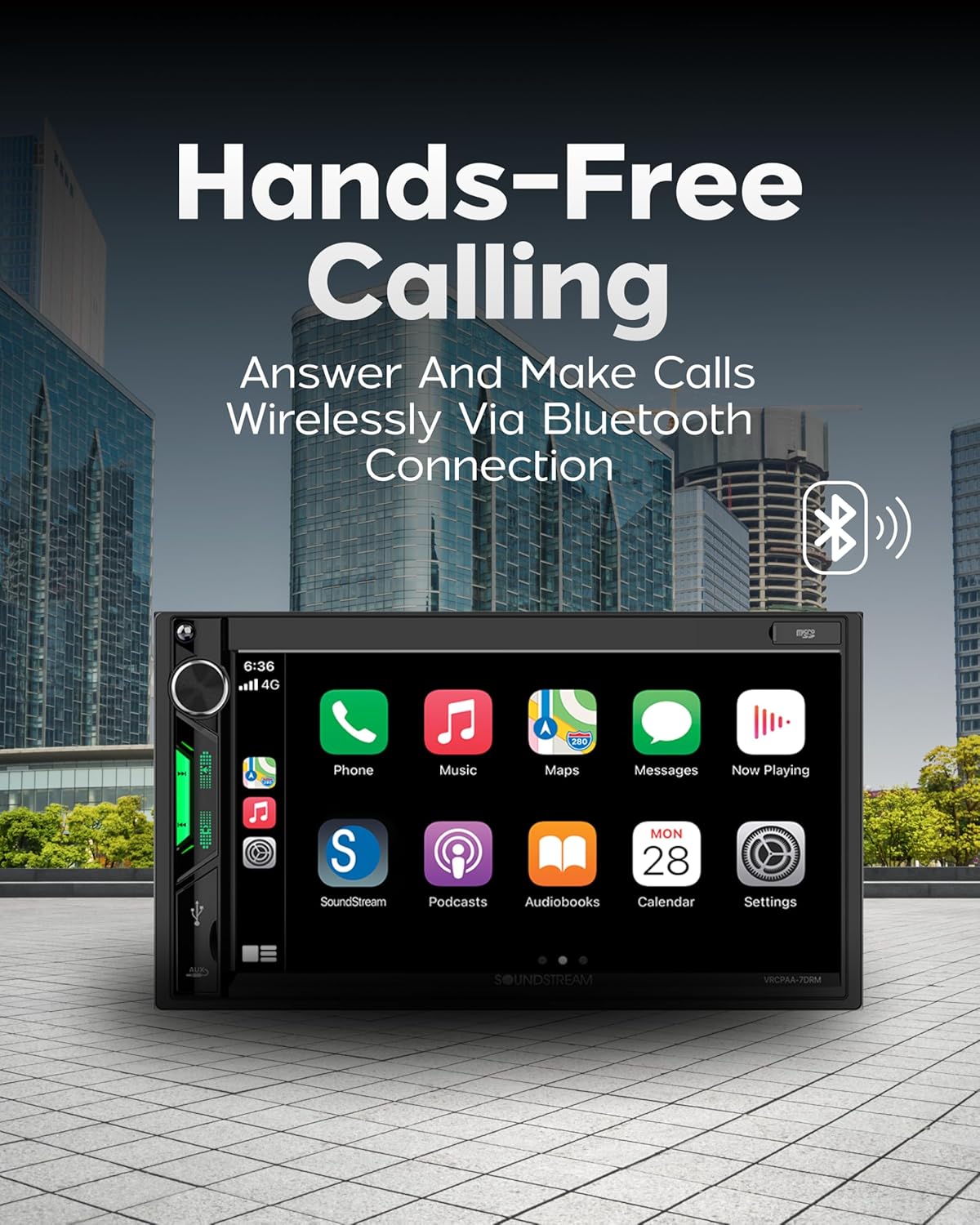
Figure 6: Hands-Free Calling via Bluetooth
4.3 Media Playback
The unit supports various media sources:
- USB Port: Play audio and video files from a USB drive. The front-mounted USB port provides convenient access.
- MicroSD Slot: Insert a microSD card to play compatible media files.
- AUX Input: Connect external audio devices using a 3.5mm auxiliary cable.
4.4 AM/FM Radio
Tune into your favorite AM/FM radio stations. The unit allows for station presets and includes RDS (Radio Data System) functionality for displaying station information where available.
4.5 Audio Settings
Customize your audio experience using the built-in equalizer. Adjust frequency bands to suit your preferences. An important setting to note is the "Loudness" option, which is off by default but can significantly improve sound volume and quality when enabled.
5. Maintenance
To ensure the longevity and optimal performance of your Soundstream VRCPAA-7DRM, follow these maintenance guidelines:
- Screen Cleaning: Use a soft, lint-free cloth to gently wipe the touchscreen. For stubborn smudges, slightly dampen the cloth with water or a screen-safe cleaner. Avoid abrasive materials or harsh chemicals.
- General Cleaning: Keep the unit free from dust and debris. Use a soft brush or compressed air to clean around buttons and ports.
- Avoid Extreme Temperatures: Do not expose the unit to prolonged direct sunlight or extreme cold, as this can affect performance and lifespan.
- Secure Connections: Periodically check all wiring connections to ensure they remain secure and free from corrosion.
6. Troubleshooting
If you encounter issues with your VRCPAA-7DRM, refer to the following common problems and solutions:
| Problem | Possible Cause | Solution |
|---|---|---|
| Low Sound Output | Loudness option is disabled. | Access audio settings and enable the "Loudness" option. |
| Screen Flicker | Fluctuating electrical signal from vehicle (if auto-dimming is enabled). | Turn off the auto-dimming function in the radio settings. Adjust brightness manually if needed. |
| Android Auto / Apple CarPlay not connecting | Faulty USB cable, incorrect port, or phone settings. | Ensure you are using the correct USB port. Try a different, high-quality USB cable. Check phone settings for CarPlay/Android Auto permissions. |
| No Power | Blown fuse, incorrect wiring, or loose connection. | Check vehicle and unit fuses. Verify all power and ground connections are secure. |
7. Specifications
| Feature | Detail |
|---|---|
| Product Dimensions | 6 x 7 x 5 inches (6"D x 7"W x 5"H) |
| Item Weight | 2.88 pounds |
| Model Number | VRCPAA-7DRM |
| Connectivity Technology | Bluetooth, USB, RCA |
| Controller Type | MIPs |
| Special Features | Touchscreen, Android Auto, Built-In Bluetooth, Apple CarPlay |
| Compatible Devices | Smartphone |
| Audio Output Mode | Stereo |
| Output Power | 300 Watts |
| Manufacturer | SoundStream |
| First Available | January 1, 2023 |
8. Warranty and Support
For warranty information, please refer to the documentation included with your product packaging or visit the official Soundstream website. If you require technical assistance or have questions not covered in this manual, please contact Soundstream customer support.
You can find contact information and additional resources on the official Soundstream website: www.soundstream.com
Related documentsVRCPAA-7DRM


Ask a question about this manual
Ask about setup, troubleshooting, compatibility, parts, safety, or missing instructions. Manuals+ will review the question and use this page’s manual context to help answer it.