
1. Introduction
This manual provides essential instructions for setting up, operating, and maintaining your Huawei H158-381 5G CPE Pro 5 Router. Please read this guide thoroughly before using the device to ensure proper functionality and safety.
2. Package Contents
Verify that all the following items are included in your product package:
- Huawei H158-381 5G CPE Pro 5 Router
- 12V 3A Power Adapter
- Quick Start Guide (this manual)
3. Product Overview
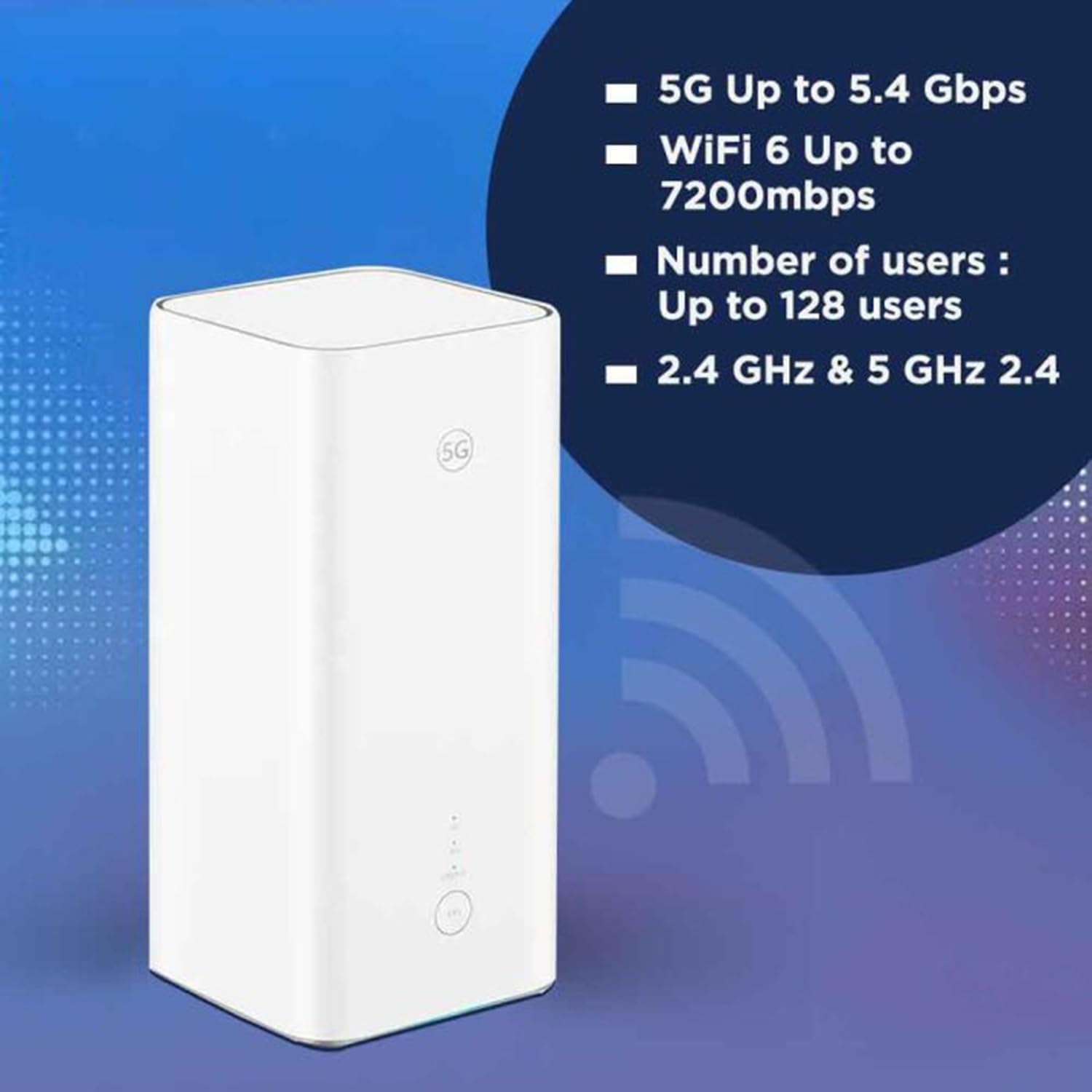
The Huawei H158-381 5G CPE Pro 5 Router is a high-performance wireless router designed for advanced internet connectivity. It supports both 5G and 4G networks, offering high-speed data transmission and robust Wi-Fi capabilities.
Key Features:
- 5G and 4G Network Compatibility: Supports 5G frequencies in NSA and SA modes (n1/3/5/7/20/28/71/38/40/41/77/78/79) and 4G bands (B1/3/5/7/8/18/19/20/26/28/32/34/38/39/40/41/42/43). Note: 2G and 3G are not supported.
- High-Speed Data: Achieves download speeds up to 5.4 Gbps and upload speeds up to 500 Mbps on 5G (network dependent).
- Wi-Fi 6 (AX7200): Provides Wi-Fi speeds up to 7200 Mbps across 2.4 GHz and 5 GHz bands, supporting up to 128 connected users.
- WPA3 Security: Enhanced wireless security protocol for a safer network.
- Nano-SIM Slot: For mobile broadband connectivity.
- Integrated 5G NR Antenna: Features a 12 dBi internal antenna for optimized signal reception.
- Ethernet Ports: Includes 2 Ethernet ports for wired connections.
Physical Components:


4. Setup Guide
4.1 SIM Card Installation
- Locate the Nano-SIM card slot on your router.
- Insert a Nano-SIM card into the slot. Ensure the SIM card is correctly oriented according to the diagram near the slot.
- Important: It is recommended to disable the PIN code of your SIM card using a mobile phone before inserting it into the router for a smoother setup process.
4.2 Power Connection
- Connect the provided 12V 3A power adapter to the router's power input port.
- Plug the power adapter into a suitable electrical outlet.
- The router will automatically power on. Wait for the status indicators to stabilize.
4.3 Initial Configuration
Once powered on, the router will attempt to connect to the mobile network. You can access the router's web interface or use the dedicated mobile application for further configuration, such as changing Wi-Fi names and passwords.
5. Operating Instructions
5.1 Connecting Devices via Wi-Fi
- On your device (smartphone, laptop, tablet), search for available Wi-Fi networks.
- Select the Wi-Fi network name (SSID) corresponding to your router. The default SSID and password are usually found on a label at the bottom of the router.
- Enter the Wi-Fi password when prompted.
- Your device should now be connected to the internet.
5.2 Connecting Devices via Ethernet
The router features two Ethernet ports for wired connections:
- Connect one end of an Ethernet cable to an Ethernet port on the back of the router.
- Connect the other end of the Ethernet cable to the Ethernet port on your device (e.g., computer, gaming console, smart TV).
- The device should automatically establish a wired network connection.
6. Advanced Features
6.1 External Antenna Support
The Huawei H158-381 router supports external 5G antennas to enhance signal reception. To utilize this feature:
- Install your external 5G antennas according to their respective instructions.
- Connect the external antennas to the designated external antenna ports on the router.
- Open the router's management application (e.g., Deco app), navigate to Advanced > External Antennas, and activate the external antennas option.
- When activated, the external antennas will replace a portion of the internal antennas for signal reception.
6.2 Product Summary Video
Watch this video for a quick overview of the Huawei H158-381 5G CPE Pro 5 Router's features and benefits.
Video 6.1: A product summary video showcasing the Huawei H158-381 5G CPE Pro 5 Router's design and core functionalities.
7. Technical Specifications
| Feature | Specification |
|---|---|
| Brand | HUAWEI |
| Manufacturer | HUAWEI |
| Series | H158-381 |
| Product Dimensions | 10.3 x 10.3 x 22.6 cm; 915 g |
| Item Model Number | H158-381 |
| Color | White |
| Connectivity Type | Wi-Fi |
| Wireless Type | 802.11ax |
| Number of Ethernet Ports | 2 |
| Voltage | 12 Volt |
| Operating System | RouterOS |
| Batteries Included | No |
| Guaranteed Software Updates Until | May 23, 2025 |
| Model Name | H158-381 |
| Special Features | WPS |
| Frequency Band Class | Dual-band |
| Wireless Communication Standard | 802.11ax |
| Compatible Devices | Game console, tablet, personal computer, smartphone, smart television, streaming device, security camera, printer, smart thermostat |
| Recommended Product Uses | Home, Business |
| Included Components | Manual, 12V 3A Charger, Router H158-381 |
| Connection Technology | Ethernet, Wi-Fi |
8. Maintenance
To ensure the longevity and optimal performance of your router, consider the following maintenance tips:
- Placement: Place the router in a central location, away from obstructions and other electronic devices that may cause interference.
- Cleaning: Keep the router clean and free from dust. Use a soft, dry cloth for cleaning.
- Firmware Updates: Regularly check for and install firmware updates to benefit from improved performance, security, and new features. This can usually be done through the router's web interface or mobile app.
- Ventilation: Ensure the router has adequate ventilation to prevent overheating. Do not cover ventilation openings.
9. Troubleshooting
If you encounter issues with your router, try the following troubleshooting steps:
- No Internet Connection:
- Check if the SIM card is correctly inserted and activated.
- Ensure the router is powered on and all indicator lights are functioning as expected.
- Restart the router by unplugging it from the power source, waiting 30 seconds, and plugging it back in.
- Verify your mobile data plan is active and has sufficient data.
- Slow Wi-Fi Speed:
- Move closer to the router to improve signal strength.
- Reduce the number of connected devices or bandwidth-intensive activities.
- Check for interference from other electronic devices.
- Consider using external antennas if signal strength is consistently low.
- Cannot Access Router Settings:
- Ensure your device is connected to the router's Wi-Fi network or via an Ethernet cable.
- Verify you are entering the correct IP address (usually 192.168.8.1 or 192.168.1.1) in your web browser.
- Confirm you are using the correct administrator username and password.
If problems persist, consult the official Huawei support website or contact customer service for further assistance.
10. Warranty and Support
For warranty information, please refer to the warranty card included with your product or visit the official HUAWEI website. Technical support and customer service contact details can also be found on the HUAWEI support portal.


