
SOULION R30 Plus
SOULION R30 Plus Bluetooth Computer Speakers User Manual
Model: R30 Plus
Brand: SOULION
Introduction
Welcome to the user manual for your SOULION R30 Plus Bluetooth Computer Speakers. This manual provides detailed instructions on setting up, operating, maintaining, and troubleshooting your new soundbar to ensure optimal performance and longevity. Please read this manual thoroughly before using the product.
Product Overview
The SOULION R30 Plus is a versatile soundbar designed for various devices, including PCs, laptops, smartphones, and tablets. It features both wired USB and wireless Bluetooth connectivity, along with dynamic RGB LED lighting effects to enhance your audio experience.
Key Features:
- USB Mode: Simple plug-and-play functionality for immediate power and audio via USB, requiring no driver installation.
- Bluetooth Mode: Seamless wireless connection for smartphones and tablets.
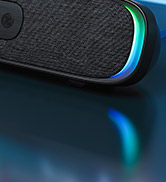
- 6 LED Lighting Effects: Customizable rainbow lighting modes to create an immersive atmosphere.
- Slanted Design: A 30-degree micro-inclined design for optimized sound projection and a breathable fabric exterior for dust protection and a comfortable touch.
- Clear & Powerful Sound: Equipped with 2 full-range speakers and exclusive booster technology for crisp and mesmerizing audio.
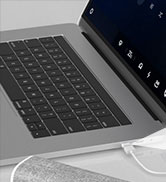
- Wide Compatibility: Supports most devices with a standard USB jack, including PC, Computer, Laptop, Tablet, and Smartphones.
Product Components:


Setup Instructions
1. USB Mode Connection:
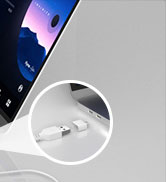
For immediate use with your PC or laptop, simply plug the USB connector of the soundbar into an available USB port on your device. The speaker will automatically power on, and no additional drivers or software are required.

2. Bluetooth Mode Connection:
To use the soundbar wirelessly with Bluetooth-enabled devices:
- Ensure the USB connector is plugged into a USB port for power.
- Double-click the main control knob on the soundbar to switch to Bluetooth mode.
- On your smartphone or tablet, search for Bluetooth devices and select "R30 Plus" to connect.
3. Audio Output Settings (Windows):
After connecting via USB, ensure your computer's audio output is set to the R30 Plus:
- Click the speaker icon in your taskbar and choose "R30 PLUS" as the audio output.
- Alternatively, navigate to Control Panel/System Preferences > Sound Settings and select "R30 PLUS" as the audio output, then save changes.

4. Audio Output Settings (Mac):
For Mac users, follow these steps to set the R30 Plus as your audio output:
- Go to System Preferences > Sound.
- In the "Output" tab, select "R30 PLUS" as your sound output device.

Operating Instructions
Control Knob Functions:
- Single Click: Toggles between 6 different LED lighting effects.
- Double Click: Switches between USB (wired) and Bluetooth (wireless) modes.
- Rotate: Adjusts the volume (clockwise for increase, counter-clockwise for decrease).
- Press and Hold: Powers the speaker on or off.
LED Lighting Effects:
The soundbar features vibrant RGB rainbow lights on both sides, offering 6 distinct lighting modes:
- Flowing Light
- Rhythm Jump
- Breathing Light
- 3 Single Colors (Red, Green, Blue)
Press the control knob once to cycle through these effects.

Maintenance
Cleaning:
The SOULION R30 Plus features a breathable fabric exterior designed to prevent dust accumulation. To clean the speaker, gently wipe the surface with a soft, dry cloth. Avoid using liquid cleaners or abrasive materials, as these may damage the fabric or electronic components.
Storage:
When not in use for extended periods, store the soundbar in a cool, dry place away from direct sunlight and extreme temperatures. Disconnect it from the power source.
Troubleshooting
No Sound / Speaker Not Working:
- Ensure you are not attempting to use two audio output devices on your computer simultaneously.
- Verify that "R30 PLUS" is selected as the audio output device in your computer's sound settings (refer to Setup Instructions).
- Confirm that both your computer's volume and the R30 Plus speaker's volume are turned up, ideally to maximum for testing.
- Try plugging the USB jack into a different USB port, preferably a direct port on the computer host rather than a hub.
- Attempt to connect the speaker to another device (e.g., a different computer, smartphone) to determine if the issue is with the speaker or the original device.
- If in USB mode, try switching to Bluetooth mode and connecting a device to check if audio works wirelessly.

Specifications
| Feature | Detail |
|---|---|
| Model Name | R30 Plus |
| Speaker Type | Soundbar |
| Connectivity Technology | USB, Bluetooth |
| Wireless Communication Technology | Bluetooth |
| Power Source | Corded Electric (USB Powered) |
| Speaker Maximum Output Power | 10 Watts |
| Frequency Response | 60 Hz |
| Signal-to-Noise Ratio | 65 dB |
| Product Dimensions | 16"D x 4"W x 3"H |
| Item Weight | 1.68 Pounds |
| Material | Plastic |
| Color | White |
| Special Features | Portable, LED Light, Fabric Design, USB Port |
| Compatible Devices | Laptop, PC, Desktop, Home Theater, Smartphones |
Warranty & Support
Warranty Information:
The SOULION R30 Plus comes with a limited warranty. Please refer to the product packaging or the official SOULION website for specific terms and conditions regarding your warranty coverage.
Customer Support:
For any questions, technical assistance, or support inquiries, please visit the official SOULION store or contact their customer service through the details provided on their website. You can find more information at: SOULION Official Store
Related documentsR30 Plus


Ask a question about this manual
Ask about setup, troubleshooting, compatibility, parts, safety, or missing instructions. Manuals+ will review the question and use this page’s manual context to help answer it.