
1. Introduction
Thank you for purchasing the SOTEFE Mini Portable Projector. This compact and versatile LED video projector is designed to provide a high-quality viewing experience for various applications, from home cinema to outdoor entertainment. With its 1080P Full HD compatibility and multiple connectivity options, it offers flexibility and convenience.
This manual provides essential information on setting up, operating, and maintaining your projector to ensure optimal performance and longevity. Please read it thoroughly before using the product.

Image: The SOTEFE Mini Portable Projector, showing its compact design and the power adapter, remote control, AV cable, and HDMI cable included in the package.
2. Package Contents
Please check the package contents to ensure all items are present and in good condition:
- 1 x SOTEFE Mini Projector
- 1 x Power Plug
- 1 x 3-in-1 AV Cable
- 1 x HDMI Cable
- 1 x Remote Control
- 1 x User Manual (this document)
3. Setup Guide
3.1 Power Connection
Connect the included power adapter to the "DC IN" port on the projector and then plug it into a standard electrical outlet (110-240V, 50-60Hz).
For portable use, the projector can be powered by a power bank (not included) with a 5V 2.5A Micro USB output. Connect the power bank to the "Micro USB" port on the projector.

Image: The mini projector connected to a power bank via a Micro USB cable, illustrating its portability.
3.2 Connecting Devices
The projector supports multiple input interfaces:
- HDMI: Connect TV sticks, laptops, DVD players, PS3/PS4, Xbox, TV boxes, etc., using the HDMI cable.
- AV: Connect older TV/video devices using the 3-in-1 AV cable.
- USB: Connect USB flash drives or external hard drives for media playback.
- TF Card: Insert a TF (Micro SD) card for media playback.
- VGA: Connect to a PC using a VGA cable (adapter may be required).
To connect a mobile phone (smartphone/tablet), an additional adapter (e.g., Lightning to HDMI, Micro USB to HDMI, or Type-C to HDMI) is required. These adapters are not included.
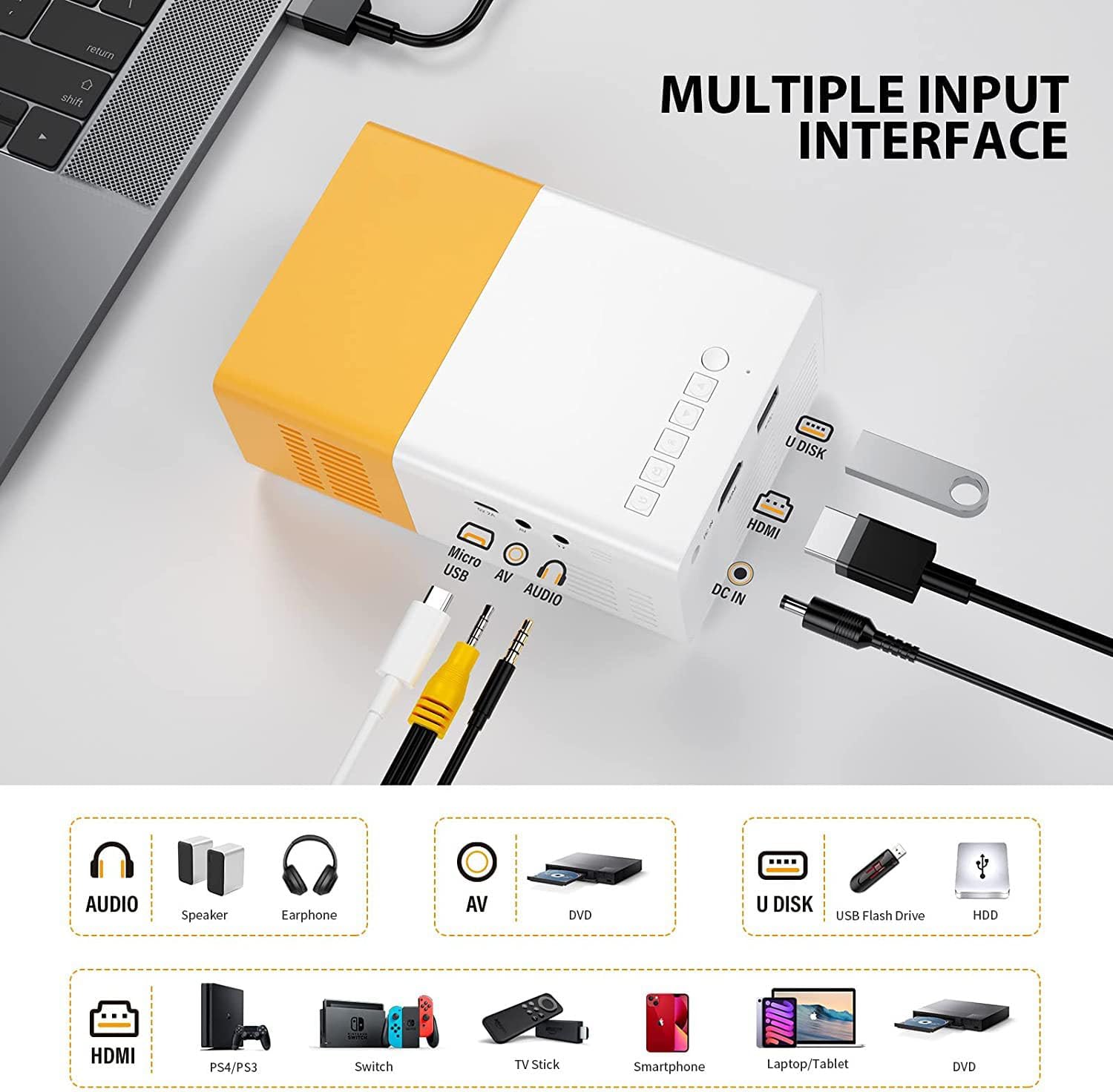
Image: A diagram illustrating the various input ports on the projector, including Micro USB, AV, Audio Out, DC In, HDMI, and U Disk (USB), along with icons for compatible devices like speakers, earphones, DVD players, USB flash drives, HDDs, game consoles (PS4/PS3, Switch), TV sticks, smartphones, laptops/tablets, and DVD players.

Image: A diagram demonstrating the connection of an iPhone (via Lightning to HDMI adapter) and an Android phone (via Micro USB to HDMI or Type-C to HDMI adapter) to the projector. It clarifies that adapters are not included.
3.3 Focus Adjustment
To achieve a clear image, manually adjust the focus ring located on the lens of the projector until the projected image appears sharp. The optimal projection distance ranges from 1.0 to 3.5 meters, yielding an image size of 26 to 150 inches.
3.4 Keystone Correction
The projector supports vertical keystone correction of +15° up and down. Use the keystone adjustment dial to correct distorted images if the projector is not perfectly perpendicular to the screen.
4. Operating Instructions
4.1 Power On/Off
Press the power button on the projector or the remote control to turn the unit on or off.
4.2 Source Selection
Use the "Source" button on the remote control or the projector's control panel to cycle through available input sources (HDMI, AV, USB, TF Card).
4.3 Media Playback
Once an input source is selected, navigate through the media files using the arrow keys and "OK" button on the remote control. The projector supports various media formats for movies, music, and photos.

Image: A collage of four images demonstrating the projector's versatility: children watching a cartoon projected on a wall indoors, an outdoor movie night with people seated, a projection on a bedroom ceiling creating a starry night effect, and an outdoor projection on a screen at night.
4.4 Audio Output
The projector has built-in stereo speakers. For a more immersive audio experience, you can connect external speakers or headphones via the 3.5mm audio output jack.
5. Maintenance
5.1 Cleaning the Lens
Use a soft, lint-free cloth or lens cleaning paper to gently wipe the projector lens. Avoid using abrasive cleaners or excessive force, as this can scratch the lens.
5.2 Ventilation
Ensure that the projector's ventilation vents are not blocked during operation. Proper airflow is crucial for dissipating heat and maintaining the projector's performance and lamp life. Do not place the projector on soft surfaces that may obstruct airflow.
5.3 Storage
When not in use, store the projector in a cool, dry place away from direct sunlight and extreme temperatures. Use the original packaging or a protective case to prevent dust accumulation and damage.
6. Troubleshooting
| Problem | Possible Cause | Solution |
|---|---|---|
| No image / No signal |
|
|
| Blurry image |
|
|
| No sound |
|
|
| Remote control not working |
|
|
7. Specifications
| Brand | SOTEFE |
| Model Number | Mini projector |
| Display Technology | 4-inch TFT LCD |
| Native Resolution | 480 x 320P |
| Max Supported Resolution | 1920 x 1080P (Full HD) |
| Brightness | 3,000 Lumens (50-70 ANSI Lumens) |
| Contrast Ratio | 2000:1 |
| Lamp Type | 24W LED |
| Lamp Life | 55,000 useful hours |
| Aspect Ratio | 16:9 and 4:3 |
| Image Size | 26-150 inches |
| Projection Distance | 1.0 - 3.5 meters |
| Noise Level | <25dB |
| Input Interfaces | USB, HDMI, AV, TF Card, VGA |
| Power Supply | 110-240V, 50-60Hz |
| Dimensions (L x W x H) | 12L x 8W x 5H centimeters |
| Special Features | Connectable to power bank, Built-in speaker, Manual focus, Keystone correction (+15°) |
8. Warranty and Support
8.1 Product Warranty
This SOTEFE Mini Portable Projector comes with a 2-year warranty from the date of purchase. This warranty covers manufacturing defects and issues arising from normal use. Please retain your proof of purchase for warranty claims.
8.2 Customer Support
If you encounter any problems during use or have questions about your product, please do not hesitate to contact our customer service. We are committed to providing prompt assistance and solutions.
For support, please refer to the contact information provided on the product packaging or the retailer's website where you purchased the projector. We can provide videos or further instructions to assist you.