
Product Overview
The MOFII Wireless Keyboard and Mouse Combo in Milk Tea Colorful-B offers a full-size keyboard with a number pad and an optical mouse, designed to enhance productivity and brighten your workspace. This combo provides a stable and interference-free wireless connection, ergonomic comfort, and intelligent power-saving features.
Key Features
- Universal Compatibility: Works seamlessly with PCs, desktops, and laptops, supporting both Windows and Mac operating systems.
- Effortless 2.4G Wireless: Enjoy stable, interference-free connection up to 33 feet (10m) with a single USB receiver.
- Ergonomic Comfort: Features a keyboard with a foldable stand and anti-slip pads for an ideal typing angle, and a contoured mouse for comfortable use.
- Intelligent Power Saving: Both keyboard and mouse enter auto-sleep mode after 8-10 minutes of inactivity, extending battery life up to 18 months.
- Stylish Design: Vibrant retro typewriter-style design with removable keycaps for easy cleaning.

Image: The MOFII Wireless Keyboard and Mouse Combo, showcasing the full-size keyboard with round, colorful keycaps and the matching optical mouse, along with the small USB receiver.
Package Contents
Please verify that all items are present in your package:
- 1 x MOFII Wireless Keyboard
- 1 x MOFII Wireless Optical Mouse
- 1 x USB Receiver (stored inside the mouse battery compartment)
- 1 x Cleaning Brush
- 1 x User Manual (this document)
Setup Guide
1. Battery Installation
The keyboard requires two AAA batteries, and the mouse requires one AA battery. Batteries are not included and must be purchased separately.
- Locate the battery compartment on the underside of the keyboard and mouse.
- Open the battery covers.
- Insert the batteries, ensuring correct polarity (+/-).
- Close the battery covers securely.

Image: Underside view of the keyboard and mouse showing open battery compartments. The keyboard requires two AAA batteries, and the mouse requires one AA battery. The USB receiver is shown stored within the mouse's battery compartment.
2. Connecting the Combo
The MOFII Wireless Keyboard and Mouse Combo uses a single 2.4G USB receiver for both devices.
- Remove the USB receiver from the battery compartment of the mouse.
- Plug the USB receiver into an available USB port on your computer (PC or laptop).
- Turn on the keyboard and mouse using their respective power switches (usually located on the underside).
- The devices should automatically connect to your computer. No additional drivers are typically required.

Image: A laptop with the USB receiver plugged in, illustrating the 2.4G wireless connection between the computer, keyboard, and mouse.
Operating Instructions
Basic Usage
Once connected, the keyboard and mouse function like standard input devices. The full-size keyboard includes a numeric keypad for efficient data entry. The optical mouse provides precise cursor control.

Image: A person typing on the MOFII keyboard with the mouse positioned nearby, demonstrating typical usage in a home or office setting.
Power Saving Mode
To conserve battery life, both the keyboard and mouse are equipped with an intelligent auto-sleep function. If left inactive for 8-10 minutes, they will automatically enter a low-power sleep mode. To wake them up, simply press any key on the keyboard or move/click the mouse.

Image: Close-up of the MOFII mouse with a graphic indicating its 5-minute battery saving feature, highlighting its power efficiency.
Compatibility
This combo is designed for broad compatibility with various operating systems, including Windows 7/8/10 and Mac OS. It is suitable for use with most PCs, desktops, and laptops.
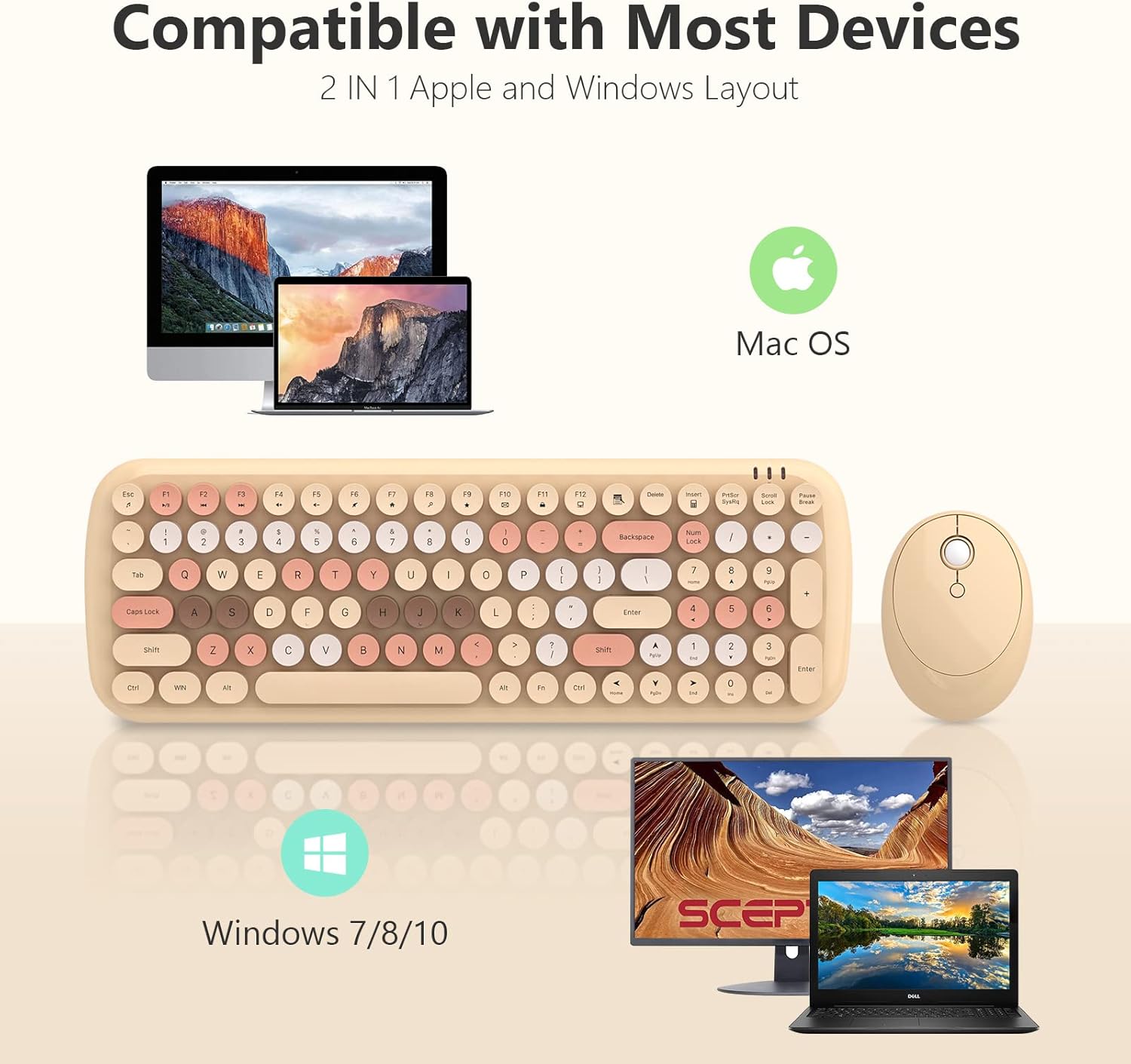
Image: Visual representation showing the MOFII keyboard and mouse combo compatible with both Apple (Mac OS) and Windows devices, including laptops and desktop computers.
Maintenance
Cleaning the Keyboard
The keyboard features removable keycaps, making cleaning simple and effective.
- Gently pull up on the keycaps to remove them.
- Use the provided cleaning brush to remove dust, crumbs, and other debris from the keyboard base.
- Wipe the keycaps with a soft, damp cloth if necessary. Ensure they are completely dry before reattaching.
- Align the keycaps with their respective switches and press down firmly until they click into place.

Image: Close-up of the keyboard showing several keycaps removed, revealing the underlying switches. A green cleaning brush is positioned next to the keyboard, illustrating the ease of cleaning.
Battery Replacement
When the devices stop responding or exhibit intermittent connectivity, it is likely time to replace the batteries. Follow the battery installation steps outlined in the Setup Guide.
Troubleshooting
If you encounter issues with your MOFII Wireless Keyboard and Mouse Combo, please refer to the following common problems and solutions:
| Problem | Solution |
|---|---|
| Keyboard/Mouse not responding |
|
| Lagging or intermittent connection |
|
| Specific keys not working |
|
| Mouse cursor erratic or not moving |
|
Product Specifications
| Feature | Detail |
|---|---|
| Brand | MOFII |
| Model | Milk Tea Colorful-B |
| Connectivity Technology | 2.4G Wireless (USB Receiver) |
| Keyboard Description | Full-Size, Retro Typewriter-Style, Multimedia |
| Number of Keys | 104 |
| Mouse Type | Optical |
| Operating Range | Up to 33 feet (10m) |
| Power Source | Keyboard: 2*AAA Batteries; Mouse: 1*AA Battery |
| Compatible Devices | Laptop, PC (Windows, Mac) |
| Item Weight | 1.85 pounds |
| Keyboard Dimensions | 38.7 cm x 13.5 cm (approx. 15.2 in x 5.3 in) |
| Mouse Dimensions | 9.8 cm x 7 cm (approx. 3.9 in x 2.7 in) |
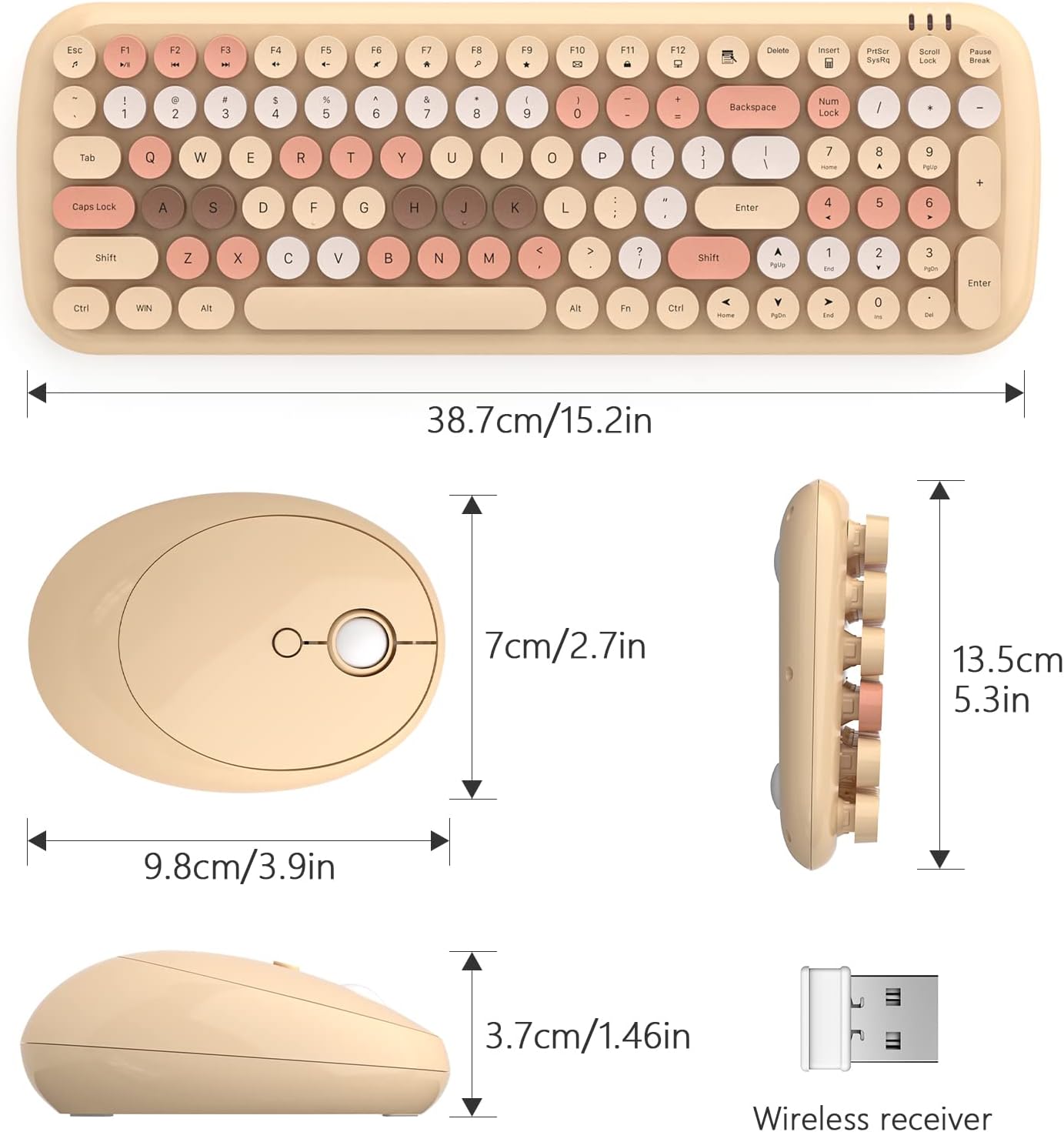
Image: Detailed diagram showing the dimensions of both the MOFII keyboard and mouse in centimeters and inches.
Warranty and Support
For warranty information or technical support regarding your MOFII Wireless Keyboard and Mouse Combo, please refer to the contact details provided on the product packaging or visit the official MOFII website. Keep your purchase receipt as proof of purchase for any warranty claims.
For additional assistance, you may also contact the seller directly through the platform where you purchased the product.