
Introduction
This manual provides essential information for the safe and efficient use of your realme 10 Pro 5G smartphone. Please read this guide thoroughly before operating the device to ensure proper functionality and to understand its features.
The realme 10 Pro 5G is a dual SIM smartphone featuring a 6.7-inch display, 8GB RAM, 128GB storage, and 5G connectivity. It operates on the Android system and includes biometric face recognition for security.
Package Contents
Verify that your package contains the following items:
- realme 10 Pro 5G Smartphone
- USB Cable
- Power Adapter
- SIM Ejector Tool
- Quick Start Guide (this document serves as a comprehensive guide)
- Protective Case (may vary by region)
Device Layout
Familiarize yourself with the physical components of your realme 10 Pro 5G.

Figure 1: Front and side view of the realme 10 Pro 5G, showing the display and side buttons.

Figure 2: Side profile of the realme 10 Pro 5G, highlighting the power button and volume rocker.
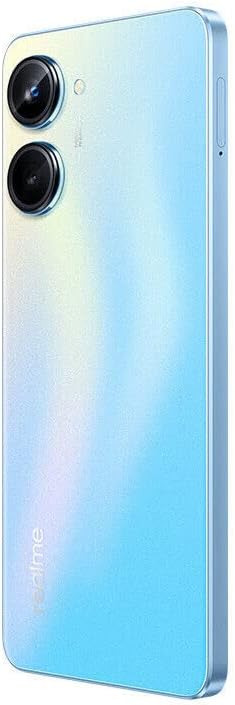
Figure 3: Angled back view of the realme 10 Pro 5G, showing the dual camera module and realme branding.

Figure 4: Straight back view of the realme 10 Pro 5G, detailing the camera lenses and flash.
Key Components:
- Front Camera: Located at the top center of the display.
- Display: 6.7-inch LCD touchscreen.
- Volume Buttons: On the left side (or right, depending on model variant) to adjust volume.
- Power Button: On the right side (or left), used to power on/off and lock/unlock the screen. May also integrate a fingerprint sensor.
- SIM Card Tray: Located on the side, requires the SIM ejector tool to open.
- USB Port: At the bottom for charging and data transfer.
- Speaker: Located at the bottom.
- Microphone: Located at the bottom.
- Rear Cameras: Dual camera setup on the back.
- Flash: Next to the rear cameras.
Setup
1. Insert SIM Card(s)
- Locate the SIM card tray on the side of your device.
- Insert the SIM ejector tool into the small hole on the tray and press firmly until the tray pops out.
- Place your Nano-SIM card(s) into the tray with the gold contacts facing down. Ensure they are correctly seated.
- Carefully reinsert the tray into the phone.
2. Power On Your Device
- Press and hold the Power button on the side of the phone until the realme logo appears on the screen.
- If the battery is low, connect the phone to the power adapter using the USB cable and charge it for at least 10 minutes before attempting to power on.
3. Initial Setup Wizard
Follow the on-screen instructions to complete the initial setup:
- Select your preferred language.
- Connect to a Wi-Fi network for internet access.
- Sign in with your Google account or create a new one.
- Set up screen lock (PIN, pattern, password) and biometric security (Face Recognition).
- Review and accept terms and conditions.
Operating Instructions
Power On/Off and Restart
- To Power On: Press and hold the Power button until the realme logo appears.
- To Power Off: Press and hold the Power button for a few seconds, then tap "Power off" on the screen.
- To Restart: Press and hold the Power button for a few seconds, then tap "Restart" on the screen.
Basic Screen Gestures
- Tap: Select an item or open an app.
- Double-tap: Zoom in/out on web pages or images.
- Swipe: Navigate through home screens, menus, or scroll through content.
- Pinch: Zoom in/out on images or maps.
- Long press: Access contextual menus or move app icons.
Making Calls and Sending Messages
- Calls: Open the "Phone" app, enter the number, and tap the call icon.
- Messages: Open the "Messages" app, tap the new message icon, enter the recipient and your message.
Camera Usage
- Open the "Camera" app.
- Select your desired shooting mode (e.g., Photo, Video, Portrait).
- Tap the shutter button to capture a photo or start/stop video recording.
- Switch between front and rear cameras using the camera switch icon.
Connecting to Wi-Fi and Bluetooth
- Wi-Fi: Go to Settings > Network & internet > Wi-Fi. Turn Wi-Fi on, select a network, and enter the password if required.
- Bluetooth: Go to Settings > Connected devices > Bluetooth. Turn Bluetooth on, then pair with available devices.
Biometric Security (Face Recognition)
- To set up Face Recognition, go to Settings > Security & privacy > Face unlock.
- Follow the on-screen instructions to register your face.
- Once set up, you can unlock your phone by looking at the front camera.
Maintenance
Cleaning Your Device
- Use a soft, lint-free cloth to clean the screen and body of the phone.
- Avoid using harsh chemicals, abrasive cleaners, or aerosol sprays.
- Do not allow moisture to enter openings.
Battery Care
- Use only realme-approved chargers and cables.
- Avoid exposing the phone to extreme temperatures.
- Do not fully discharge the battery frequently; partial charges are generally better for battery longevity.
Software Updates
Regularly check for and install software updates to ensure optimal performance and security. Go to Settings > About phone > Software update.
Water Resistance
The realme 10 Pro 5G is rated as "Water Resistant." This means it can withstand splashes and light rain but is not designed for submersion in water. Avoid exposing the device to pressurized water, high-velocity water, or prolonged submersion. Water resistance may decrease over time with normal wear.
Troubleshooting
Device Not Turning On
- Ensure the battery is charged. Connect the charger and wait a few minutes before attempting to power on.
- Try a forced restart: Press and hold the Power button and Volume Down button simultaneously for about 10-15 seconds until the realme logo appears.
Network Issues (No Signal/Cannot Make Calls)
- Check if the SIM card is correctly inserted.
- Ensure you are within network coverage.
- Restart the phone.
- Go to Settings > Network & internet > Mobile network and ensure your SIM is enabled and preferred network type is correct.
Apps Crashing or Freezing
- Close and reopen the app.
- Clear the app's cache: Settings > Apps > [App Name] > Storage & cache > Clear cache.
- Update the app from the Google Play Store.
- Restart the phone.
Factory Reset (Last Resort)
If persistent issues occur, a factory reset may resolve them. Warning: This will erase all data on your phone. Back up important data before proceeding.
- Go to Settings > System > Reset options > Erase all data (factory reset).
- Follow the on-screen prompts to confirm the reset.
Specifications
| Feature | Detail |
|---|---|
| Brand | realme |
| Model | 10 Pro 5G |
| Operating System | Android |
| RAM Memory | 8 GB |
| Internal Storage | 128 GB |
| CPU Speed | 2.2 GHz |
| Screen Size | 6.7 Inches |
| Display Resolution | 1920 x 1080 (Full HD) |
| Display Type | LCD |
| Cellular Technology | 4G, 5G |
| Wireless Network Technology | GSM |
| Wireless Carrier | Unlocked for All Carriers |
| Connectivity Technology | Bluetooth, USB, Wi-Fi |
| SIM Card Slot Count | Dual SIM |
| Biometric Security | Face Recognition |
| Water Resistance Level | Water Resistant |
| Battery Capacity | 5000 Milliamp Hours |
| Phone Talk Time | 25 Hours |
| Camera Description | Front, Rear |
| Video Capture Resolution | 1080p |
| Frame Rate | 120 FPS |
Warranty Information
Your realme 10 Pro 5G smartphone is covered by a limited warranty. The terms and conditions of this warranty may vary by region and retailer. Please refer to the warranty card included in your product packaging or visit the official realme website for detailed information regarding warranty coverage, duration, and service procedures.
Keep your proof of purchase (receipt or invoice) as it will be required for any warranty claims.
Support
For further assistance, technical support, or to find answers to frequently asked questions, please visit the official realme support website or contact customer service.
- Official realme Website: www.realme.com
- Customer Service: Refer to your regional realme website for local contact information.


