
1. Introduction
This manual provides detailed instructions for the installation, operation, and maintenance of your KUNFINE 13.1-inch QLED Car Stereo. This unit is specifically designed for Hyundai Elantra Touring models from 2009 to 2012 equipped with manual air conditioning controls. Please read this manual thoroughly before installation and use to ensure proper functionality and safety.
2. Important Compatibility Information
Before installation, it is crucial to verify your vehicle's AC control type. This unit is compatible only with Hyundai Elantra Touring (2009-2012) vehicles that have Manual AC controls. It is not compatible with vehicles equipped with Automatic AC controls.
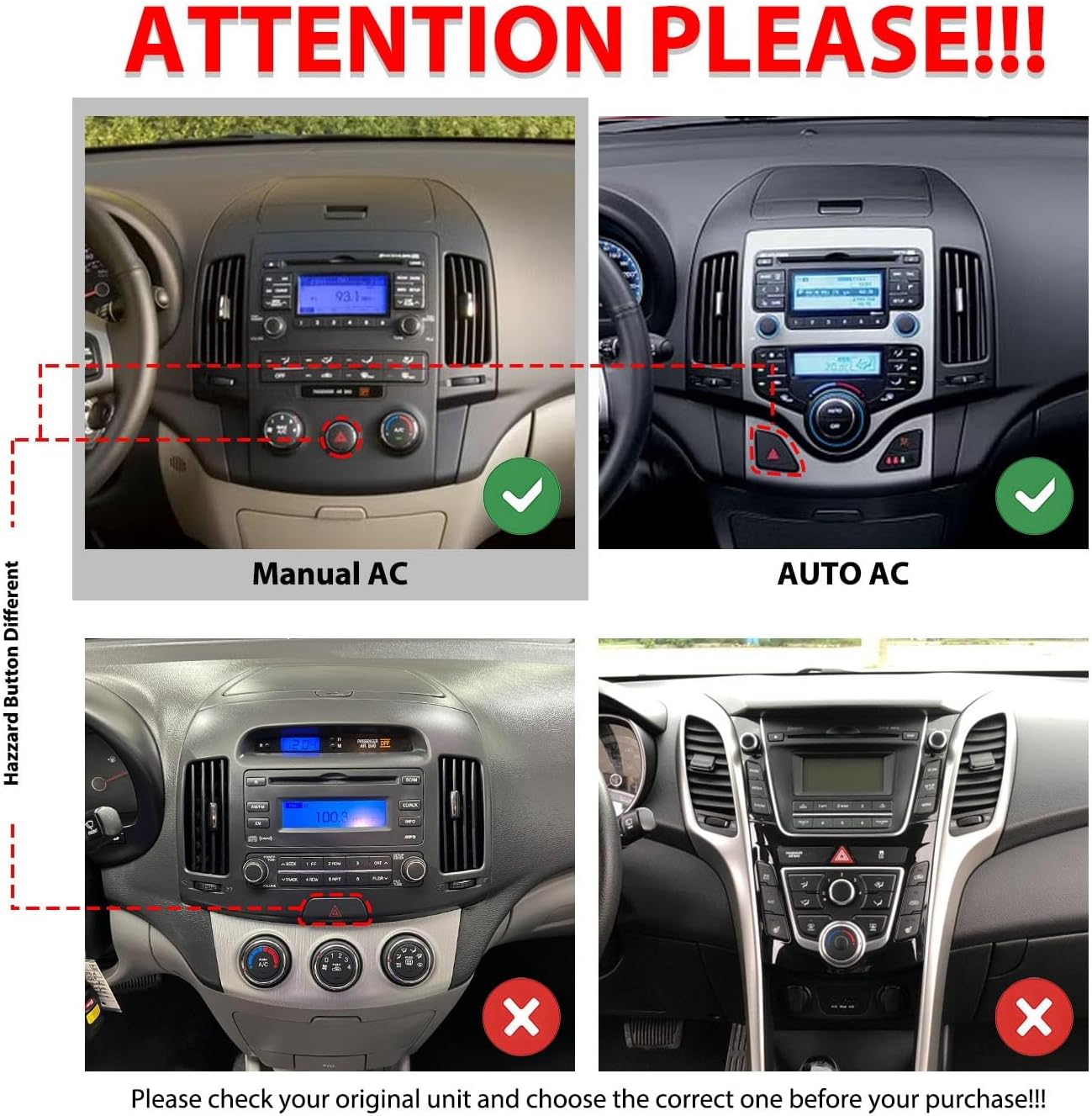
Image: This image illustrates the difference between Manual AC and Auto AC control panels. Ensure your vehicle's dashboard matches the 'Manual AC' configuration shown on the left side of the image for compatibility.
Please check your original car unit carefully and select the correct product variant to avoid compatibility issues.
3. Setup and Installation
3.1 Package Contents
Verify that all components are present in the package before beginning installation:

Image: This image displays the various components included in the product package, such as the 13.1-inch head unit, power cable, cable plug, camera input cable, USB cables (4-pin and 6-pin), GPS antenna, RCA wire harness, and optional AHD reverse camera kit.
- 13.1-inch Head Unit
- Power Cable
- Cable Plug
- Camera Input Cable
- USB Cable (4-pin)
- USB Cable (6-pin)
- GPS Antenna
- RCA Wire Harness
- AHD Reverse Camera (Optional, bundled)
- External Microphone (Optional, bundled)
- Crowbar Tool (Optional, bundled)
3.2 Installation Process
Professional installation is recommended. Ensure the vehicle's battery is disconnected before starting the installation. Follow these general steps:
- Carefully remove the original car stereo unit and trim panels.
- Connect the provided power cable and other necessary harnesses to the new head unit and the vehicle's wiring.
- Install the GPS antenna in a location with a clear view of the sky.
- If installing a reverse camera, route the camera cable and connect it to the head unit.
- Mount the new 13.1-inch head unit into the dashboard opening.
- Reconnect the vehicle's battery and test the unit.
- Reinstall all trim panels.

Image: This image shows a side-by-side comparison of the car's dashboard before and after the KUNFINE 13.1-inch car stereo installation, demonstrating the integrated appearance.
3.3 Initial Power On
After installation, turn on your vehicle's ignition. The unit should power on automatically. Follow any on-screen prompts for initial setup, such as language selection and time zone settings.
4. Operating Instructions
4.1 CarPlay and Android Auto
The unit supports seamless integration with both iOS and Android devices, allowing access to phone functions, navigation, music, and more directly on the stereo display.

Image: This image illustrates the CarPlay and Android Auto interfaces on the 13.1-inch screen, showing various compatible applications like Phone, Music, Spotify, and Maps.
- Connecting: Connect your smartphone via USB or wirelessly (if supported by your device and the unit).
- Voice Assistant: Utilize voice commands for navigation, calls, and music playback to minimize driver distraction.
4.2 GPS Navigation
The unit features built-in GPS functionality, allowing real-time navigation even without an internet connection. With a Wi-Fi connection, you can access online navigation services.

Image: This image shows the GPS navigation interface on the car stereo, displaying a map with route information and various navigation application icons.
- Offline Maps: Pre-loaded maps for North America are available.
- Online Maps: Connect to Wi-Fi to use popular online navigation apps.
4.3 Wi-Fi Connectivity
Connect the unit to a Wi-Fi network to browse the internet, stream videos, download applications, and access online navigation services.

Image: This image displays the car stereo screen with various application icons, indicating the ability to download and use apps via Wi-Fi connectivity.
4.4 Steering Wheel Control (SWC)
The unit supports integration with your vehicle's existing steering wheel controls, allowing you to manage audio, calls, and other functions without taking your hands off the wheel.

Image: This image shows the steering wheel control learning interface on the car stereo, where users can assign functions to their vehicle's steering wheel buttons.
- Configuration: Access the 'Steering Learn' settings in the unit's menu to program your steering wheel buttons.
4.5 FM/RDS Radio
Enjoy your favorite radio stations with the built-in FM/RDS tuner. You can save preferred stations for quick access.

Image: This image displays the FM/RDS radio interface on the car stereo, showing frequency tuning and preset station options.
- Saving Presets: Long-press a frequency to save it as a favorite station.
4.6 Car Reverser Camera
The unit supports a car reverser camera input, providing a clear view of the area behind your vehicle when reversing. This enhances safety and aids in parking maneuvers.

Image: This image shows the car stereo screen displaying the view from a rear-view camera, complete with parking guidelines, assisting with safe reversing.
- Automatic Display: The reverse camera view automatically appears on the screen when the vehicle is shifted into reverse gear.
4.7 Other Functions
The KUNFINE car stereo offers a range of additional features:
- Video Playback: Supports various video formats for entertainment.
- Music Playback: Play music from USB, Bluetooth, or streaming apps.
- Bluetooth (BT): Hands-free calling and audio streaming.
- 2K QLED 13.1-inch Display: Enjoy a 1920*1200 Ultra HD screen for a superior visual experience.

Image: This image highlights the 13.1-inch 2K QLED display, emphasizing its high resolution (1920*1200) and vibrant color reproduction for an enhanced visual experience.
5. Maintenance
To ensure the longevity and optimal performance of your KUNFINE car stereo, follow these maintenance guidelines:
- Screen Cleaning: Use a soft, lint-free cloth to gently wipe the touchscreen. Avoid abrasive cleaners or solvents.
- Software Updates: Periodically check for and install software updates to improve performance and add new features.
- Environmental Conditions: Avoid exposing the unit to extreme temperatures, direct sunlight for prolonged periods, or excessive moisture.
- Cable Connections: Ensure all cables are securely connected. Loose connections can lead to intermittent issues.
6. Troubleshooting
If you encounter issues with your car stereo, refer to the following common problems and solutions:
| Problem | Possible Cause | Solution |
|---|---|---|
| Unit does not power on | Loose power connection, blown fuse, vehicle battery issue | Check power cables and fuse. Ensure vehicle battery is charged. |
| No sound | Volume too low, mute activated, speaker wiring issue | Increase volume, check mute settings, verify speaker connections. |
| GPS signal lost or inaccurate | GPS antenna obstructed or improperly installed | Ensure GPS antenna has a clear view of the sky and is securely connected. |
| CarPlay/Android Auto not connecting | Faulty USB cable, phone settings, software incompatibility | Try a different USB cable. Check phone settings for CarPlay/Android Auto. Ensure phone OS is up to date. |
| Touchscreen unresponsive | Temporary software glitch, screen damage | Restart the unit. If issue persists, contact support. |
If the problem persists after attempting these solutions, please contact KUNFINE customer support for further assistance.
7. Specifications
| Feature | Specification |
|---|---|
| Brand | KUNFINE |
| Screen Size | 13.1 Inches |
| Screen Resolution | 1920*1200 (2K QLED) |
| Operating System | Android |
| Memory Storage Capacity | 64 GB |
| Connectivity Technology | USB |
| Connectivity Protocol | Bluetooth, Wi-Fi |
| Map Type | North America |
| Touch Screen Type | Capacitive |
| Human Interface Input | Touch Pad, Touchscreen |
| Control Method | Touch |
| Batteries Included | No |
8. Warranty and Support
Your KUNFINE car stereo comes with a one-year warranty covering non-human damage. KUNFINE is committed to providing excellent after-sales support.
- Warranty Period: 1 Year (for non-human damage).
- Customer Support: If you have any questions, require assistance, or experience issues with your product, please contact the seller directly for support. Your inquiries are always welcome.