
Hommie 202K-3
Hommie iPad Stylus User Manual
Model: 202K-3
Brand: Hommie
1. Introduction
This user manual provides detailed instructions for the Hommie iPad Stylus. Please read this manual carefully before using the product to ensure proper operation and to maximize its features. This stylus is designed to enhance your digital writing and drawing experience on compatible iPad models.
2. Package Contents
- 1 x Hommie iPad Stylus
- 4 x Replacement Nibs
- 1 x USB Type-C Charging Cable
- 1 x User Manual

Image: The Hommie iPad Stylus shown alongside its three replacement nibs and a charging cable.
3. Setup
3.1 Powering On/Off
To power on the stylus, simply double-tap the top end of the stylus. The LED indicators will light up. To power off, double-tap the top end again. The stylus will automatically shut down after 5 minutes of inactivity to conserve battery.
3.2 Initial Charging
Before first use, it is recommended to fully charge the stylus. Connect the provided USB Type-C charging cable to the stylus's charging port and to a compatible USB power source.

Image: Close-up of the stylus charging port with a USB-C cable connected, illustrating fast charging capabilities.
4. Operating Instructions
4.1 Charging and Battery Indicators
The Hommie stylus features rapid charging. A 20-minute charge via Type-C provides up to 10 hours of working time. A quick 5-minute charge can provide up to 3 hours of use. The stylus is equipped with 3 LED indicators that precisely show the remaining battery level:
- 0 LED: 0%-5% battery remaining
- 1 LED: 5%-30% battery remaining
- 2 LEDs: 30%-70% battery remaining
- 3 LEDs: 70%-100% battery remaining

Image: Diagram showing the stylus with its LED indicators and corresponding battery levels.
4.2 Palm Rejection
The stylus supports palm rejection, allowing you to rest your palm comfortably on the iPad screen without creating unintended marks or interference while writing or drawing. This feature ensures a natural and comfortable user experience.
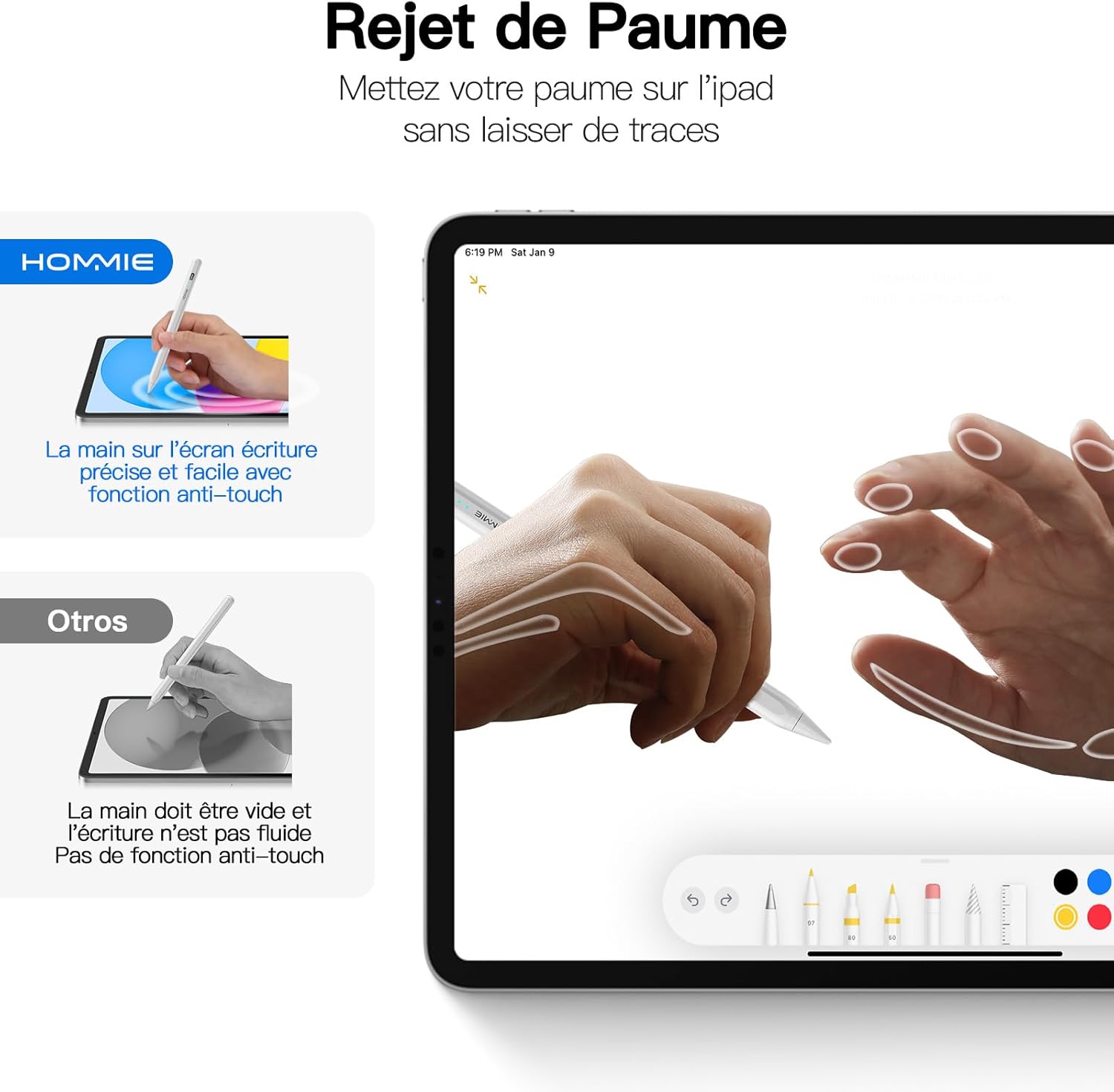
Image: An illustration demonstrating the palm rejection feature, where a hand rests on the iPad screen while the stylus is in use without affecting the input.
4.3 Tilt Detection
The stylus features tilt detection, which allows the thickness of your lines to change based on the angle at which you hold the stylus. This provides a more natural and versatile drawing and writing experience, similar to using a traditional pencil.

Image: Examples of line thickness variations based on different tilt angles of the stylus (90°, 75°, 60°, 45°, 15°).
4.4 Magnetic Attachment
The stylus supports magnetic attachment to compatible iPad models for convenient storage and transport. This feature is compatible with:
- iPad Pro 12.9" (3rd, 4th, 5th Generation)
- iPad Pro 11" (1st, 2nd, 3rd Generation)
- iPad Air (4th, 5th Generation)
- iPad mini 6th Generation / A17 Pro (A2993/A2995/A2996)
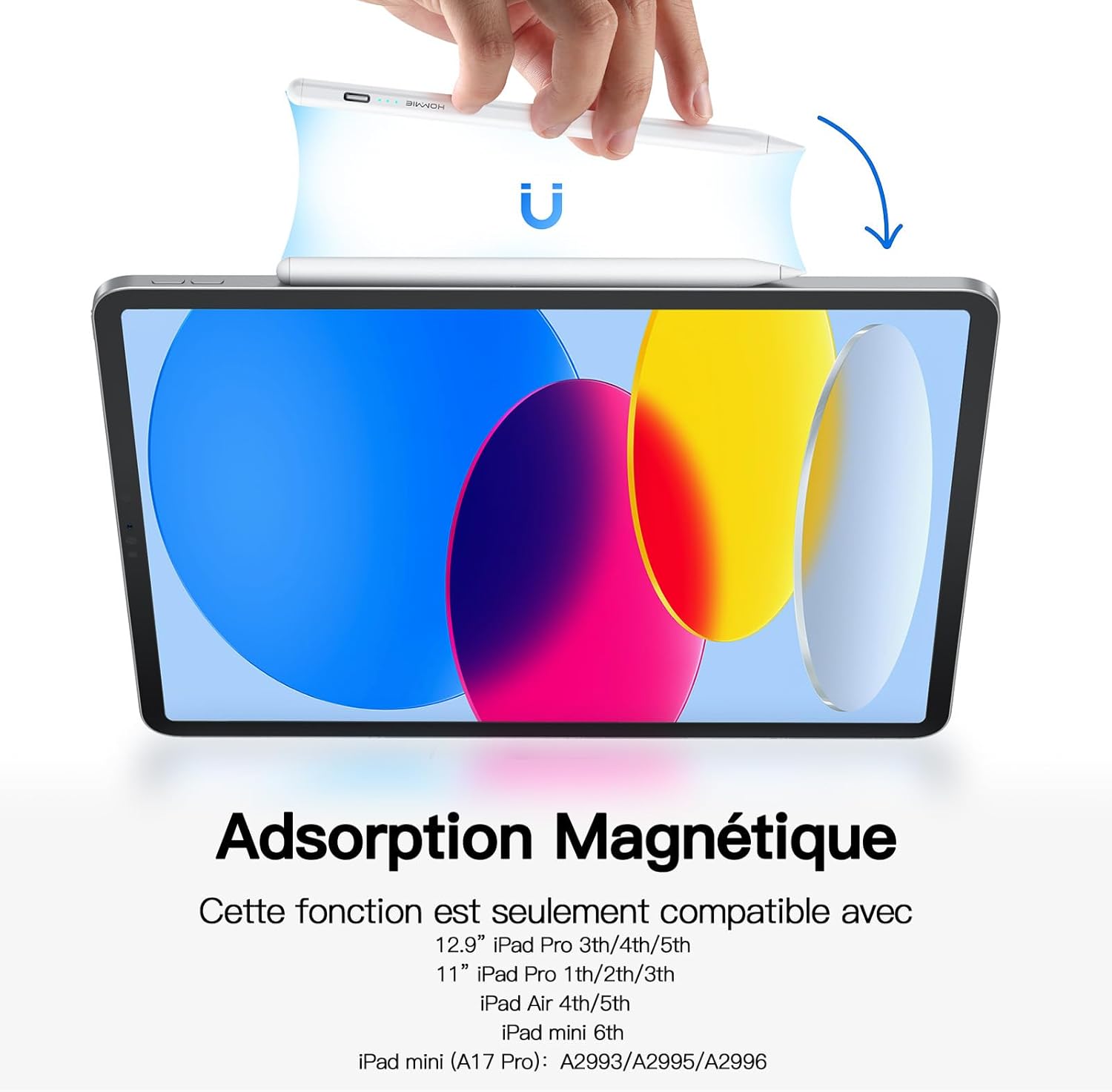
Image: The stylus magnetically attached to the side of an iPad.
4.5 Replacing Nibs
The stylus comes with 4 replacement nibs. To replace a nib, gently twist the old nib counter-clockwise to remove it. Align the new nib with the stylus tip and twist clockwise until it is securely in place. Ensure the nib is firmly attached before use.

Image: Diagram illustrating the process of replacing the stylus nib.
5. Compatibility
The Hommie iPad Stylus does not require Bluetooth pairing or any specific app. It is compatible with Apple iPad series models released from 2018 to 2024. Please verify your iPad model before purchase to ensure compatibility.
Compatible iPad Models:
- iPad mini (A17 Pro, 6th/5th Generation)
- iPad Pro 13" / 11" (M4, M2)
- iPad Pro 11" (4th/3rd/2nd/1st Generation)
- iPad Pro 12.9" (6th/5th/4th/3rd Generation)
- iPad Air (5th/4th/3rd Generation)
- iPad (10th/9th/8th/7th/6th Generation)

Image: A detailed chart listing compatible iPad models and their corresponding generation and model numbers.
6. Maintenance
To ensure the longevity and optimal performance of your Hommie iPad Stylus, follow these maintenance guidelines:
- Keep the stylus clean by wiping it with a soft, dry cloth.
- Avoid exposing the stylus to extreme temperatures, direct sunlight, or high humidity.
- Store the stylus in a safe place to prevent damage, especially to the nib.
- Do not disassemble the stylus, as this may void the warranty and cause damage.
7. Troubleshooting
| Problem | Possible Cause | Solution |
|---|---|---|
| Stylus does not turn on. | Low battery or incorrect power-on method. | Charge the stylus fully. Ensure you double-tap the top end of the stylus to power it on. |
| Stylus does not write or draw. | Stylus is off, low battery, or incompatible iPad model. | Ensure the stylus is powered on and charged. Verify your iPad model is listed in the compatibility section. |
| Inaccurate or broken lines. | Worn-out nib or screen protector interference. | Replace the nib with a new one. Ensure your screen protector is stylus-friendly. |
| Palm rejection not working. | Older iPad model or software issue. | Ensure your iPad model supports palm rejection. Update your iPad's operating system to the latest version. |
8. Specifications
- Brand: Hommie
- Model Number: 202K-3
- Color: Pearl
- Compatible Devices: Tablet (specifically Apple iPad models 2018-2024)
- Battery Type: Lithium-ion
- Weight: 13 Grams
- Average Battery Life (in use): Up to 10 hours
- Dimensions (L x W x H): 16.7 x 0.8 x 0.6 centimeters
- Material: Acrylonitrile Butadiene Styrene (ABS)
9. Warranty and Support
Hommie provides a 1-year service warranty and a 2-year manufacturer warranty for this product. For any questions, technical support, or warranty claims, please contact Hommie customer service through the retailer where you purchased the product or visit the official Hommie website.
For more information, you can visit the Hommie Store on Amazon.
Ask a question about this manual
Ask about setup, troubleshooting, compatibility, parts, safety, or missing instructions. Manuals+ will review the question and use this page’s manual context to help answer it.