
ZEEMR Q1 Pro
Contents
ZEEMR Netflix Certified Projector User Manual
Model: Q1 Pro
1. Introduction
Thank you for purchasing the ZEEMR Netflix Certified Projector, Model Q1 Pro. This projector is designed to provide a high-quality home theater experience with its native 1080P resolution, 4K decoding support, and integrated smart features. This manual provides essential information for setting up, operating, maintaining, and troubleshooting your projector to ensure optimal performance and longevity.
Key features include official Netflix authorization, a fully sealed dust-proof optical engine for extended lamp life, Dolby Audio support for immersive sound, and AI auto-focus and trapezoid correction for easy setup.
2. Safety Information
Please read all safety instructions carefully before using the projector. Failure to follow these instructions may result in fire, electric shock, or other injuries.
- Power Supply: Use only the provided power adapter and cord. Ensure the power outlet matches the voltage requirements specified on the adapter.
- Ventilation: Do not block any ventilation openings. Ensure adequate space around the projector for proper airflow to prevent overheating.
- Heat: The projector lamp generates heat. Do not touch the lens or exhaust vents immediately after use.
- Eye Protection: Do not look directly into the projector lens when the lamp is on. The bright light can cause eye damage.
- Liquid and Moisture: Keep the projector away from water, rain, and excessive humidity. Do not operate with wet hands.
- Cleaning: Unplug the projector before cleaning. Use a soft, dry cloth. Avoid liquid cleaners or abrasive materials.
- Placement: Place the projector on a stable, level surface. Avoid placing it in direct sunlight or near heat sources.
- Servicing: Do not attempt to service the projector yourself. Refer all servicing to qualified personnel.
3. Setup
3.1 Unboxing and Package Contents
Carefully remove all items from the packaging. The package should contain the following:
- 1 x ZEEMR Q1 Pro Projector (Host)
- 1 x Remote Control
- 1 x User Manual (this document)
- 1 x Power Cord
- 1 x Power Adapter
- 1 x HDMI Cable
- 1 x Certificate
3.2 Projector Placement
Position the projector on a stable surface. The distance from the projector to the screen will determine the projected image size. The Q1 Pro supports projection sizes up to 200 inches.
Refer to the table below for recommended projection distances and screen sizes:
| Projected Screen Size | Approximate Projection Distance |
|---|---|
| 50 inches | ~3.02 ft (0.92 m) |
| 70 inches | ~7.02 ft (2.14 m) |
| 100 inches | ~9.94 ft (3.03 m) |
| 120 inches | ~11.81 ft (3.60 m) |
| 200 inches | (Maximum supported size, distance varies) |
The projector supports various projection methods: Front Projection, Ceiling Projection, and Rear Projection. Adjust settings in the menu accordingly.

Figure 3.2.1: Recommended projection distances for various screen sizes.

Figure 3.2.2: Illustration of various projection methods.
3.3 Power Connection
Connect the power adapter to the projector's power input port, then plug the power cord into a suitable electrical outlet.
3.4 Initial Power On and Auto-Correction
Press the power button on the projector or the remote control to turn on the device. The ZEEMR Q1 Pro features AI Auto Focus and AI Auto Keystone Correction, which will automatically adjust the image for clarity and correct trapezoidal distortion upon startup or movement.
4. Operating Instructions
4.1 Remote Control
The remote control is the primary method for operating the projector. Ensure batteries are correctly inserted. The projector has only one physical button (power on/off), making the remote essential for full functionality.
4.2 Navigating the Interface
Use the directional buttons on the remote to navigate through the on-screen menus and select options. The interface is designed to be intuitive and responsive.
4.3 Built-in Applications
The projector comes with official Netflix authorization and pre-installed applications, eliminating the need for external streaming devices. Supported applications include:
- Netflix
- YouTube
- Tikilive
- Toon Googles
- Netrange
- Open Browser
- Amazon Prime Video
Connect the projector to your Wi-Fi network to access these online resources.

Figure 4.3.1: The projector's smart interface with pre-installed applications.
4.4 Connectivity
The ZEEMR Q1 Pro offers multiple connectivity options:
- Wi-Fi: Supports 2.4G and 5G Wi-Fi for stable and fast online streaming.
- Bluetooth: Connect external Bluetooth speakers or headphones for enhanced audio.
- HDMI: Connect external devices such as laptops, gaming consoles, or Blu-ray players.
- USB: Play media files directly from a USB flash drive. Ensure the USB drive is formatted correctly for compatibility.
- AirPlay & Screen Mirroring: Easily mirror content from your smartphone or tablet.

Figure 4.4.1: Multiple device connectivity options for the projector.
4.5 Audio Settings
The projector features built-in 5W * 2 full-channel speakers with Dolby Sound Effect support. You can adjust the 16-segment equalizer for a customized audio experience. The low noise level of less than 30dB ensures an immersive viewing experience.

Figure 4.5.1: Internal speaker design and sound quality features.
4.6 Picture Quality
The ZEEMR Q1 Pro supports native 1080P resolution and 4K decoding, ensuring sharp, clear, and vibrant images. The advanced display technology brings out every detail for a superior viewing experience.
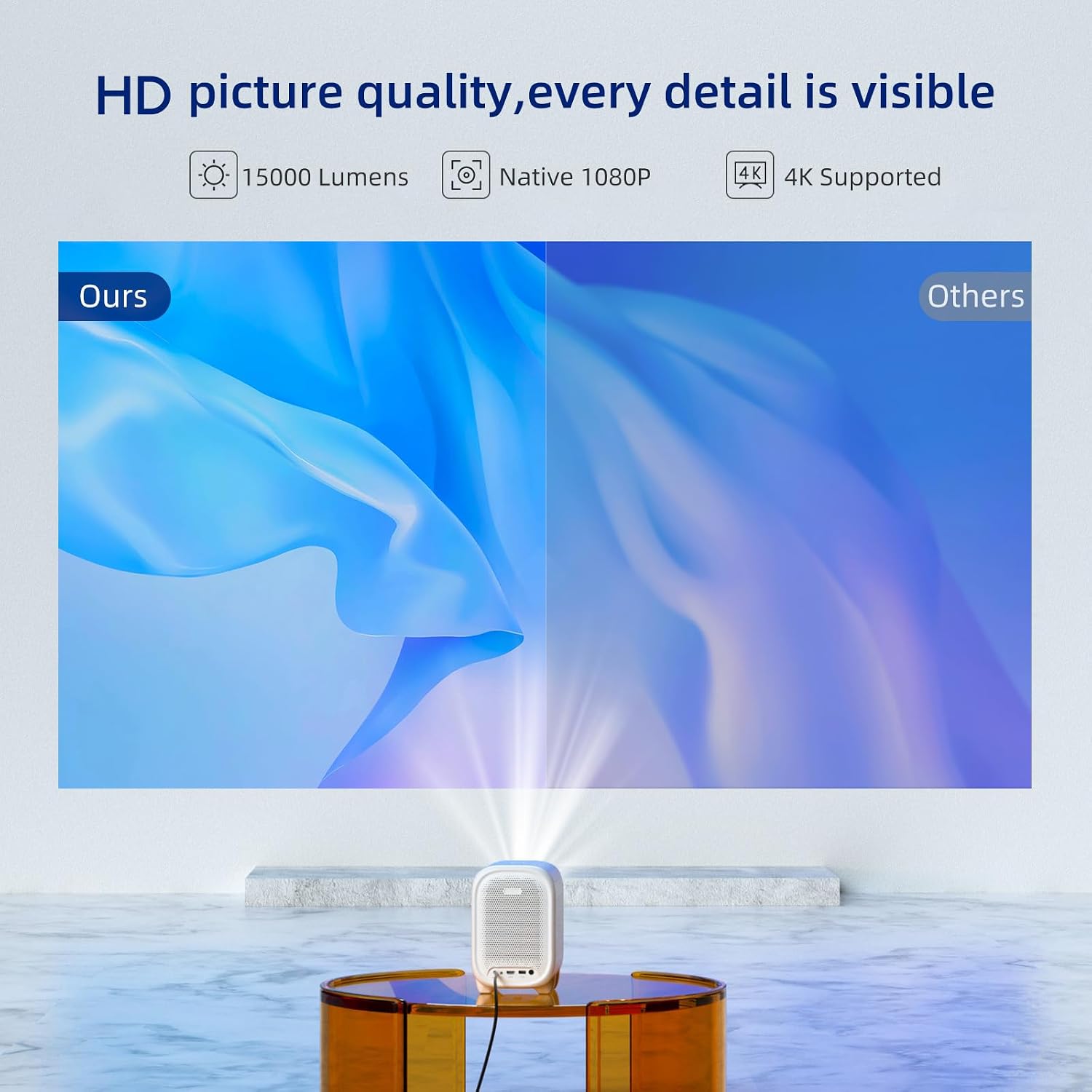
Figure 4.6.1: Comparison of the projector's HD picture quality.
5. Maintenance
5.1 Fully Sealed Dust-Proof Design
The ZEEMR Q1 Pro features an advanced fully enclosed optical machine, providing a dust-proof design that significantly extends the lamp's service life to over 30,000 hours. This design minimizes dust accumulation on internal components, reducing maintenance needs and ensuring consistent picture quality.

Figure 5.1.1: Internal view of the fully enclosed optical machine.
5.2 Cleaning
- Lens: Use a soft, lint-free cloth specifically designed for optical lenses. Gently wipe the lens to remove dust or smudges. Avoid harsh chemicals.
- Exterior: Wipe the projector's exterior with a soft, dry cloth. For stubborn marks, a slightly damp cloth can be used, followed by a dry one. Ensure no liquid enters the device.
- Ventilation: Periodically check the ventilation openings for dust buildup. Use a soft brush or compressed air to clear any obstructions.
5.3 Storage
When not in use for extended periods, store the projector in a cool, dry place, away from direct sunlight and extreme temperatures. It is recommended to use the original packaging or a protective case to prevent dust accumulation and physical damage.
6. Troubleshooting
If you encounter issues with your ZEEMR Q1 Pro projector, refer to the following common problems and solutions:
| Problem | Possible Cause | Solution |
|---|---|---|
| No image projected | Power not connected, input source incorrect, lens cap on. | Check power connection. Select correct input source (HDMI, USB, etc.). Ensure lens cap is removed. |
| Image blurry or out of focus | Auto-focus issue, projector moved. | The projector has AI auto-focus. If still blurry, try moving the projector slightly to trigger re-focusing or check for obstructions. |
| No sound | Volume too low, audio output settings, external speaker issue. | Increase volume. Check audio output settings in the menu. Ensure external Bluetooth speakers are properly paired and powered on. |
| Remote control not working | Batteries dead or incorrectly inserted, IR sensor blocked. | Replace batteries. Ensure line of sight between remote and projector's IR sensor. |
| Cannot connect to Wi-Fi | Incorrect password, router issue, signal interference. | Double-check Wi-Fi password. Restart your router. Move projector closer to router or reduce interference. |
| USB drive not recognized | Incorrect format, corrupted files, drive issue. | Ensure USB drive is formatted to a compatible file system (e.g., FAT32). Try a different USB drive. |
| Projector is unstable/tips over | Uneven surface, top-heavy design when angled. | Place on a completely flat and stable surface. If angling upwards, use a tripod with the threaded hole on the bottom or a stable stand to prevent tipping. |
7. Specifications
| Feature | Detail |
|---|---|
| Brand | ZEEMR |
| Model Number | Q1 Pro |
| Display Resolution | Native 1920x1080P, supports 4K decoding |
| Lamp Life | 30,000+ hours (fully sealed dust-proof design) |
| Connectivity Technology | Bluetooth, Wi-Fi (2.4G+5G), USB, HDMI |
| Audio | 5W * 2 Full Channel Speaker, Dolby Sound Effect, 16 Segment Equalizer Adjustment |
| Special Features | Official Netflix Authorization, AI Auto Focus, AI Auto Keystone Correction, Fully Sealed Dust-Proof Design |
| Color | Black |
| Item Weight | 9.18 pounds (approx. 4.16 kg) |
| Package Dimensions | 13.8 x 10.5 x 9 inches (approx. 35 x 26.7 x 22.9 cm) |
8. Warranty and Support
For information regarding warranty coverage and technical support for your ZEEMR Q1 Pro projector, please refer to the warranty card included in your package or visit the official ZEEMR website. You may also contact ZEEMR customer service directly for assistance with product inquiries, troubleshooting, or service requests.
Contact information can typically be found on the product packaging, the official ZEEMR website, or through your point of purchase.
Ask a question about this manual
Ask about setup, troubleshooting, compatibility, parts, safety, or missing instructions. Manuals+ will review the question and use this page’s manual context to help answer it.