
JOYACCESS XRF-M1B-PL
JOYACCESS Wireless Mouse User Manual
Brand: JOYACCESS
Model: XRF-M1B-PL
Product Overview
The JOYACCESS Wireless Mouse offers a stable 2.4 GHz connection with a tiny USB Nano receiver, providing plug-and-play functionality up to 10 meters. Designed for silent operation, its ergonomic form factor ensures comfortable and quiet clicking. With 5 adjustable DPI levels (1000/1600/2000/2400/3200), you can customize sensitivity for various activities. This slim and portable mouse (4.3 x 2.3 x 0.9 inches) is perfect for travel and easily fits into laptop bags. It is widely compatible with Windows 7/8/10/XP, Vista 7/8, Linux, desktop PCs, laptops, and Macbooks. The mouse features an auto-sleep function after 8 minutes of inactivity for power saving, waking up with any button click. Requires 1 AA battery (not included).

This manual provides detailed instructions for setting up, operating, and maintaining your JOYACCESS Wireless Mouse.
Getting Started
Package Contents
Before you begin, please ensure all items are present:
- JOYACCESS Wireless Mouse
- USB Nano Receiver
- User Manual (this document)
Battery Installation
The JOYACCESS Wireless Mouse requires one AA battery (not included). Follow these steps to install the battery:
- Locate the battery compartment cover on the underside of the mouse.
- Gently slide or lift the cover to open the compartment.
- Insert one AA battery, ensuring the positive (+) and negative (-) terminals align correctly with the indicators inside the compartment.
- Replace the battery compartment cover until it clicks securely into place.
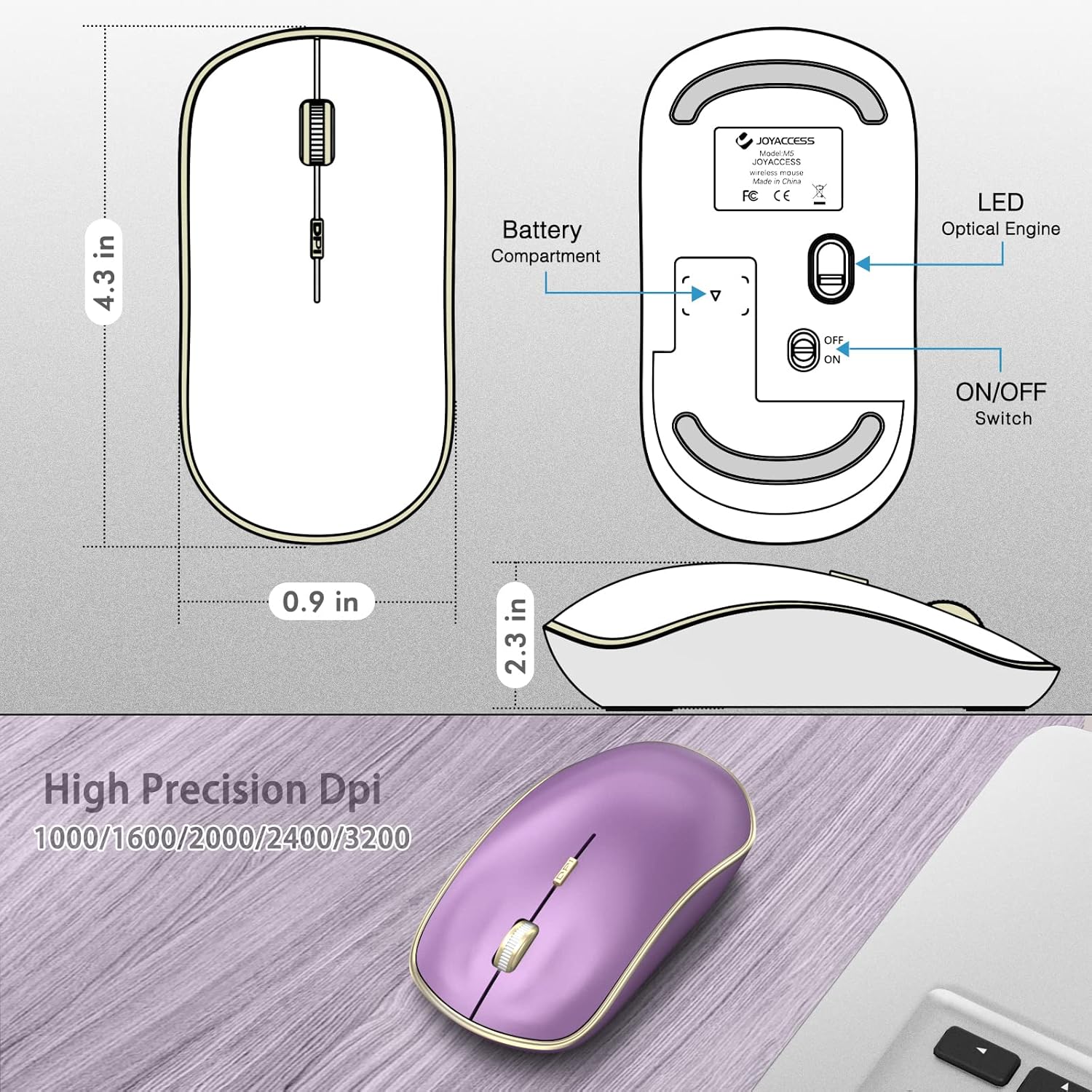
Description: This image displays the bottom of the mouse, highlighting the battery compartment, the ON/OFF switch, and the optical sensor.
Connecting the Mouse
The mouse connects wirelessly via a 2.4 GHz USB Nano receiver. No drivers are typically required for most operating systems.
- Remove the USB Nano receiver from its storage slot within the battery compartment of the mouse.
- Plug the USB Nano receiver into an available USB port on your computer (desktop, laptop, PC, or Macbook).
- Turn on the mouse using the ON/OFF switch located on the underside of the mouse.
- Your computer should automatically detect and install the necessary drivers. The mouse will be ready for use within a few seconds.

Description: This image shows the purple wireless mouse on a desk with its USB receiver plugged into the side of a laptop, illustrating the connection process.

Description: This image features the purple wireless mouse positioned next to a laptop, emphasizing its 'Plug and Play' functionality for easy setup.
Operating Instructions
Adjusting DPI Sensitivity
The mouse features 5 adjustable DPI levels to suit your precision needs. DPI (Dots Per Inch) determines how sensitive the mouse is to movement.
To change the DPI setting, press the DPI button located on the top of the mouse, just below the scroll wheel. Each press will cycle through the available DPI levels: 1000, 1600, 2000, 2400, and 3200.
Description: This image shows the underside of the mouse, detailing the LED Optical Engine and the various DPI settings (1000/1600/2000/2400/3200) available for adjustment.
Silent Click Feature
This mouse is designed with silent click buttons for both left and right clicks, allowing you to work without disturbing others.
Power Saving Mode
To conserve battery life, the mouse will automatically enter a sleep mode after 8 minutes of inactivity. To wake it up, simply click any button on the mouse.
Care and Maintenance
Battery Replacement
When the mouse performance degrades or it stops responding, it's likely time to replace the AA battery. Follow the 'Battery Installation' steps in the 'Getting Started' section.
Cleaning
To clean the mouse, use a soft, dry cloth. For stubborn dirt, a slightly damp cloth can be used, but ensure no moisture enters the internal components. Do not use harsh chemicals or abrasive cleaners.
Troubleshooting
Mouse Not Responding
- Check Battery: Ensure the AA battery is correctly installed and has sufficient charge. Replace if necessary.
- Check Connection: Verify that the USB Nano receiver is securely plugged into a working USB port on your computer. Try a different USB port.
- Power Switch: Make sure the ON/OFF switch on the underside of the mouse is in the 'ON' position.
- Re-pair: In rare cases, you might need to re-pair the mouse with the receiver. Consult the manufacturer's website for specific re-pairing instructions if the above steps do not resolve the issue.
Cursor Movement is Erratic or Slow
- Surface: Ensure you are using the mouse on a clean, non-reflective, and uniform surface. A mouse pad is recommended for optimal performance.
- DPI Setting: Adjust the DPI sensitivity using the DPI button to find a comfortable cursor speed.
- Optical Sensor: Check the optical sensor on the underside of the mouse for any obstructions or dirt. Clean gently with a soft cloth.
Product Specifications
| Feature | Detail |
|---|---|
| Product Dimensions | 4.3 x 2.3 x 0.04 inches |
| Item Weight | 0.317 ounces |
| ASIN | B0BYZ2DCKS |
| Item model number | XRF-M1B-PL |
| Customer Reviews | 4.4 4.4 out of 5 stars 4,035 ratings 4.4 out of 5 stars |
| Best Sellers Rank | #1,984 in Video Games (See Top 100 in Video Games) #46 in Mac Gaming Mice #141 in PC Gaming Mice |
| Date First Available | March 20, 2023 |
| Manufacturer | J JOYACCESS |
| Brand | JOYACCESS |
| Color | Purple |
| Connectivity Technology | USB, Wireless |
| Special Feature | Wireless |
| Movement Detection Technology | Laser, Optical |
Warranty and Support
JOYACCESS provides a standard warranty for this product. For detailed warranty information, technical support, or service inquiries, please visit the official JOYACCESS website or contact their customer service directly.
Official Website: www.joyaccess.com
For further assistance, refer to the contact information provided on the product packaging or the manufacturer's website.
Related documentsXRF-M1B-PL

Ask a question about this manual
Ask about setup, troubleshooting, compatibility, parts, safety, or missing instructions. Manuals+ will review the question and use this page’s manual context to help answer it.