Introduction
Thank you for choosing the seenda KOU-401 Multi-Device Backlit Bluetooth Keyboard. This keyboard is designed for versatility, offering seamless connectivity across multiple devices via 2.4G USB and dual Bluetooth channels. It features adjustable backlighting and a rechargeable battery for enhanced user experience. This manual provides detailed instructions for setup, operation, and maintenance to ensure optimal performance.

Image: The seenda KOU-401 keyboard showcasing its full layout with vibrant purple backlighting and the included 2.4G USB receiver.
Safety Information
- Keep the keyboard away from water, moisture, and extreme temperatures.
- Avoid dropping or subjecting the keyboard to strong impacts.
- Do not attempt to disassemble or repair the keyboard yourself. Contact customer support for assistance.
- Use only the provided charging cable or a certified equivalent to charge the keyboard.
- Turn off the keyboard when not in use for extended periods to conserve battery life.
Package Contents
- seenda KOU-401 Wireless Keyboard
- 2.4G USB Receiver (stored in the keyboard's battery compartment)
- USB-A to Type-C Charging Cable
- User Manual
Setup
1. Charging the Keyboard
Before first use, fully charge the keyboard. Connect the provided USB-A to Type-C charging cable to the keyboard's Type-C port and a USB power source (e.g., computer USB port, USB wall adapter). The charging indicator light will show charging status.
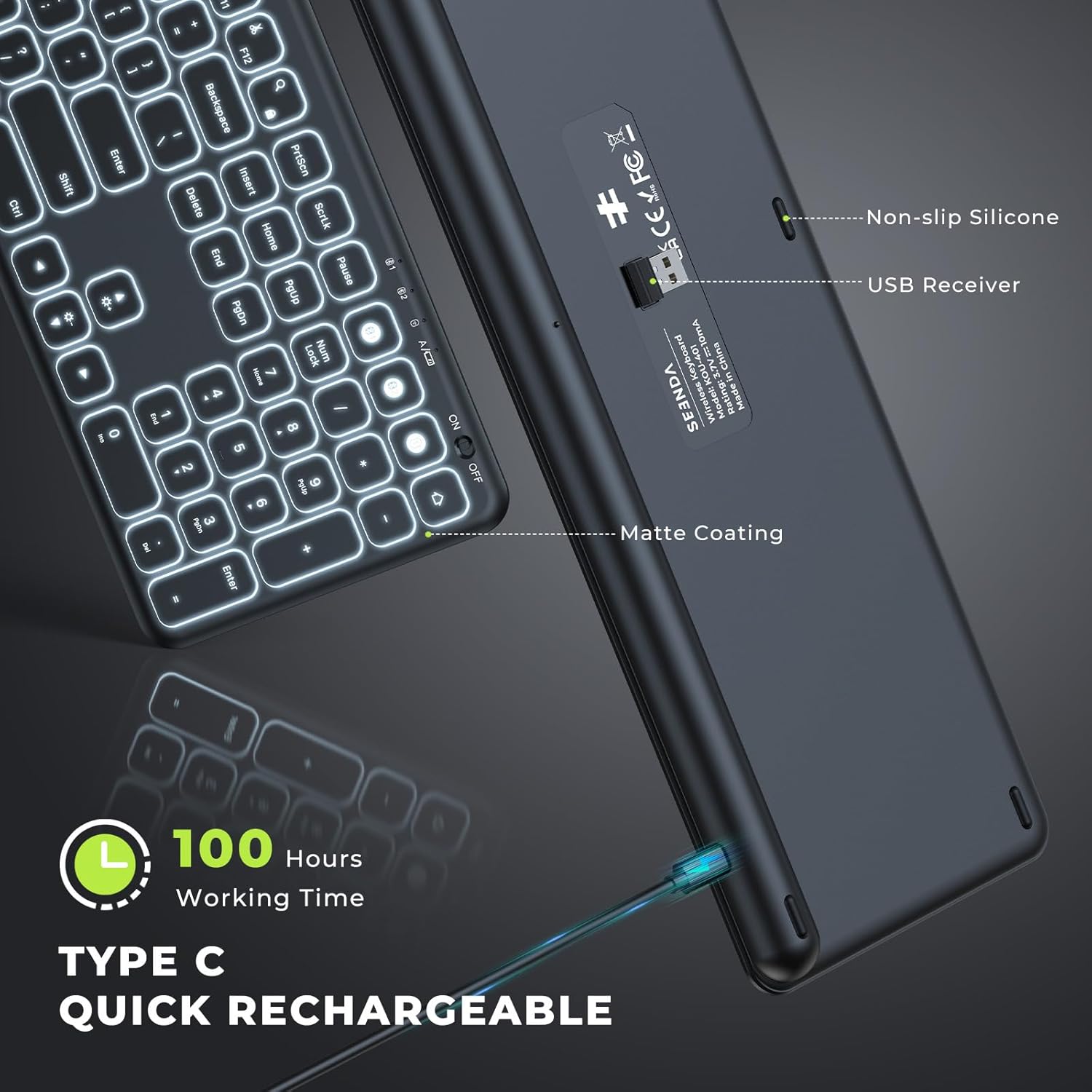
Image: The underside of the seenda KOU-401 keyboard, highlighting the Type-C charging port and the storage slot for the 2.4G USB receiver.
2. Connecting via 2.4G USB Receiver
- Locate the 2.4G USB receiver in the keyboard's battery compartment.
- Plug the USB receiver into an available USB-A port on your computer or device.
- Turn on the keyboard using the ON/OFF switch located on the top right edge.
- Press the Fn + 1 keys simultaneously to switch to 2.4G mode. The indicator light for 2.4G will illuminate.
- The keyboard should automatically connect.
3. Connecting via Bluetooth (BT1 / BT2)
The keyboard supports two independent Bluetooth connections.
- Turn on the keyboard using the ON/OFF switch.
- Press Fn + 2 for Bluetooth Channel 1 or Fn + 3 for Bluetooth Channel 2. The corresponding indicator light will flash slowly.
- To enter pairing mode, press and hold Fn + 2 (or Fn + 3) for 3-5 seconds until the indicator light flashes rapidly.
- On your device (computer, tablet, smartphone), enable Bluetooth and search for new devices.
- Select "seenda Keyboard" from the list of available devices.
- Follow any on-screen prompts to complete the pairing process. The indicator light will stop flashing once connected.

Image: Diagram illustrating the seenda KOU-401 keyboard's ability to connect to three devices simultaneously: one via 2.4G USB and two via Bluetooth.
4. System Compatibility
The keyboard is compatible with:
- Windows XP/Vista/7/8/10+
- Mac OS 10.4+
- iPad OS/iOS 13.0+
- Android 4.3+
Note: The wireless keyboard requires Bluetooth 4.0 or above on your device (Bluetooth adapter not included).
Operating Instructions
1. Power On/Off
Use the ON/OFF switch located on the top right edge of the keyboard to power it on or off.
2. Switching Between Connected Devices
Once multiple devices are paired, you can switch between them by pressing the corresponding function keys:
- Fn + 1: Switch to 2.4G USB connected device.
- Fn + 2: Switch to Bluetooth Channel 1 connected device.
- Fn + 3: Switch to Bluetooth Channel 2 connected device.
3. Backlight Control
The keyboard features adjustable backlighting for improved visibility in various lighting conditions.
- Fn + Light Bulb Key (
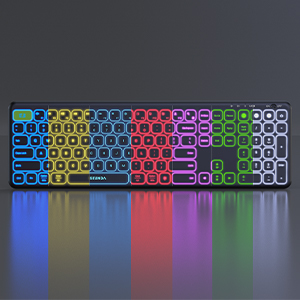 ): Cycle through 7 backlight colors.
 - Fn + Up Arrow: Increase backlight brightness (3 levels).
- Fn + Down Arrow: Decrease backlight brightness, including turning it off.

Image: The seenda KOU-401 keyboard displaying its various backlight color options, illustrating the 7 adjustable colors.

Image: A comparison showing the seenda KOU-401 keyboard with its backlight off in a brightly lit environment and with its backlight on in a dark environment.
4. Multimedia Functional Keys
The F1-F12 keys have dual functions. By default, they act as standard function keys. To access their multimedia functions, press Fn + Fn Lock to toggle between standard function keys and multimedia keys.

Image: A visual guide to the seenda KOU-401 keyboard's multimedia functional keys, showing how to switch between F1-F12 and their secondary media controls.
5. Battery Life and Power Saving
The keyboard can operate for up to 100 hours without backlight or 20 hours with the brightest backlight on a full charge. To conserve power, the keyboard will enter sleep mode after a period of inactivity. Press any key to wake it up. It is recommended to turn off the backlight during the day if not needed.
Maintenance
- Cleaning: Use a soft, dry, lint-free cloth to clean the keyboard surface. For stubborn dirt, slightly dampen the cloth with water or a mild cleaning solution. Avoid excessive moisture.
- Storage: Store the keyboard in a cool, dry place away from direct sunlight and extreme temperatures. If storing for an extended period, ensure the keyboard is fully charged and powered off.
- Battery Care: To prolong battery life, avoid fully discharging the keyboard frequently. Charge it regularly.
Troubleshooting
| Issue | Possible Solution |
|---|---|
| Keyboard not connecting |
|
| Backlight not working or dim |
|
| Keys not responding |
|
| Keyboard disconnects frequently |
|
Specifications
| Feature | Detail |
|---|---|
| Brand | seenda |
| Model Number | KOU-401 |
| Connectivity | 2.4G USB, Bluetooth (BT1, BT2) |
| Special Feature | Backlit (7 colors, 3 brightness levels) |
| Power Source | Battery Powered (Rechargeable via Type-C) |
| Keyboard Layout | QWERTY |
| Product Dimensions | 17.44"L x 5.39"W x 0.83"H (44.3 x 13.7 x 2.1 cm) |
| Item Weight | 1.61 pounds (0.73 kg) |
| Color | Black |
Warranty and Support
seenda products are designed for reliability and performance. For warranty information, technical support, or customer service inquiries, please refer to the contact information provided on the product packaging or visit the official seenda website. Please retain your proof of purchase for warranty claims.


