
Phomemo P12
Phomemo P12 Label Maker Machine User Manual
Model: P12 | Brand: Phomemo
1. Introduction
The Phomemo P12 is a portable Bluetooth label maker designed for efficient and versatile labeling. It utilizes thermal and thermal transfer printing technology, eliminating the need for ink or toner. This manual provides detailed instructions for setting up, operating, and maintaining your P12 label maker.

Figure 1: Phomemo P12 Label Maker and accessories.
2. What's in the Box
- Phomemo P12 Label Maker (Pink)
- Black on white 12mm x 4m label tape
- Type-C USB cable
- User manual (this document)
3. Setup Guide
3.1. Charging the Device
The Phomemo P12 label maker is rechargeable via a Type-C USB cable. Connect the provided Type-C cable to the label maker and a suitable power source (e.g., USB wall adapter, computer USB port). The device will automatically shut off after 15 minutes of inactivity to conserve power.
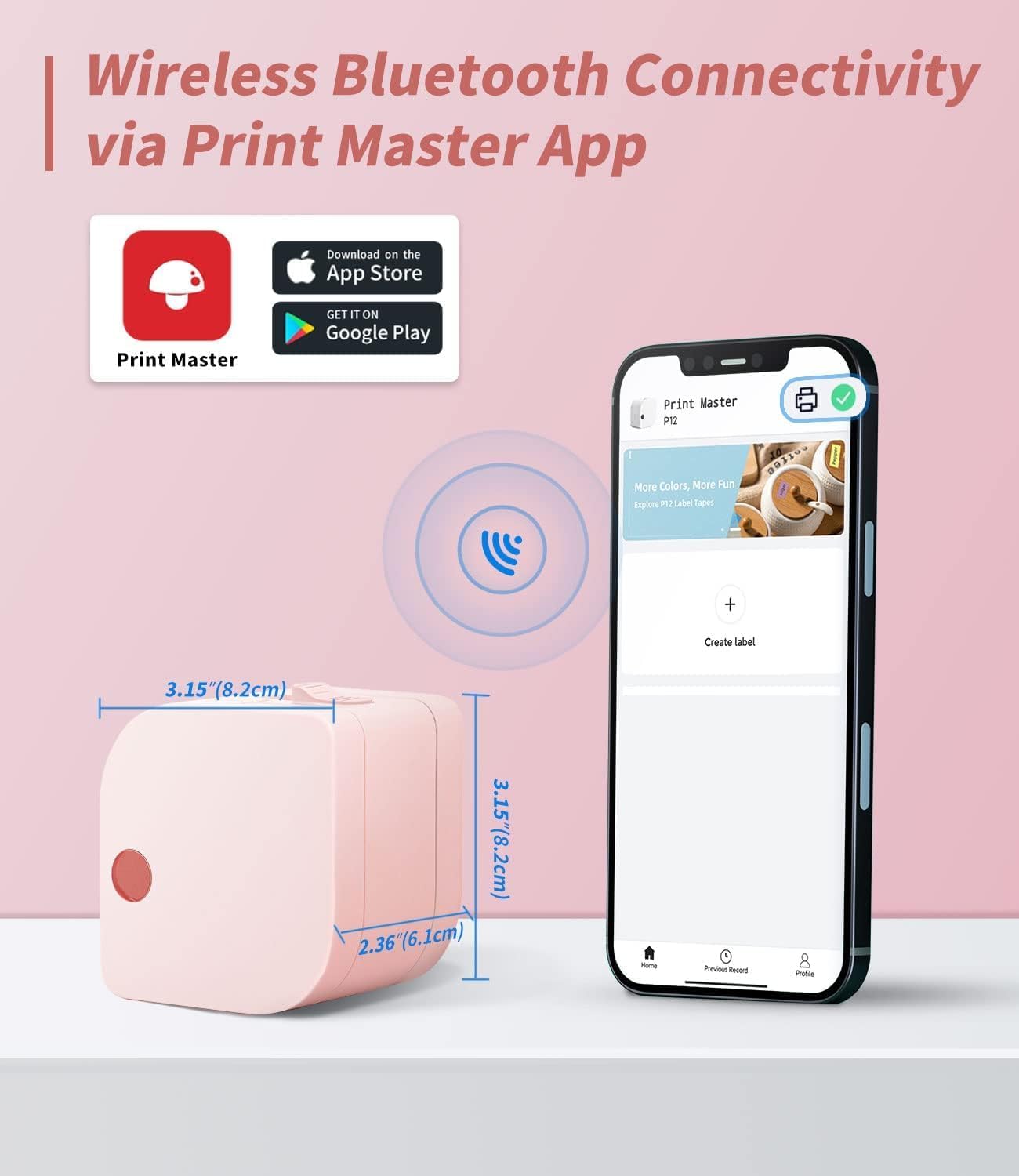
Figure 2: Device dimensions and app interface.
3.2. App Installation and Bluetooth Connection
Download the "Print Master" app from your device's app store (Google Play for Android or App Store for iOS). Once installed, open the app and ensure your phone's Bluetooth is enabled. The app will guide you through connecting to the Phomemo P12 via Bluetooth, typically within 2 seconds.
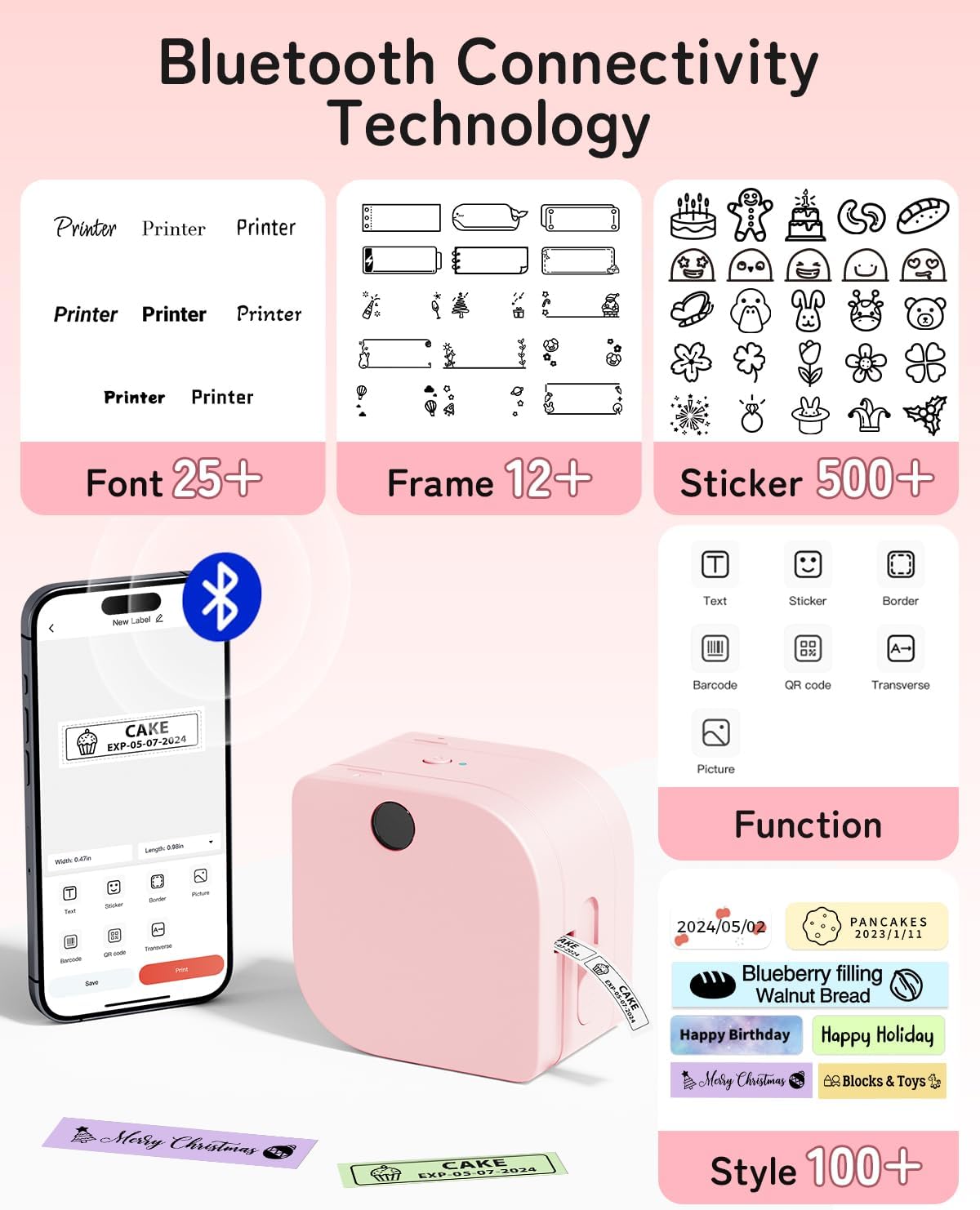
Figure 3: Print Master App interface with various customization options.
Video 1: Demonstration of the Phomemo P12 label maker application and its features.
3.3. Loading Label Tape
Open the label maker's cover. Insert the label tape roll into the designated slot, ensuring the tape feeds smoothly through the output opening. Pull out approximately 5mm of the label tape to prevent paper jams. Close the cover securely.

Figure 4: Proper loading of label tape into the device.
4. Operating Instructions
4.1. Creating and Customizing Labels
Using the "Print Master" app, you can create personalized labels. The app offers:
- Over 11 languages and 25 fonts.
- More than 12 frames and 1000 symbols.
- Options to add text, graphics, numbers, logos, barcodes, and QR codes.
- Ability to create labels with borders.
You can design labels for various purposes, including time, text, and graphics. The app allows for 1-3 lines of text and supports small spacing to minimize label waste. Label templates can be saved within the application for future use.
Video 2: Overview of the Phomemo P12 Mini Label Maker and its ease of use.
4.2. Printing Labels
Once your label design is complete in the app, select the print option. The P12 features a built-in cutter for easy and clean label cutting after printing.

Figure 5: Using the built-in manual cutter for precise label length.
4.3. Label Types and Applications
The P12 supports various label types, including standard paper labels, ribbon labels, and iron-on labels. These labels are waterproof, oil-proof, scratch-proof, and tear-proof, ensuring durability.
- Home Organization: Ideal for kitchen (food labels, jar labels), pantry, garden (plant labels), garage, tools, and personal items.
- Office Use: Manage laptop labels, file sorting, reminder labels, and general supply organization.
- School: Mark classroom items, personal belongings, name labels, and wires/cables.
- Specialty Labels: Customize gift packages with ribbon labels or create durable iron-on labels for clothing.

Figure 6: Examples of label applications in different settings.
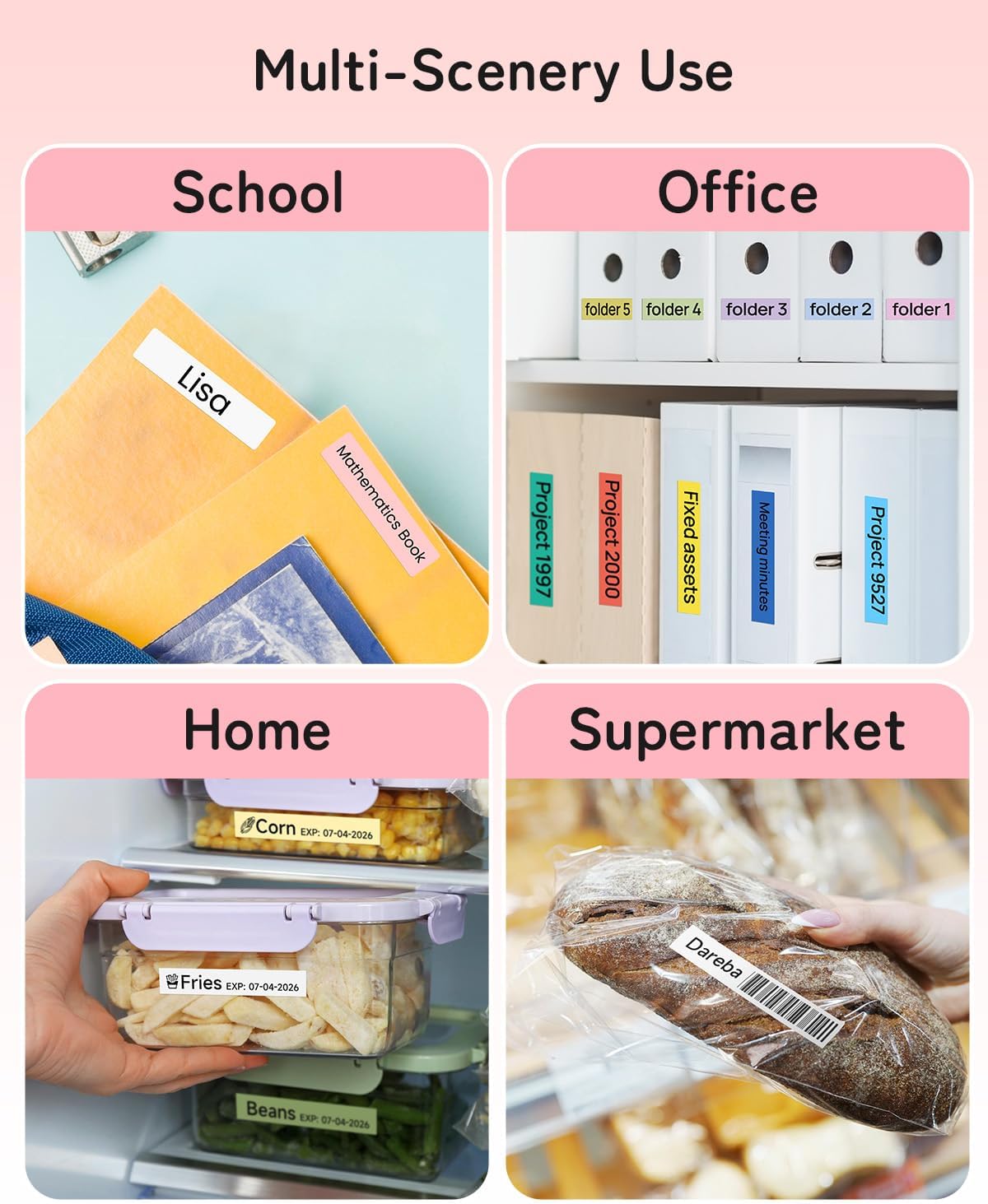
Figure 7: Multi-scenery use cases for the Phomemo P12 labels.
Video 3: Demonstration of the iron-on label tape with the P12 label maker.
Video 4: How to use satin ribbon labels with the Phomemo P12.
Video 5: Practical applications of P12 labels for organization.
5. Maintenance
The Phomemo P12 label maker is designed for low maintenance. As it uses thermal and thermal transfer printing, there is no need to purchase or replace expensive ink, toner, or cartridges.
To ensure optimal performance, keep the device clean and free from dust. Avoid exposing it to extreme temperatures or direct sunlight.

Figure 8: Understanding thermal printing technology.
6. Troubleshooting
- Printing Failed/Paper Jam: Ensure that when replacing new labels, you pull out about 5mm of paper to avoid jams. Check if the label tape is correctly inserted and not tangled.
- No Power/Not Turning On: Verify the device is charged. If using without batteries, ensure it is connected to a power source via the Type-C cable.
- Connection Issues: Confirm Bluetooth is enabled on your phone and the "Print Master" app is open. Try restarting both the label maker and your phone.
- Poor Print Quality: Ensure the label tape is correctly installed. Check if the label maker's print head is clean.
7. Specifications
| Feature | Detail |
|---|---|
| Brand | Phomemo |
| Model Name | P12 |
| Product Dimensions | 4.09 x 3.52 x 2.7 inches |
| Item Weight | 6.3 ounces (180 Grams) |
| Connectivity Technology | Bluetooth |
| Printing Technology | Thermal |
| Maximum Print Resolution | 203 dpi |
| Maximum Media Size | 12mm x 4m |
| Controller Type | IOS, Android (via App) |
| Power Consumption | 5 Watts (On-mode) |
| Hardware Interface | USB Type C |
8. Warranty and Support
The Phomemo P12 Label Maker comes with a limited warranty. For detailed warranty information and support, please refer to the official Phomemo website or contact customer service.
An official User Guide (PDF) is also available for download: Download User Guide (PDF)
Related documentsP12


Ask a question about this manual
Ask about setup, troubleshooting, compatibility, parts, safety, or missing instructions. Manuals+ will review the question and use this page’s manual context to help answer it.