1. Introduction
The camgeet USB 3.0 KVM Switch HDMI 4 Port allows you to control four computers using a single monitor, keyboard, and mouse. This device is designed to streamline your workspace by enabling seamless switching between multiple systems while sharing peripheral USB devices. It supports high-resolution video output and offers convenient switching methods.
2. Package Contents
Please verify that all items are present and in good condition upon opening the package:
- 1x USB 3.0 KVM Switch
- 4x USB 3.0 Cable (1.5M)
- 1x HDMI 2.0 Cable (1.5M)
- 1x Wired Remote (1.5M)
- 1x Power Adapter
- 1x User Manual

Image showing the KVM switch, four USB 3.0 cables, one HDMI 2.0 cable, a wired remote, a power adapter, and the user manual, all neatly arranged as they would appear in the package.
3. Product Features
- 4 Port HDMI KVM Switch: Control up to four computers with a single monitor, keyboard, and mouse. Supports both wired and wireless keyboard/mouse setups. LED indicators show the active computer.
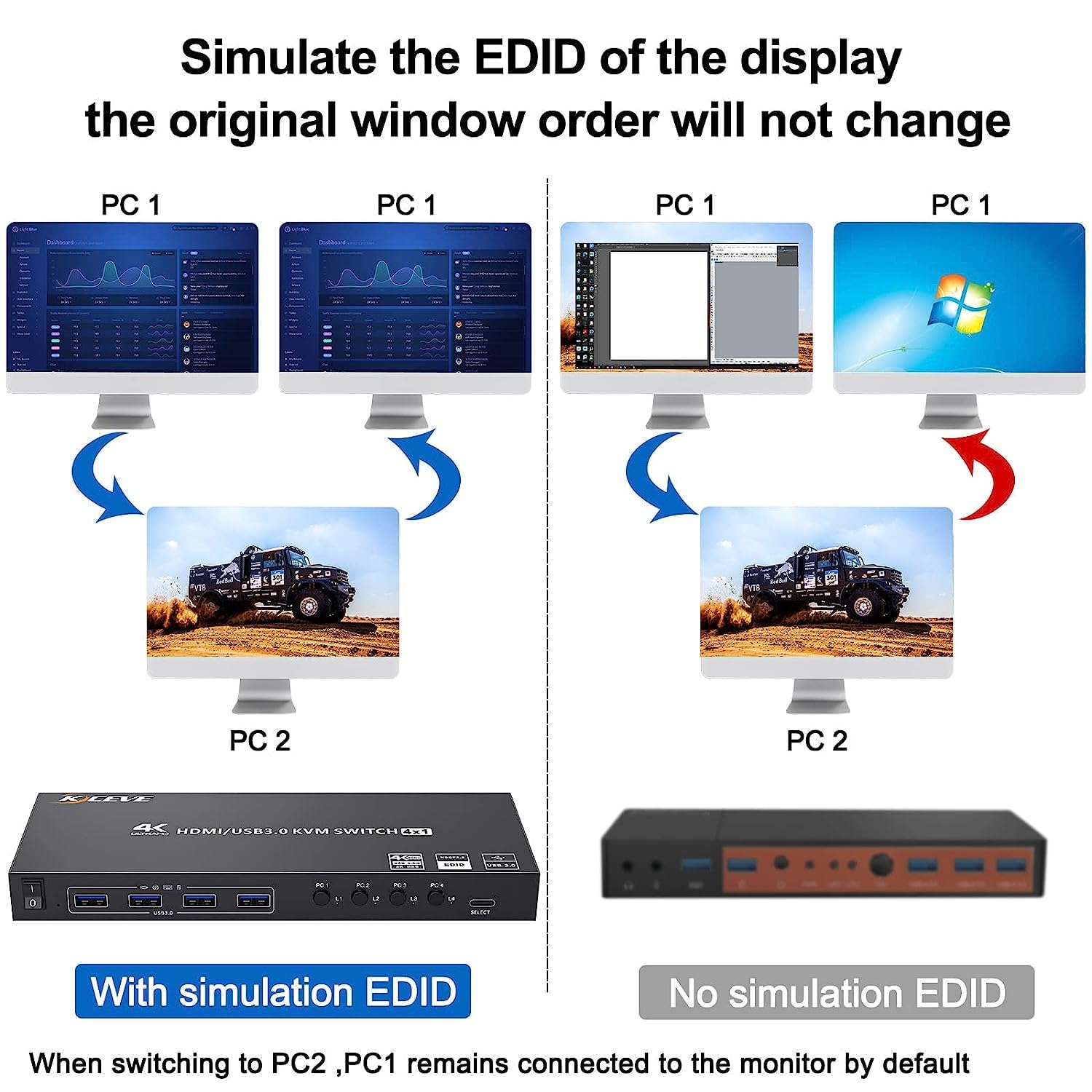
- EDID Simulation: Features EDID simulation to store display resolution and refresh rate, preventing window rearrangement when switching between computers.
- Ultra HD 4K@60Hz Resolution: Supports resolutions up to 4K@60Hz, backward compatible with 4K@30Hz and 2560*1440@120Hz. Compatible with ultrawide monitors. Ensure HDMI 2.0 cables are used for 4K resolution.
- 4 USB 3.0 Ports: Share USB 3.0 devices such as printers, U disks, keyboards, and mice. Offers ultra-fast data transfer speeds up to 5Gbps, which is 10 times faster than USB 2.0.
- Wide Compatibility: Plug and play functionality, driver-free for Windows, Mac OS, Linux, and Chrome OS. Compatible with HDMI source devices like PS5, PS4, TV Box, PC, and Laptops.
- Power Adapter and ON-OFF Switch: Includes an upgraded 12V power adapter for stable operation, especially with high-power USB devices. Features an ON-OFF switch for convenience.

This image displays the Camgeet KVM switch from a front-top perspective, highlighting its USB 3.0 ports, HDMI output, and power switch. Several cables are shown connected, illustrating its connectivity options.

A detailed diagram illustrating the input and output connections of the KVM switch. It shows how four PCs connect via HDMI and USB 3.0 to the KVM, which then outputs to a single monitor and allows sharing of USB peripherals like a printer, U disk, keyboard, and mouse.

This image showcases a monitor displaying a high-resolution image, emphasizing the 4K@60Hz resolution capability of the KVM switch. The text "4K@60Hz Resolution" is prominently displayed.

A visual comparison demonstrating the benefit of EDID simulation. The top part shows how window positions remain unchanged when switching with EDID simulation, while the bottom part shows windows being rearranged without it.

This image highlights the wide compatibility of the KVM switch, featuring a laptop alongside logos for Windows, Mac OS, Vista, Chrome OS, and Linux, indicating support for various operating systems.
4. Setup Instructions
- Power Connection: Connect the provided 12V power adapter to the DC 5V port on the KVM switch and plug it into a power outlet.
- Monitor Connection: Connect your monitor to the HDMI output port on the KVM switch using an HDMI 2.0 cable.
- Computer Connections (Input): For each computer (up to 4):
- Connect an HDMI cable from your computer's HDMI output to an HDMI input port (PC1, PC2, PC3, or PC4) on the KVM switch.
- Connect a USB 3.0 cable from your computer's USB port to the corresponding USB 3.0 input port (USB3.0-PC1, USB3.0-PC2, etc.) on the KVM switch.
- Peripheral Connections (Output): Connect your keyboard, mouse, and other USB 3.0 devices (e.g., printer, U disk) to the USB 3.0 output ports on the front of the KVM switch.
- Wired Remote Connection: If desired, connect the wired remote control to the dedicated remote port on the KVM switch.
- Power On: Turn on the KVM switch using the ON-OFF switch located on the side.
This diagram visually guides the user through connecting the monitor, four computers (each with HDMI and USB 3.0), and various USB peripherals to the KVM switch.
5. Operating Instructions
The KVM switch offers two primary methods for switching between connected computers:
5.1. Button Switching
Press the corresponding button (PC1, PC2, PC3, or PC4) on the front panel of the KVM switch to switch to the desired computer. The LED indicator (L1, L2, L3, L4) next to the button will illuminate to show the active computer.
5.2. Wired Remote Control
Press the button on the wired remote control to cycle through the connected computers. Each press will switch to the next available computer in sequence (PC1 -> PC2 -> PC3 -> PC4 -> PC1...).
This image illustrates the two methods of switching between computers: directly pressing the buttons on the KVM switch and using the wired remote control for convenient switching.
6. Maintenance
- Keep the KVM switch in a dry, well-ventilated area.
- Avoid exposing the device to extreme temperatures or humidity.
- Clean the exterior with a soft, dry cloth. Do not use liquid cleaners or aerosols.
- Ensure all cables are securely connected to prevent signal loss or intermittent issues.
- When not in use for extended periods, it is recommended to turn off the KVM switch using the ON-OFF switch.
7. Troubleshooting
| Problem | Possible Cause | Solution |
|---|---|---|
| No display on monitor after switching. |
|
|
| Keyboard/Mouse not responding. |
|
|
| Window positions change after switching. | EDID simulation not functioning correctly or not supported by all components. | Ensure all HDMI cables are HDMI 2.0 compliant. The KVM switch has EDID simulation built-in to prevent this; if it persists, ensure proper cable connections and try restarting the KVM and computers. |
| Intermittent signal or flickering. |
|
|
8. Specifications
- Model Number: KC-KVM401A
- Product Dimensions: 20.4 x 7.8 x 2.21 cm
- Weight: 360 g
- Material: Metal
- Video Resolution: Up to 4K@60Hz (3840x2160@60Hz), backward compatible with 4K@30Hz, 2560x1440@120Hz
- USB Standard: USB 3.0 (backward compatible with USB 2.0/1.1)
- USB Data Transfer Rate: Up to 5Gbps
- Operating Voltage: 5 Volts
- Current Rating: 2 Amps
- Switching Methods: Panel Button, Wired Remote Control
- Compatibility: Windows, Mac OS, Linux, Chrome OS, PS5, PS4, TV Box, PC, Laptop
9. Warranty and Support
Camgeet provides a 1-year warranty and lifetime technical support for this USB 3.0 KVM Switcher.
For technical assistance or warranty claims, please contact Camgeet customer support through the vendor's official channels or the platform where the product was purchased.


