
JENSEN JCR-375 Stereo Digital Dual-Alarm Clock with Top-Loading CD Player, FM Tuner, USB Charging Port, and Battery Backup - Instruction Manual
Model: JCR-375
1. Introduction
This manual provides detailed instructions for the operation and maintenance of your JENSEN JCR-375 Stereo Digital Dual-Alarm Clock Radio with CD Player. This versatile device is designed for use on a nightstand or in various locations within your home, offering multiple audio playback options and convenient features.
2. Key Features
- Multifunction 0.9-inch White LED display with high/low dimmer control.
- Built-in stereo speakers for audio output.
- Stereo headphone output for private listening.
- Top-loading CD player compatible with standard audio CDs, MP3 CDs, and CD-R/CD-RW discs.
- CD playback controls include skip/search (forward and back), repeat (1 or all tracks), and programmable memory.
- Digital FM radio tuner with up to 20 programmable presets.
- Auxiliary input (3.5mm) for connecting external audio devices.
- 2.1-amp USB port for charging smartphones and other compatible devices.
- Dual-alarm clock radio with sleep and snooze functions.
- Wake options: radio, CD, or alarm tone.
- Battery backup for clock settings (requires 2 'A' batteries, sold separately).
3. Product Overview

Figure 3.1: Front view of the JCR-375 highlighting key features such as the top-loading CD player, built-in speaker, AUX-in jack, and 2.1 Amp USB charging port.

Figure 3.2: Top-down view of the JCR-375 with the CD compartment open, showing a disc inserted. This illustrates the top-loading CD player design.

Figure 3.3: Front view of the JCR-375, showcasing the clear white LED digital clock display and control buttons.

Figure 3.4: Side view of the JCR-375, highlighting the convenient USB charging port located on the side panel.

Figure 3.5: Rear view of the JCR-375, displaying the power input and other rear connections.
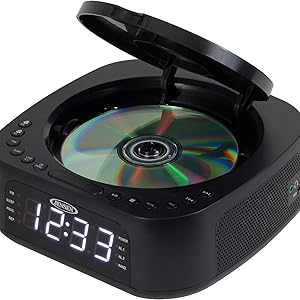
Figure 3.6: Diagram illustrating the compact dimensions of the JCR-375, measuring approximately 7.3 inches in length and width, and 2.8 inches in height.
4. Controls and Indicators
Familiarize yourself with the various controls and indicators on your JCR-375 unit:
- LED Display: Shows time, alarm settings, FM frequency, and CD track information.
- SNOOZE Button: Temporarily silences the alarm for a short period.
- POWER Button: Turns the unit on or off.
- TIME SET Button: Used to set the current time.
- ALARM 1 / ALARM 2 Buttons: Used to set and activate individual alarms.
- DIMMER Button: Adjusts the brightness of the LED display.
- SLEEP Button: Activates the sleep timer function.
- CD/FM/AUX Function Button: Selects the desired audio source (CD, FM radio, Auxiliary input).
- TUNING / SKIP Buttons (<< / >>):
- In FM mode: Tunes the radio frequency.
- In CD mode: Skips to the previous or next track.
- PLAY/PAUSE Button: Starts or pauses CD playback.
- STOP Button: Stops CD playback.
- PROG (Program) Button: Used for programming CD tracks or FM presets.
- MODE Button: Changes playback modes (e.g., repeat, random for CD).
- VOLUME Control: Adjusts the audio output level.
- USB Charging Port: (Located on the side) For charging external devices.
- AUX-IN Jack: (Located on the side) For connecting external audio sources.
- Headphone Jack: (Located on the side) For private listening.
5. Setup
5.1 Power Connection
- Unpack the JCR-375 unit and place it on a stable, flat surface.
- Connect the AC power cord to the AC IN jack on the back of the unit.
- Plug the other end of the AC power cord into a standard 120V AC wall outlet.
- The unit will power on and the display will illuminate.
5.2 Battery Backup Installation
The JCR-375 requires 2 'A' batteries (not included) for battery backup. This feature ensures that clock and alarm settings are retained during a power outage.
- Locate the battery compartment on the bottom of the unit.
- Open the battery compartment cover.
- Insert 2 'A' batteries, observing the correct polarity (+ and -) as indicated inside the compartment.
- Close the battery compartment cover securely.
Note: Battery backup only maintains clock and alarm settings; the unit will not operate during a power outage without AC power.
6. Operating Instructions
6.1 Setting the Clock
- Press and hold the TIME SET button. The hour digits will flash.
- Press the TUNING / SKIP (<< or >>) buttons to adjust the hour. Observe the PM indicator for correct AM/PM setting.
- Press the TIME SET button again. The minute digits will flash.
- Press the TUNING / SKIP (<< or >>) buttons to adjust the minutes.
- Press the TIME SET button once more to confirm and exit time setting mode.
6.2 Setting the Alarms (Alarm 1 / Alarm 2)
The JCR-375 features two independent alarms.
- Press and hold the ALARM 1 or ALARM 2 button. The alarm hour digits will flash.
- Press the TUNING / SKIP (<< or >>) buttons to adjust the alarm hour.
- Press the selected ALARM button again. The alarm minute digits will flash.
- Press the TUNING / SKIP (<< or >>) buttons to adjust the alarm minutes.
- Press the selected ALARM button again to select the wake source (CD, FM, or Buzzer). The corresponding indicator will light up.
- Press the selected ALARM button one more time to confirm and exit alarm setting mode.
To activate/deactivate an alarm, briefly press the corresponding ALARM button. The alarm indicator (AL.1 or AL.2) on the display will show its status.
6.3 CD Player Operation
- Open the CD compartment lid on top of the unit.
- Place a CD (audio CD, MP3 CD, CD-R/RW) onto the spindle with the label side facing up.
- Close the CD compartment lid.
- Press the CD/FM/AUX Function button repeatedly until "CD" is selected.
- Press the PLAY/PAUSE button to begin playback.
- Use the TUNING / SKIP (<< or >>) buttons to skip tracks. Press and hold to fast forward/rewind within a track.
- Press the STOP button to stop playback.
- Press the MODE button to cycle through repeat modes (Repeat 1, Repeat All, Random).
- To program tracks: While in STOP mode, press PROG. Select desired track with TUNING / SKIP, then press PROG again to add. Repeat for up to 20 tracks. Press PLAY/PAUSE to play programmed sequence.
6.4 FM Radio Operation
- Press the CD/FM/AUX Function button repeatedly until "FM" is selected.
- Press the TUNING / SKIP (<< or >>) buttons to manually tune to a desired station.
- To auto-scan for stations, press and hold the TUNING / SKIP (<< or >>) buttons. The radio will stop at the next strong station.
- To preset stations: Tune to the desired station, then press and hold the PROG button until the preset number flashes. Use TUNING / SKIP to select a preset number (P01-P20), then press PROG again to save.
- To recall presets: Briefly press the PROG button to cycle through saved stations.
6.5 Using the Auxiliary Input
- Connect one end of a 3.5mm audio cable (not included) to the AUX-IN jack on the side of the JCR-375.
- Connect the other end of the cable to the headphone jack or audio output of your external audio device (e.g., smartphone, MP3 player).
- Press the CD/FM/AUX Function button repeatedly until "AUX" is selected.
- Start playback on your external audio device.
- Adjust the volume using the volume control on the JCR-375 and/or your external device.
6.6 USB Charging
The JCR-375 features a 2.1-amp USB charging port for convenient charging of your mobile devices.
- Connect your device's USB charging cable (not included) to the USB port on the side of the JCR-375.
- Connect the other end of the cable to your smartphone or other compatible USB-powered device.
- Charging will begin automatically.
Note: This port is for charging only and does not support data transfer or audio playback from USB drives.
6.7 Sleep and Snooze Functions
- Sleep Timer: Press the SLEEP button repeatedly to set a sleep timer (e.g., 90, 60, 30, 15 minutes, OFF). The unit will automatically turn off after the selected time.
- Snooze: When an alarm sounds, press the SNOOZE button to temporarily silence the alarm for approximately 9 minutes. The alarm will sound again after the snooze period.
- Stopping the Alarm: To turn off a sounding alarm completely until the next day, press the POWER button.
7. Maintenance
7.1 Cleaning the Unit
- Disconnect the unit from the power source before cleaning.
- Use a soft, damp cloth to wipe the exterior surfaces. Do not use abrasive cleaners or solvents.
- For the CD lens, use a specialized CD lens cleaner disc or a soft, lint-free cloth specifically designed for optical lenses.
7.2 Battery Replacement
Replace the backup batteries when the clock display starts to flicker or if the time is lost frequently during minor power interruptions. Refer to Section 5.2 for installation instructions.
8. Troubleshooting
| Problem | Possible Cause | Solution |
|---|---|---|
| Unit does not power on. | Power cord not securely plugged in. | Ensure the AC power cord is firmly connected to the unit and the wall outlet. |
| CD does not play or skips. | CD is dirty, scratched, or inserted incorrectly. | Clean the CD with a soft cloth. Check for scratches. Ensure the CD is placed correctly with the label side up. |
| Poor FM reception. | Antenna not extended or positioned correctly. | Extend the FM wire antenna fully and adjust its position for better reception. |
| Alarm does not sound. | Alarm not set or deactivated. Volume too low. | Verify alarm time and ensure the alarm indicator (AL.1/AL.2) is lit. Increase the volume. |
| Clock loses time during power outage. | Backup batteries are dead or not installed. | Install new 'A' batteries or replace existing ones. |
| USB charging not working. | Device not compatible or cable faulty. | Ensure your device is compatible with USB charging. Try a different USB cable. |
9. Specifications
| Feature | Detail |
|---|---|
| Model Number | JCR-375 |
| Power Source | 120V AC |
| Battery Backup | 2 x 'A' batteries (not included) |
| Display | 0.9-inch White LED |
| USB Charging Output | 2.1 Amp |
| Connectivity | Auxiliary Input (3.5mm), Headphone Output (3.5mm) |
| Product Dimensions (L x W x H) | 7.32 x 1.5 x 7.32 inches (approx.) |
| Item Weight | 1.7 pounds |
| Manufacturer | Jensen |
10. Warranty and Support
This product is covered by a 1-year limited warranty valid in the USA only. For warranty service or technical support, please contact Jensen customer service.
For further assistance, please visit the official Jensen website or refer to the contact information provided with your purchase.
Proposition 65 Warning: This product may contain chemicals known to the State of California to cause cancer and birth defects or other reproductive harm.


