
1. Important Safety Information
Please read all instructions carefully before using the DreamSky DS2201 Digital Alarm Clock. Keep this manual for future reference.
- Do not expose the device to water or excessive humidity.
- Avoid placing the clock near heat sources or in direct sunlight.
- Use only the provided power adapter.
- The backup batteries are for alarm function during power outages only; the display will not light up when running on battery power alone.
- Do not attempt to disassemble or repair the device yourself. Contact qualified service personnel for assistance.
2. Package Contents
Verify that all items are present in the package:
- DreamSky Wooden Digital Alarm Clock (Model: DS2201)
- Power Adapter (DC 5V/1A)
- User Manual
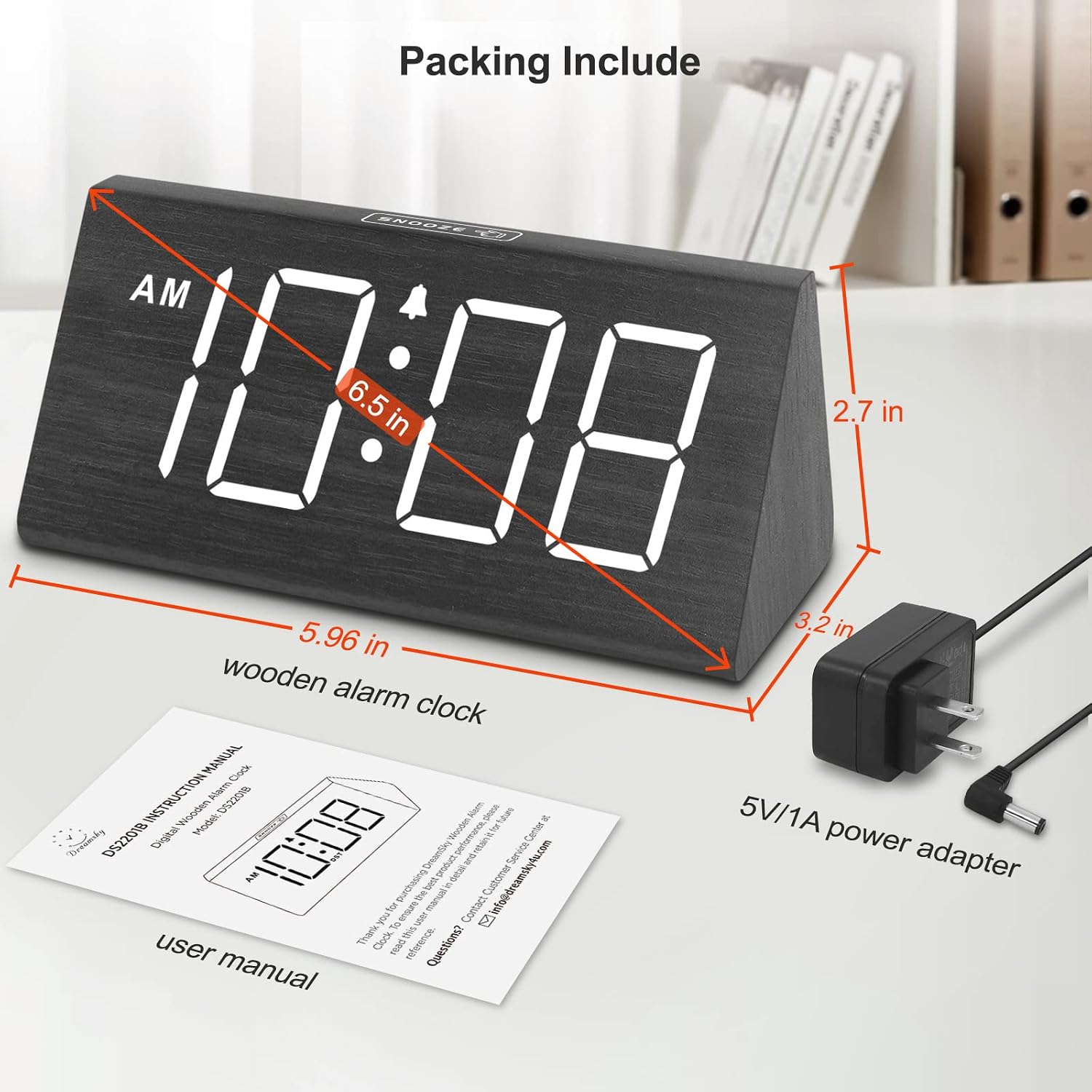
Image: The DreamSky DS2201 Wooden Digital Alarm Clock, its power adapter, and the user manual, illustrating the items included in the package and the clock's dimensions.
3. Product Overview
The DreamSky DS2201 features a clear digital display and intuitive controls for easy operation.

Image: A front view of the DreamSky DS2201 Wooden Digital Alarm Clock, showcasing its large, easy-to-read digital display.
Key Features:
- Large Digital Display: 1.8-inch numbers for clear visibility.
- 5-Level Dimmable Brightness: Adjustable display intensity.
- Adjustable Alarm Volume: 5 levels, suitable for light to heavy sleepers.
- Snooze Function: Provides an extra 9 minutes of sleep.
- USB Charging Port: Conveniently charge smart devices.
- Battery Backup: Ensures alarm function during power outages (display off).
- Manual DST Button: For easy Daylight Saving Time adjustments.
4. Setup Instructions
4.1 Power Connection
- Connect the provided power adapter to the DC 5V port on the back of the alarm clock.
- Plug the power adapter into a standard electrical outlet. The clock display will light up.

Image: The rear of the DreamSky DS2201, highlighting the DC 5V power input and the USB charging port, with the power adapter connected.
4.2 Battery Installation (Backup)
The clock requires 2 AAA alkaline batteries (not included) for backup functionality. These batteries ensure the alarm will still sound during a power outage, but the display will not be illuminated.
- Locate the battery compartment on the bottom of the clock.
- Open the battery compartment cover.
- Insert 2 new AAA alkaline batteries, ensuring correct polarity (+ and -).
- Close the battery compartment cover securely.
Note: The clock is primarily adapter-powered. The display will not light up when operating on battery power only.
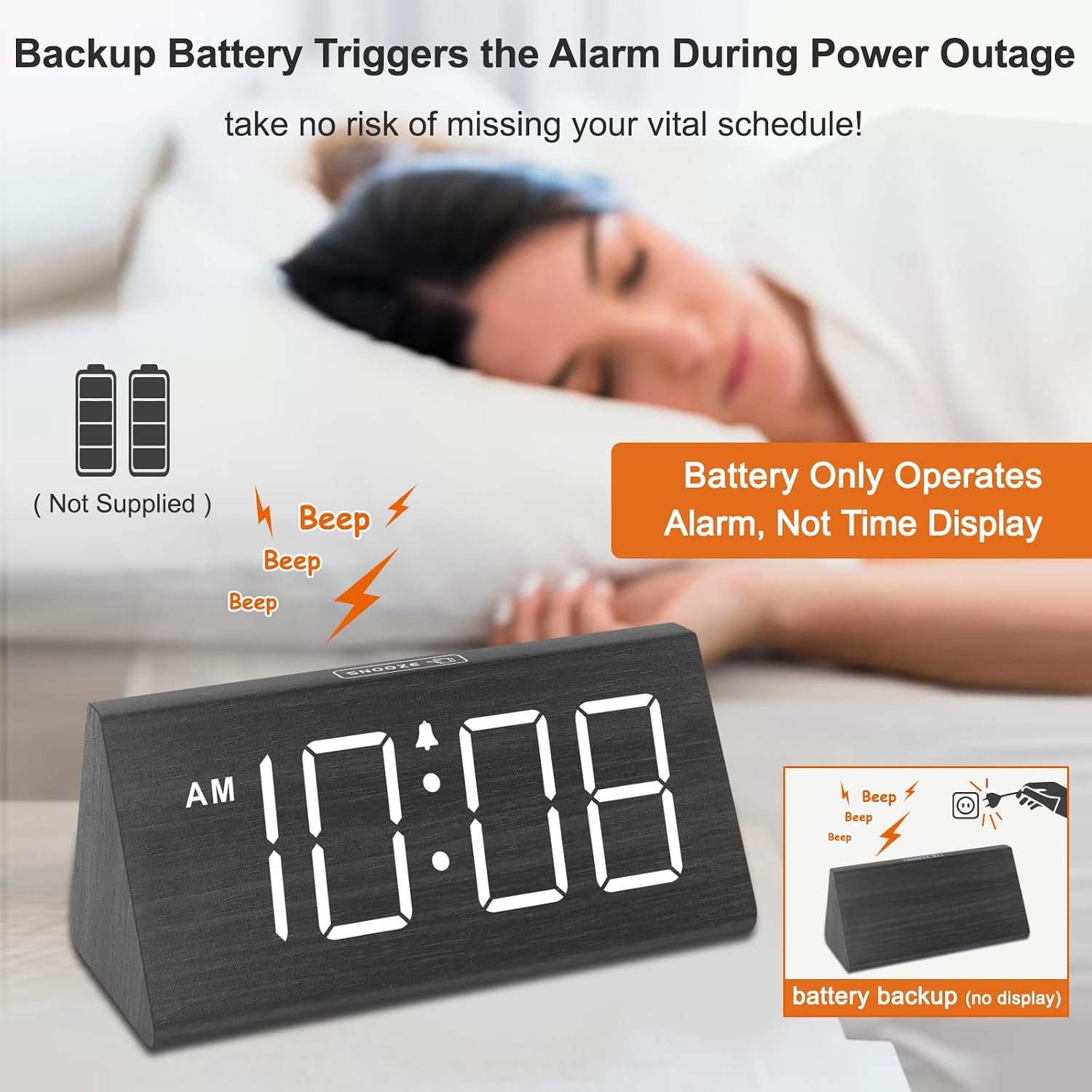
Image: A visual representation of the DreamSky DS2201's battery backup feature, indicating that batteries (not included) enable the alarm to function during a power outage, though the display remains off.
5. Operating Instructions
5.1 Setting Time (12/24 Hour Format)
Refer to the buttons on the back of the clock for time setting.
- Press the 'TIME SET' button to enter time setting mode. The hour digits will flash.
- Use the '+' or '-' buttons to adjust the hour.
- Press 'TIME SET' again to move to minute setting. The minute digits will flash.
- Use the '+' or '-' buttons to adjust the minute.
- Press 'TIME SET' a third time to confirm and exit time setting mode.
- To switch between 12-hour (AM/PM) and 24-hour formats, press the '12/24H' button.

Image: The DreamSky DS2201 displaying both 12-hour (AM/PM) and 24-hour time formats, alongside a visual representation of its 5-level adjustable brightness settings.
5.2 Setting Alarm & Volume
- Press the 'ALARM SET' button to enter alarm setting mode. The alarm hour digits will flash.
- Use the '+' or '-' buttons to adjust the alarm hour.
- Press 'ALARM SET' again to move to alarm minute setting. The alarm minute digits will flash.
- Use the '+' or '-' buttons to adjust the alarm minute.
- Press 'ALARM SET' a third time to confirm the alarm time.
- To adjust the alarm volume (5 levels), press the 'VOLUME' button repeatedly until your desired level (V1-V5) is reached.
- To activate/deactivate the alarm, press the 'ALARM ON/OFF' button. An alarm icon will appear/disappear on the display.

Image: The DreamSky DS2201 highlighting its 5-level adjustable alarm volume, the easily accessible snooze button, and the duration of the alarm (2 minutes) and snooze (9 minutes).
5.3 Snooze Function
When the alarm sounds, press the large 'SNOOZE' button located on the top of the clock. The alarm will pause for 9 minutes and then sound again.
5.4 Brightness Adjustment
The display brightness can be adjusted to 5 levels or turned off completely.
- Press the 'DIMMER' button on the back of the clock repeatedly to cycle through the brightness levels (L1, L2, L3, L4, L5) and the 'OFF' option.
- Select the brightness level that is most comfortable for your environment.
5.5 Daylight Saving Time (DST)
To adjust for Daylight Saving Time, simply press the 'DST' button on the back of the clock. The time will advance or go back by one hour, and 'DST' will appear on the display when active.
5.6 USB Charging Port
The clock features a USB charging port (5V/1A) on the back, allowing you to charge small electronic devices such as smartphones or tablets.
- Connect your device's USB charging cable to the USB port on the clock.
- Ensure the clock is powered by the AC adapter for the USB charging function to work.
Image: The DreamSky DS2201 in use, demonstrating its USB charging capability with a smartphone connected, and showing the clock is powered via its adapter.
6. Maintenance
To ensure the longevity and proper functioning of your DreamSky DS2201 Digital Alarm Clock, follow these simple maintenance guidelines:
- Cleaning: Wipe the clock surface with a soft, dry cloth. Do not use abrasive cleaners, waxes, or solvents as they may damage the finish.
- Placement: Place the clock on a stable, flat surface away from direct sunlight, excessive heat, or moisture.
- Power: Always use the original power adapter. Unplug the clock if it will not be used for an extended period.
- Batteries: Replace backup batteries annually or when they are depleted to ensure continuous alarm functionality during power outages. Remove batteries if the clock will be stored for a long time to prevent leakage.
7. Troubleshooting
If you encounter issues with your DreamSky DS2201, please refer to the following common problems and solutions:
| Problem | Possible Cause | Solution |
|---|---|---|
| Display is off / No time shown | Not connected to power adapter; Running on backup batteries only. | Ensure the power adapter is securely plugged into the clock and a working outlet. The display does not light up when running on backup batteries. |
| Alarm does not sound | Alarm is not activated; Alarm volume is too low; Incorrect alarm time set. | Press 'ALARM ON/OFF' to ensure the alarm icon is displayed. Adjust alarm volume using the 'VOLUME' button. Verify the alarm time is set correctly. |
| USB charging not working | Clock not connected to AC power; Device cable faulty. | Ensure the clock is powered by the AC adapter. Try a different USB cable or device to confirm the issue is not with the cable/device. |
| Time is incorrect | Time not set correctly; DST setting incorrect. | Re-set the time using the 'TIME SET' button. Check the 'DST' setting and adjust if necessary. |
8. Specifications
| Feature | Detail |
|---|---|
| Brand | DreamSky |
| Model Number | DS2201 |
| Color | Black |
| Display Type | Digital LED |
| Material | Wood |
| Product Dimensions | 5.96"W x 2.7"H x 3.2"D |
| Item Weight | 10.9 ounces (0.68 Pounds) |
| Power Source | Corded Electric (Adapter Included) |
| Backup Batteries | 2 AAA batteries (not included) |
| USB Charging Port | 5V/1A |
| Alarm Volume | 5 adjustable levels |
| Display Brightness | 5 adjustable levels + OFF |
9. Warranty and Support
The DreamSky DS2201 Wooden Digital Alarm Clock comes with a 1-year replacement warranty from the date of purchase.
If you experience any issues with your product or require technical assistance, please contact DreamSky customer support through the retailer's platform or the official DreamSky website. Please have your model number (DS2201) and purchase details ready when contacting support.
For more information, visit the DreamSky Store on Amazon.


