
1. Product Overview
The Ourlife 4K Action Camera is designed for capturing high-quality video and photos in various environments, including underwater. It features 4K video recording, 16MP photos, Wi-Fi connectivity, and a durable waterproof casing.

Figure 1: Key Features of the Ourlife 4K Action Camera.
- High-Resolution Capture: Records 4K/30FPS, 2.7K/30FPS, and 1080P/30FPS video, and captures 16MP still images.
- Adjustable View Angle: Offers 170°, 140°, 110°, and 70° field of view options.
- Wireless Connectivity: Built-in Wi-Fi for connecting to the XDV App on your smartphone or tablet, allowing for remote control and media sharing.
- Waterproof Capability: Submersible up to 40 meters (131 feet) with the included waterproof case.
- 2-inch IPS Screen: Provides a clear display for previewing footage and navigating menus.
- Versatile Functions: Includes 4X zoom, time-lapse, loop recording, slow motion, and anti-shake features.
2. What's in the Box
Your Ourlife 4K Action Camera package includes the following components:

Figure 2: Complete set of accessories.
- 1x Ourlife 4K Action Camera
- 1x Waterproof Case
- 3x 1350mAh Rechargeable Batteries
- 1x Protective Door
- 1x Black Frame
- 2x Flat Adhesive Pads with Screw
- 1x Bicycle Mount
- 1x J-hook Mount
- 1x Charging Stand
- 1x Increase Mount
- 1x Clip
- 1x Long Thumbscrew
- 1x Short Thumbscrew
- 1x Crowbar (for opening battery/SD card slot)
- 1x Extension Mount
- 1x 360° Rotating Screw
- 1x Micro USB Cable
- 1x Insurance Tether Strap
- 2x Release Buckles
- 1x Mirror Cloth
- 2x Wrist Strap
- 2x Bandage
- 1x Remote Control
- 2x Adhesive Pads
3. Getting Started
3.1 Battery Installation and Charging
To install a battery, gently open the battery compartment cover, often located at the bottom or side of the camera. A small crowbar tool might be provided to assist in opening tight covers. Insert a charged battery with the correct orientation.

Figure 3: Opening the battery compartment.
Before first use, fully charge the included batteries. Insert the batteries into the charging stand and connect the stand to a USB power source using the Micro USB cable. The indicator light on the charger will show charging status.
3.2 Inserting a Micro SD Card
A Micro SD card (not included, Class 10 or higher recommended, up to 64GB) is required for recording. Locate the Micro SD card slot on the side of the camera. Gently insert the card with the gold contacts facing the back of the camera until it clicks into place.

Figure 4: Inserting the Micro SD Card.
Important: Format the Micro SD card in the camera's settings menu before initial use to ensure proper functionality and avoid data corruption.
3.3 Using the Waterproof Case
For underwater activities or protection against dust and impact, place the camera inside the waterproof case. Ensure the case is securely latched and the rubber seal is clean and free of debris before submerging.

Figure 5: Camera in waterproof case during underwater use.
4. Basic Operation
4.1 Powering On/Off
- To power on, press and hold the Power/Mode button on the front of the camera until the screen illuminates.
- To power off, press and hold the Power/Mode button again until the screen turns off.
4.2 Switching Modes
Press the Power/Mode button repeatedly to cycle through different modes: Video Recording, Photo Mode, Playback Mode, and Settings Mode. The current mode icon will be displayed on the screen.
4.3 Recording Videos and Taking Photos
- In Video Recording mode, press the OK button (top button) to start recording. Press it again to stop.
- In Photo Mode, press the OK button to take a photo.
4.4 Wi-Fi Connection and XDV App
The camera features built-in Wi-Fi for remote control and file transfer via the XDV app. Download the XDV app from your smartphone's app store.
- Turn on the camera's Wi-Fi: In Video or Photo mode, press the Up button (side button) to activate Wi-Fi. The Wi-Fi icon will appear on the screen.
- On your smartphone, go to Wi-Fi settings and connect to the camera's Wi-Fi network (e.g., "Ourlife_XXXXXX"). The default password is "1234567890".
- Open the XDV app. You can now control the camera, preview footage, and download files to your device.
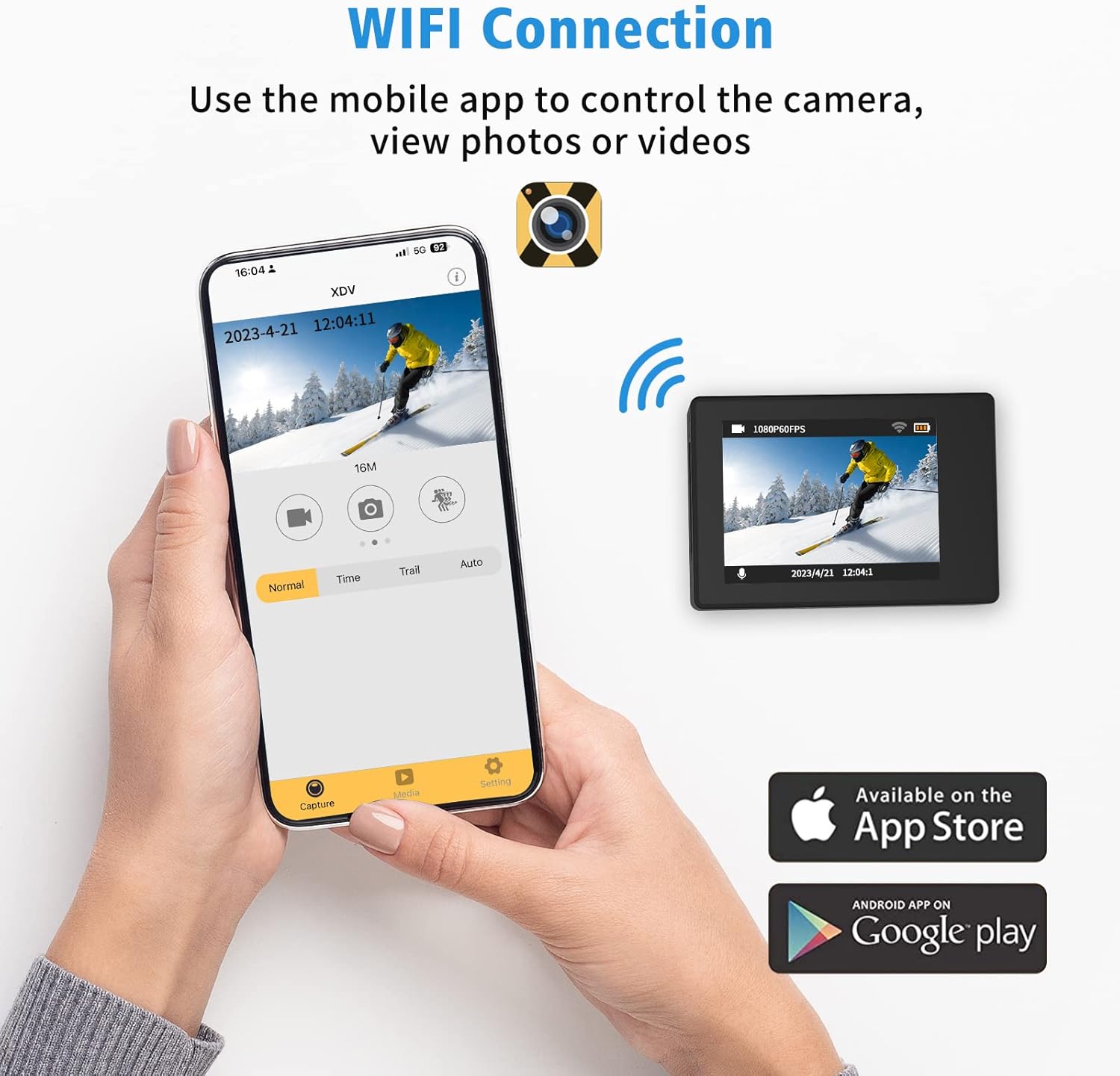
Figure 6: Connecting to the XDV App via Wi-Fi.
4.5 Using the Remote Control
The included wrist remote control allows for convenient photo and video capture from a distance.
- Ensure the remote control battery is installed.
- Press the video button on the remote to start/stop video recording.
- Press the photo button on the remote to take a photo.
5. Maintenance and Care
- Cleaning: Use the provided mirror cloth or a soft, lint-free cloth to clean the camera lens and screen. For the waterproof case, rinse with fresh water after saltwater use and allow to air dry.
- Battery Care: Store batteries in a cool, dry place. Do not expose to extreme temperatures. Recharge regularly, even if not in use, to maintain battery health.
- Storage: When not in use, store the camera and accessories in a protective case to prevent damage.
- Waterproof Case Seal: Regularly inspect the rubber seal of the waterproof case for any dirt, hair, or damage. A compromised seal can lead to water leakage.
6. Troubleshooting
| Problem | Possible Cause | Solution |
|---|---|---|
| Camera does not power on. | Low or no battery charge. | Ensure batteries are fully charged. Try a different charged battery. |
| Cannot record or take photos. | No Micro SD card, card full, or card error. | Insert a Micro SD card. Delete unnecessary files or replace the card. Format the card in camera settings. |
| Wi-Fi connection fails. | Incorrect password, out of range, or app issue. | Ensure correct password (1234567890). Move closer to the camera. Restart camera and app. |
| Poor image/video quality. | Lens dirty, low light, or incorrect settings. | Clean the lens. Ensure adequate lighting. Check resolution settings (e.g., 4K, 16MP). |
| Water leakage in waterproof case. | Seal compromised or case not properly closed. | Inspect the rubber seal for debris or damage. Ensure all latches are securely fastened. |
7. Specifications
| Feature | Detail |
|---|---|
| Brand | Ourlife |
| Model Number | AT-30R |
| Video Resolution | 4K/30FPS, 2.7K/30FPS, 1080P/30FPS |
| Photo Resolution | 16MP |
| Waterproof Depth | Up to 40 meters (131 feet) with case |
| Screen Size | 2 Inches IPS |
| View Angle | 170°, 140°, 110°, 70° (Adjustable) |
| Connectivity | Wi-Fi |
| Storage | Micro SD (up to 64GB, Class 10+) |
| Batteries | 3x 1350mAh Lithium Ion (included) |
| Special Features | 4X Zoom, Time-lapse, Loop Recording, Slow Motion, Anti-shake |
8. Warranty and Support
Ourlife products are manufactured to high quality standards. For warranty information, technical support, or service inquiries, please refer to the contact information provided on the product packaging or visit the official Ourlife website.
Please retain your proof of purchase for any warranty claims.

