
1. Introduction
Thank you for choosing the ESSAGER 5-in-1 USB C Hub. This compact and portable multiport adapter is designed to expand the connectivity of your USB-C enabled devices, including laptops, tablets, and mobile phones. It features an HDMI port for video output, multiple USB ports for data transfer and peripheral connections, and integrated SD/TF card readers.
2. Product Features
- 5-in-1 Connectivity: Integrates HDMI, USB 3.0, USB 2.0, SD card reader, and TF (Micro SD) card reader.
- 4K HDMI Output: Supports 4K (3840 x 2160) resolution at 30Hz, compatible with HDCP 1.4 protocol for high-definition video.
- High-Speed Data Transfer: One USB-A 3.2 GEN1 port offers data transfer speeds up to 5Gbps.
- Peripheral Connectivity: One USB 2.0 port provides 480Mbps for connecting devices like keyboards, mice, or Bluetooth adapters.
- Universal Card Reader: SD/TF 2.0 card readers support HDSC cards up to 32GB with speeds up to 480Mbps.
- Compact and Portable Design: Measuring approximately 3.89 x 1.22 x 0.45 inches, it is designed for easy transport.
- Broad Compatibility: Plug & Play functionality with no additional drivers required for most Type-C (USB-C) devices, including MacBook Pro, MacBook Air, iPad Pro, Chromebook, and Steam Deck.
- Operating System Support: Compatible with Windows, Mac, Unix, and Chromebook OS.
3. Package Contents
- 1 x ESSAGER 5-in-1 USB C Hub
- 1 x Instruction Manual
4. Setup and Installation
The ESSAGER 5-in-1 USB C Hub is designed for plug-and-play operation, requiring no driver installation for most compatible operating systems.
- Locate an available USB-C port on your host device (laptop, tablet, or smartphone).
- Connect the USB-C connector of the ESSAGER hub directly into your device's USB-C port.
- The hub should be automatically recognized by your operating system. You can now connect your peripherals and storage devices to the available ports on the hub.
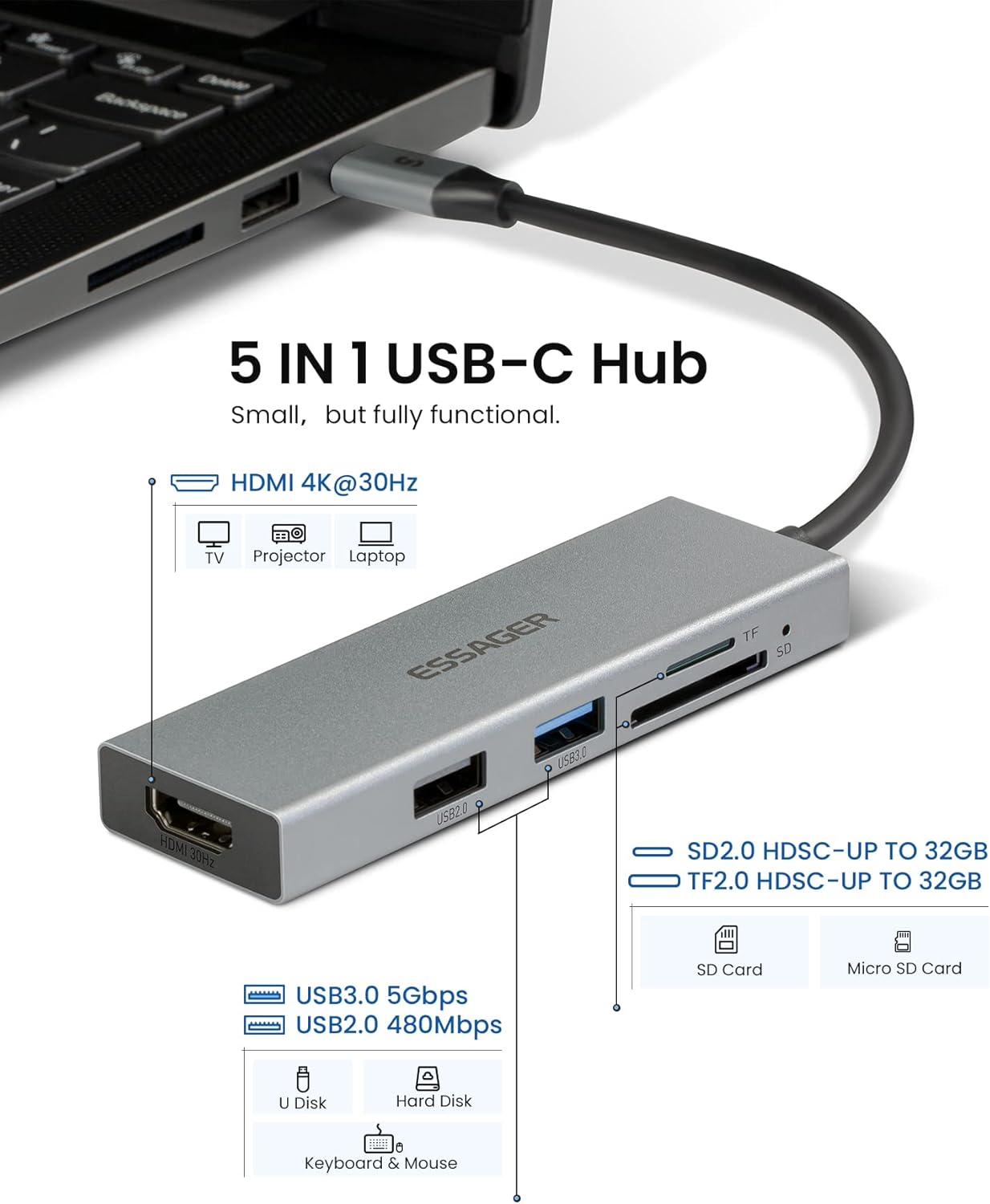
Figure 1: Overview of the ESSAGER 5-in-1 USB C Hub with connected laptop, illustrating its various ports including HDMI, USB 3.0, USB 2.0, SD, and TF card slots.
5. Operating Instructions
5.1. HDMI Video Output
Connect an HDMI cable from the hub's HDMI port to an external display (monitor, TV, or projector). Ensure your host device supports video output via USB-C (DisplayPort Alternate Mode). The hub supports resolutions up to 4K (3840 x 2160) at 30Hz and is compatible with HDCP 1.4.
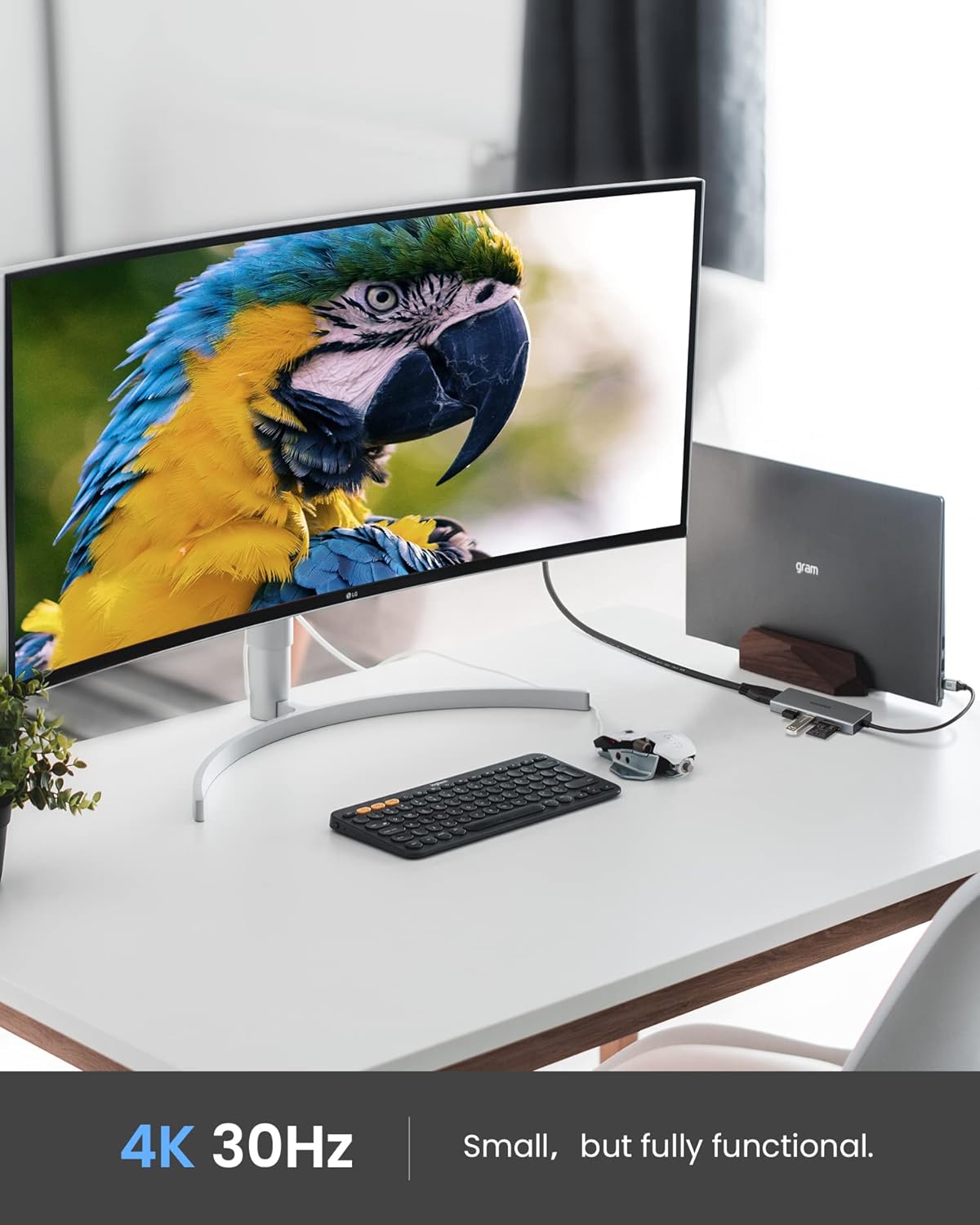
Figure 2: A laptop connected to an external 4K monitor through the ESSAGER USB C Hub, demonstrating its video output capability.
5.2. USB Data Transfer
The hub includes one USB 3.0 port and one USB 2.0 port. Use the USB 3.0 port for high-speed data transfer with devices like external hard drives or flash drives, achieving speeds up to 5Gbps. The USB 2.0 port is suitable for connecting standard peripherals such as keyboards, mice, or Bluetooth dongles, with speeds up to 480Mbps.

Figure 3: The ESSAGER USB C Hub with a USB 3.0 device connected, illustrating its capability for ultra-fast data transmission.

Figure 4: Detailed view of the USB 2.0 and USB 3.0 ports on the ESSAGER 5-in-1 USB C Hub, showing their distinct blue and black internal colors.
5.3. SD/TF Card Reader
Insert your SD or TF (Micro SD) card into the corresponding slot on the hub. The card reader supports SD/TF 2.0 standards and HDSC cards up to 32GB, with data transfer speeds up to 480Mbps. This allows for quick access to photos and files from cameras or other devices.

Figure 5: The ESSAGER USB C Hub with SD and Micro SD cards inserted, demonstrating its ability to transfer data from memory cards quickly.

Figure 6: A detailed view of the SD and TF (Micro SD) card slots on the ESSAGER 5-in-1 USB C Hub, showing cards being inserted.
6. Compatibility
The ESSAGER 5-in-1 USB C Hub is broadly compatible with devices featuring a USB-C port that supports data transfer and DisplayPort Alternate Mode (for HDMI output). This includes, but is not limited to:
- MacBook Pro (various models)
- MacBook Air (various models)
- iPad Pro (USB-C models)
- Chromebooks
- Steam Deck
- Other laptops, tablets, and smartphones with a full-featured USB-C port.
Supported Operating Systems: Windows, Mac, Unix, Chromebook OS.
7. Specifications
| Feature | Specification |
|---|---|
| Product Dimensions | 3.89 x 1.22 x 0.45 inches (98 x 31 x 11 mm) |
| Item Weight | 1.44 ounces (40.8 grams) |
| Hardware Interface | HDMI, USB 2.0, USB 3.0, USB Type C |
| HDMI Output | 4K (3840 x 2160) @ 30Hz, HDCP 1.4 |
| USB 3.0 Port | 1 x USB-A 3.2 GEN1, up to 5Gbps |
| USB 2.0 Port | 1 x USB-A 2.0, up to 480Mbps |
| Card Reader | SD/TF 2.0 (Micro SD), HDSC up to 32GB, up to 480Mbps |
| Special Feature | Plug and Play |
| Compatible Devices | Laptops, Tablets, Smartphones with USB-C |
| Total USB Ports | 2 (1x USB 3.0, 1x USB 2.0) |

Figure 7: The ESSAGER 5-in-1 USB C Hub displayed next to a smartphone, illustrating its compact and portable size.

Figure 8: The ESSAGER 5-in-1 USB C Hub easily fits into a backpack pocket, emphasizing its ultra-compact and portable design for mobile use.
8. Troubleshooting
- No Display Output:
- Ensure your host device's USB-C port supports DisplayPort Alternate Mode.
- Check that the HDMI cable is securely connected to both the hub and the external display.
- Verify the external display is set to the correct HDMI input source.
- Try restarting your host device.
- USB Devices Not Recognized:
- Ensure the hub is securely connected to your host device.
- Try connecting the USB device directly to your host device to confirm it functions independently.
- Disconnect and reconnect the USB device to the hub.
- Slow Data Transfer:
- Ensure you are using the USB 3.0 port for high-speed devices.
- Verify that your connected device (e.g., flash drive) supports USB 3.0 speeds.
- Card Reader Not Working:
- Ensure the SD or TF card is fully and correctly inserted into the corresponding slot.
- Check if the card is damaged or corrupted by testing it on another device.
- Hub Feels Warm:
It is normal for the hub to become warm during operation, especially when multiple ports are in use or when transferring large files. This is due to power consumption and heat dissipation. If it becomes excessively hot, disconnect it and allow it to cool down.
9. Maintenance
- Keep the hub clean by wiping it with a soft, dry cloth. Avoid using liquid cleaners or solvents.
- Store the hub in a cool, dry place away from direct sunlight and extreme temperatures.
- Avoid dropping the device or subjecting it to strong impacts.
- Do not attempt to disassemble or repair the hub yourself, as this will void the warranty.
10. Warranty and Support
ESSAGER is committed to providing high-quality products and excellent customer service. Your ESSAGER 5-in-1 USB C Hub comes with a one-year after-sales service period.
- Free Replacement: In case of any malfunction, please contact ESSAGER customer service for a free replacement.
- Technical Support: Professional technical support is available to assist you with any product-related inquiries or issues.
- Customer Service: ESSAGER provides 24/7 customer service to ensure your satisfaction.
For further assistance, please refer to the contact information provided with your product or visit the official ESSAGER brand store.

ESSAGER Brand Philosophy: Providing the best quality products, affordable prices, and excellent services.