
Jimveo E10 8K7
Jimveo E10 8K7 Portable Mini Movie Projector User Manual
Native 1080P Projector with WiFi and Bluetooth
1. Introduction
Thank you for choosing the Jimveo E10 8K7 Portable Mini Movie Projector. This manual provides essential information for setting up, operating, and maintaining your projector to ensure optimal performance and longevity. Please read it thoroughly before use.
2. Setup
2.1 Unboxing and Initial Inspection
Carefully remove all components from the packaging. Verify that all items listed in the packing list are present and undamaged. If any items are missing or damaged, please contact customer support.
2.2 Physical Placement
Place the projector on a stable, flat surface. Ensure adequate ventilation around the device. The projector can be positioned for front projection, rear projection, or mounted on the ceiling (front or rear). Adjust the projection direction in the settings menu if mounting upside down.
2.3 Focus and Keystone Correction
Use the manual focus ring on the projector lens to achieve a sharp image. For keystone correction, use the dedicated adjustment wheel or digital keystone settings in the menu to correct distorted images (trapezoid effect) when the projector is not perfectly perpendicular to the screen.
2.4 Screen Considerations
The projector includes a basic screen. For optimal image quality, especially for 4K supported content, consider using a high-quality projector screen or a smooth, flat white wall. The included screen may exhibit creases that can affect image uniformity.

Image: Projector displaying a vibrant image, demonstrating visual performance.
2.5 Power Connection
Connect the power adapter to the projector's power input and then to a power outlet. The projector will power on or enter standby mode.
3. Operating Instructions
3.1 Power On/Off
Press the power button on the projector or the remote control to turn the device on or off.
3.2 Input Source Selection
Use the 'Source' button on the remote control to cycle through available input options:
- AV: For older devices using composite video.
- HDMI1 / HDMI2: For connecting devices like laptops, gaming consoles, or streaming sticks.
- Screen Mirroring: For wireless display from mobile devices or computers.
- VGA: For connecting older computer monitors.
- USB: For playing media directly from a USB drive.
Video: Demonstrates the projector's menu navigation, including input source selection and Bluetooth settings. Note that remote volume control may not function with external Bluetooth speakers.
3.3 Wireless Connectivity (WiFi & Screen Mirroring)
The projector supports dual-band 2.4G and 5G WiFi for stable wireless connections.
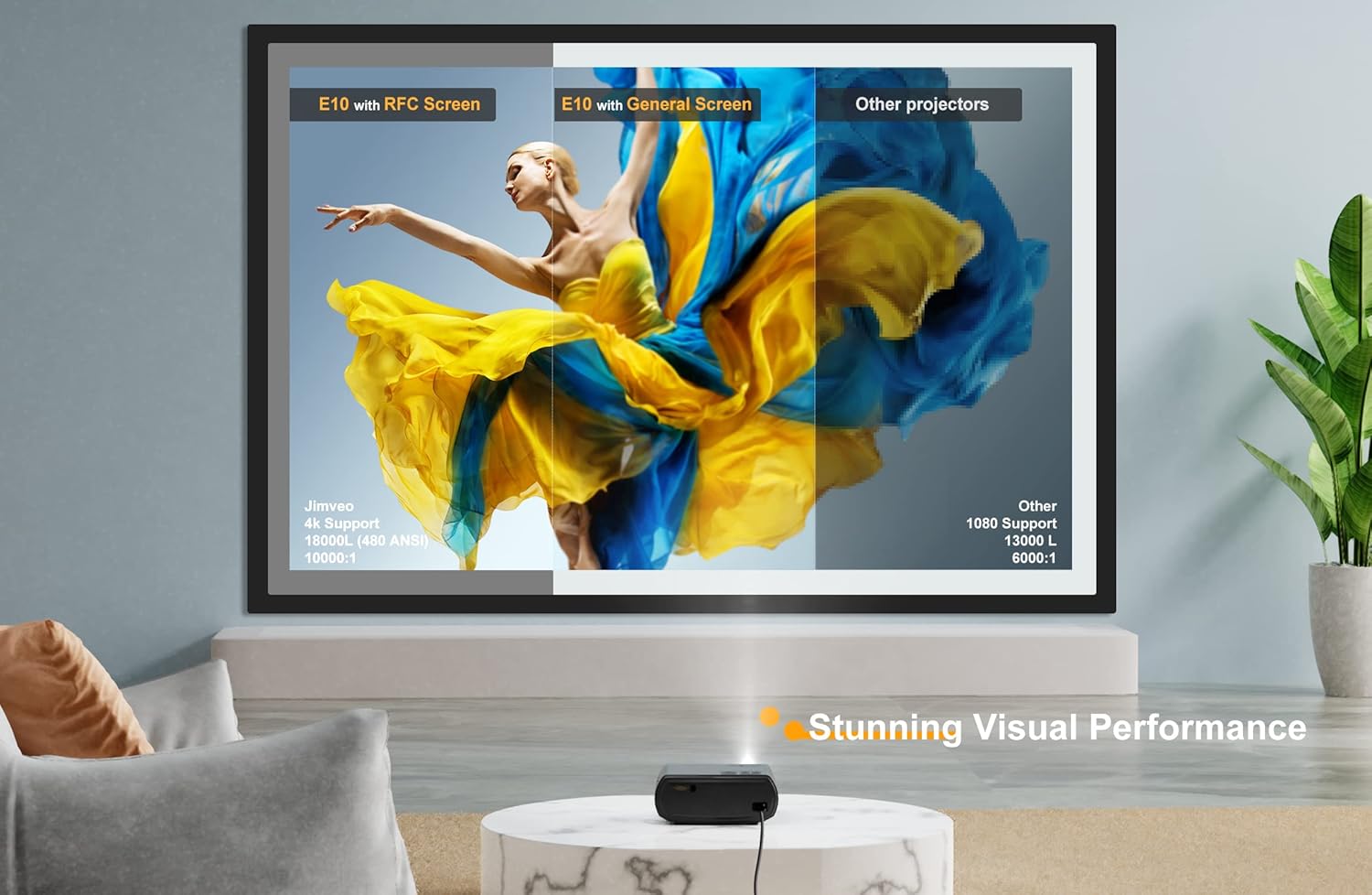
Image: Projector showcasing dual-band WiFi capabilities for seamless streaming from phones, MacBooks, and Windows laptops.
3.3.1 Screen Mirroring for iOS Devices
- Turn on the WLAN (WiFi) of your iPhone. (Recommended to connect to the same WiFi network as the projector).
- Select 'Screen Mirroring' from the drop-down menu on your iPhone.
- Choose the projector's device name (e.g., 'E10-XXXX-XXXX') and enter the code '1234' to connect.
3.3.2 Wireless Connection for Android Phones, MacBooks & Windows Laptops
Follow the on-screen instructions when selecting the 'Screen Mirroring' input source. Ensure your device is connected to the same WiFi network as the projector for optimal performance.
3.3.3 Wired Connection for iPhone and Android
For a stable connection, you can also use a wired connection. Refer to the projector's on-screen instructions for specific cable requirements and setup steps.
3.4 Bluetooth Connectivity
The projector features 2-in-1 Bluetooth 5.2, allowing it to act as both a transmitter and a receiver.

Image: Projector illustrating its dual Bluetooth modes: transmitting audio to external speakers/headphones and receiving audio from mobile devices.
3.4.1 Transmitter Mode (Connecting to External Speakers/Headphones)
Navigate to the 'Sound' settings in the projector's menu and select 'BT Setting'. Turn Bluetooth on and search for your desired Bluetooth speaker or headphones. Select the device to pair. Note that the projector's remote volume control may not directly adjust the volume of external Bluetooth devices; adjust volume directly on the connected speaker/headphones.
3.4.2 Receiver Mode (Using as a Bluetooth Speaker)
In the 'BT Setting' menu, select 'Receiver' mode. The projector can then be paired with your Bluetooth-enabled phone, tablet, or PC to function as an external speaker.
3.5 Picture Settings
Access 'Picture' settings from the main menu to adjust image quality:
- Picture Mode: Choose from Standard, Soft, User, or Vivid presets.
- Color Temperature: Adjust to Warm, Cool, or Medium.
- Aspect Ratio: Select Auto, 4:3, or 16:9.
- Noise Reduction: Set to Off, Low, Middle, High, or Default.
- Projection Direction: Configure for Front, Rear, Front/Ceiling, or Rear/Ceiling mounting.
- Reduce Display: Adjust the display size to fit specific screen areas.
3.6 Sound Settings
Access 'Sound' settings from the main menu to adjust audio output:
- Sound Mode: Standard.
- Balance: Adjust audio balance.
- Auto Volume: Enable or disable automatic volume adjustment.
- Volume: Adjust the internal speaker volume.
- BT Setting: Turn Bluetooth on or off.
3.7 Other Options
The 'Option' menu provides additional settings:
- OSD Language: Select the on-screen display language.
- Restore Factory Default: Reset all settings to their original state.
- Blending: On/Off.
- OSD Duration: Adjust how long on-screen menus remain visible.
- Blue Screen: On/Off.
- Sleep Timer: Set a timer for automatic shutdown.
- Keystone: Digital keystone adjustment (H. Calibration, V. Calibration, Rotate, Auto Adjust).
4. Maintenance
4.1 Cleaning the Lens
Use a soft, lint-free cloth specifically designed for optical lenses to gently wipe the projector lens. Avoid using abrasive materials or harsh chemicals that could scratch or damage the lens coating.
4.2 Keeping Vents Clear
Regularly check and clean the projector's ventilation openings to prevent dust buildup. Blocked vents can lead to overheating and reduce the projector's lifespan. Use a soft brush or compressed air to remove dust.
4.3 Storage
When not in use for extended periods, store the projector in a cool, dry place, away from direct sunlight and extreme temperatures. Use the original packaging or a protective case to prevent dust and physical damage.
5. Troubleshooting
- Image is blurry or out of focus: Adjust the manual focus ring on the lens. Use keystone correction settings to correct trapezoidal distortion.
- No sound from external Bluetooth speaker: Ensure the Bluetooth speaker is properly paired and its volume is turned up. The projector's remote volume control may not adjust external Bluetooth device volume; use the speaker's own volume controls.
- Poor image quality with the included screen: The included screen may have creases. For a clearer picture, consider using a higher-quality projector screen or projecting directly onto a smooth, flat white wall.
- HDCP errors when streaming: Some streaming services (e.g., Netflix, Hulu, Disney+) may encounter HDCP (High-bandwidth Digital Content Protection) errors when screen mirroring or using certain HDMI connections. Ensure your streaming device and cables are HDCP compliant.
- Remote control not responding: Ensure there is a clear line of sight between the remote and the projector's IR receiver. Replace the remote's batteries if necessary.
6. Specifications
| Feature | Detail |
|---|---|
| Product Dimensions | 7.7 x 7 x 3.7 inches |
| Item Weight | 4.82 pounds |
| Item Model Number | E10 8K7 |
| Brand | Jimveo |
| Connectivity Technology | Bluetooth, HDMI, USB, VGA, AV, WiFi (2.4G/5G) |
| Display Resolution (Native) | 1920 x 1080 (1080P) |
| Display Resolution (Maximum) | 3840 x 2160 (4K Supported) |
| Recommended Uses | Camping, Home Theater, Indoor/Outdoor Use |
7. Warranty and Support

Image: Jimveo Customer Support details, including warranty and contact information.
7.1 Warranty Information
The Jimveo E10 8K7 Projector comes with a 3-Year Warranty, ensuring peace of mind for your purchase.
7.2 Customer Support
Jimveo offers 24/7 Customer Support and a Free Replacement policy for eligible issues. For technical support or to inquire about free parts (such as a screen, ceiling mount, or remote), please use the following contact methods:
- Via Message: Contact Jimveo directly through the platform where you purchased the product.
- Via Email: For US support, email support_us@jimveo.com. For CA support, email support_ca@jimveo.com.
- Via Amazon: Go to 'Your Orders', find your Jimveo projector, and select 'Problem with order' to choose your topic and contact the seller.
- YouTube: Search 'JIMVEO' on YouTube for detailed instructional videos for a more intuitive operation.
8. Safety Information
The Jimveo E10 8K7 Projector features a specially tuned diffused light source, designed to be more gentle and friendly to your eyes compared to direct LED screens. However, always avoid looking directly into the projector lens when it is operating.

Image: Illustration of the projector's diffused light technology, designed for eye comfort.
Keep the projector away from water or other liquids. Do not attempt to open or repair the projector yourself. Refer all servicing to qualified personnel.
Related documentsE10 8K7

Ask a question about this manual
Ask about setup, troubleshooting, compatibility, parts, safety, or missing instructions. Manuals+ will review the question and use this page’s manual context to help answer it.