
Brifit b1850db1-f513-4344-b364-c231e9e7bc32
Brifit Mini Digital Indoor Thermometer Hygrometer User Manual
Model: b1850db1-f513-4344-b364-c231e9e7bc32
1. Introduction
This manual provides instructions for the Brifit Mini Digital Indoor Thermometer Hygrometer. This device is designed to accurately monitor indoor temperature and humidity, helping you maintain a comfortable and healthy environment. It also features a clock display and a comfort indicator.

Image 1.1: Front view of the Brifit Mini Digital Indoor Thermometer Hygrometer, displaying time, temperature, humidity, and a comfort indicator.
2. Product Features
- High Precision Sensors: Accurately monitors temperature and humidity changes with a temperature range of -10°C to +60°C (14°F to 140°F) and humidity range of 10% RH to 99% RH.
- Multifunction Display: Shows temperature, humidity, date, and time. Supports 12-hour or 24-hour time format.
- Comfort Indicator: Features a unique smiley indicator to display environmental comfort levels (Dry, Comfortable, Wet).
- Clear LCD Screen: Equipped with a 3.2-inch LCD for easy readability of digital values.
- Multiple Placement Options: Can be placed on a table using its stand, mounted on a wall with adhesive tape, or hung using integrated holes.
- Compact and Portable: Lightweight design allows for easy placement in various indoor environments.

Image 2.1: The device shown in a home environment, highlighting its functions: Thermometer, Time, Hygrometer, Date, Comfort Indicator, °C/°F Selector, 12/24H Switch, and CR2032 Battery.
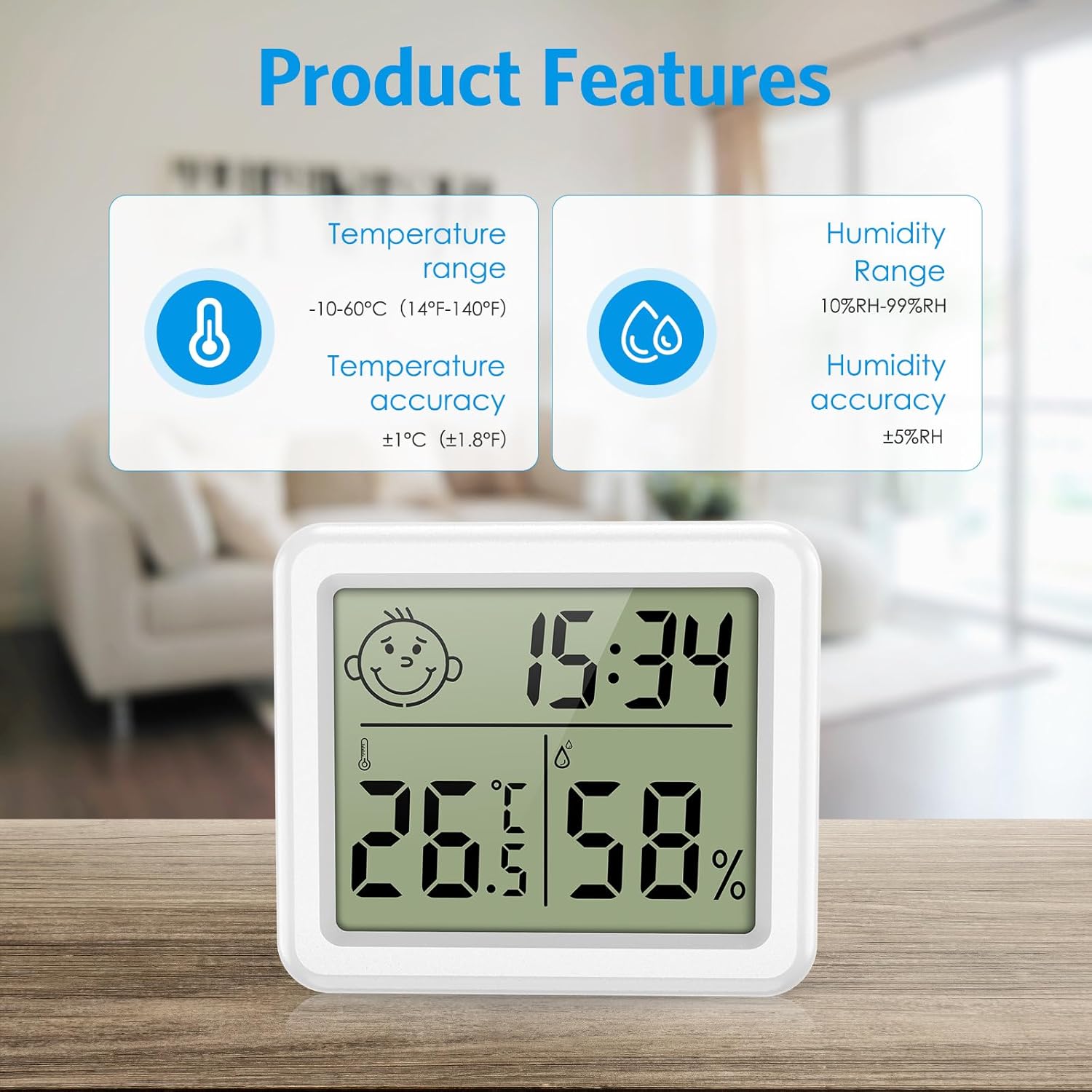
Image 2.2: Detailed view of product features, including temperature range (-10-60°C / 14-140°F) with ±1°C accuracy, and humidity range (10%RH-99%RH) with ±5%RH accuracy.
3. Package Contents
Please check the package for the following items:
- Brifit Mini Digital Indoor Thermometer Hygrometer (1 unit)
- CR2032 Battery (pre-installed or included separately)
- User Manual (this document)
4. Setup
4.1 Battery Installation
- Locate the battery compartment on the back of the device.
- Open the battery cover by rotating it counter-clockwise or sliding it open, depending on the design.
- Insert one CR2032 battery, ensuring the positive (+) side faces upwards.
- Close the battery cover securely. The device should power on automatically.
4.2 Initial Placement
The device offers multiple placement options:
- Tabletop: Extend the integrated stand on the back of the device to place it on any flat surface.
- Wall Mounting: Use the hanging hole on the back to mount it on a nail or screw, or use double-sided adhesive tape (not included) for a flat surface.

Image 4.1: Illustration of various placement methods: hanging on the wall, standing on a table, and using wall stickers.
5. Operating Instructions
5.1 Power On/Off
The device powers on automatically upon battery installation. There is no manual power off button; remove the battery to power off.
5.2 Temperature Unit Selection (°C/°F)
Press the "°C/°F" button located on the back of the device to switch between Celsius and Fahrenheit temperature units.
5.3 Time and Date Setting
- Press and hold the "MODE" button on the back of the device for approximately 3 seconds to enter time setting mode. The hour digit will flash.
- Press the "ADJ" button to adjust the hour.
- Press "MODE" again to move to minute setting. Press "ADJ" to adjust minutes.
- Continue pressing "MODE" to cycle through year, month, and day settings, adjusting each with the "ADJ" button.
- After setting the date, press "MODE" one more time to exit the setting mode.
5.4 12/24 Hour Format Switch
While in normal display mode (not setting mode), press the "ADJ" button to toggle between 12-hour and 24-hour time formats.
5.5 Comfort Level Indicator
The device displays a smiley icon to indicate the comfort level based on humidity:
- Dry: Humidity below 39%
- Comfort: Humidity between 40% and 70%
- Wet: Humidity above 70%
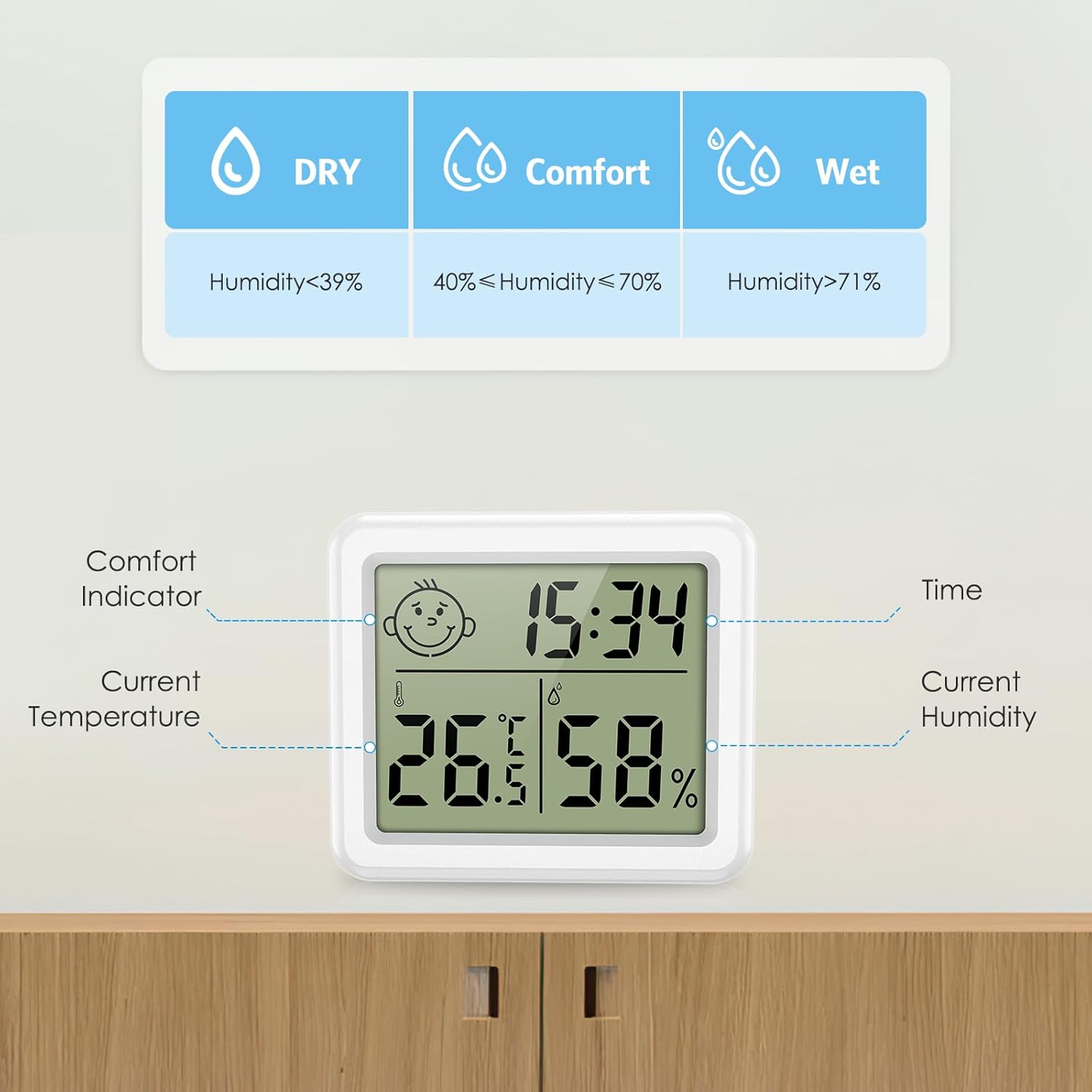
Image 5.1: Explanation of the comfort indicator, showing Dry, Comfort, and Wet conditions based on humidity percentages.
6. Maintenance
6.1 Battery Replacement
When the display becomes dim or unresponsive, it is time to replace the CR2032 battery. Follow the battery installation steps in Section 4.1.
6.2 Cleaning
Wipe the device with a soft, dry cloth. Do not use abrasive cleaners or immerse the device in water.
6.3 Storage
If storing the device for an extended period, remove the battery to prevent leakage and damage.
7. Troubleshooting
| Problem | Possible Cause | Solution |
|---|---|---|
| No display or dim display. | Battery is dead or incorrectly installed. | Replace the CR2032 battery or ensure it is installed correctly with the positive (+) side facing up. |
| Inaccurate temperature/humidity readings. | Device placed near heat/cold sources or in direct sunlight/drafts. | Relocate the device to a central area away from extreme temperature or humidity fluctuations. Allow 30 minutes for readings to stabilize. |
| Time/Date not setting correctly. | Incorrect button sequence or not holding "MODE" long enough. | Refer to Section 5.3 for detailed time and date setting instructions. Ensure "MODE" is held for 3 seconds to enter setting mode. |
8. Specifications
| Feature | Detail |
|---|---|
| Model Number | b1850db1-f513-4344-b364-c231e9e7bc32 |
| Temperature Range | -10°C to +60°C (14°F to 140°F) |
| Temperature Accuracy | ±1.0°C (±1.8°F) |
| Humidity Range | 10% RH to 99% RH |
| Humidity Accuracy | ±5% RH |
| Display Type | Digital LCD |
| Screen Size | 3.2 inches |
| Power Source | 1 x CR2032 Battery |
| Response Time | 10 seconds |
| Dimensions | Approx. 80mm (W) x 70mm (H) x 10mm (D) / 3.15in (W) x 2.75in (H) x 0.4in (D) |
| Weight | 60 grams |

Image 8.1: Size comparison of the device, showing its compact dimensions (3.15 inches width, 2.75 inches height, 0.4 inches depth).
9. Warranty and Support
9.1 Warranty Information
Brifit products typically come with a standard manufacturer's warranty. Please refer to the product packaging or the seller's information for specific warranty terms and duration. Keep your purchase receipt as proof of purchase for warranty claims.
9.2 Customer Support
For any questions, technical assistance, or warranty claims, please contact Brifit customer support through the retailer where you purchased the product or visit the official Brifit website for contact information.
Ask a question about this manual
Ask about setup, troubleshooting, compatibility, parts, safety, or missing instructions. Manuals+ will review the question and use this page’s manual context to help answer it.