
1. Product Overview
The CPVAN 1080P FHD Pan & Tilt Indoor Security Camera is designed for comprehensive indoor monitoring, offering high-definition video, flexible movement, and smart detection features. It is ideal for keeping an eye on babies, nannies, or pets, providing peace of mind through advanced surveillance capabilities.
- Pan & Tilt & Zoom & Patrol: Features a 105° FOV lens with 345° horizontal and 85° vertical rotation, providing 360° coverage. Includes 4X digital zoom and an automatic patrol setting.
- Smart AI Recognition and Detection: Detects motion and sends 10-second video alerts to your phone via the Tuya APP. AI-powered human recognition and motion tracking can be enabled for continuous monitoring and real-time notifications.
- 2-Way Audio: Equipped with a built-in microphone and speaker for two-way communication.
- 2.4G WiFi Connectivity: Operates on 2.4G WiFi networks (5G is not supported) for easy integration into your home network.
- Flexible Installation: Can be placed on a desk, mounted on a wall, or installed on the ceiling, with an image flip function for ceiling placement.
- SD Card and Cloud Storage: Supports local storage via an SD card (up to 128GB, not included) and secure cloud storage options.
- Privacy Protection: Utilizes advanced Algorithm Encryption Technology to safeguard your data.

Image: The CPVAN camera demonstrating its 360-degree viewing angle, pan, and tilt features, capturing a wide indoor scene.
2. What's in the Box
Upon opening your CPVAN camera package, you should find the following components:
- CPVAN 1080P FHD Pan & Tilt Indoor Security Camera Unit
- USB Power Cable
- Power Adapter
- Mounting Base
- Mounting Screws and Wall Anchors
- User Manual (Instruction Book)

Image: The CPVAN camera along with its power adapter, USB cable, mounting hardware, and user manual.
3. Setup Guide
Follow these steps to set up your CPVAN Indoor Security Camera:
- Download the App: Scan the QR code in the user manual or search for "Smart Life" in your mobile app store (available for Android and iOS).
- Register/Log In: Open the Smart Life app and register a new account or log in if you already have one.
- Power On the Camera: Connect the camera to a power source using the provided USB cable and power adapter. The indicator light on the camera should begin flashing rapidly.
- Add Device: In the Smart Life app, tap "Add Device" or the "+" icon. Select "Smart Camera (Wi-Fi)" from the "Camera & Lock" category.
- Confirm Indicator: Confirm that the camera's indicator light is flashing rapidly. If not, reset the device as per the app's instructions.
- Connect to Wi-Fi: Enter your 2.4GHz Wi-Fi network name and password. (Note: 5G Wi-Fi networks are not supported).
- Scan QR Code: The app will display a QR code. Position your camera to scan this QR code from 15 to 20 cm away. You will hear a prompt from the camera once the scan is successful.
- Complete Connection: Tap "I Heard a Prompt" in the app. The camera will then connect to your Wi-Fi network. This process may take a few minutes.
- Device Added: Once connected, the app will confirm that the device has been added successfully. You can then name your camera and start monitoring.
4. Operating Instructions
Maximize your camera's potential with these operational features:
- Live View: Access real-time video feed from your smartphone app.
- Pan, Tilt, and Zoom: Use the directional controls within the app to remotely rotate the camera horizontally (345°) and vertically (85°), and utilize the 4X digital zoom to focus on specific areas.
- Patrol Mode: Configure the camera to automatically patrol predefined areas, ensuring continuous coverage of your space.
- Two-Way Audio: Tap the microphone icon in the app to speak through the camera's speaker, and listen to audio from the camera's microphone.
- Motion Detection & Tracking: Enable motion detection to receive instant alerts and 10-second video clips when movement is detected. Activate AI human recognition and motion tracking for intelligent monitoring of individuals.
- Night Vision: The camera automatically switches to HD night vision in low-light conditions, providing clear surveillance up to 32 feet (10 meters).
- Video Recording & Playback: Record video manually or automatically via motion detection. Access recorded footage through the app from your SD card or cloud storage.
- Screenshot: Capture still images from the live feed or recorded video.
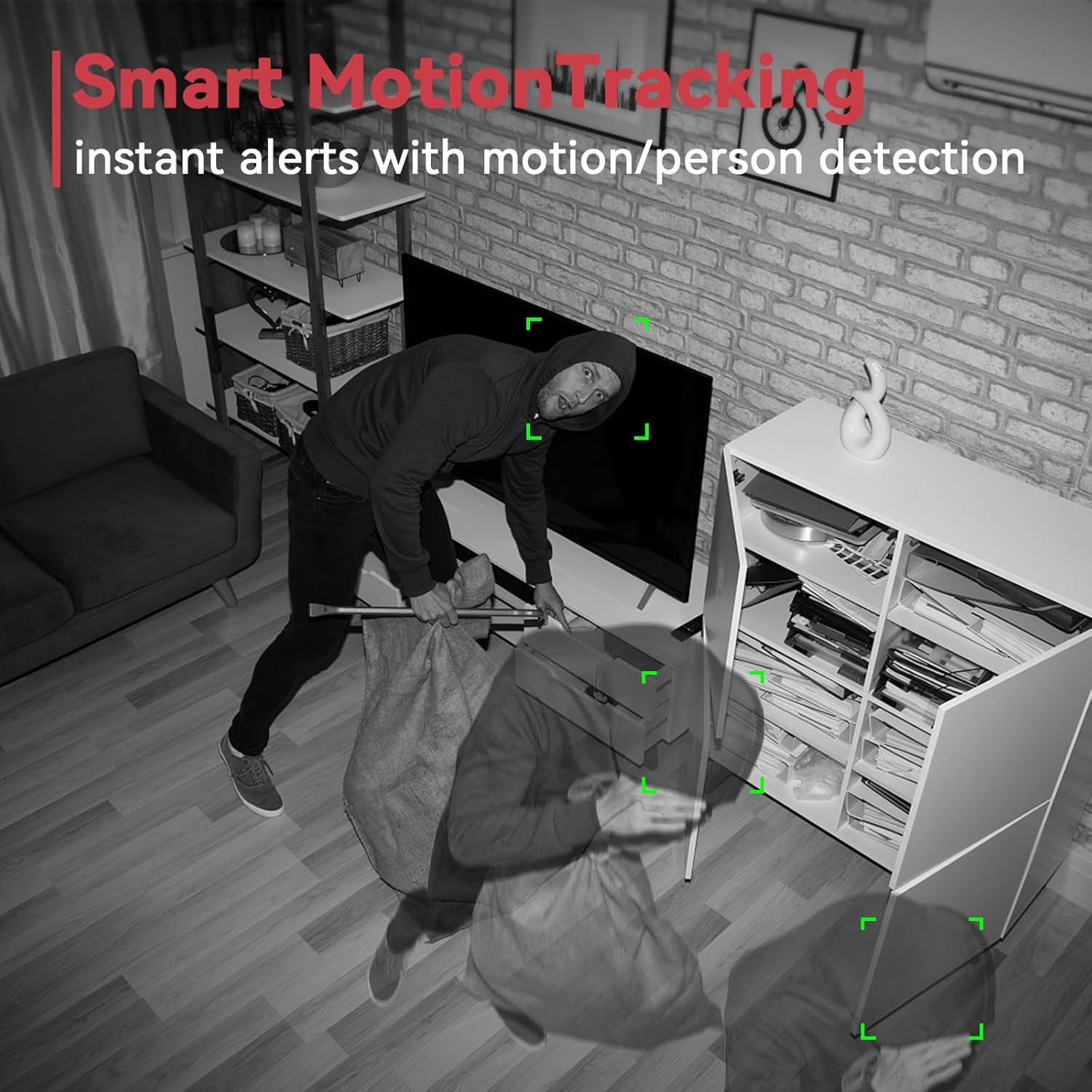
Image: The CPVAN camera's smart motion tracking feature highlighting a detected person in a room.

Image: A child reading in a room, with a smartphone displaying the camera's live feed and two-way communication bubbles.

Image: The CPVAN camera's HD night vision feature showing a clear view of a baby sleeping in a crib in a dark room.
5. Mounting Options
The CPVAN camera offers versatile mounting options to suit your needs:
- Desk/Tabletop Placement: Simply place the camera on any flat surface. The base is designed with non-slip pads to ensure stability.
- Wall Mounting: Use the provided mounting base, screws, and wall anchors to securely attach the camera to a wall.
- Ceiling Mounting: The camera can also be mounted on the ceiling. If mounted upside down, use the app's image flip function to correct the video orientation.
To attach the camera to the mounting base, align the tabs on the camera's bottom with the slots on the base, then twist to lock it securely in place.

Image: The CPVAN camera displayed in different indoor settings, illustrating its flexibility for desk, wall, or ceiling mounting.
6. Specifications
| Compatible Devices | Smartphone (Android, iOS) |
| Power Source | Corded Electric (USB Powered) |
| Connectivity Protocol | Wi-Fi (2.4GHz only, 5G NOT SUPPORTED) |
| Mounting Type | Ceiling Mount, Wall Mount, Counter-top |
| Video Capture Resolution | 1080p FHD |
| Color | Black |
| Pan Range | 345° Horizontal |
| Tilt Range | 85° Vertical |
| Digital Zoom | 4X |
| Night Vision Range | Up to 32 feet (10 meters) |
| Storage Options | SD Card (up to 128GB), Cloud Storage |
| Alert Type | Motion Only (with AI human recognition) |
| Indoor/Outdoor Usage | Indoor |
| Item Dimensions (L x W x H) | 5 x 2.8 x 2.8 inches |
| Item Weight | 11.7 ounces |
7. Maintenance
To ensure optimal performance and longevity of your CPVAN camera, consider the following maintenance tips:
- Regular Cleaning: Gently wipe the camera lens with a soft, dry, lint-free cloth to remove dust or smudges. Avoid abrasive cleaners.
- Firmware Updates: Periodically check the Smart Life app for any available firmware updates for your camera. Keeping the firmware updated ensures you have the latest features and security enhancements.
- Wi-Fi Connection Check: Ensure your camera maintains a stable 2.4GHz Wi-Fi connection. A weak signal can affect video quality and connectivity.
- Power Supply: Verify that the camera is connected to a stable power source. Avoid frequent power interruptions.
- Storage Management: If using an SD card, regularly check its capacity and back up important footage. For cloud storage, ensure your subscription is active and monitor storage usage.
8. Troubleshooting
If you encounter issues with your CPVAN camera, refer to these common troubleshooting steps:
- Camera Not Connecting to Wi-Fi:
- Ensure your Wi-Fi network is 2.4GHz. 5GHz networks are not supported.
- Verify the Wi-Fi password entered in the app is correct.
- Make sure the camera is within range of your Wi-Fi router.
- Try resetting the camera and repeating the setup process.
- Poor Video Quality:
- Check your Wi-Fi signal strength. A weak signal can degrade video quality.
- Ensure the camera lens is clean and free from dust or smudges.
- Confirm the camera is set to 1080P HD resolution in the app settings.
- Motion Detection Not Working/Too Many Alerts:
- Adjust the motion detection sensitivity settings in the Smart Life app.
- Define specific detection zones to avoid unnecessary alerts from high-traffic areas.
- Ensure motion detection is enabled in the app.
- Two-Way Audio Issues:
- Check the microphone and speaker volume settings in the app.
- Ensure there are no obstructions blocking the camera's microphone or speaker.
- Verify your phone's microphone permissions for the Smart Life app.
- Camera Not Rotating/Tilting:
- Ensure there are no physical obstructions preventing the camera's movement.
- Check the app controls for responsiveness. If unresponsive, restart the app or camera.
9. Warranty and Support
CPVAN is committed to providing reliable products and excellent customer service:
- Warranty: Enjoy a 1.5-year warranty on your CPVAN camera.
- Money-Back Guarantee: A 30-day money-back guarantee is provided for your satisfaction.
- Lifetime Tech Support: Benefit from lifetime technical support for any product-related queries or issues.
- 24/7 Live Chat: Access 24/7 live chat support for immediate assistance.
- Data Protection: Your data is protected by multiple global auditing teams and advanced Algorithm Encryption Technology.
- Cloud Data Storage: Cloud data is stored locally in the USA.