
1. Introduction
Thank you for choosing the j5create JVAW53 Wireless Display HDMI Extender. This device allows you to wirelessly transmit Full HD 1080p video and audio signals up to 200 feet (60 meters) with ultra-low latency. It is ideal for extending HDMI sources such as DVD players, Blu-ray players, PCs, notebooks, and gaming consoles to a display without the need for extensive cabling. This manual provides detailed instructions for setting up, operating, and maintaining your JVAW53 extender to ensure optimal performance.
2. Product Overview
2.1 Package Contents
Please verify that all items are present in your package:
- 1 x JVAW53 Transmitter (TX) Unit
- 1 x JVAW53 Receiver (RX) Unit
- 2 x Power Adapters
- 2 x HDMI Cables
- 1 x IR Blaster Cable
- 1 x IR Receiver Cable
- User Manual (this document)
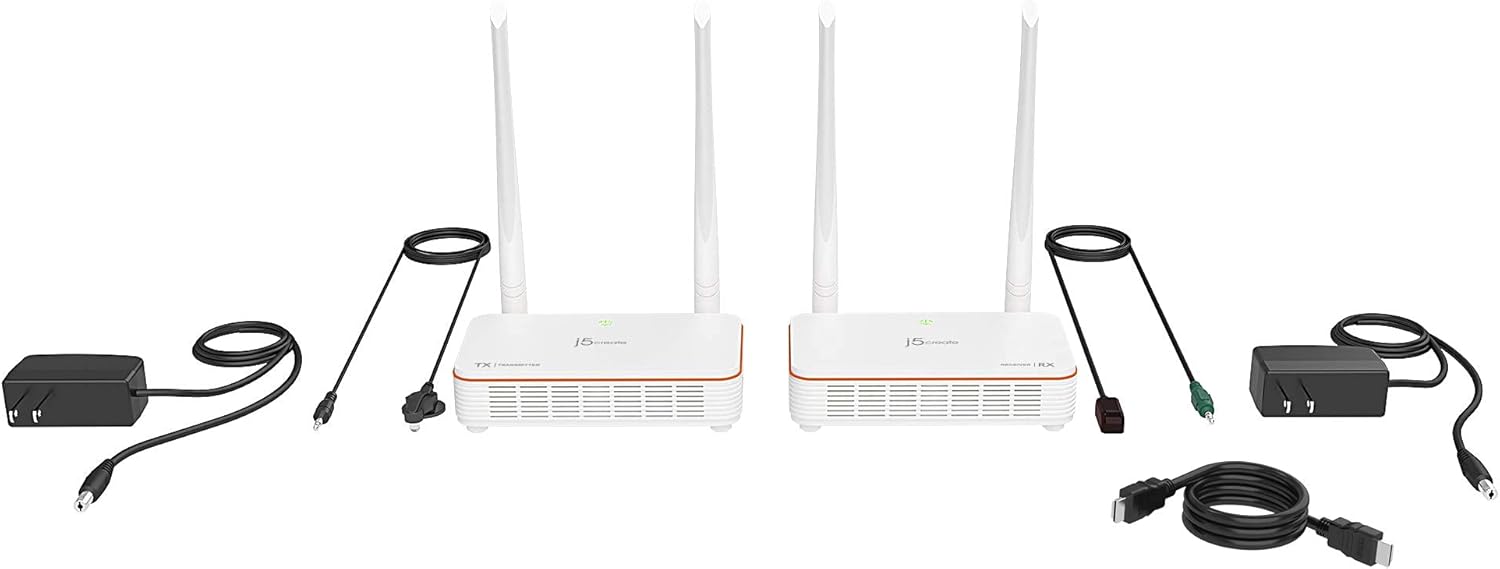
Image: All components included with the j5create JVAW53 Wireless Display HDMI Extender, including the transmitter, receiver, power adapters, HDMI cables, and IR cables.
2.2 Key Features
- Full HD 1080p Resolution: Supports resolutions up to 1080p at 60Hz.
- Wireless Transmission: Extends HDMI audio/video signals wirelessly up to 200 ft. (60m).
- Ultra-Low Latency: Less than 0.06 seconds (60ms) for smooth, real-time display.
- IR Pass-Through: Allows remote control of the source device from the display's location.
- Plug-and-Play: No Wi-Fi network required for operation; simply connect and transmit.

Image: The j5create JVAW53 Wireless HDMI Extender Transmitter (TX) and Receiver (RX) units, showcasing their compact design and external antennas.
3. Setup
Follow these steps to set up your j5create JVAW53 Wireless Display HDMI Extender:
- Connect the Transmitter (TX) Unit:
- Connect one end of an HDMI cable to the HDMI output port of your source device (e.g., laptop, DVD player, game console).
- Connect the other end of the HDMI cable to the HDMI input port on the JVAW53 Transmitter (TX) unit.
- Connect one of the power adapters to the power input port on the TX unit and plug it into a power outlet.
- If using IR pass-through, connect the IR Blaster cable to the IR OUT port on the TX unit and position the IR blaster head near the IR sensor of your source device.
- Connect the Receiver (RX) Unit:
- Connect one end of the second HDMI cable to the HDMI input port of your display device (e.g., TV, projector, monitor).
- Connect the other end of the HDMI cable to the HDMI output port on the JVAW53 Receiver (RX) unit.
- Connect the second power adapter to the power input port on the RX unit and plug it into a power outlet.
- If using IR pass-through, connect the IR Receiver cable to the IR IN port on the RX unit and place the IR receiver head in a location where it can receive signals from your remote control.
- Power On and Pair:
- Ensure both TX and RX units are powered on. The LED indicators on both units should illuminate.
- The units are pre-paired from the factory. They should automatically establish a connection. The LED indicator will change to solid green when a stable connection is made.
- If no connection is established, ensure both units are within the recommended range and there are no significant obstructions.

Image: A diagram illustrating the connection setup for the j5create JVAW53, showing the transmitter connected to a source (laptop, player, game console) and the receiver connected to a display, with wireless transmission up to 200 feet.
4. Operating Instructions
4.1 Basic Operation
Once the TX and RX units are connected and paired, the video and audio from your source device will be wirelessly transmitted to your display. No additional software or network configuration is required.
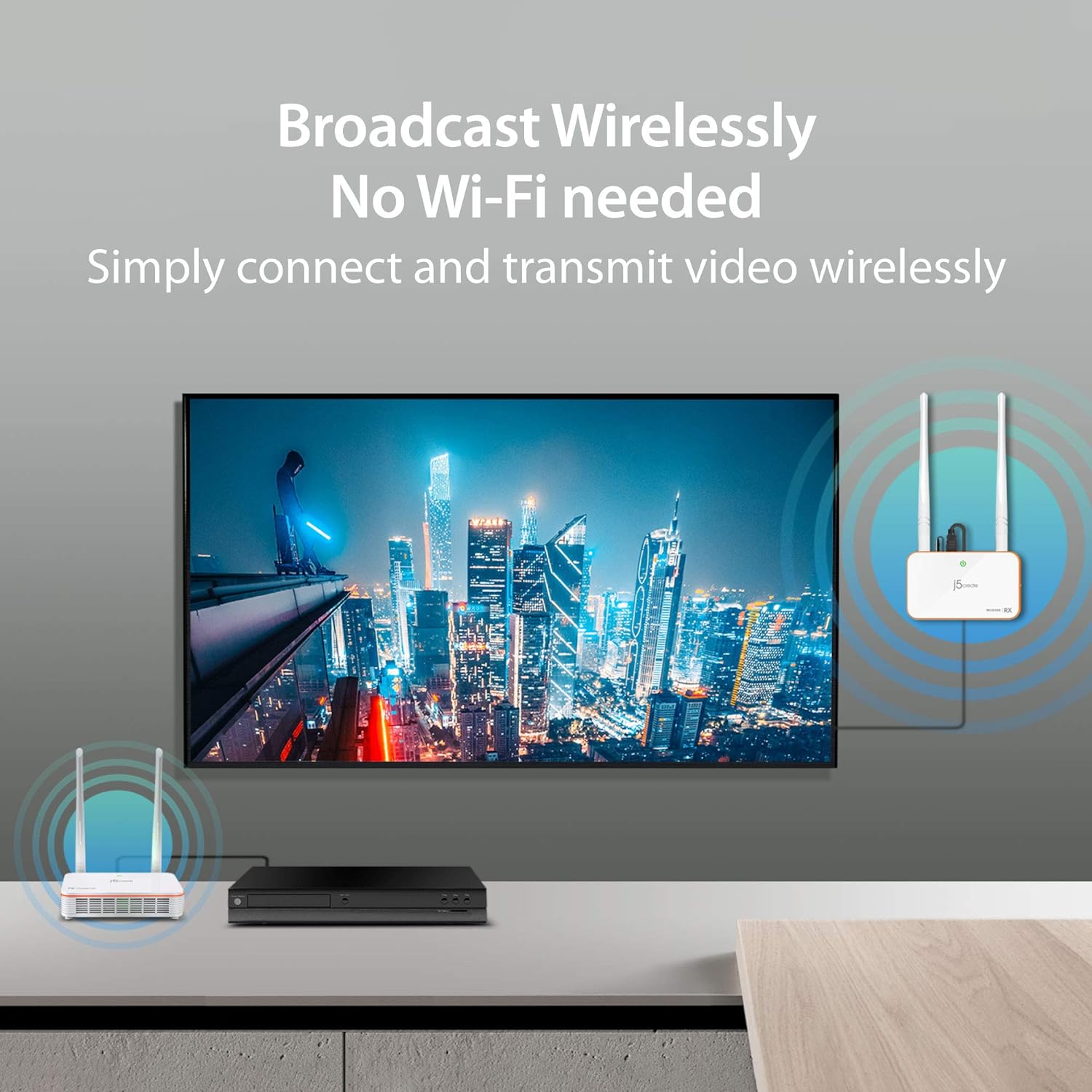
Image: An illustration demonstrating the wireless broadcast capability of the JVAW53, showing a source device connected to the transmitter and a TV connected to the receiver, with no Wi-Fi needed.
4.2 IR Pass-Through Functionality
The IR pass-through feature allows you to control your source device (e.g., DVD player, cable box) from the location of your display using its original remote control.
- Point your source device's remote control at the IR Receiver head connected to the RX unit.
- The signal will be transmitted wirelessly to the TX unit.
- The IR Blaster connected to the TX unit will then relay the command to your source device.

Image: A visual representation of the built-in IR Pass-Through Technology, showing how a remote control signal is sent to the receiver unit and then wirelessly relayed to the transmitter unit to control the source device.
4.3 Optimal Performance Tips
- Line of Sight: For best results, ensure a clear line of sight between the TX and RX units.
- Obstructions: Solid and nonporous materials such as steel, concrete, brick, and glass may shorten the transmission distance or cause signal loss.
- Interference: Keep the units away from other wireless devices (e.g., Wi-Fi routers, cordless phones) that operate on similar frequencies to minimize interference.

Image: Examples of the JVAW53's flexibility, showing its use in a living room, classroom, meeting room, and bedroom, highlighting its adaptability for various display environments.
5. Maintenance
To ensure the longevity and optimal performance of your j5create JVAW53 Wireless Display HDMI Extender, follow these simple maintenance guidelines:
- Cleaning: Use a soft, dry cloth to clean the exterior of the units. Do not use liquid cleaners or aerosols.
- Storage: When not in use for extended periods, store the units in a cool, dry place away from direct sunlight and extreme temperatures.
- Handling: Avoid dropping or subjecting the units to strong impacts, as this can damage internal components.
- Ventilation: Ensure the units have adequate ventilation to prevent overheating. Do not block the ventilation holes.
6. Troubleshooting
If you encounter issues with your JVAW53 extender, please refer to the following common problems and solutions:
| Problem | Possible Cause | Solution |
|---|---|---|
| No video/audio output on display. | Loose connections, power issue, units not paired, incompatible resolution. | Check all HDMI and power connections. Ensure both TX and RX units are powered on and their LEDs indicate a stable connection. Try a different HDMI cable. Ensure your source device's resolution is supported (up to 1080p@60Hz). |
| Intermittent signal or poor video quality. | Obstructions, excessive distance, interference. | Reduce the distance between TX and RX units. Remove any major obstructions. Move units away from other wireless devices. Ensure units have clear line of sight. |
| IR remote control not working. | IR cables not properly connected, IR blaster/receiver misaligned, remote control battery low. | Ensure IR Blaster is connected to TX's IR OUT and IR Receiver to RX's IR IN. Verify the IR blaster head is directly facing the source device's IR sensor. Check remote control batteries. Ensure the IR receiver head is positioned to receive signals from your remote. |
| Units not pairing. | Units too far apart, interference, power cycle needed. | Bring units closer together. Power cycle both TX and RX units (unplug and replug power). Ensure no strong interference sources are nearby. |
If the problem persists after trying these solutions, please contact j5create customer support for further assistance.
7. Specifications
| Feature | Description |
|---|---|
| Model Number | JVAW53 |
| Product Dimensions | 3 x 5.3 x 1.3 inches (per unit, approx.) |
| Item Weight | 1.74 pounds (total) |
| Wireless Communication Standard | 802.11n |
| Max. Resolution Supported | 1080p @ 60Hz |
| Transmission Distance | Up to 200 ft. (60m) line of sight |
| Latency | Ultra-low (less than 0.06s / 60ms) |
| Color | Black |
| Special Feature | IR Pass-Through |
| Included Components | Transmitter, Receiver, 2x Power Adapters, 2x HDMI Cables, IR Blaster, IR Receiver |
8. Warranty and Support
For warranty information and technical support, please refer to the documentation included with your product packaging or visit the official j5create website. Typically, warranty details, registration, and contact information for customer service are provided by the manufacturer.
j5create Customer Support:
- Website: www.j5create.com
- Email: Refer to the website for specific support email addresses.
- Phone: Refer to the website for regional support phone numbers.
Please have your product model number (JVAW53) and purchase information ready when contacting support.


