1. Introduction
This manual provides essential information for the Dell Latitude 5290 2-in-1 device. It covers setup procedures, operational guidelines, maintenance tips, and troubleshooting steps to ensure optimal performance and longevity of your renewed device. The Dell Latitude 5290 2-in-1 is a versatile computing solution designed for productivity and flexibility, functioning as both a laptop and a tablet.
As a renewed product, this device has undergone testing and certification to ensure it functions like new. It includes relevant accessories and a minimum 90-day warranty.
2. Device Overview
The Dell Latitude 5290 2-in-1 combines the power of a laptop with the portability of a tablet. It features a 12.3-inch Full HD touchscreen display and is powered by an Intel Core i5-8350U processor, 8GB of RAM, and a 256GB Solid State Drive, running Windows 11 Pro.

Image 2.1: Dell Latitude 5290 2-in-1 in laptop configuration, showcasing the display and attached keyboard.

Image 2.2: Dell Latitude 5290 2-in-1 tablet separated from its keyboard, highlighting its versatility.
3. Setup
3.1 Unpacking and Initial Inspection
Carefully remove the Dell Latitude 5290 2-in-1 and its accessories from the packaging. Verify that all components are present:
- Dell Latitude 5290 2-in-1 tablet
- AC Adapter
- Detachable keyboard (if included with your specific renewed unit)
Inspect the device for any visible damage. If any issues are found, contact your seller immediately.
3.2 Connecting the AC Adapter
Before first use, connect the AC adapter to the device and a power outlet. This ensures the battery is charged and provides stable power during initial setup.
- Plug the AC adapter cable into the charging port on the Dell Latitude 5290 2-in-1.
- Plug the other end of the AC adapter into a wall outlet.
- Allow the device to charge for at least 30 minutes before proceeding with the initial power-on.
3.3 Initial Power-On and Windows 11 Setup
Press the power button located on the side or top edge of the tablet. The device will boot up and guide you through the Windows 11 setup process. Follow the on-screen instructions to:
- Select your region and language.
- Connect to a Wi-Fi network.
- Accept the license terms.
- Create or sign in with a Microsoft account.
- Set up a PIN or password.
- Configure privacy settings.
3.4 Attaching/Detaching the Keyboard
The Dell Latitude 5290 2-in-1 features a detachable keyboard for flexible use.
- To attach: Align the magnetic connector on the keyboard with the corresponding port at the bottom edge of the tablet. The magnets will snap the keyboard into place.
- To detach: Gently pull the tablet away from the keyboard.
4. Operating Instructions
4.1 Using as a Laptop
With the keyboard attached, the device functions as a traditional laptop. Use the keyboard for typing and the touchpad for navigation. The touchscreen remains active for touch input.
4.2 Using as a Tablet
Detach the keyboard to use the device as a standalone tablet. Navigate using the touchscreen. Windows 11 automatically adjusts to tablet mode for an optimized touch experience.
4.3 Port Connections
The Dell Latitude 5290 2-in-1 includes various ports for connecting peripherals:
- USB 3.1 Gen1 (with PowerShare): For connecting USB devices and charging compatible devices.
- Display Port over USB Type-C (x2): For connecting external displays or other USB-C compatible devices.
- Microphone-in and stereo: For audio input and output.
- Micro SD 4.0: For expanding storage with a microSD card.

Image 4.1: Side profile of the Dell Latitude 5290 2-in-1, illustrating the placement of USB and other connectivity ports.
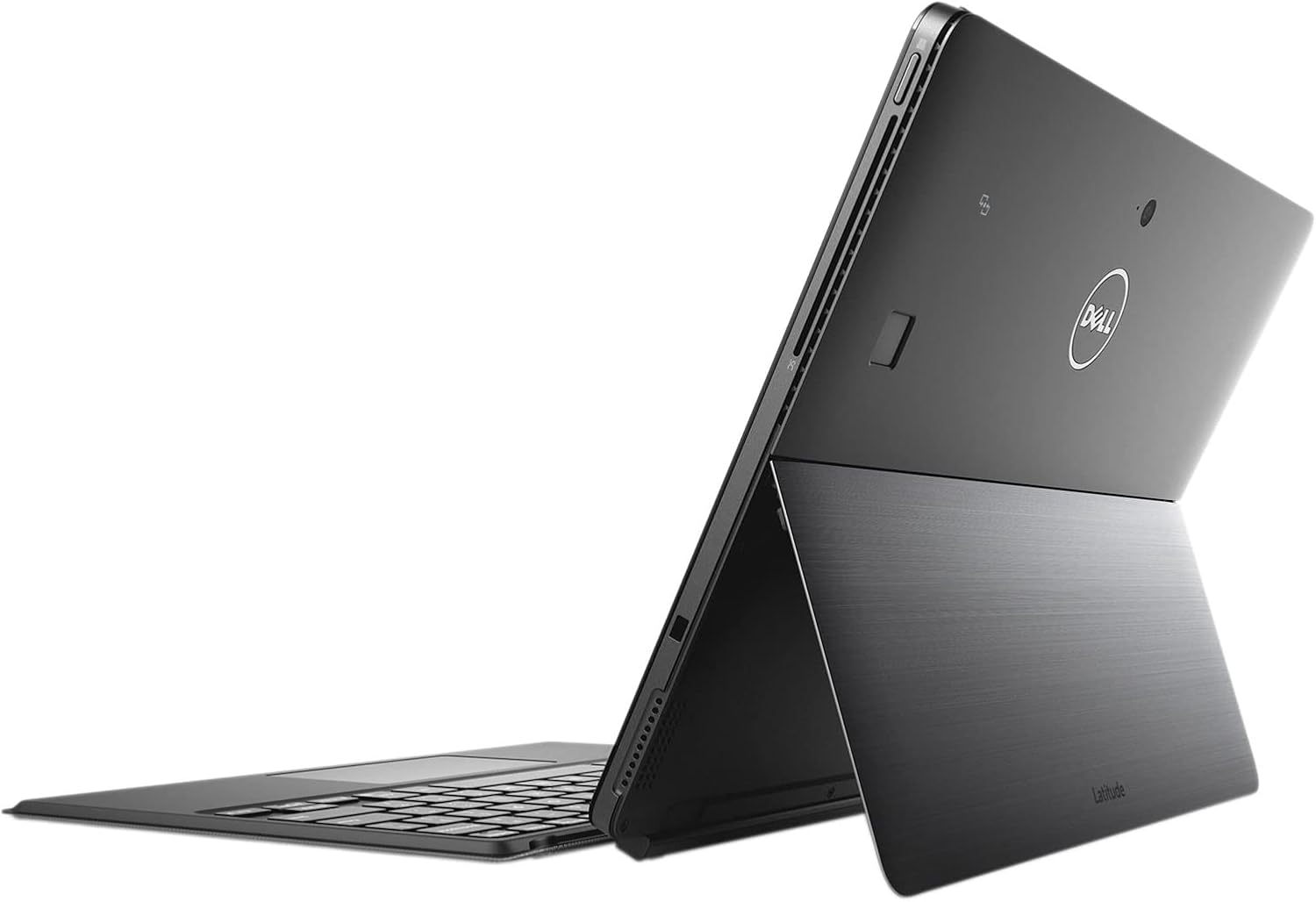
Image 4.2: Alternate side view of the device, providing a clearer perspective on port access and layout.
5. Maintenance
5.1 Cleaning the Device
- Screen: Use a soft, lint-free cloth slightly dampened with water or a screen cleaner specifically designed for electronics. Avoid harsh chemicals.
- Chassis and Keyboard: Wipe with a soft, dry cloth. For stubborn dirt, a slightly damp cloth can be used. Ensure no liquid enters ports or openings.
- Ports: Use compressed air to gently clear dust from ports. Do not insert objects into ports.
5.2 Battery Care
To maximize battery life and performance:
- Avoid extreme temperatures.
- Do not fully discharge the battery frequently.
- If storing the device for an extended period, ensure the battery is charged to about 50-70%.
5.3 Software Updates
Regularly check for and install Windows updates to ensure your system has the latest security patches and performance improvements. Go to Settings > Windows Update to check for updates.
5.4 Data Backup
Regularly back up your important data to an external drive or cloud storage to prevent data loss.
6. Troubleshooting
This section addresses common issues you might encounter with your Dell Latitude 5290 2-in-1.
6.1 Device Not Powering On
- Ensure the AC adapter is securely connected to both the device and a working power outlet.
- Verify the power outlet is functional by plugging in another device.
- If the battery is completely drained, it may take a few minutes of charging before the device can power on.
6.2 Display Issues
- No display: Ensure the device is powered on. Try connecting an external monitor to check if the issue is with the internal display.
- Touchscreen unresponsive: Restart the device. Ensure the screen is clean and free of debris.
6.3 Keyboard/Touchpad Not Responding
- Ensure the keyboard is securely attached to the tablet. Detach and reattach it.
- Restart the device.
- Check Windows Device Manager for any driver issues related to the keyboard or touchpad.
6.4 Connectivity Problems (Wi-Fi/Bluetooth)
- Ensure Wi-Fi or Bluetooth is enabled in Windows settings.
- Restart your router/modem for Wi-Fi issues.
- Run the Windows Network Troubleshooter.
For persistent issues, refer to Dell's official support website or contact the seller (Regadget) for assistance with your renewed product.
7. Specifications
| Feature | Detail |
|---|---|
| Model Name | Dell Latitude 5290 2-in-1 |
| Screen Size | 12.3 Inches |
| Screen Resolution | 1920 x 1080 pixels (FHD) |
| Processor | Intel Core i5-8350U (1.7 GHz) |
| RAM | 8 GB DDR4 |
| Storage | 256 GB SSD |
| Operating System | Windows 11 Pro 64-bit |
| Graphics Coprocessor | Intel UHD Graphics 620 |
| Ports | USB 3.1 Gen1 (with PowerShare), (2) Display Port over USB Type-C, Microphone-in and stereo, Micro SD 4.0 |
| Wireless Type | 802.11bgn |
| Item Weight | 2.65 pounds |
| Product Dimensions | 11.5 x 8.2 x 0.4 inches |
| Color | Black |
8. Warranty and Support
8.1 Renewed Product Warranty
This Dell Latitude 5290 2-in-1 is a Certified Refurbished product. It is tested and certified to look and work like new. The refurbishing process includes functionality testing, basic cleaning, inspection, and repackaging. The product ships with all relevant accessories and a minimum 90-day warranty from the date of purchase.
For warranty claims or issues related to the refurbished condition, please contact the seller, Regadget, directly. Their contact information can typically be found on your purchase receipt or order details page.
8.2 Dell Support Resources
For general technical support, driver downloads, and documentation specific to the Dell Latitude 5290 2-in-1 model, you can visit the official Dell Support website. Please have your device's service tag ready for specific assistance.
Note: As this is a renewed product, direct manufacturer warranty support may vary. Always consult with your seller first for issues covered under the renewed product warranty.


