1. Introduction
This manual provides essential information for the safe and effective use of your Panasonic HC-X2000 UHD 4K Pro Camcorder. Please read this manual thoroughly before using the product and retain it for future reference. Understanding the features and operations will ensure optimal performance and longevity of your camcorder.
2. Product Overview
2.1 Key Features
- UHD 4K Video Recording: Captures high-resolution 4K video at broadcast-compatible frame rates.
- 24x Optical Zoom Lens: Features a 25mm wide-angle to 600mm telephoto range.
- 5-Axis Hybrid Image Stabilization: Combines optical and electronic stabilization for smooth footage.
- Integrated Wi-Fi: Enables wireless control from a tablet or smartphone via the HC ROP app.
- Professional Audio Inputs: Supports 24-bit PCM audio recording with XLR inputs.
- 3G-SDI and HDMI Outputs: Provides versatile connectivity for professional workflows.
- Compact and Lightweight Design: Engineered for mobility and ease of use in various shooting environments.
2.2 Included Components
The following items are typically included with your Panasonic HC-X2000 Camcorder:
- Panasonic HC-X2000 UHD 4K 3G-SDI/HDMI Pro Camcorder
- Detachable Handle Unit
- Lithium-Ion Battery
- AC Adapter/Charger
- Eyecup
- Lens Hood
- Microphone Holder

Figure 2.2.1: The Panasonic HC-X2000 Camcorder shown with its detachable handle unit, battery, and other accessories.
3. Setup
3.1 Charging and Installing the Battery
- Connect the AC adapter to the battery charger and a power outlet.
- Insert the battery into the charger. The charging indicator will illuminate.
- Once charging is complete, remove the battery from the charger.
- Align the charged battery with the battery slot on the rear of the camcorder and slide it in until it clicks securely into place.
3.2 Inserting an SD Card
- Open the SD card slot cover on the side of the camcorder.
- Insert the SD card (UHS-I compatible recommended for 4K recording) into the slot with the label facing the correct direction until it clicks.
- Close the SD card slot cover.
3.3 Attaching the Handle Unit
- Align the handle unit with the accessory shoe on top of the camcorder.
- Slide the handle unit forward until it locks into position.
- Secure the handle unit using the locking screw.

Figure 3.3.1: The Panasonic HC-X2000 Camcorder with the detachable handle unit and an external light attached.
4. Operating Instructions
4.1 Powering On/Off
- To power on, slide the POWER switch to the ON position.
- To power off, slide the POWER switch to the OFF position.
4.2 Basic Recording
- Open the LCD monitor or extend the viewfinder.
- Press the REC START/STOP button to begin recording. The REC indicator will illuminate.
- Press the REC START/STOP button again to stop recording.
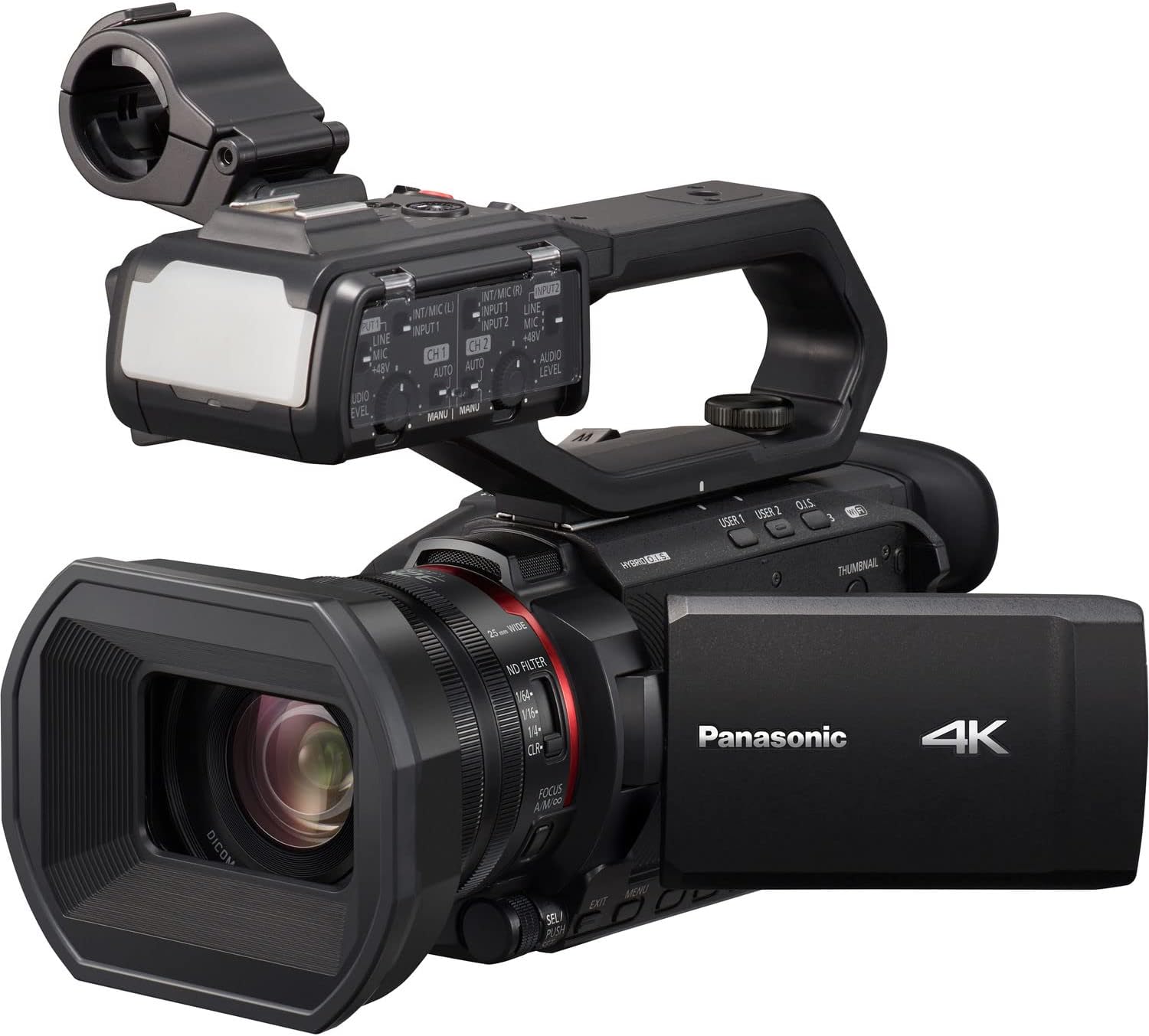
Figure 4.2.1: The Panasonic HC-X2000 Camcorder with its LCD monitor open, displaying the recording interface.
4.3 Zoom Operation
Use the zoom lever located on the handle or the lens barrel to adjust the zoom. Push the lever towards 'T' for telephoto (zoom in) and 'W' for wide-angle (zoom out).
4.4 Focus Adjustment
The camcorder supports both auto-focus (AF) and manual focus (MF). Switch between modes using the AF/MF switch on the lens barrel. In MF mode, rotate the focus ring to adjust focus manually.
4.5 Image Stabilization
The 5-Axis Hybrid O.I.S. (Optical Image Stabilizer) is typically active by default. Ensure it is enabled in the menu settings for stable handheld footage.
4.6 Wi-Fi Control
To use Wi-Fi control, enable Wi-Fi in the camcorder's menu and connect your smartphone or tablet to the camcorder's Wi-Fi network. Use the Panasonic HC ROP app for remote camera settings and lens control.
5. Maintenance
5.1 Cleaning the Camcorder
- Lens: Use a soft, lint-free cloth specifically designed for optical lenses. For stubborn smudges, use a lens cleaning solution sparingly.
- Body: Wipe the camcorder body with a soft, dry cloth. Avoid using strong detergents or solvents.
- LCD Monitor: Gently wipe with a soft, dry cloth.
5.2 Battery Care
- Charge the battery fully before first use.
- Store batteries in a cool, dry place when not in use.
- Avoid fully discharging the battery frequently to prolong its lifespan.
5.3 Storage
When storing the camcorder for extended periods, remove the battery and store the unit in a dry, dust-free environment, preferably in a protective case.
6. Troubleshooting
| Problem | Possible Cause | Solution |
|---|---|---|
| Camcorder does not power on. | Battery is not charged or not inserted correctly. | Charge the battery and ensure it is securely inserted. |
| Cannot record video. | No SD card, SD card full, or write-protected. | Insert an SD card, delete unnecessary files, or unlock the write-protection switch on the card. |
| Image is blurry. | Incorrect focus, dirty lens, or image stabilization off. | Adjust focus, clean the lens, or enable image stabilization. |
| No audio recorded. | Microphone not connected, audio levels too low, or input settings incorrect. | Check microphone connection, adjust audio input levels, and verify audio settings in the menu. |
7. Specifications
| Feature | Detail |
|---|---|
| Model Number | HC-X2000 |
| Sensor | 1/2.5" 8.29M MOS Sensor |
| Video Resolution | UHD 4K (3840 x 2160), Full HD (1920 x 1080) |
| Optical Zoom | 24x |
| Focal Length | 25mm - 600mm (35mm equivalent) |
| Image Stabilization | 5-Axis Hybrid O.I.S. |
| Connectivity | 3G-SDI, HDMI, USB, Wi-Fi |
| Audio Format | 24-bit PCM |
| Storage Media | SD/SDHC/SDXC Card |
| Dimensions (W x H x D) | 10.12 x 6.26 x 5.08 inches (approx.) |
| Weight | 16.88 pounds (approx.) |
8. Warranty and Support
For warranty information and technical support, please refer to the official Panasonic website or contact your authorized Panasonic dealer. Keep your proof of purchase for warranty claims.
Online Resources: For the latest drivers, firmware updates, and detailed FAQs, visit the official Panasonic support page for the HC-X2000 model.


