
Introduction
This manual provides essential information for the proper setup, operation, and maintenance of your Sony PXW-Z90V 4K HDR XDCAM camcorder. The PXW-Z90V is a compact, palm-style camcorder featuring a 1-inch Exmor RS CMOS sensor, UHD 4K (3840 x 2160) resolution, and Fast Hybrid Autofocus (AF). It is designed for professional video production, including corporate events, broadcast news, and television production.

Image: Front-side view of the Sony PXW-Z90V 4K HDR XDCAM camcorder, showcasing its compact design and lens.
What's in the Box
Verify that all items listed below are included in your package:
- Sony PXW-Z90V 4K HDR XDCAM with Fast Hybrid AF
- XLR Handle
- Lens Hood
- Lens Cap
- Large Eyecup
- Accessory Shoe Kit
- USB Cable
- Sony NP-FV70A V-Series Battery Pack (1900mAh)
- Sony AC-L200 AC Adapter
- Power Cord
- SecureDigital 64GB Extreme PRO Memory Card
- NP-FV70 Replacement Battery
- 3 Piece Filter Kit
- Wide Angle Lens
- Telephoto Lens
- Large Bag
- External Charger
- Memory Card Reader
- Memory Card Wallet
- Lens Cap Keeper
- Cleaning Kit
- HDMI Cable
Setup
1. Charging the Battery
Before initial use, fully charge the NP-FV70A battery pack using the supplied AC adapter or external charger. Connect the AC adapter to the camcorder or the battery to the external charger, then plug into a power outlet. The charging indicator will illuminate during charging and turn off when complete.
2. Inserting a Memory Card
Locate the memory card slots on the camcorder. Insert a compatible SD card (e.g., the included 64GB Extreme PRO) into one of the slots until it clicks into place. Ensure the card is inserted in the correct orientation.

Image: Rear view of the camcorder with the LCD monitor open, revealing the memory card slots and control buttons.
3. Attaching the XLR Handle
Align the XLR handle with the accessory shoe on top of the camcorder. Slide it into place and secure it using the locking mechanism. This handle provides additional audio inputs and ergonomic control.
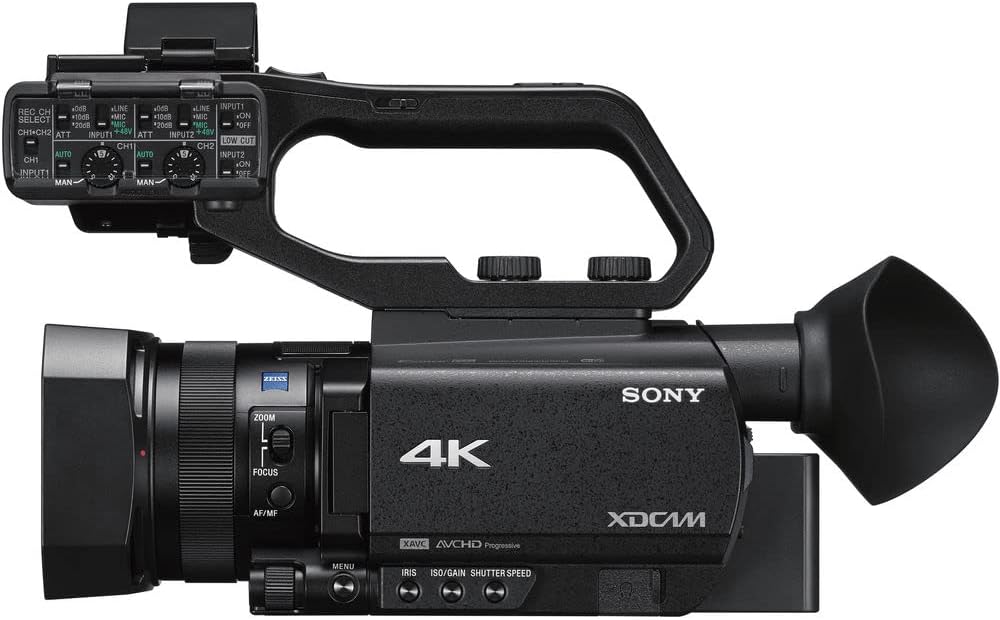
Image: Top view of the Sony PXW-Z90V camcorder, highlighting the attached XLR handle and its controls.
4. Attaching the Lens Hood
Attach the lens hood to the front of the lens by aligning the marks and twisting until it locks. The lens hood helps to prevent glare and protect the lens.
Operating Instructions
1. Powering On/Off
To power on the camcorder, slide the POWER switch to the ON position. To power off, slide it to OFF. Ensure the battery is securely inserted or the AC adapter is connected.
2. Basic Recording
Press the REC START/STOP button to begin and end recording. The camcorder supports UHD 4K (3840 x 2160) up to 30p and HD recording. Select your desired recording format and resolution through the menu system.
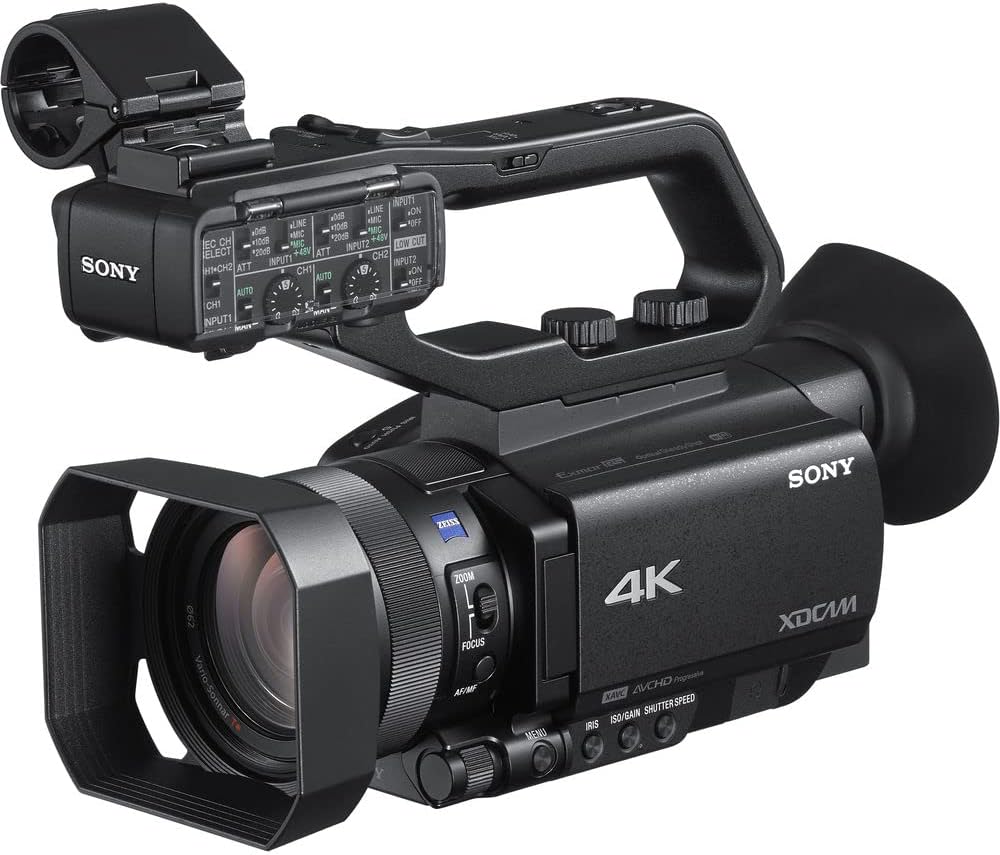
Image: The Sony PXW-Z90V camcorder, ready for recording, showing the main body and lens.
3. Autofocus (AF) Operation
The PXW-Z90V features Fast Hybrid AF. In movie recording mode, phase-detection AF frames appear on the screen to monitor your subject's focus. You can quickly switch focus among subjects by tapping the 3.5-inch touchscreen LCD monitor.

Image: Rear view of the camcorder with the 3.5-inch touchscreen LCD monitor open, showing potential focus indicators.
4. Zoom Control
Utilize the zoom rocker on the handle or the zoom ring on the lens for optical zoom (12x Zeiss optical zoom). The camcorder also offers an 18x Clear Image Zoom for extended reach while maintaining image quality.

Image: Side view of the Sony PXW-Z90V, highlighting the zoom and focus controls on the lens barrel.
5. HDR and Log Settings
The camcorder supports 4K HDR with Hybrid Log-Gamma (HLG) for immediate HDR workflow. For advanced color grading, S-Log3/S-Gamut3 imaging options are available through the menu system.
6. Network Functions
Built-in 2.4/5 GHz Wi-Fi enables multiple streaming via RTMP/RTMPS protocols and FTP options. Configure network settings through the camcorder's menu to utilize these features.
Maintenance
1. Cleaning the Camcorder
Use a soft, dry cloth to clean the camcorder body. For the lens, use a lens brush or a specialized lens cleaning cloth with lens cleaning fluid. Avoid abrasive materials or harsh chemicals.
2. Battery Care
Store batteries in a cool, dry place. Avoid fully discharging lithium-ion batteries for extended periods. Recharge them periodically if not in use.
3. Storage
When not in use, store the camcorder in a protective bag or case to prevent dust accumulation and physical damage. Ensure the lens cap is on.
Troubleshooting
This section addresses common issues you might encounter. For more detailed troubleshooting, refer to the comprehensive online manual or contact support.
No Power
- Ensure the battery is fully charged and correctly inserted.
- Verify the AC adapter is securely connected to both the camcorder and a working power outlet.
Cannot Record
- Check if a memory card is inserted and has sufficient free space.
- Ensure the memory card is not write-protected.
- Verify the camcorder is in recording mode.
Autofocus Not Working
- Check if the AF/MF switch is set to AF.
- Ensure there is sufficient light on the subject.
- Try focusing manually if the scene is complex or low-contrast.
Specifications
| Model Name | PXW-Z90V |
| Sensor Type | 1-inch Exmor RS CMOS |
| Video Capture Resolution | UHD 4K (3840 x 2160), HD |
| Optical Zoom | 12x (Zeiss) |
| Clear Image Zoom | 18x |
| Autofocus | Fast Hybrid AF (Phase-Detection) |
| Screen Size | 3.5 inches (Touchscreen LCD) |
| Viewfinder | OLED |
| Video Capture Format | XAVC Long, XAVC-S, MPEG HD |
| Audio Format | PCM, AAC |
| Connectivity | HDMI, USB, Built-in 2.4/5 GHz Wi-Fi |
| Storage Media | SD Card (2 slots) |
| Image Stabilization | Yes |
| Weight | 10.9 pounds (approximate, camcorder only) |
| Color | Black |
Warranty Information
This Sony PXW-Z90V camcorder comes with a 90 days limited warranty. Please retain your proof of purchase for warranty claims. For specific terms and conditions, refer to the warranty documentation included with your product or visit the official Sony support website.
Support
For further assistance, technical support, or service inquiries, please visit the official Sony support website or contact their customer service. You can find detailed manuals, software updates, and FAQs online.
Sony Support Website: https://www.sony.com/electronics/support


