Introduction
The JOYROOM S-H142 is a versatile 4-in-1 device designed for iOS devices, combining a charger adapter and a multi-format card reader. This manual provides detailed instructions for its proper use and maintenance, ensuring optimal performance and longevity of your device.
Product Overview
The JOYROOM S-H142 is a compact and efficient accessory for your iOS devices. It features a USB interface for connectivity and supports MicroSD media types. A key feature is its ability to charge your device while simultaneously reading data from a memory card.
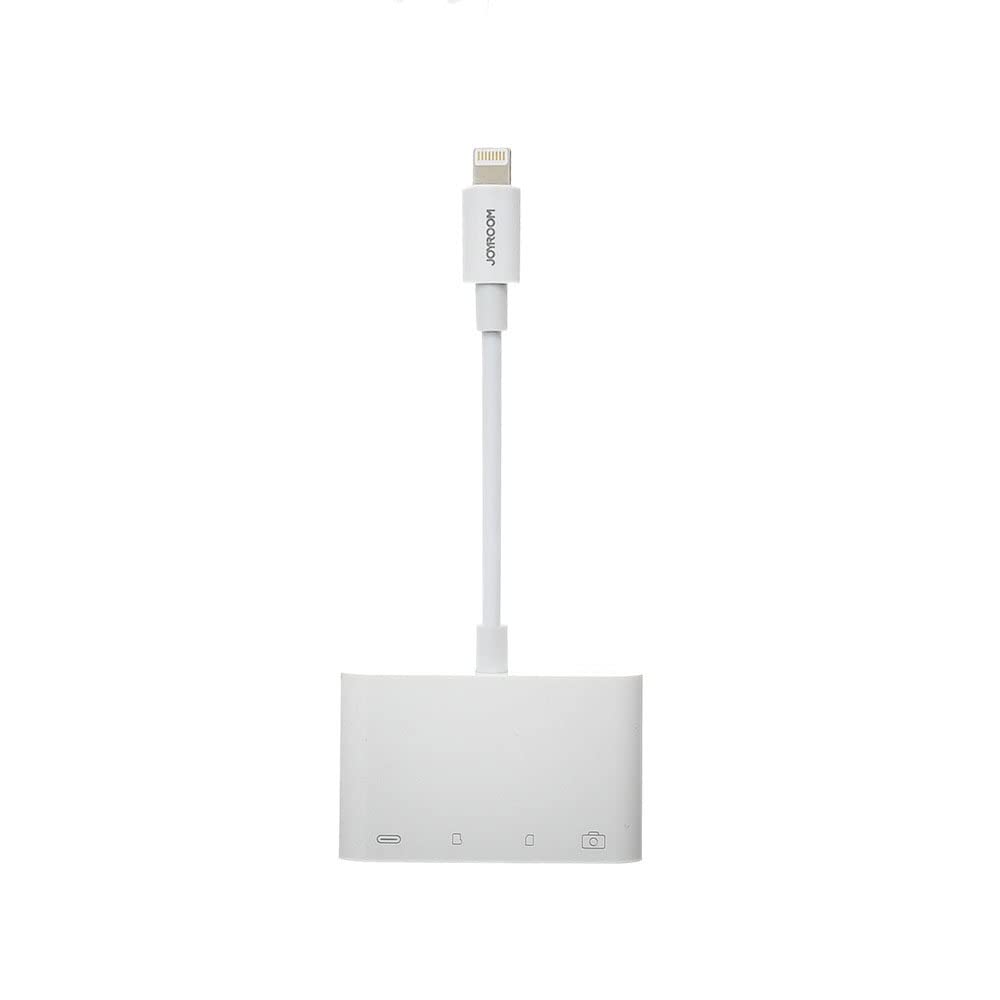
Image 1: Front view of the JOYROOM S-H142 4-in-1 Charger Adapter and Card Reader, showing the Lightning cable, USB port, and card slots.

Image 2: Close-up view of the JOYROOM S-H142, highlighting the USB port and MicroSD card slots.

Image 3: Detailed view of the Lightning connector of the JOYROOM S-H142, which connects to iOS devices.
Setup
- Connect to iOS Device: Connect the Lightning connector of the S-H142 to your iOS device (iPhone/iPad). Ensure it is securely plugged in.
- Insert Memory Card: Insert your MicroSD card into the designated slot on the S-H142. Push gently until it clicks into place.
- Connect Charging Cable (Optional): If you wish to charge your iOS device while using the card reader, connect a standard charging cable to the S-H142's charging input port.
Operating Instructions
- Accessing Files: Once connected, your iOS device should recognize the S-H142. You can access files on the inserted MicroSD card through the Files app on your iOS device. Navigate to 'Browse' and look for the external storage device.
- Charging Functionality: To charge your device while using the card reader, ensure a power source is connected to the S-H142's charging input. The device supports simultaneous data transfer and charging.
- Data Transfer: You can transfer photos, videos, and other documents between your iOS device and the MicroSD card using the Files app.
Maintenance
- Cleaning: Keep the device clean and free from dust. Use a soft, dry cloth for cleaning. Do not use liquid cleaners or abrasive materials.
- Storage: Avoid exposing the device to extreme temperatures, direct sunlight, or moisture. Store in a cool, dry place when not in use.
- Handling: Handle the device with care. Avoid dropping it or subjecting it to strong impacts.
Troubleshooting
- Device Not Recognized:
- Ensure the Lightning connector is securely plugged into your iOS device. Try disconnecting and reconnecting. Ensure your iOS device is running a compatible operating system version. Restart your iOS device if necessary.
- Card Not Reading:
- Ensure the MicroSD card is inserted correctly and fully into its slot. Check if the card is damaged or corrupted. Try another MicroSD card to isolate the issue. Ensure the card format is compatible with iOS (e.g., FAT32, exFAT).
- Not Charging:
- Verify that the charging cable and power source are functional. Ensure the charging cable is properly connected to the S-H142's charging input port. Try a different charging cable or power adapter.
Specifications
| Manufacturer | JOYROOM |
| Model | S-H142 |
| Connectivity Technology | USB |
| Hardware Interface | USB |
| Compatible Devices | Mobile Phones (iOS) |
| Media Type | MicroSD |
| Special Features | Charging while reading |
| Color | White |
| Material | Plastic |
| Package Dimensions | 12 x 11 x 1 cm |
| Weight | 55 grams |
Warranty and Support
For warranty information and technical support, please refer to the manufacturer's official website or contact your retailer. It is recommended to keep your purchase receipt for any warranty claims or support inquiries.


