
BENFEI 000344grey
BENFEI HDMI to DisplayPort Cable (Model 000344grey) - User Manual
Model: 000344grey | Brand: BENFEI
1. Introduction
This manual provides detailed instructions for the proper use and maintenance of your BENFEI HDMI to DisplayPort Cable. This cable is designed to connect an HDMI source device to a DisplayPort monitor or display, supporting high-resolution video and audio transmission. Please read this manual thoroughly before use to ensure optimal performance and longevity of your product.
2. Key Features
- Unidirectional Signal Flow: Converts HDMI 2.0b signals from a source device (e.g., PC, PS5, Xbox) to DisplayPort 1.4 signals for a DisplayPort monitor. Note: This cable is not bi-directional.
- High Resolution Support: Supports resolutions up to 3840x2160@60Hz (4K@60Hz), 2K@144Hz, 2K@120Hz, 1080P@165Hz, 1080P@144Hz, and 1080P@120Hz.
- Advanced Audio: Supports 8 channels of digital audio with a sampling rate up to 192kHz and sample size up to 24 bits, including HBR audio.
- Durable Construction: Features a braided nylon cable for enhanced durability and a premium aluminum alloy casing for improved heat insulation and stable signal transfer.
- Broad Compatibility: Compatible with devices such as PCs, laptops, PS3/PS4/PS5, Xbox One/360, Chromebook, Mac mini, and more.
- External Power Requirement: Requires external power via a USB cord to provide sufficient voltage for the internal chipset, ensuring stable operation.
3. Setup Instructions
- Identify Ports: Locate the HDMI output port on your source device (e.g., computer, game console) and the DisplayPort input port on your monitor or display.
- Connect HDMI: Plug the HDMI end of the BENFEI cable (labeled "Source") into the HDMI output port of your source device.
- Connect DisplayPort: Plug the DisplayPort end of the BENFEI cable (labeled "Screen") into the DisplayPort input port of your monitor or display.
- Provide External Power: Connect the attached USB power cable to a USB port on your source device, monitor, or a separate USB power adapter. This is crucial for the cable's internal chipset to function correctly.
- Power On Devices: Turn on your source device and your monitor.
- Configure Display Settings: If the display does not automatically appear, access your monitor's input selection menu and choose the correct DisplayPort input. For optimal resolution and refresh rate, adjust your display settings on your source device (e.g., Windows Display Settings, macOS System Preferences, console display settings).

Image: The BENFEI HDMI to DisplayPort cable showing the HDMI (Source), DisplayPort (Screen), and USB (Power) connectors. This illustrates the unidirectional nature of the cable and the need for external power.

Image: A compatibility diagram illustrating various HDMI source devices (laptops, PCs, gaming consoles) that can connect to DisplayPort displays (projectors, TVs, monitors) using the BENFEI cable, highlighting the universal compatibility and the USB power requirement.
4. Operating Instructions
Once the cable is correctly connected and powered, your HDMI source device should detect the DisplayPort monitor. You can then configure your display settings as follows:
- Resolution and Refresh Rate: Ensure your source device's display settings are configured to utilize the maximum supported resolution and refresh rate for your monitor and the cable (e.g., 4K@60Hz, 2K@144Hz).
- Display Modes:
- Mirror Mode: Duplicate your source device's screen onto the DisplayPort monitor.
- Extend Mode: Extend your desktop across multiple monitors, allowing for increased workspace.
- Audio Output: Verify that the audio output on your source device is set to the DisplayPort monitor for sound transmission.
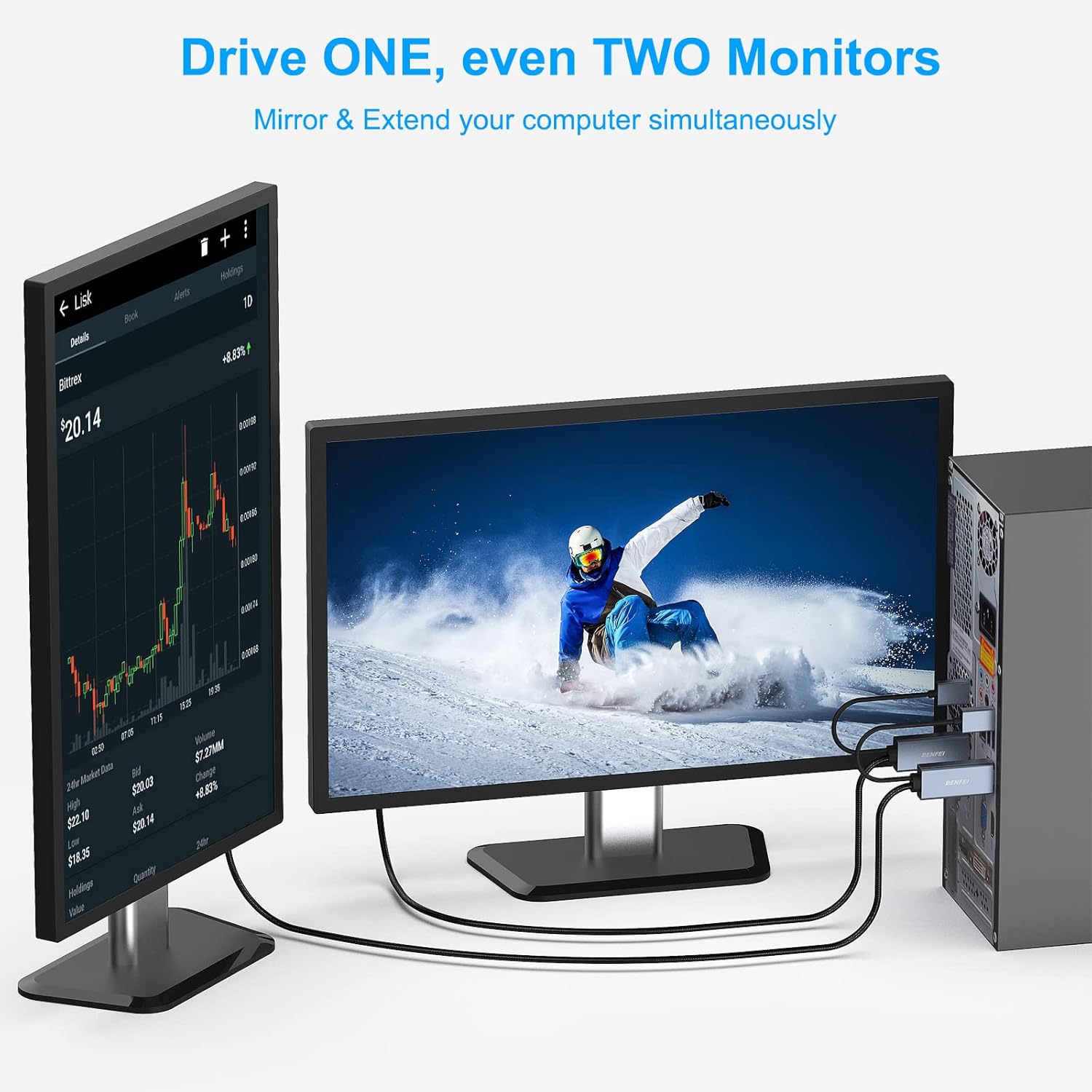
Image: A laptop connected to a large external monitor, both displaying the same image of a horse, demonstrating the cable's ability to mirror content at high resolutions like 4K@60Hz.

Image: A desktop computer connected to two monitors, one showing a stock chart and the other a scenic view, demonstrating the capability to drive multiple monitors in extended mode.
5. Maintenance and Care
- Cleaning: Use a soft, dry cloth to clean the cable and connectors. Avoid using liquid cleaners or solvents.
- Storage: When not in use, store the cable in a cool, dry place, away from direct sunlight and extreme temperatures. Avoid tight coiling or bending the cable sharply to prevent damage to the internal wires.
- Handling: Always grasp the connector housing when plugging or unplugging the cable. Avoid pulling directly on the cable itself.
- Inspection: Periodically inspect the cable for any signs of wear, fraying, or damage. Discontinue use if damage is observed.
6. Troubleshooting
| Problem | Possible Cause | Solution |
|---|---|---|
| No display on monitor. |
|
|
| Flickering or unstable display. |
|
|
| No audio. |
|
|
| Color quality appears washed out. |
|
|

Image: An Xbox Series S connected to a monitor, displaying a racing game. This image emphasizes the unidirectional signal flow from the HDMI source to the DisplayPort monitor, crucial for correct setup.
7. Specifications
| Feature | Detail |
|---|---|
| Model Number | 000344grey |
| Brand | BENFEI |
| Cable Length | 6 Feet (1.8 Meters) |
| Connector Type | HDMI Male (Source) to DisplayPort Male (Screen) with USB-A (Power) |
| HDMI Input Version | HDMI 2.0b |
| DisplayPort Output Version | DisplayPort 1.4 |
| Max Resolution (Video) | 3840x2160@60Hz (4K@60Hz) |
| Supported Resolutions | 2K@144Hz, 2K@120Hz, 1080P@165Hz, 1080P@144Hz, 1080P@120Hz |
| Audio Support | 8 channels digital, up to 192kHz sampling rate, 24 bits sample size, HBR audio |
| HDCP Support | HDCP 1.4/2.3 |
| HDR Support | HDR10 |
| Cable Material | Braided Nylon |
| Connector Housing | Premium Aluminum Alloy |
| Color | Black |
| Power Requirement | External USB Power (for chipset) |
| Compatible Devices | PC, PS 3/4/5, Chromebook, Mac mini, Xbox One, Xbox 360, Laptop, Ultrabook, Notebook, Raspberry Pi, Intel Nuc, Roku, Set Top Box, TV BOX, Apple MacBook Pro with Retina Display, Apple TV |
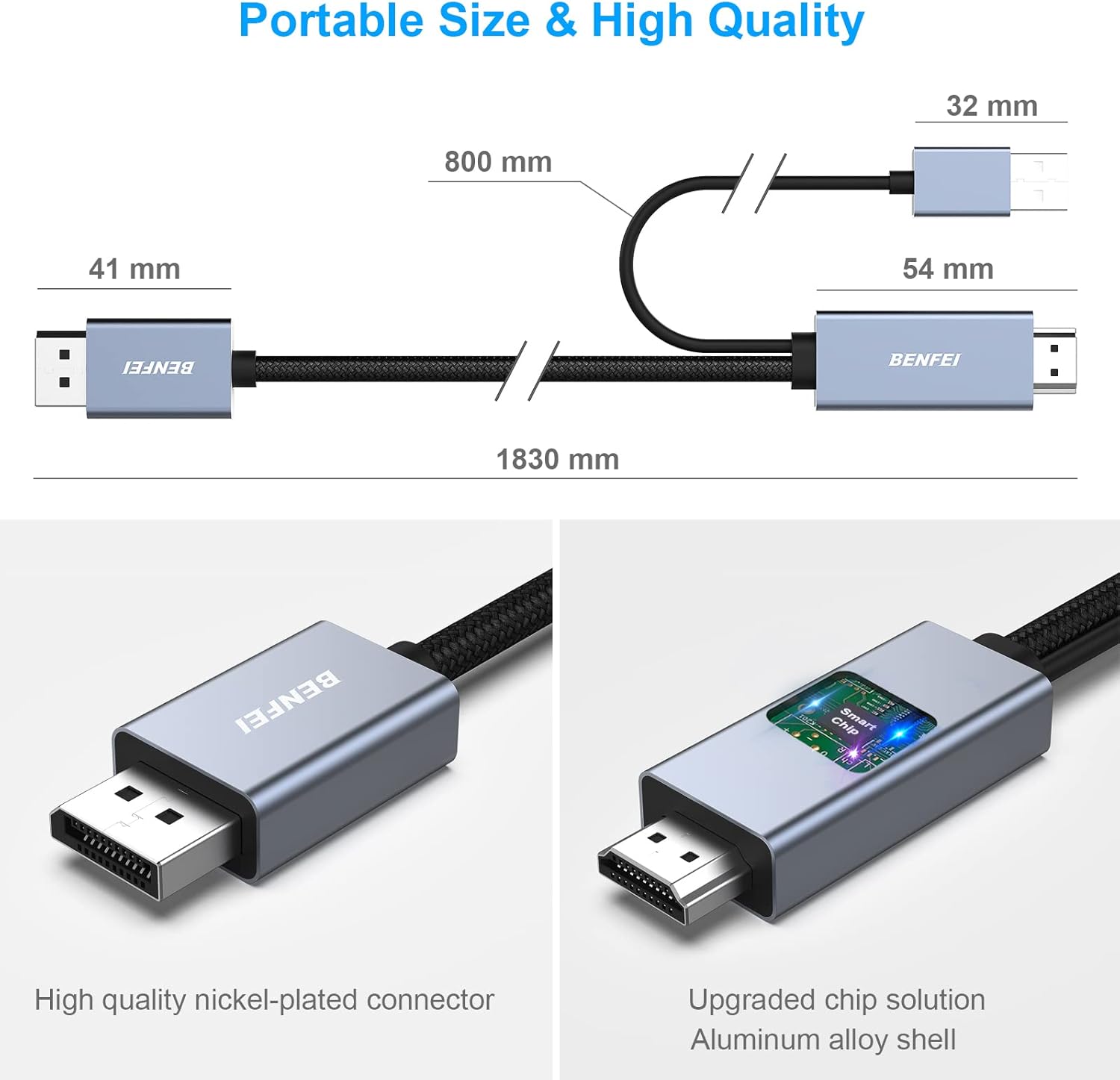
Image: Detailed view of the cable's construction, highlighting the high-quality nickel-plated connector, the upgraded chip solution within the aluminum alloy shell, and the overall dimensions for reference.

Image: A technical comparison table detailing the supported resolutions, refresh rates, HDMI/DisplayPort versions, HDCP, HDR, and HBR2 features of the BENFEI cable, emphasizing its advanced capabilities.
8. Warranty and Support
The BENFEI HDMI to DisplayPort Cable comes with an exclusive 18-month warranty. This warranty ensures long-term satisfaction with your purchase. For any issues, questions, or support needs, please contact BENFEI customer service. Our friendly and easy-to-reach customer service team is available to assist you timely.
For further assistance, please visit the official BENFEI store or contact their support channels.
9. Product Videos
Product Overview Video
Video: A brief product overview of the BENFEI HDMI to DisplayPort Cable, demonstrating its features and connections. This video is provided by Amazon Product Imaging (Seller).
Related documents000344grey

Ask a question about this manual
Ask about setup, troubleshooting, compatibility, parts, safety, or missing instructions. Manuals+ will review the question and use this page’s manual context to help answer it.