
Lehwey 2024 GPS Navigation Device
Lehwey 2024 GPS Navigation Device User Manual
Comprehensive guide for setup, operation, and maintenance of your Lehwey GPS.
1. Introduction
Thank you for choosing the Lehwey 2024 GPS Navigation Device. This manual provides detailed instructions to help you set up, operate, and maintain your device, ensuring a smooth and reliable navigation experience. This GPS is designed for various vehicle types, including cars, trucks, buses, and even for pedestrian use, offering intelligent route planning and lifetime map updates.
Key Features:
- Pre-installed 2024 maps for 52 European countries and the UK.
- Free lifetime map updates.
- Intelligent route planning with multiple intermediate targets.
- Reliable navigation with speed camera warnings, speed limits, and traffic light alerts.
- Lane assist for clear guidance on complex junctions.
- Multi-language support (29 languages) for voice guidance.
- 7 navigation modes: Truck, Car, Bus, Pedestrian, Taxi, Bicycle, Emergency.
- Professional truck navigation considering dimensions, weight, and load.
2. What's in the Box
Please check the package contents upon unboxing to ensure all components are present:
- Lehwey GPS Navigation Device
- Suction Cup Mount and Rear Clamp
- USB Cable
- Cigarette Lighter Charging Cable
- Instruction Manual (German and English)

Image: All components included in the Lehwey GPS package, showing the device, mounting accessories, and cables.
3. Setup Guide
3.1 Mounting the Device
The Lehwey GPS device comes with a suction cup mount for easy installation on your vehicle's windshield or dashboard.
- Clean the desired mounting surface (windshield or dashboard) to ensure it is free of dust and grease.
- Attach the rear clamp to the back of the GPS device.
- Press the suction cup firmly against the cleaned surface and flip the lever down to secure it.
- Adjust the angle of the device for optimal viewing without obstructing your driving view.
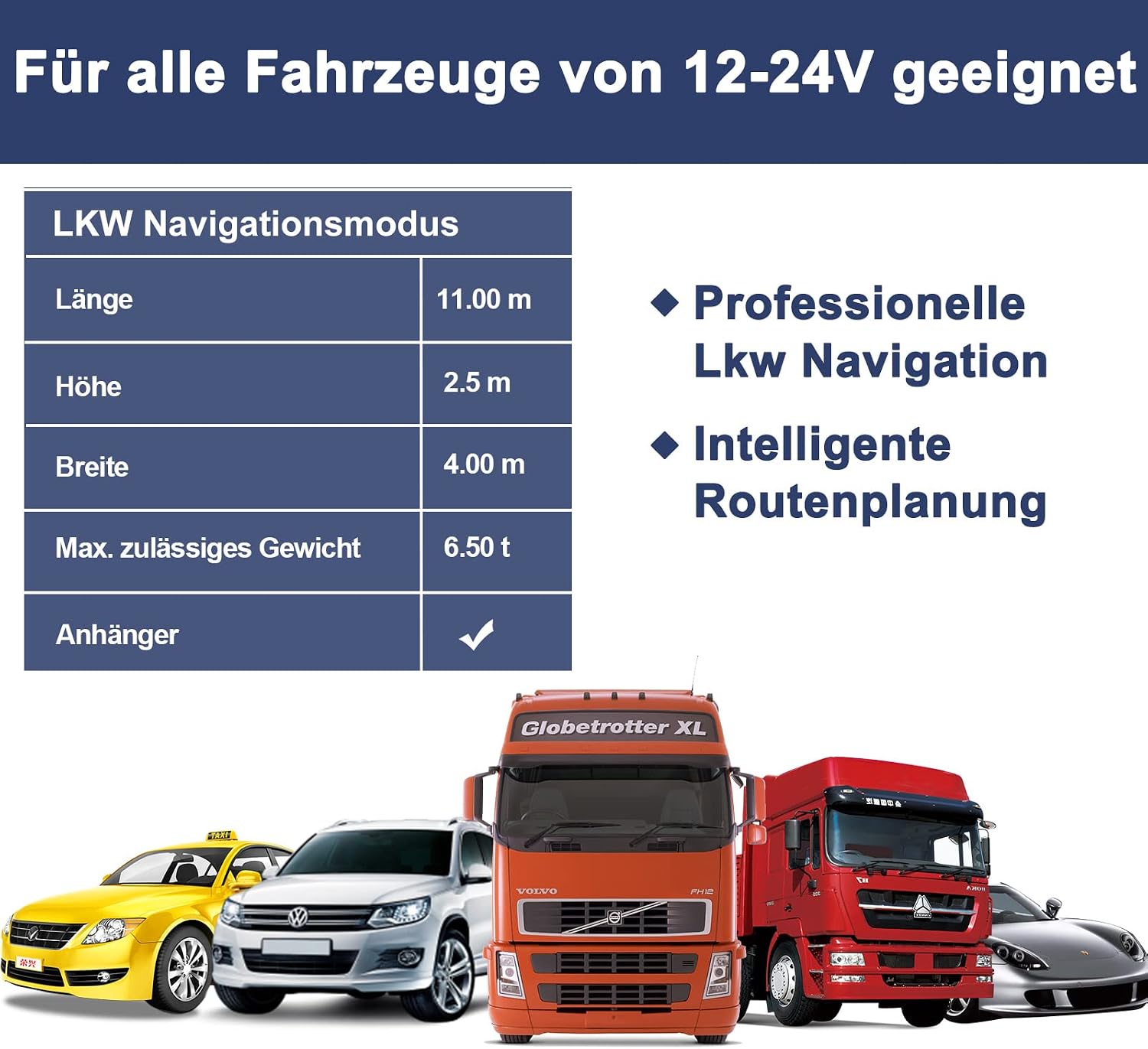
Image: The Lehwey GPS device securely mounted on both the windshield and dashboard of a vehicle, demonstrating flexible placement options.
3.2 Powering On
To power on your device, connect it to your vehicle's power supply:
- Insert the small end of the cigarette lighter charging cable into the power port on the GPS device.
- Plug the other end of the charging cable into your vehicle's 12-24V cigarette lighter socket.
- The device will automatically power on. If not, press and hold the power button until the screen illuminates.
3.3 Initial Configuration
Upon first use, you may need to configure basic settings:
- Language: Select your preferred language from the main menu. The device supports 29 languages for voice guidance.
- Time Zone: Set the correct time zone for accurate time display.
- Volume: Adjust the master volume for voice guidance and alerts.
- Vehicle Type: Select your primary vehicle type (Car, Truck, Bus, etc.) to optimize navigation routes. For trucks, enter specific dimensions and weight.
4. Operating Instructions
4.1 Navigation Modes
The Lehwey GPS supports 7 distinct navigation modes to cater to various travel needs:
- Car: Standard navigation for passenger vehicles.
- Truck: Professional mode that considers vehicle length, height, width, maximum permissible weight, and axles to avoid restricted roads.
- Bus: Optimized routes for bus travel.
- Pedestrian: Routes suitable for walking.
- Taxi: Specific routing for taxi services.
- Bicycle: Routes designed for cyclists.
- Emergency: Potentially faster routes for emergency services (use with caution and only when applicable).

Image: Visual representation of the different vehicle types supported by the Lehwey GPS navigation modes, including cars, trucks, and taxis.
4.2 Route Planning
To plan a route:
- From the main menu, select "Navigation" or "Find Destination".
- Enter your destination using one of the following methods:
- Address: Input street name, house number, city, and country.
- POI (Point of Interest): Search for nearby gas stations, restaurants, hotels, etc.
- Coordinates: Enter latitude and longitude.
- Favorites: Select from previously saved locations.
- You can add multiple intermediate targets (waypoints) to your route.
- Confirm your destination, and the device will calculate the optimal route.
- The screen will display current speed, remaining distance, and estimated arrival time.

Image: The Lehwey GPS screen showing an active navigation route on a multi-lane highway, with real-time speed, distance, and estimated arrival time displayed.
4.3 Voice Guidance and Warnings
The device provides clear voice prompts and visual warnings to enhance your driving safety:
- Voice Prompts: Clear male and female voices guide you through turns and maneuvers in your selected language.
- Speed Warnings: Alerts you when exceeding the speed limit.
- Speed Camera Warnings: Notifies you of upcoming speed cameras.
- Traffic Light Warnings: Provides alerts for traffic lights.
- Lane Assist: Clearly indicates which lane to be in for upcoming turns or exits, preventing missed turns and risky lane changes.

Image: A driver interacting with the Lehwey GPS, which shows voice prompts for turns and warnings, alongside visual examples of speed limit, height, weight, and traffic light signs.
4.4 Map Updates
Your Lehwey GPS comes with free lifetime map updates, ensuring you always have the most current road information.
- Visit the official Lehwey support website (refer to the included manual for the exact URL).
- Download the latest map update software.
- Connect your GPS device to your computer using the provided USB cable.
- Follow the on-screen instructions of the update software to install the new maps onto your device.

Image: A laptop displaying a navigation support website, with the Lehwey GPS device connected via USB, illustrating the process of downloading and installing map updates.
4.5 FM Transmitter Function
The device features an FM transmitter to output audio through your car's stereo system.
- On the GPS device, navigate to the FM Transmitter settings.
- Enable the FM function and select an unused FM frequency.
- Tune your car's FM radio to the same frequency.
- Navigation voice prompts and other audio from the GPS will now play through your car's speakers.
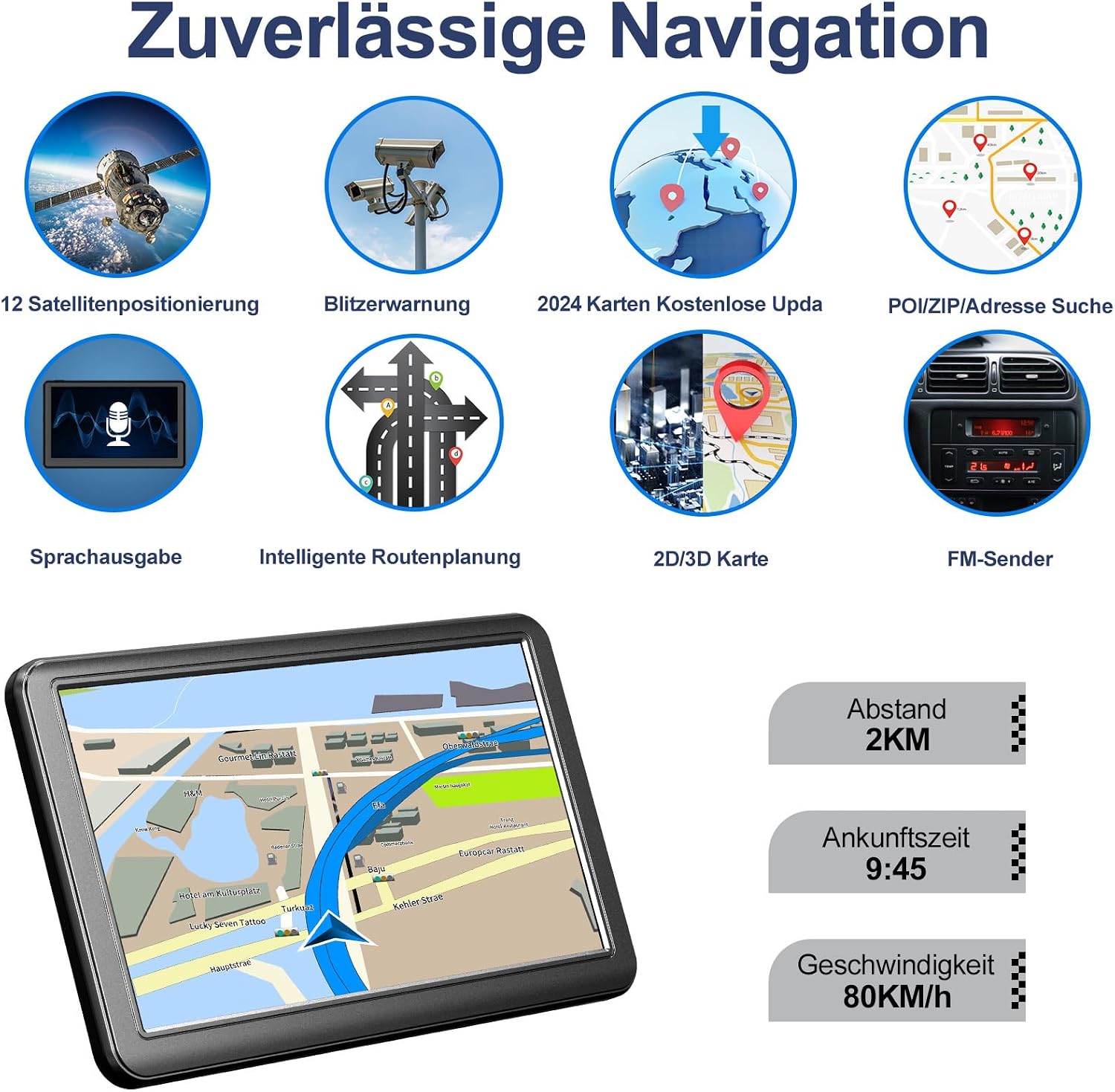
Image: The Lehwey GPS displaying its FM connection interface, showing how to set the frequency to transmit audio to the car's radio for louder sound.
5. Maintenance and Care
Proper care will extend the life of your Lehwey GPS device:
- Cleaning: Use a soft, lint-free cloth to clean the screen and exterior. Do not use abrasive cleaners or solvents.
- Temperature: Avoid exposing the device to extreme temperatures (hot or cold) for prolonged periods.
- Storage: When not in use, store the device in a cool, dry place, away from direct sunlight.
- Battery: For optimal battery life, avoid fully discharging the device frequently. Charge it regularly.
- Water Exposure: The device is not waterproof. Avoid contact with water or excessive moisture.
6. Troubleshooting Common Issues
If you encounter problems with your Lehwey GPS, refer to the table below for common issues and their solutions:
| Problem | Possible Solution |
|---|---|
| Device does not power on. | Ensure the charging cable is securely connected to both the device and the vehicle's cigarette lighter socket. Check if the vehicle's power outlet is working. The device requires 12-24V. |
| No GPS signal. | Ensure the device has a clear view of the sky (e.g., not under a bridge or in a tunnel). Move to an open area. Allow a few minutes for the device to acquire satellites. |
| Voice guidance is too low or unclear. | Adjust the volume settings on the device. If using the FM transmitter, ensure the car radio volume is up and tuned to the correct frequency. Check for any obstructions to the device's speaker. |
| Screen is too dim. | Adjust the brightness settings in the device's display menu. Avoid direct sunlight on the screen, which can make it appear dimmer. |
| Incorrect route calculation. | Verify that the correct destination address is entered. Ensure the selected vehicle type (Car, Truck, etc.) is appropriate for your journey. Check if map updates are needed. |
7. Technical Specifications
| Feature | Specification |
|---|---|
| Brand | Lehwey |
| Screen Size | 7 inches LCD |
| Operating System | Wince 6.0 |
| Connectivity Technology | USB |
| Map Type | Europe (52 countries + UK) |
| Special Features | Lane Assist, Touch Screen |
| Audio Output Mode | Stereo |
| Vehicle Service Type | Bus, Bicycle, Truck, Car |
| Dimensions (Package) | 21.3 x 13.6 x 9.4 cm; 500 grams |
8. Warranty and Support
8.1 Warranty Information
Lehwey products are manufactured to high-quality standards. This device is covered by a standard manufacturer's warranty against defects in materials and workmanship. Please refer to the warranty card included in your package for specific terms and conditions, including the warranty period and claim procedures.
8.2 Customer Support
For technical assistance, troubleshooting, or warranty claims, please contact Lehwey customer support. Contact details can typically be found on the official Lehwey website or in the documentation provided with your product. When contacting support, please have your product model and purchase information ready.
Ask a question about this manual
Ask about setup, troubleshooting, compatibility, parts, safety, or missing instructions. Manuals+ will review the question and use this page’s manual context to help answer it.