Introduction
This manual provides essential information for the safe and efficient operation of your Digihome 4K Ultra HD 50Hz Smart TV, model 43HU23UHDS. Please read this manual thoroughly before using your television and retain it for future reference. It covers setup, operation, maintenance, and troubleshooting to ensure you get the best experience from your new TV.
Important Safety Information
- Power Source: Ensure the TV is connected to a power supply within the specified voltage range.
- Ventilation: Do not block ventilation openings. Allow adequate space around the TV for proper airflow.
- Water and Moisture: Do not expose the TV to rain or moisture. Avoid placing objects filled with liquids on the TV.
- Cleaning: Unplug the TV before cleaning. Use a soft, dry cloth. Do not use liquid cleaners or aerosol cleaners.
- Placement: Place the TV on a stable, level surface. Avoid direct sunlight, heat sources, and excessive dust.
- Servicing: Do not attempt to service the TV yourself. Refer all servicing to qualified service personnel.
Package Contents
Please check that all items are present and in good condition:
- Digihome 4K Ultra HD 50Hz Smart TV (Model: 43HU23UHDS)
- Remote Control
- Power Cable
- Stand/Tripod (2 pieces)
- Screws for Stand Assembly
- User Manual (this document)
- Batteries for Remote Control (may be included)
Setup Guide
1. Unpacking and Placement
Carefully remove the TV from its packaging. It is recommended to have two people for this process. Place the TV on a soft, flat surface (like a blanket) to prevent screen damage during stand installation.
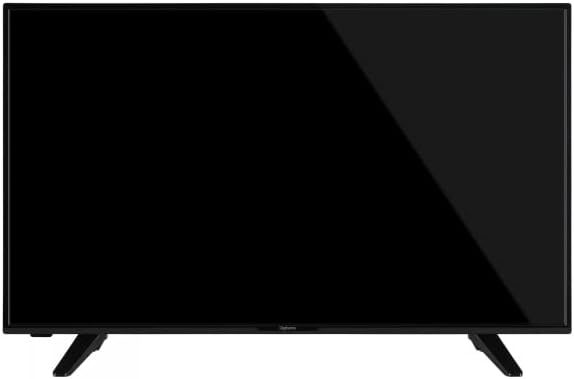
Image: Front view of the Digihome 4K Ultra HD 50Hz Smart TV, showing the screen and the two stand feet.
2. Attaching the Stand
- Identify the left and right stand pieces.
- Align each stand piece with the corresponding slots on the bottom of the TV.
- Secure the stands using the provided screws. Ensure they are tightened firmly but do not overtighten.
Once the stand is securely attached, carefully lift the TV and place it on a stable, level surface suitable for its size and weight. The TV is designed for table mounting.

Image: Side view of the Digihome Smart TV, illustrating the slim profile and the attached stand.
3. Connecting Peripherals
The TV features various ports for connecting external devices. Refer to the back panel image for port locations.
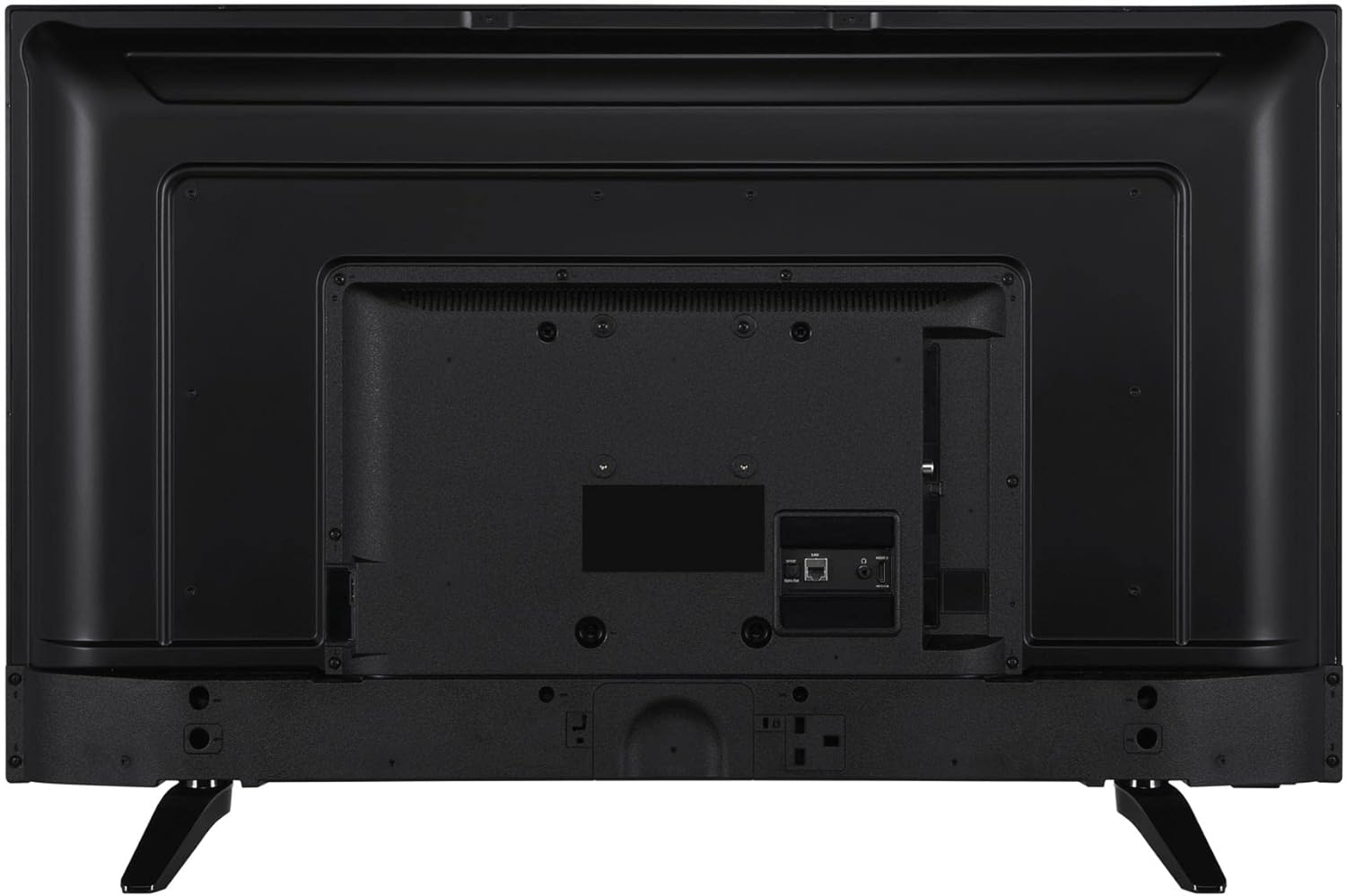
Image: Rear view of the Digihome Smart TV, highlighting the various input and output ports including HDMI, USB, and Ethernet.
- HDMI: Connect Blu-ray players, game consoles, or set-top boxes using HDMI cables. The TV supports multiple HDMI inputs.
- Antenna/Cable: Connect your antenna or cable TV feed to the RF input.
- USB: For media playback from USB storage devices.
- Ethernet (LAN): For a wired internet connection. Alternatively, use Wi-Fi.
- Power: Connect the power cable to the TV and then to a wall outlet.
4. First-Time Setup Wizard
Upon first power-on, the TV will guide you through an initial setup process:
- Language Selection: Choose your preferred language.
- Network Connection: Select your Wi-Fi network and enter the password, or connect via Ethernet.
- Channel Scan: The TV will scan for available digital and analog channels.
- Time Zone & Date: Set the correct time zone and date.
- Terms & Conditions: Review and accept the terms and conditions for Smart TV features.
Operating Your TV
Remote Control Functions
The included remote control allows you to navigate menus, change channels, adjust volume, and access Smart TV features. Insert the provided batteries into the remote control, observing polarity.
- Power Button: Turns the TV on or off.
- Source/Input: Selects the input source (HDMI 1, HDMI 2, TV, etc.).
- Navigation Buttons (Up/Down/Left/Right/OK): Used to navigate menus and confirm selections.
- Volume Up/Down: Adjusts the sound level.
- Channel Up/Down: Changes TV channels.
- Smart TV Buttons: Dedicated buttons for popular apps like Netflix, YouTube, and Amazon Instant Video (if available on your remote).
- Menu/Settings: Accesses the TV's main settings menu.
Smart TV Features
Your Digihome Smart TV provides access to a variety of online content and applications. Ensure your TV is connected to the internet (Wi-Fi or Ethernet) to utilize these features.
- Accessing Apps: Use the remote control to navigate to the Smart TV home screen or press dedicated app buttons.
- Supported Services: The TV supports services such as Amazon Instant Video, Netflix, and YouTube.
- App Store: Explore and download additional applications from the integrated app store (if available).
Picture and Sound Settings
Customize your viewing and listening experience through the TV's settings menu.
- Picture Modes: Select from predefined picture modes (e.g., Standard, Dynamic, Movie, User) or adjust settings like brightness, contrast, color, and sharpness manually.
- HDR10: The TV supports HDR10 for enhanced contrast and color with compatible content. Ensure your source device is also HDR10 compatible.
- Sound Modes: Choose from various sound modes (e.g., Standard, Music, Movie, Speech) or adjust bass and treble.
- Dolby Atmos: Your TV features Dolby Atmos for an immersive audio experience. Ensure your audio system or soundbar is also Dolby Atmos compatible to fully utilize this feature.
Maintenance
Cleaning the TV
- Always unplug the TV from the power outlet before cleaning.
- Screen: Gently wipe the screen with a soft, lint-free cloth. For stubborn marks, lightly dampen the cloth with water or a specialized screen cleaner (do not spray directly onto the screen).
- Cabinet: Use a soft, dry cloth to wipe the TV cabinet. Do not use abrasive cleaners, waxes, or solvents.
General Care
- Avoid placing heavy objects on top of the TV.
- Do not expose the TV to extreme temperatures or humidity.
- If the TV will not be used for an extended period, unplug it from the power outlet.
Troubleshooting
| Problem | Possible Cause | Solution |
|---|---|---|
| No power | Power cable not connected; power outlet not working. | Ensure power cable is securely connected. Test the outlet with another device. |
| No picture, but sound is present | Incorrect input source selected; backlight issue. | Press the "Source" button on the remote to select the correct input. |
| No sound, but picture is present | Volume muted or too low; incorrect audio output settings. | Increase volume. Check audio settings in the menu. |
| "No Signal" message | Incorrect input source; device not connected or powered on. | Select the correct input. Ensure external devices are connected and powered on. |
| Smart TV features not working | No internet connection; network issues. | Check Wi-Fi or Ethernet connection. Restart your router. |
| Remote control not working | Batteries depleted or incorrectly inserted; obstruction. | Replace batteries. Ensure no obstruction between remote and TV. |
If the problem persists after trying these solutions, please contact customer support.
Specifications
| Brand | Digihome |
| Model Number | 43HU23UHDS |
| Display Technology | LED |
| Screen Size | 43 Inches |
| Display Resolution | 3840 x 2160 Pixel (4K Ultra HD) |
| Refresh Rate | 50 Hz |
| Aspect Ratio | 16:9 |
| Special Features | Flat, HDR10 |
| Audio Output Mode | Dolby Atmos |
| Connectivity Technology | Wi-Fi, HDMI |
| Hardware Interface | HDMI |
| Supported Internet Services | Amazon Instant Video, Netflix, YouTube |
| Mounting Type | Table Mount |
| Product Dimensions (L x W x H) | 2 x 170 x 100 cm |
| Item Weight | 10.89 kg |
| Energy Efficiency Rating | A |
Warranty and Support
For information regarding your product's warranty, please refer to the warranty card included in your product packaging or visit the official Digihome website. For technical support, troubleshooting assistance beyond this manual, or service inquiries, please contact Digihome customer support through their official channels.


