
1. Introduction
This user manual provides comprehensive instructions for the installation, operation, and maintenance of the keepLiNK 8-Port Industrial Gigabit PoE Switch. This robust, managed switch is designed for demanding industrial environments, offering reliable Power over Ethernet (PoE+) capabilities and advanced network management features. Please read this manual thoroughly before installation and operation to ensure proper use and optimal performance.
The keepLiNK Industrial Switch is an IP40-rated, hardened DIN-rail PoE+ switch featuring a rugged housing built to withstand extreme industrial conditions. It includes 8 Gigabit PoE+ ports, 2 dedicated SFP slots, and a 20 Gbps switching capacity. The device supports dual redundant 48-58V DC power inputs for enhanced reliability.
2. Safety Information
Always observe the following safety precautions to prevent injury and damage to the device:
- Ensure the power supply voltage is within the specified range (48-58V DC).
- Do not open the device casing. There are no user-serviceable parts inside.
- Protect the device from moisture, dust, and extreme temperatures outside its operating range.
- Ensure proper grounding of the device to prevent electrical hazards.
- Disconnect power before cleaning or performing any maintenance.
- Avoid placing heavy objects on the switch.
3. Product Overview
3.1 Physical Appearance
The keepLiNK Industrial Gigabit PoE Switch features a compact, robust design suitable for DIN rail mounting.

Figure 3.1: Front and side view of the keepLiNK Industrial Gigabit PoE Switch.
3.2 Port Layout and Indicators
The switch is equipped with 8 Gigabit PoE+ RJ45 ports and 2 Gigabit SFP slots, along with power input terminals and grounding point.

Figure 3.2: Port layout and connections. Includes 8 Gigabit PoE+ ports, 2 Gigabit SFP slots, 48-58V DC power input, and enclosure grounding point.
- PoE+ Ports (1-8): 10/100/1000 Mbps RJ45 ports supporting IEEE 802.3at/af, providing up to 30W per port and a total PoE power budget of 120W.
- SFP Slots (9-10): 2 dedicated Gigabit SFP slots for fiber optic connections.
- DC Power Input: Dual redundant 48-58V DC power inputs for enhanced reliability.
- Console Port: For management and configuration access.
- LED Indicators: Power, Link/Act, and PoE status indicators for each port.
3.3 Key Features
- Full Gigabit Connectivity: 8 PoE+ (802.3at/af) 10/100/1000 Mbps RJ45 ports and 2 SFP slots.
- Managed Features (L2/L2+/L3 Lite): Prioritize traffic with QoS, IGMP Snooping, Link Aggregation, and Flow Control for high-quality video and voice data transmission.
- Industrial Grade Design: Rugged aluminum housing and industrial-grade components for high vibration, shock, ESD/EMI/surge protection.
- Wide Operating Temperature Range: Functions reliably in extreme temperatures from -30°C to 75°C (-22°F to 167°F).
- Redundant Power: Dual 48-58V DC power inputs with automatic fault switching and anti-reverse connection protection.
- Safety Certifications: FCC, RoHS, and CE certified, with overload and reverse connection protection.

Figure 3.3: Comprehensive and powerful functions available through the management interface.
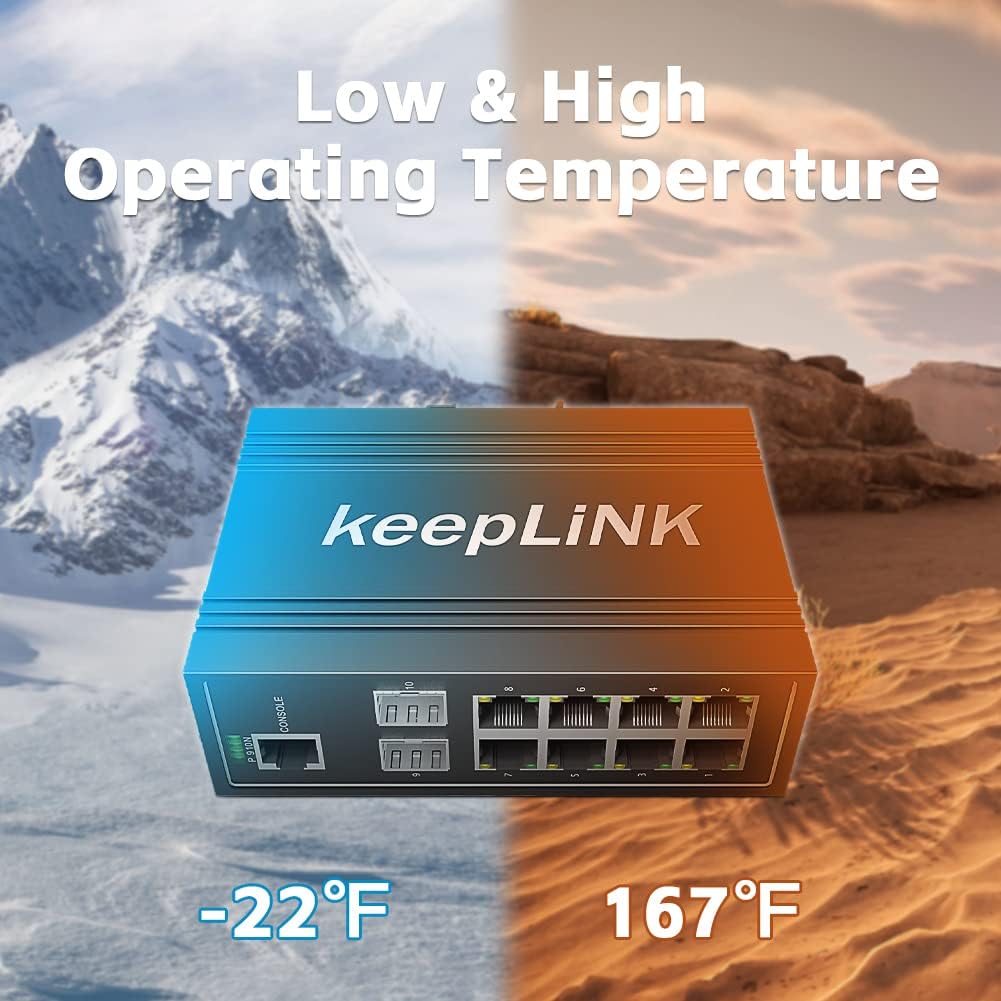
Figure 3.4: The switch is designed for low and high operating temperatures, from -22°F to 167°F.

Figure 3.5: Power over Ethernet capabilities, supporting various PoE-powered devices.
4. Setup
4.1 DIN Rail Mounting
The keepLiNK Industrial Gigabit PoE Switch is designed for easy installation on a standard DIN rail.
- Attach the DIN rail clip to the back of the switch if not already pre-installed.
- Hook the top edge of the switch onto the DIN rail.
- Push the bottom of the switch firmly towards the DIN rail until it clicks into place.
- Ensure the switch is securely fastened to the DIN rail.
4.2 Power Connection
The switch requires a 48-58V DC power supply (sold separately). It supports dual redundant power inputs for increased reliability.
- Identify the power input terminal block on the switch.
- Connect the positive (+) and negative (-) wires from your DC power supply to the corresponding terminals on the block.
- For redundant power, connect a second DC power supply to the alternative input terminals.
- Ensure all connections are secure.
- Connect the power supply to an appropriate power source.
4.3 Grounding
Proper grounding is essential for safety and to protect the device from electrical interference.
- Locate the grounding screw or terminal on the switch.
- Connect a grounding wire from this terminal to a reliable earth ground.
- Ensure the connection is tight and secure.
4.4 Network Connections
Connect your network devices and fiber optic modules to the switch.
- RJ45 Ports: Connect Ethernet cables from your PoE-powered devices (e.g., IP cameras, VoIP phones, wireless access points) or other network devices to the RJ45 ports (1-8).
- SFP Slots: Insert compatible Gigabit SFP modules into the SFP slots (9-10) and connect fiber optic cables for long-distance or high-bandwidth uplinks.
5. Operating Instructions
5.1 Powering On
Once all connections are made, apply power to the switch. The Power LED will illuminate, indicating the device is operational.
5.2 LED Indicators
Monitor the LED indicators for status information:
- Power LED: On when the device is powered.
- Link/Act LEDs (per port): Solid green when a valid link is established; blinking green indicates data activity.
- PoE LEDs (per PoE port): Solid amber when PoE power is being supplied to a connected device.
5.3 Managed Features Configuration
As a managed switch, this device offers advanced configuration options via a web-based interface or console port. Refer to the separate Software Configuration Guide for detailed instructions on:
- VLAN configuration for network segmentation.
- Quality of Service (QoS) settings for traffic prioritization.
- PoE management, including per-port power control.
- IGMP Snooping for optimizing multicast traffic.
- Link Aggregation (LACP) for increased bandwidth and redundancy.
- Security features like ACLs.
- Spanning Tree Protocol (STP) for loop prevention.
6. Maintenance
The keepLiNK Industrial Gigabit PoE Switch is designed for minimal maintenance.
- Cleaning: Periodically clean the exterior of the switch with a soft, dry cloth. Do not use liquid or aerosol cleaners. Ensure power is disconnected before cleaning.
- Environmental Monitoring: While designed for harsh environments, ensure the operating temperature and humidity remain within the specified ranges to prolong the device's lifespan.
- Firmware Updates: Check the manufacturer's website periodically for firmware updates to ensure optimal performance and security.
7. Troubleshooting
If you encounter issues with your keepLiNK Industrial Gigabit PoE Switch, refer to the following common troubleshooting steps:
| Problem | Possible Cause | Solution |
|---|---|---|
| No Power LED | No power supply connected or faulty power supply/cable. | Check power cable connections. Verify power supply output voltage (48-58V DC). Try a different power supply if available. |
| No Link/Act LED on port | Incorrect cable, faulty cable, or connected device is off/faulty. | Ensure the Ethernet cable is correctly connected at both ends. Try a different cable. Verify the connected device is powered on and functioning. |
| PoE device not powering on | PoE budget exceeded, non-PoE device, or faulty PoE device/cable. | Check the PoE LED for the port. Ensure the connected device is PoE-compatible (802.3af/at). Verify total PoE power budget (120W) is not exceeded. Try a different cable. |
| Network performance issues | Network congestion, incorrect configuration, or cable issues. | Check for excessive network traffic. Review switch configuration (VLANs, QoS). Inspect cables for damage. |
If the problem persists after attempting these steps, please contact keepLiNK technical support.
8. Specifications
| Feature | Description |
|---|---|
| Model | Managed 8 Port Gigabit PoE Switch |
| Interface Type | RJ45, SFP |
| Data Transfer Rate | 1000 Megabits Per Second (Gigabit) |
| Number of Ports | 10 (8 PoE+ RJ45, 2 SFP) |
| PoE Standard | IEEE 802.3at/af |
| Total PoE Power Budget | 120W (up to 30W per port) |
| Switching Capacity | 20 Gbps |
| Power Input | Dual redundant 48-58V DC (Power supply sold separately) |
| Operating Temperature | -30°C to 75°C (-22°F to 167°F) |
| IP Rating | IP40 |
| Case Material | Aluminum |
| Dimensions (Parcel) | 19 x 16.4 x 6.5 cm |
| Item Weight | 0.72 Kilograms |
| Certifications | FCC, RoHS, CE |
9. Warranty and Support
The keepLiNK 8-Port Industrial Gigabit PoE Switch comes with Lifetime Protection, ensuring long-term reliability and peace of mind.
For technical support, warranty claims, or further assistance, please contact keepLiNK customer service through the official website or your point of purchase.
Manufacturer: keepLiNK
Website: Visit keepLiNK on Amazon


