
Introduction
This manual provides comprehensive instructions for setting up, operating, and maintaining your Pastigio Frameo WiFi Digital Picture Frame. Designed for ease of use, this 10.1-inch IPS touch screen frame allows you to instantly share photos and videos with loved ones from anywhere using the Frameo app. It features 32GB of built-in memory, auto-rotate functionality, and supports non-Wi-Fi transmission for versatile media management.
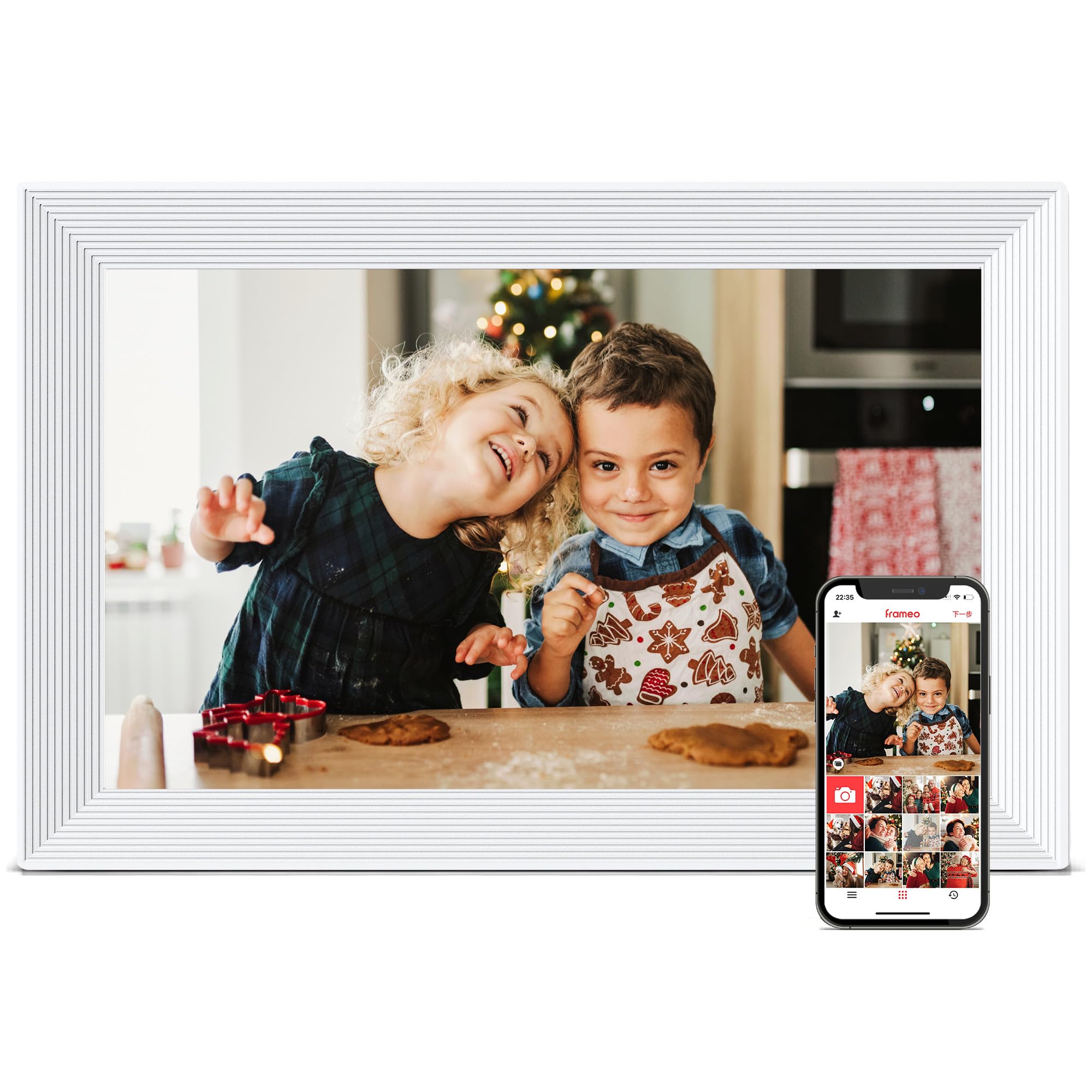
Image: The Pastigio Frameo WiFi Digital Picture Frame, 10.1 Inch, in white finish.
What's in the Box
Upon unboxing your Pastigio Frameo Digital Picture Frame, you should find the following items:
- Pastigio Frameo WiFi Digital Picture Frame (10.1 Inch)
- Power Adapter
- Magnetic Support Stand
- User Manual
- Troubleshooting Guide
Video: Unboxing the Pastigio 10.1 inch Digital Frame, showing included accessories and documentation.
Product Features
- 10.1-inch HD IPS Touch Screen: Provides vivid colors and exquisite details with a 1280x800 resolution.
- Frameo App Integration: Seamlessly share photos and videos (max. 15s) from anywhere via Wi-Fi.
- 32GB Built-in Memory: Stores over 50,000 photos, expandable with external storage (TF Card/USB Drive, FAT32 format only).
- Auto-Rotate Function: Automatically adjusts picture orientation for landscape or portrait display.
- 'React' Feature: Send emojis to loved ones in real-time to express your feelings about shared photos.
- Non-Wi-Fi Transmission: Supports direct photo upload via TF Card, USB Drive, or computer (USB-C cable needed).
- Sleep Mode: Customizable setting to automatically turn the frame off and on for energy saving.
- Multiple Image/Video Formats: Supports JPG/JPEG/BMP/PNG for images and MP4 for videos.
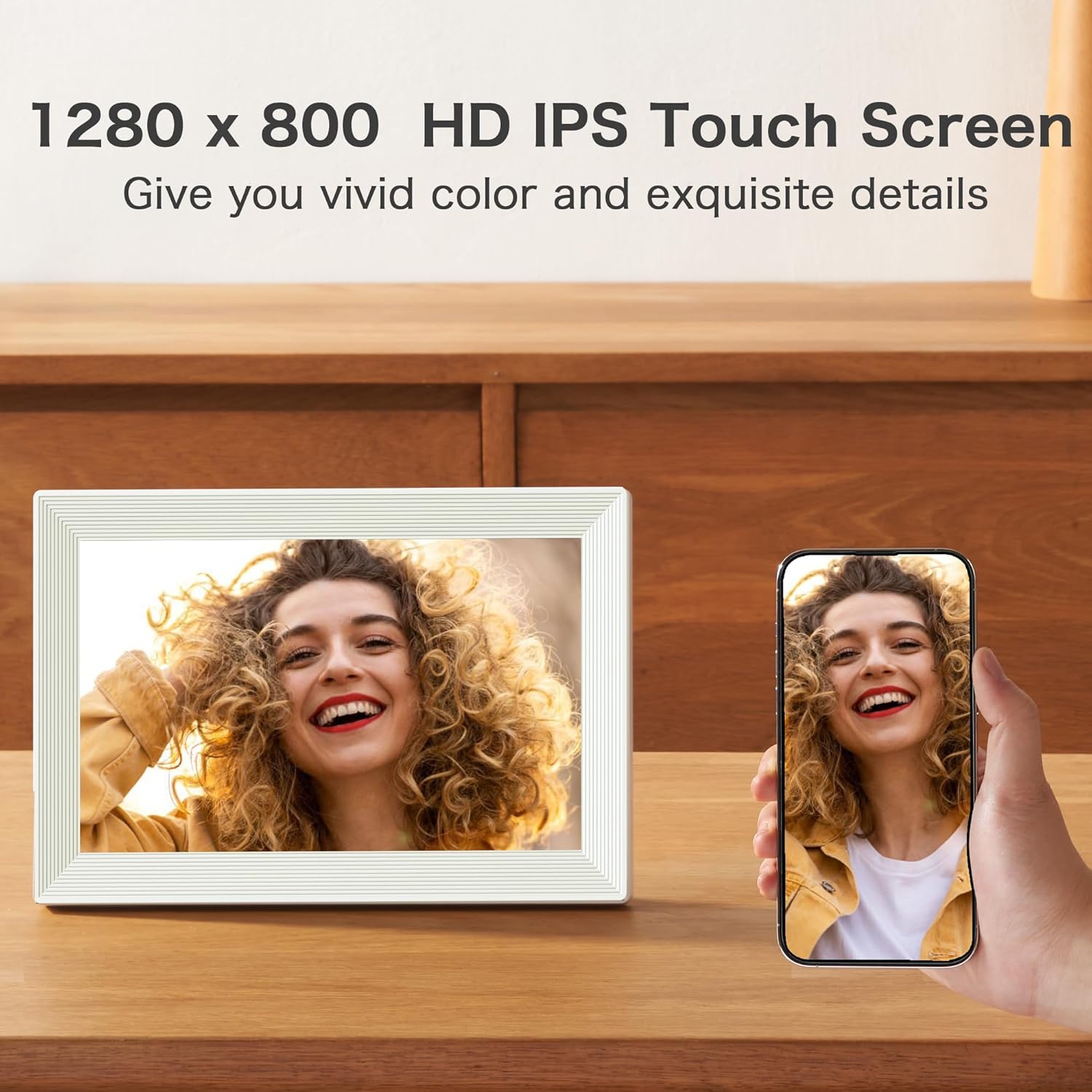
Image: The digital picture frame displaying a vibrant image, highlighting its HD IPS touch screen.
Setup Guide
- Unpack the Frame: Carefully remove the frame and all accessories from the packaging.
- Attach the Stand: Insert the magnetic support stand into the designated slot on the back of the frame. Adjust it for either landscape or portrait orientation.
- Power On: Connect the power adapter to the frame and plug it into an electrical outlet. The frame will automatically power on.
- Initial Setup: Follow the on-screen prompts to select your language, time zone, and connect to a Wi-Fi network.
- Download Frameo App: Download the official Frameo app on your smartphone or tablet from your device's app store.
- Connect App to Frame: On the frame, tap 'Add Friend' to generate a unique code. Enter this code into the Frameo app on your mobile device to link them.
Video: A user demonstrating the setup process and initial configuration of the digital frame.
Operating Instructions
Navigating the Touch Screen
The frame features an intuitive touch screen interface. Swipe left or right to browse through photos and videos. Tap the screen to reveal options such as reacting to photos, hiding photos, accessing the gallery, fitting to frame, or adjusting photos.
Sharing Photos and Videos
Once your frame is connected to the Frameo app, you can easily share media:
- Via Frameo App: Open the app on your mobile device, select the photos or videos you wish to share, choose your frame as the recipient, and send. You can also add captions.
- Non-Wi-Fi Transmission: Insert a TF Card or USB Drive (FAT32 format) into the frame's port to directly upload or view media. You can also connect the frame to a computer via a USB-C cable for file transfer.

Image: The digital frame displaying a photo of a dog, illustrating the vibrant display.
Auto-Rotate Function
The frame automatically detects its orientation (landscape or portrait) and adjusts the displayed media accordingly. Simply rotate the frame to change the display mode.
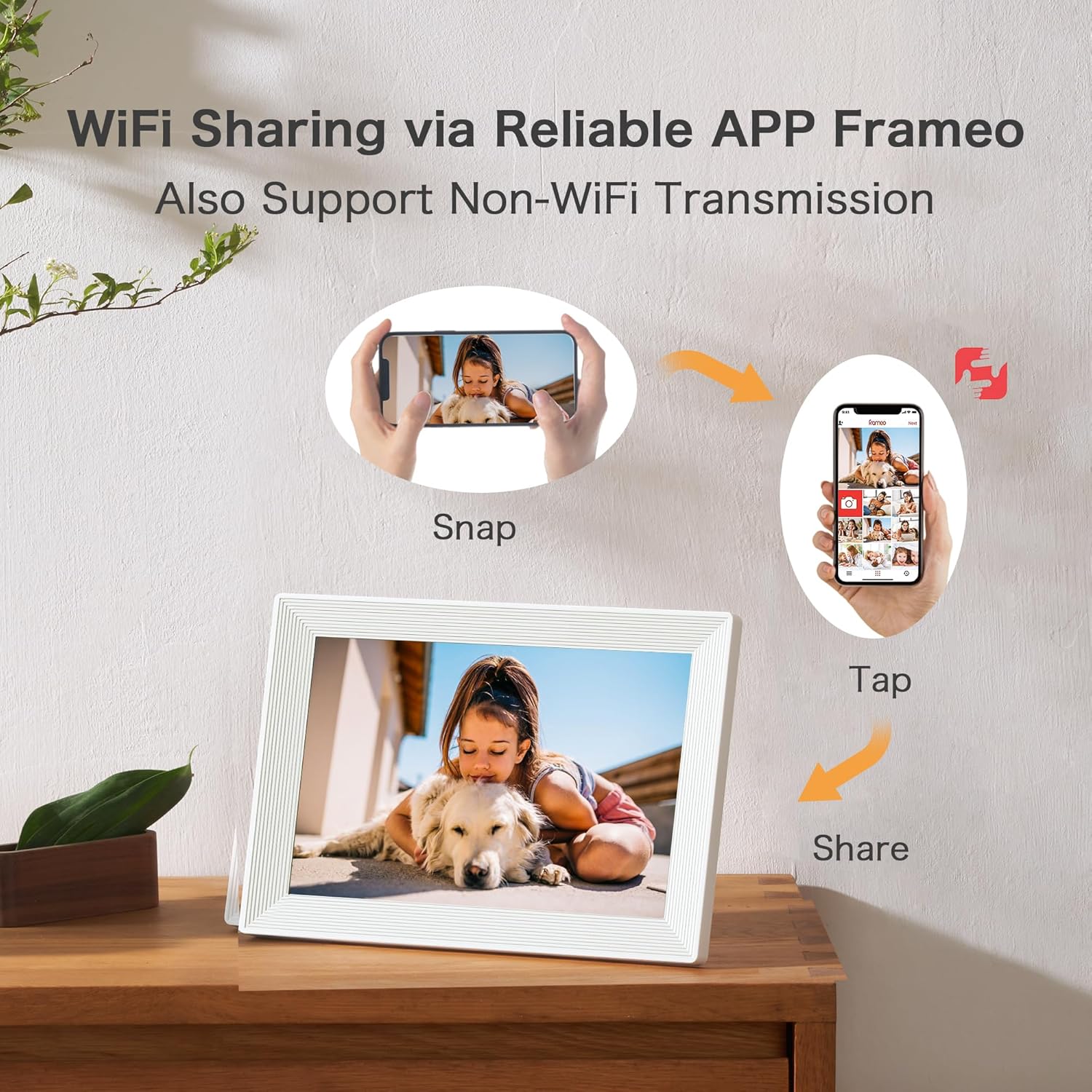
Image: Two digital frames, one in landscape and one in portrait mode, demonstrating the auto-rotate feature.
Settings and Customization
Access the settings menu by tapping the gear icon on the screen. Here you can customize various aspects of your frame:
- My Frame: Rename your frame, set frame location, change language, adjust date and time, and set temperature unit.
- Manage Photos: View storage usage, show/hide photos, delete photos, import/export photos, and transfer from computer.
- Display: Adjust brightness level and set sleep mode (e.g., automatically turn off at 11 PM and wake up at 7 AM).
- Slideshow: Set photo display timer, choose fill frame or frame background, select photo display order (by date received, date taken, or shuffle), and enable/disable slideshow widgets (caption, clock, weather). You can also configure video autoplay and volume.
- Wi-Fi: Connect to available Wi-Fi networks.
- Notifications: Adjust notification volume and choose which notifications to receive (new photos, new friends, software updates, etc.).
- Backup and Restore: Set up cloud backup or external storage backup, and restore from backup.
Video: A demonstration of the digital picture frame's settings menu, showing various customization options.
Maintenance
To ensure the longevity and optimal performance of your Pastigio Frameo Digital Picture Frame, follow these maintenance guidelines:
- Cleaning: Use a soft, dry, lint-free cloth to clean the screen and frame. Avoid abrasive cleaners or solvents.
- Placement: Place the frame on a stable surface away from direct sunlight, heat sources, and excessive moisture.
- Power Off: Always use the power off button on the device to turn the frame off before disconnecting power to prevent data corruption.
- Software Updates: Regularly check for and install software updates via the settings menu to ensure optimal performance and new features.
Troubleshooting
If you encounter any issues with your Pastigio Frameo Digital Picture Frame, please refer to the included Troubleshooting Guide in your package. Common issues and their solutions are detailed there. For further assistance, contact Pastigio customer support.
Specifications
| Feature | Detail |
|---|---|
| Screen Size | 10.1 Inches |
| Resolution | 1280x800 IPS (WXGA) |
| Internal Memory | 32GB |
| External Storage | Supports TF Card / USB Drive (FAT32 format only) |
| Connectivity | WiFi |
| Supported Image Formats | JPG/JPEG/BMP/PNG |
| Supported Video Formats | MP4 |
| Product Dimensions | 20.32 x 25.4 x 0.99 inches |
| Item Weight | 1.79 pounds |
Warranty and Support
Pastigio is committed to providing high-quality products and excellent customer service. We offer technical support that you can access anytime and quality assurance for our products. We are responsible for any manufacturing defects.
Should you encounter any issues or require assistance, please refer to the contact information provided in your User Manual or Troubleshooting Guide. Our support team is available to assist you promptly.

Image: The Pastigio brand logo, representing trusted support and quality.


