
TONOR TC777 Pro
TONOR TC777 Pro Gaming USB Microphone User Manual
Model: TC777 Pro
1. Introduction
The TONOR TC777 Pro is a high-quality USB condenser microphone designed for gaming, streaming, podcasting, and recording. It features a cardioid pickup pattern for clear audio, dynamic RGB lighting, quick mute functionality, and zero-latency monitoring. This manual provides detailed instructions for setting up, operating, maintaining, and troubleshooting your microphone.

Image: The TONOR TC777 Pro USB Microphone, showcasing its sleek black design, mesh grille, integrated tripod stand, and connected USB cable.
2. What's in the Box?
Please check the contents of your package to ensure all items are present:
- Microphone (TONOR TC777 Pro)
- Adjustable Tripod Stand
- USB Cable
- Pop Filter
- Shock Mount
- User Manual

Image: All components of the TC777 Pro microphone kit, including the microphone, tripod stand, USB cable, pop filter, shock mount, and user manual.
3. Setup Guide
3.1 Assembling the Microphone
- Attach the shock mount to the top of the adjustable tripod stand.
- Carefully place the TONOR TC777 Pro microphone into the shock mount.
- Attach the pop filter to the microphone or stand, positioning it in front of the microphone's grille.
3.2 Connecting to Your Device (Plug & Play)
The TC777 Pro is a plug-and-play device, requiring no additional drivers for most operating systems.
- Connect the provided USB cable to the USB-C port on the microphone.
- Plug the other end of the USB cable (USB Type-A) into an available USB port on your PC, Laptop, PS4, or PS5.
- Your operating system should automatically detect and install the necessary drivers.
- Note: This microphone is not compatible with Xbox consoles.

Image: The TC777 Pro microphone connected via USB to a laptop, with a PS5 console and controller nearby, demonstrating its plug-and-play functionality for various platforms.
3.3 Audio Settings Configuration
After connecting, you may need to select the TONOR TC777 Pro as your default input device in your system's sound settings and any applications you plan to use (e.g., OBS, Discord, Teamspeak, Zoom).
- Windows: Go to Sound Settings > Sound Control Panel > Recording tab. Select "TONOR TC777 Pro" and set it as Default Device.
- macOS: Go to System Settings > Sound > Input. Select "TONOR TC777 Pro".
- PS4/PS5: Go to Settings > Sound > Microphone. Select "TONOR TC777 Pro" as your input device.
4. Operating Instructions
4.1 Premium Sound Quality and Cardioid Pickup
The TC777 Pro features a cardioid pickup pattern, which primarily captures sound from the front of the microphone, effectively reducing background noise from the sides and rear. This ensures your voice is clear and prominent.

Image: An illustration highlighting the advanced TONOR chipset and its improved noise-reduction capabilities, demonstrating clearer audio capture.
4.2 RGB Lighting Control
The microphone features dynamic RGB lighting that automatically cycles through 7 colors when active, creating a breathing effect. This enhances your gaming or streaming setup's aesthetic.
- When the microphone is active, the RGB lights will continuously change colors.
- When the microphone is muted, the RGB lights will turn red.
- To turn off the RGB lights completely, long press the mute button.

Image: The TC777 Pro microphone illuminated with vibrant RGB breathing gradient lights, emphasizing its 7-color dynamic display.
4.3 Quick Mute Feature
The microphone is equipped with a quick mute button for instant privacy.
- Press the mute button once to mute the microphone. The RGB lights will turn red to indicate mute status.
- Press the mute button again to unmute the microphone. The RGB lights will resume their dynamic color cycling.
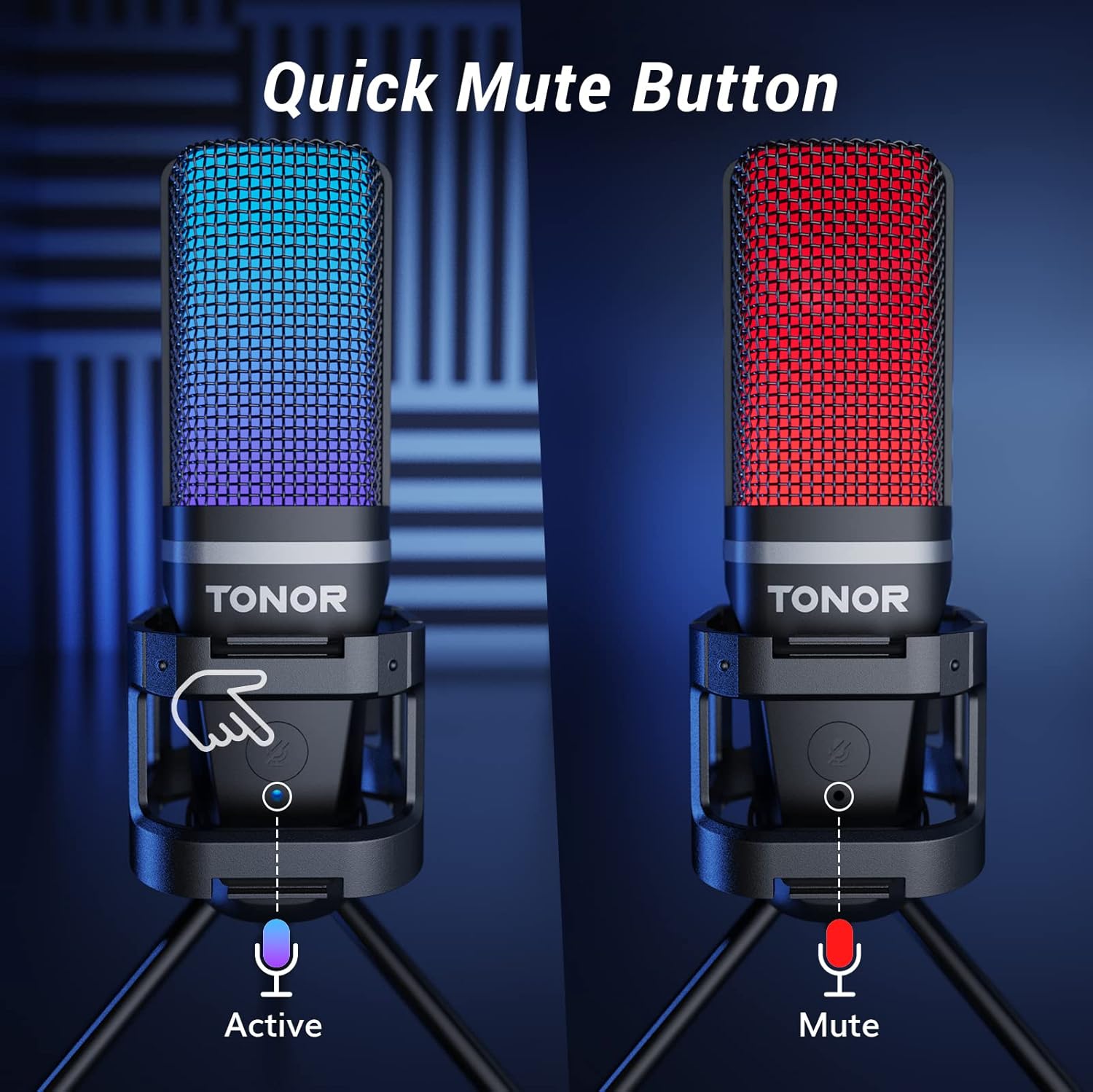
Image: A comparison showing the microphone in active mode with blue lighting and in muted mode with red lighting, highlighting the quick mute button.
4.4 Zero-Latency Monitoring and Gain Control
The 3.5mm headphone jack allows for real-time audio monitoring, ensuring you hear your voice exactly as it's being captured without any delay. The gain control knob lets you adjust the microphone's sensitivity.
- Plug your headphones into the 3.5mm jack on the microphone.
- Rotate the gain control knob to increase or decrease the microphone's input sensitivity. Adjust this to achieve optimal volume levels and prevent distortion.

Image: A detailed view of the microphone's base, illustrating the 3.5mm headphone jack for zero-latency monitoring and the gain control knob for audio adjustments.
5. Maintenance
To ensure the longevity and optimal performance of your TONOR TC777 Pro microphone, follow these maintenance guidelines:
- Cleaning: Use a soft, dry cloth to wipe down the microphone and stand. Avoid using harsh chemicals or abrasive materials.
- Storage: When not in use, store the microphone in a clean, dry place away from extreme temperatures and humidity.
- Handling: Handle the microphone with care. Avoid dropping it or subjecting it to strong impacts, as this can damage internal components.
- Cable Care: Do not bend or crimp the USB cable excessively. Store it neatly to prevent tangles and damage.
6. Troubleshooting
| Problem | Possible Cause | Solution |
|---|---|---|
| Microphone not detected. | Loose USB connection, incorrect system settings, faulty USB port. |
|
| No sound or low volume. | Gain knob too low, muted microphone, incorrect software settings. |
|
| Background noise is picked up. | Microphone too far from source, high gain, environmental noise. |
|
| RGB lights are off or stuck on red. | Microphone muted, RGB lights turned off. |
|
7. Specifications
| Feature | Detail |
|---|---|
| Model Name | USB microphone (TC777 Pro) |
| Polar Pattern | Unidirectional (Cardioid) |
| Connectivity Technology | USB |
| Connector Type | USB Type-A |
| Compatible Devices | PC, Laptop, PS4, PS5 (Not compatible with Xbox) |
| Audio Sensitivity | 45 dB |
| Impedance | 2.2 Kiloohms |
| Frequency Response | 20 Hz - 20 KHz |
| Signal-to-Noise Ratio | 95 dB |
| Noise Level | 15 dB |
| Item Weight | 346 Grams (12.2 ounces) |
| Product Dimensions (L x W x H) | 17.72 x 3.94 x 1.97 inches |
| Power Source | Corded Electric (USB powered) |
| Color | Black |
| Manufacturer | TONOR |

Image: The side of the product packaging displaying key specifications and compliance information.
8. Warranty and Support
TONOR products are designed for reliability and performance. Your TC777 Pro microphone comes with a 2-year warranty from the date of purchase, covering manufacturing defects.
For technical support, warranty claims, or any inquiries, please contact TONOR customer service:
- Email: support@tonormic.com
- Website: www.tonormic.com
- User Manual (PDF): Download PDF

Image: The back of the product packaging, displaying the official support email and website for customer assistance.
Related documentsTC777 Pro


Ask a question about this manual
Ask about setup, troubleshooting, compatibility, parts, safety, or missing instructions. Manuals+ will review the question and use this page’s manual context to help answer it.