Introduction
This manual provides essential information for the setup, operation, and maintenance of your Linksys E9450 AX5400 WiFi 6 Router. The Linksys E9450 is a high-performance Dual-Band router designed to provide extensive Wi-Fi coverage and handle numerous devices simultaneously, supporting speeds up to 5.4 gigabits per second. It is ideal for streaming 4K/8K video, gaming, and general internet use.
Key features include:
- Covers up to 2800 sq. ft. and supports over 30 devices.
- Utilizes WiFi 6 technology for increased capacity and efficiency.
- Dual-Band technology doubles bandwidth, reducing interference and maximizing throughput.
- Features Parental Controls and Guest Access for enhanced network security.
- Equipped with RJ-45 Ethernet ports and a USB port for versatile connectivity.
- Easy setup via browser-based installation using a smartphone, tablet, or computer.
- WPS button for simple device addition to the network.
Package Contents
Before proceeding with the setup, ensure all items are present in the package:
- Linksys E9450 AX5400 WiFi 6 Router
- Power supply
- Ethernet Cable (typically included, though not explicitly listed in "whats_in_the_box", it's standard for routers)
Product Overview
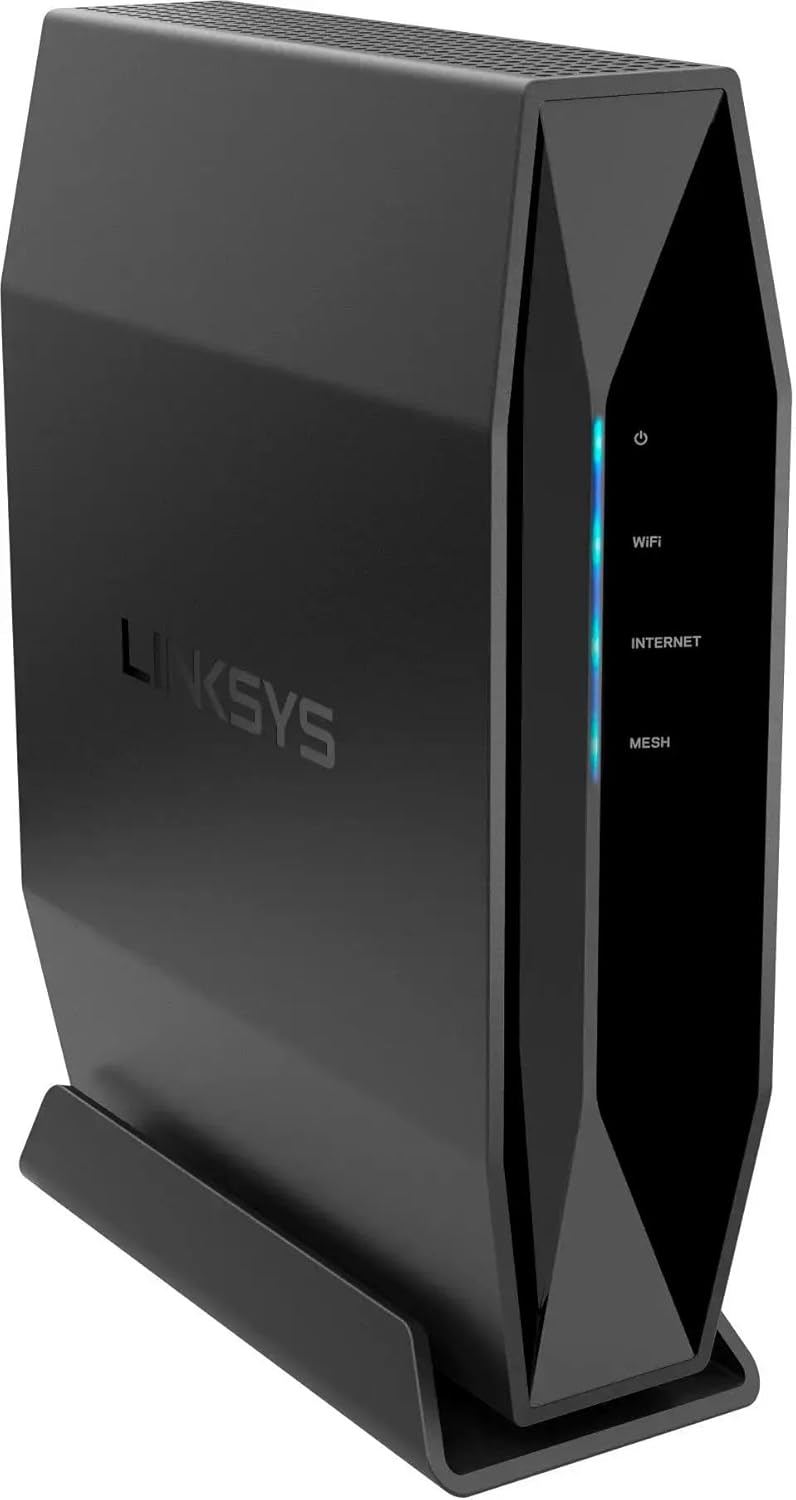


Setup Guide
1. Placement
Place the router in a central location within your home or office, away from large metal objects, concrete walls, and devices that emit radio frequency interference (e.g., microwaves, cordless phones). Optimal placement ensures maximum Wi-Fi coverage and signal strength.
2. Hardware Connection
- Connect to Modem: Connect one end of the provided Ethernet cable to the yellow "Internet" (WAN) port on the back of the Linksys E9450 router. Connect the other end to your internet modem's Ethernet port.
- Power On: Connect the power supply to the 12V power input port on the router and plug the other end into a power outlet. Flip the power switch to the ON position.
- Wait for Indicators: Allow a few minutes for the router to boot up. The LED indicators on the front panel should stabilize. The "Internet" LED should turn solid blue, indicating a successful connection to your modem and the internet.
3. Initial Configuration
- Connect to Router:
- Wireless: On your computer or mobile device, connect to the default Wi-Fi network name (SSID) broadcast by the router. This information is typically found on a label on the bottom of the router (refer to Figure 4).
- Wired: Alternatively, connect an Ethernet cable from one of the router's numbered LAN ports (1-4) to your computer's Ethernet port.
- Access Setup Page: Open a web browser (e.g., Chrome, Firefox, Edge) and type
http://linksyssmartwifi.comor192.168.1.1into the address bar and press Enter. - Follow On-Screen Instructions: The Linksys setup wizard will guide you through the initial configuration process, including setting up your new Wi-Fi network name (SSID), password, and administrator password for the router.
Operating Instructions
Connecting Devices
- Wi-Fi Connection: On your wireless devices (smartphones, tablets, laptops), search for available Wi-Fi networks and select the network name (SSID) you configured during setup. Enter your Wi-Fi password when prompted.
- WPS (Wi-Fi Protected Setup): For WPS-compatible devices, press the WPS button on the back of the router (refer to Figure 3) and then activate WPS on your device within two minutes. This will automatically connect the device without needing to enter the password.
- Wired Connection: For devices requiring a wired connection (e.g., desktop computers, gaming consoles), connect an Ethernet cable from the device to any of the numbered LAN ports (1-4) on the router.
Managing Your Network
Access the router's web interface (http://linksyssmartwifi.com or 192.168.1.1) using your administrator password to manage advanced settings:
- Parental Controls: Set internet access schedules, block specific websites, or restrict internet access for certain devices.
- Guest Access: Create a separate Wi-Fi network for guests, keeping your main network secure.
- Firmware Updates: Regularly check for and install firmware updates to ensure optimal performance and security.
- Network Settings: Configure advanced network settings such as port forwarding, DHCP server settings, and VPN passthrough.
Maintenance
- Regular Reboots: Periodically reboot your router (unplug from power for 10 seconds, then plug back in) to clear its memory and refresh network connections. This can resolve minor performance issues.
- Firmware Updates: Keep the router's firmware updated to the latest version. Firmware updates often include performance improvements, security patches, and new features. Check the Linksys support website for your model.
- Physical Cleaning: Keep the router clean and free of dust. Use a soft, dry cloth to wipe the exterior. Ensure ventilation openings are not blocked to prevent overheating.
- Secure Passwords: Regularly change your Wi-Fi password and router administrator password to strong, unique combinations.
Troubleshooting
| Problem | Possible Solution |
|---|---|
| No Internet Connection |
|
| Slow Wi-Fi Speed |
|
| Cannot Access Router Setup Page |
|
| Forgot Wi-Fi Password or Router Administrator Password |
|
Specifications
| Feature | Detail |
|---|---|
| Brand | Linksys |
| Model Name | Dual-Band AX5400 WiFi 6 Router |
| Item Model Number | E9450-RM2 |
| Wireless Communication Standard | 802.11ax (WiFi 6) |
| Frequency Band Class | Dual-Band (2.4 GHz and 5 GHz) |
| Maximum Speed | Up to 5.4 Gbps |
| Coverage Area | Up to 2800 sq. ft. |
| Device Capacity | Supports 30+ Devices |
| Connectivity Technology | Wi-Fi, Ethernet |
| Ports | RJ-45 (WAN/LAN), USB |
| Special Feature | WPS (Wi-Fi Protected Setup) |
| Item Weight | 2.97 pounds |
| Package Dimensions | 11.5 x 9.21 x 3.7 inches |
| Included Components | Power supply |
Warranty and Support
This Linksys E9450 router is a Certified Refurbished product, which typically includes a manufacturer's warranty. Please refer to the specific warranty information provided at the time of purchase or contact the seller for details regarding the 90-day warranty mentioned in the product description.
For technical support, additional resources, or the latest firmware updates, please visit the official Linksys support website. You can also find FAQs and community forums that may assist with common issues.
Linksys Support Website: www.linksys.com/support


