
Hikvision KIPDSMH1711HM
Contents
HIKVISION Face Recognition Terminal Kit DS-KAS541 User Manual
Model: KIPDSMH1711HM
Product Overview
The HIKVISION Face Recognition Terminal Kit DS-KAS541 (Model: KIPDSMH1711HM) is an all-inclusive access control solution designed for secure and convenient entry management. This comprehensive kit features advanced face recognition technology, alongside support for QR codes, access cards, and fingerprint authentication, providing multiple layers of security and flexibility.
It is compatible with the Hik-Connect App for remote management and monitoring, making it suitable for various residential and commercial applications. The kit includes essential components for a complete access control system, such as an electromagnetic lock, an exit button, and necessary mounting hardware.
Key Features
- Deep Learning Face Recognition: Utilizes advanced algorithms for accurate and rapid facial identification.
- 2 Mega Pixel Dual-Lens Camera: Ensures high-quality image capture for reliable recognition.
- 4.3 inch LCD Touch Screen: Provides an intuitive interface for operation and configuration.
- Access Control with Multiple Authentication Modes: Supports face, QR code, card, and fingerprint authentication.
- IP65 Rated: Offers protection against dust and water ingress, suitable for various environments.
- Wall Mounting: Designed for easy and secure installation on walls.
Product Contents
- Face Recognition Terminal (x1)
- Single-door Magnetic Lock (x1)
- Bracket for Magnetic Lock (x1)
- Touch-Free Button (x1)
- Access Card (x3)
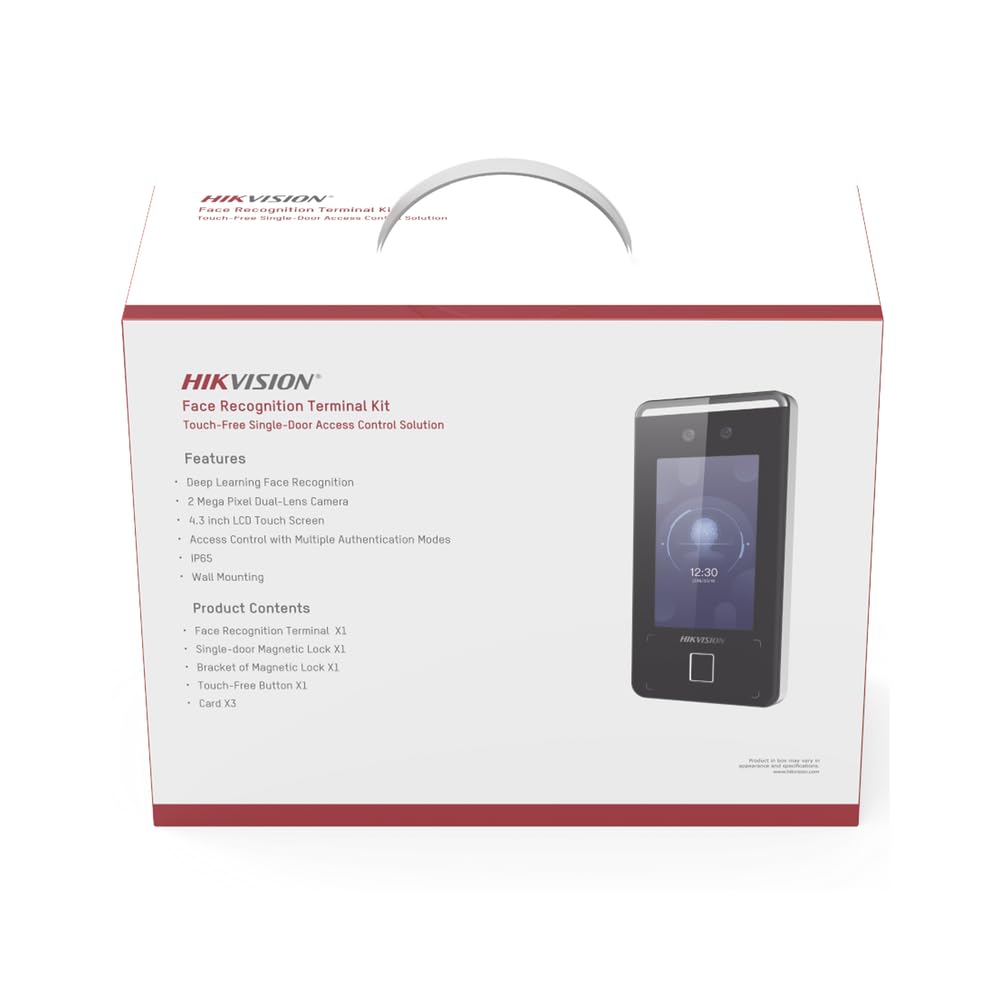
This image displays the retail packaging for the Hikvision Face Recognition Terminal Kit. The box highlights key features such as Deep Learning Face Recognition, a 2-megapixel dual-lens camera, a 4.3-inch LCD touch screen, multiple authentication modes, IP65 rating, and wall mounting capability. The package contents are also listed: one Face Recognition Terminal, one single-door magnetic lock, one bracket for the magnetic lock, one touch-free button, and three cards. A clear view of the face recognition terminal device is visible on the right side of the box.
Setup and Installation
Proper installation is crucial for the optimal performance and security of the access control system. It is recommended that installation be performed by qualified personnel.
1. Site Preparation
- Location Selection: Choose a suitable location for the Face Recognition Terminal, typically near the entry point. Ensure adequate lighting for face recognition and protection from direct sunlight or harsh weather if outdoors (considering IP65 rating).
- Door Preparation: Prepare the door frame and door for the magnetic lock installation. Ensure the surface is clean and flat.
2. Physical Installation
- Mounting the Terminal: Securely mount the Face Recognition Terminal to the wall using the provided mounting hardware. Ensure it is at an appropriate height for face recognition of various users.
- Installing the Magnetic Lock: Attach the magnetic lock to the door frame and the armature plate to the door, ensuring proper alignment for secure locking. Use the Z and L brackets as needed for specific door types.
- Installing the Exit Button: Mount the touch-free exit button on the inside of the door, at a convenient height for users to exit.
3. Wiring and Power Connection
- Power Supply: Connect the terminal and magnetic lock to a stable power supply according to the wiring diagram provided in the full product manual.
- Data and Control Wiring: Connect the terminal to the magnetic lock and exit button. If network connectivity is desired, connect an Ethernet cable to the terminal.
4. Initial Configuration
- Power On: Once all connections are secure, power on the device.
- Network Setup: Configure network settings (IP address, subnet mask, gateway) via the touch screen interface or a connected computer.
- Device Activation: Follow the on-screen prompts to activate the device and set up an administrator password.
Operating Instructions
This section outlines the basic operation of the HIKVISION Face Recognition Terminal for daily use and user management.
1. User Authentication
- Face Recognition: Stand approximately 0.5 to 1.5 meters (1.6 to 4.9 feet) in front of the terminal. Ensure your face is clearly visible within the camera's view. The terminal will automatically recognize and grant access if authorized.
- Card Access: Present an authorized access card to the card reader area on the terminal. The terminal will beep and grant access upon successful verification.
- QR Code Access: If enabled, present a valid QR code generated from the Hik-Connect app or management software to the terminal's camera.
- Fingerprint Access: Place an authorized finger on the fingerprint sensor. The terminal will verify and grant access.
2. User Management
Access the device's menu using the administrator password to manage users.
- Adding Users:
- Navigate to "User Management" and select "Add User".
- Enter user details such as name and ID.
- Enroll authentication methods:
- Face: Instruct the user to position their face in front of the camera for enrollment.
- Card: Scan the user's access card.
- Fingerprint: Have the user place their finger on the sensor multiple times for accurate enrollment.
- Assign access permissions and validity periods.
- Deleting Users: Select the user from the "User Management" list and choose "Delete".
- Modifying User Information: Select the user and update their details or authentication methods.
3. Hik-Connect App Integration
The terminal can be integrated with the Hik-Connect mobile application for remote access control management, real-time monitoring, and event notifications.
- Download the Hik-Connect app from your device's app store.
- Register an account and add your device by scanning the QR code on the terminal or entering its serial number.
- Follow the in-app instructions to configure remote access, receive alerts, and manage users from your smartphone.
Maintenance
Regular maintenance ensures the longevity and optimal performance of your HIKVISION Face Recognition Terminal Kit.
- Cleaning:
- Gently wipe the touch screen and camera lens with a soft, lint-free cloth.
- For stubborn marks, slightly dampen the cloth with a mild, non-abrasive cleaning solution. Avoid excessive moisture.
- Do not use harsh chemicals, solvents, or abrasive materials, as these can damage the surface.
- Software Updates: Periodically check for firmware updates from the official Hikvision website or through the Hik-Connect app. Updates often include performance improvements, new features, and security enhancements.
- Data Backup: Regularly back up user data and configuration settings to prevent data loss in case of unforeseen issues.
- Physical Inspection: Inspect all cables and connections for any signs of wear or damage. Ensure the magnetic lock and exit button are functioning correctly.
Troubleshooting
This section addresses common issues you might encounter with the HIKVISION Face Recognition Terminal Kit.
| Problem | Possible Cause | Solution |
|---|---|---|
| Face Recognition Failure | Poor lighting, face not centered, user not enrolled, camera lens dirty. | Ensure adequate lighting. Position face correctly. Verify user enrollment. Clean camera lens. |
| Card/Fingerprint Not Recognized | Card/fingerprint not enrolled, damaged card, dirty sensor. | Verify enrollment. Try another card/finger. Clean fingerprint sensor. |
| Magnetic Lock Not Engaging/Disengaging | Wiring issue, insufficient power, misalignment, faulty lock. | Check all wiring connections. Ensure stable power supply. Realign lock and armature plate. Contact support if lock is faulty. |
| Terminal Not Powering On | No power supply, loose power cable. | Verify power source. Check power cable connection. |
| Network Connection Issues | Incorrect IP settings, faulty Ethernet cable, router/switch issue. | Verify IP settings. Check Ethernet cable. Restart network devices. |
If the problem persists after attempting these solutions, please refer to the full product manual or contact Hikvision technical support.
Specifications
| Feature | Detail |
|---|---|
| Brand | Hikvision |
| Model Number | KIPDSMH1711HM (Kit: DS-KAS541) |
| Manufacturer | HIKVISION |
| Authentication Methods | Face Recognition, QR Code, Card, Fingerprint |
| Face Capacity | Up to 3,000 faces |
| Camera | 2 Mega Pixel Dual-Lens Camera |
| Display | 4.3 inch LCD Touch Screen |
| Ingress Protection (IP) Rating | IP65 |
| Mounting Type | Wall Mounting |
| Dimensions (L x W x H) | 25.4 x 5.1 x 6.9 cm (10 x 2 x 2.7 inches) |
| Weight | 10.89 kg (24 lbs) |
| Compatibility | Hik-Connect App |
Warranty and Support
For detailed warranty information, please refer to the warranty card included with your product or visit the official Hikvision website. Warranty terms and conditions may vary by region and retailer.
For technical support, product inquiries, or service requests, please contact Hikvision customer support or your authorized dealer. You can find contact information on the official Hikvision website or through the Hik-Connect application.
Hikvision Official Website: www.hikvision.com
Documents and downloads
Ask a question about this manual
Ask about setup, troubleshooting, compatibility, parts, safety, or missing instructions. Manuals+ will review the question and use this page’s manual context to help answer it.