Product Overview
The RGBZONE SP630E is an all-in-one Bluetooth LED controller designed for versatile LED lighting applications. It supports a wide range of LED strip types, including PWM single color, CCT, RGB, RGBW, RGBCCT, as well as SPI TTL IC chip LED strips like WS2811 and WS2812B. This controller offers smart control via a dedicated mobile application, music synchronization capabilities through a built-in microphone or phone, and a convenient timing function for scheduled lighting effects. It operates on DC5V, 12V, or 24V power supplies, with an output of 6A per channel and a total maximum output of 12A.
Package Contents
- 1 x RGBZONE SP630E LED Controller
- 1 x User Manual
- 1 x Screwdriver
Specifications
| Feature | Detail |
|---|
| Input Voltage | DC5V/12V/24V |
| Output Current | 6A per channel, total 12A |
| DC Power Jack | 5.5mm x 2.1mm |
| Working Temperature | -10°C to 60°C |
| Control Method | Bluetooth App (BanlanX) |
| Connectivity | Bluetooth |
| Material | Plastic |
| Dimensions | 56mm x 56mm x 20mm (approximate) |
| Water Resistance Level | Not Water Resistant |
1. Setup Instructions
1.1 Power Supply Connection
Connect the appropriate DC5V, 12V, or 24V power supply to the controller's DC power jack. Ensure the input voltage of the power supply matches the voltage requirements of your LED strip.

Image showing the RGBZONE SP630E LED Controller with its dimensions and input/output specifications.
1.2 LED Strip Connection
Connect your LED strip to the corresponding output terminals on the controller. The controller supports various LED types. Refer to the table below for correct wiring based on your specific LED strip type.

Diagram illustrating how to connect the power supply, LED strip, and controller, along with the mobile app interface and an optional remote.
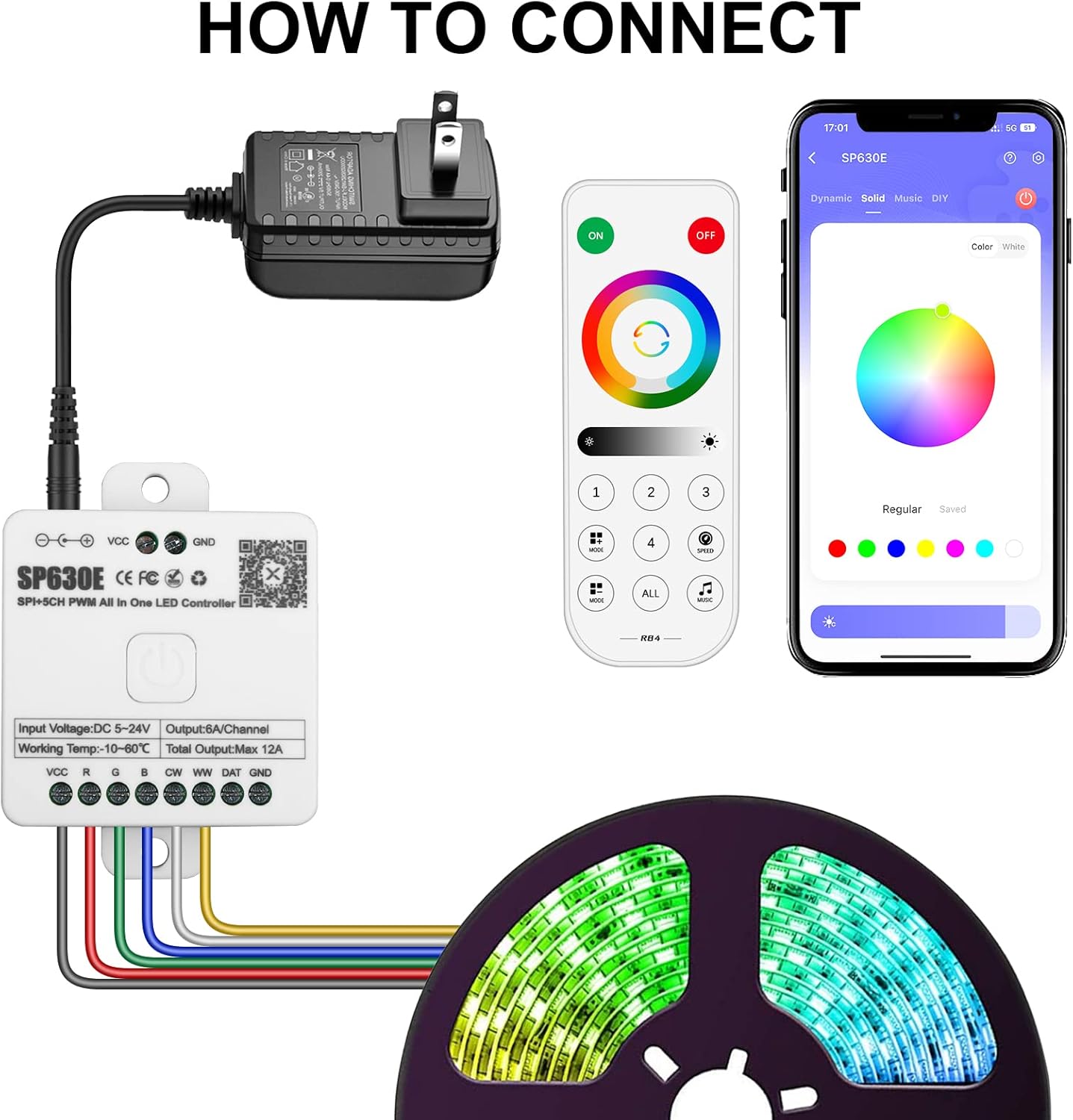
Table detailing LED strip types and their corresponding output port connections on the SP630E controller.
1.3 App Download and Installation
Search for "BanlanX" in your device's App Store (iOS) or Google Play Store (Android), or scan the QR code below to download and install the application.

QR code for downloading the BanlanX mobile application. You can also visit download.ledhue.com/page/scenex/
1.4 Bluetooth Pairing
Once the app is installed, open it and ensure Bluetooth is enabled on your mobile device. The app should automatically detect the SP630E controller. Select the controller from the device list to establish a connection.
2. Operating the Controller
2.1 App Control Overview
The BanlanX app provides comprehensive control over your LED lighting. It features dynamic modes, static color selection, music synchronization, custom effects, and various settings.

Image highlighting key features of the SP630E Bluetooth LED Controller, including Bluetooth connection, colorful atmosphere, dimming, color mixing, app control, zone management, music linkage, and timing function.
2.2 Dynamic and Static Modes
Explore various pre-set dynamic lighting effects or select a static color from the color wheel within the app. Adjust brightness and speed as desired.

Image demonstrating 1%-100% brightness adjustment and compatibility of the controller with 12 types of LED light strips.
2.3 Music Synchronization
The controller features three music collection methods: a built-in high-sensitivity microphone, your mobile phone's microphone, or player streaming. The LED strip will synchronize and beat with the rhythm of the music.

Image showing the music synchronization feature of the BanlanX app, with people enjoying music and LED lights reacting.
2.4 Timing Function
Set up to five different timers to automatically turn your LED lights on or off at specified times. The controller retains your previous light settings after a power-down, thanks to its memory function.

Screenshot of the BanlanX app showing the timer setup interface.
2.5 Color Correction
The app includes a color correction feature, eliminating the need for manual color adjustments. This helps ensure accurate color representation for your LED strips.
Screenshot of the BanlanX app showing the color correction interface.
2.6 Modifying Light Type
Within the app settings, you can modify the light type to match your connected LED strip (e.g., 1CH PWM Single Color, 4CH PWM RGBW, 3CH PWM RGB). This ensures optimal performance and color accuracy.
Video demonstrating the various lighting effects and how to change the light strip type settings within the BanlanX app for different LED configurations (SPRGB, 1CH PWM Single Color, 4CH PWM RGBW, 3CH PWM RGB).
3. Maintenance
Keep the controller clean and free from dust. Use a dry, soft cloth for cleaning. Avoid exposing the device to moisture or extreme temperatures to ensure longevity and proper function.
